The Branch Financial settings screen includes several sections where you can customise different aspects of your Financial configuration.
To access your Branch Financial settings (with the appropriate permissions):
Click on your profile icon – the teal circle with your initials located at the top right of the page.
From the dropdown menu, scroll down and select Branch Settings | Financial settings
This will open the Branch Financial settings screen, which has three separate sub-tabs
This article will focus on Financial Defaults.
If you are looking for Terms and Conditions, check out the article here.
If you are looking for Footer Text, check out the article here.
The project-level Financial override options help article is here.
This page is broken down into Invoice, Progress Payments, Bills, Timesheets, Purchase Orders, Quotes, Rounding, and ready-to-convert badges.
- Default Accounts
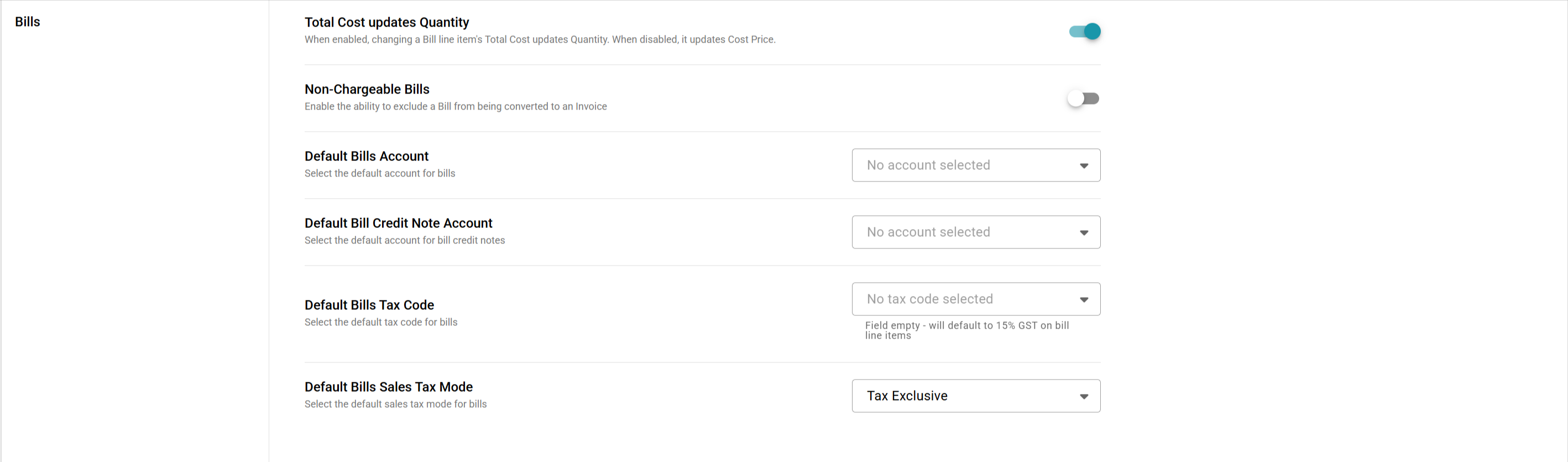
When creating a financial document in Rave, if the account code is not entered, Rave will use the default branch code for that document.
- Default Tax Codes
When creating a financial document in Rave, you can set the default tax type for each document type. The choice is No GST, 15% GST, Tax on Imports and Zero Rated
- Default Tax Mode
When creating a financial document in Rave, you can set the default Document Tax type. The choice is Exclusive of Tax, Inclusive of Tax or No Tax.
Invoices
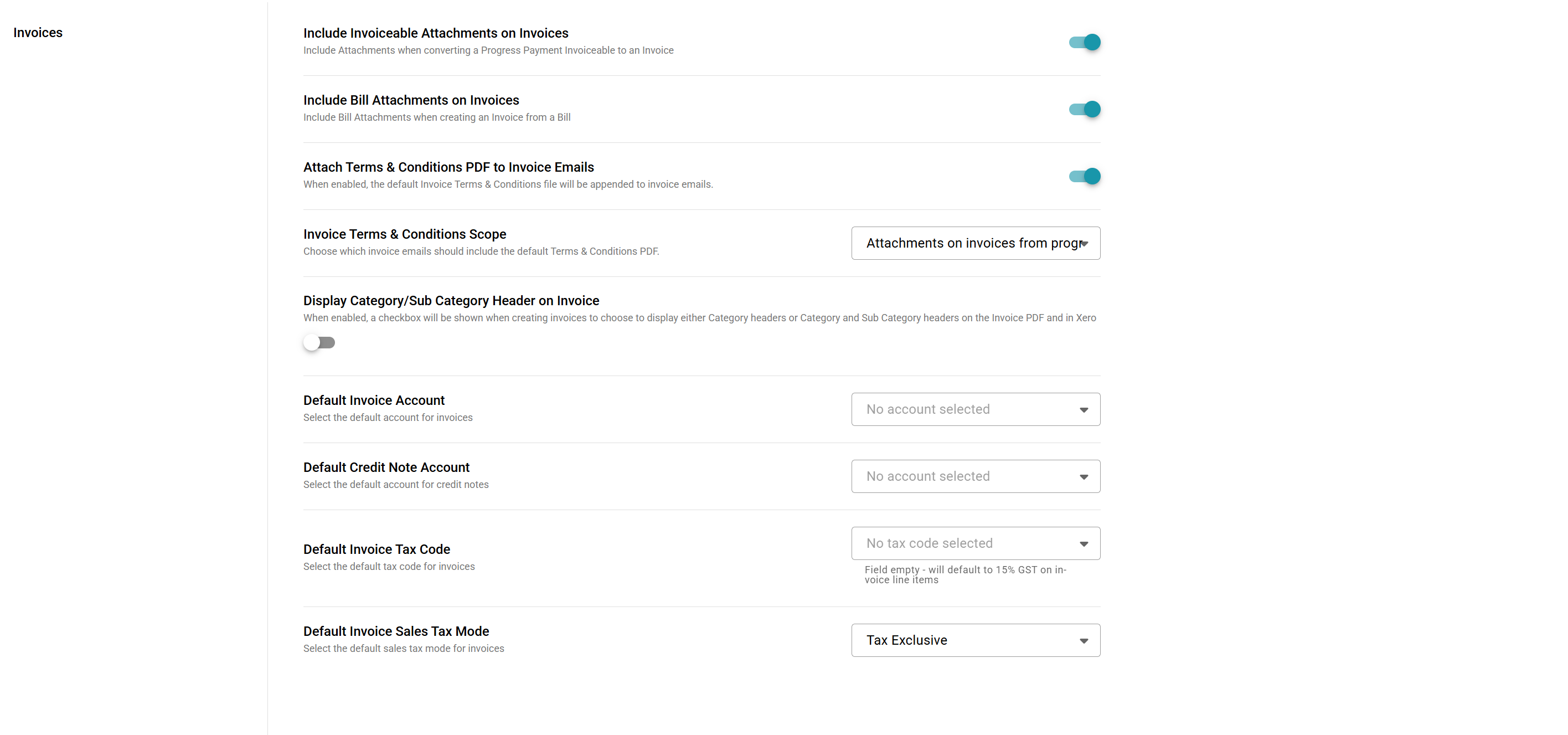
Include Invoiceable Attachments on Invoices
When enabled, Rave will include attachments when converting a Progress Payment Invoiceable to an Invoice, ensuring the documents flow through to Xero if connected.
Include Bill Attachments on Invoices
When enabled, Rave will include attachments when converting a Supplier Bill/Credit Note into a client Invoice/Credit Note, ensuring the documents flow through to Xero if connected.
Attach Terms & Conditions PDF to Invoice Emails
When enabled, the default Invoice Terms & Conditions file will be appended to invoice emails.
Invoice Terms & Conditions Scope
Choose which invoice emails should include the default Terms & Conditions PDF.
Display Category/Sub Category Header on Invoice
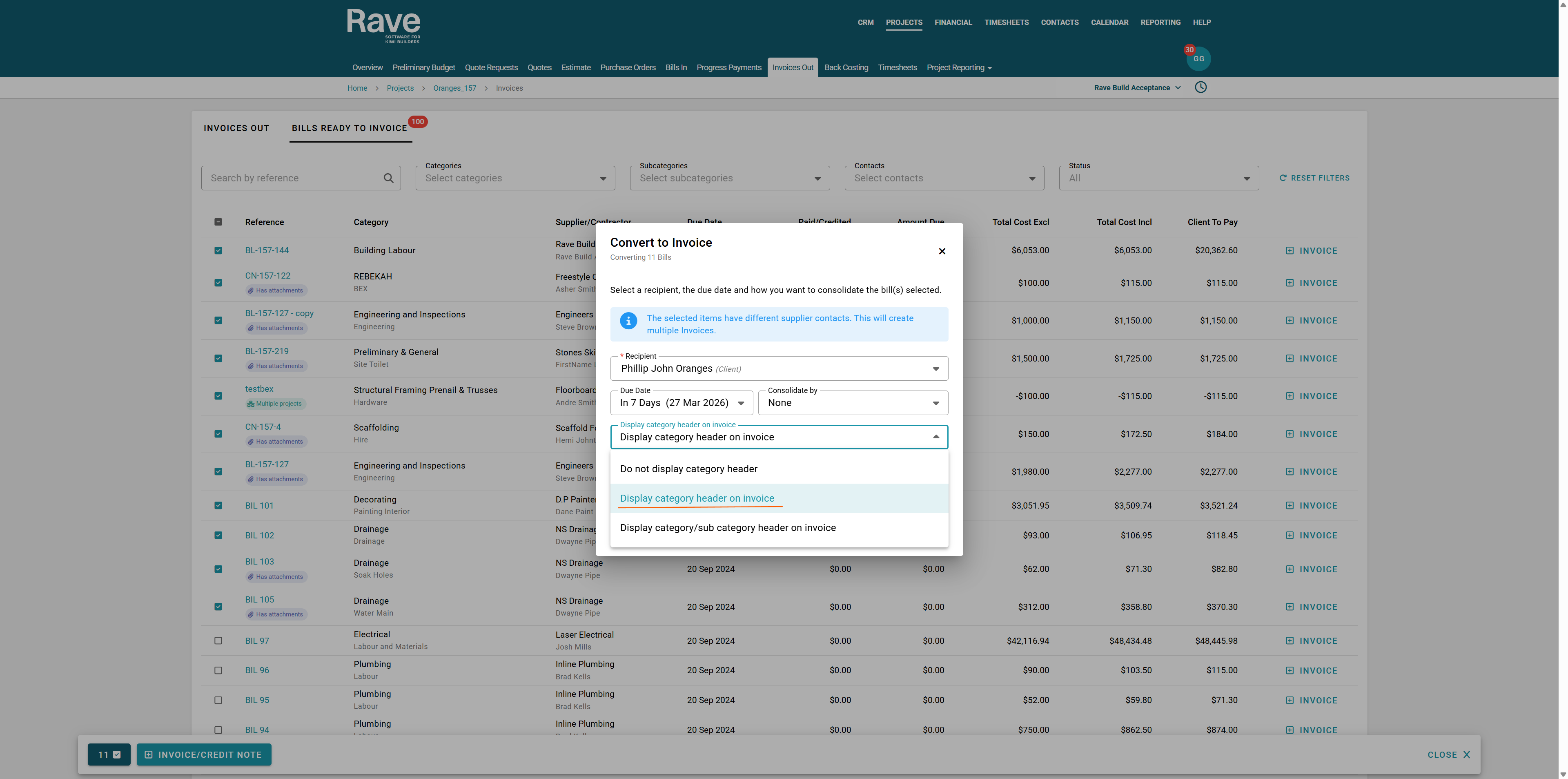
When enabled, a checkbox will appear when creating invoices to choose whether to display Category headers or Category and Sub Category headers on the Invoice PDF and in Xero.
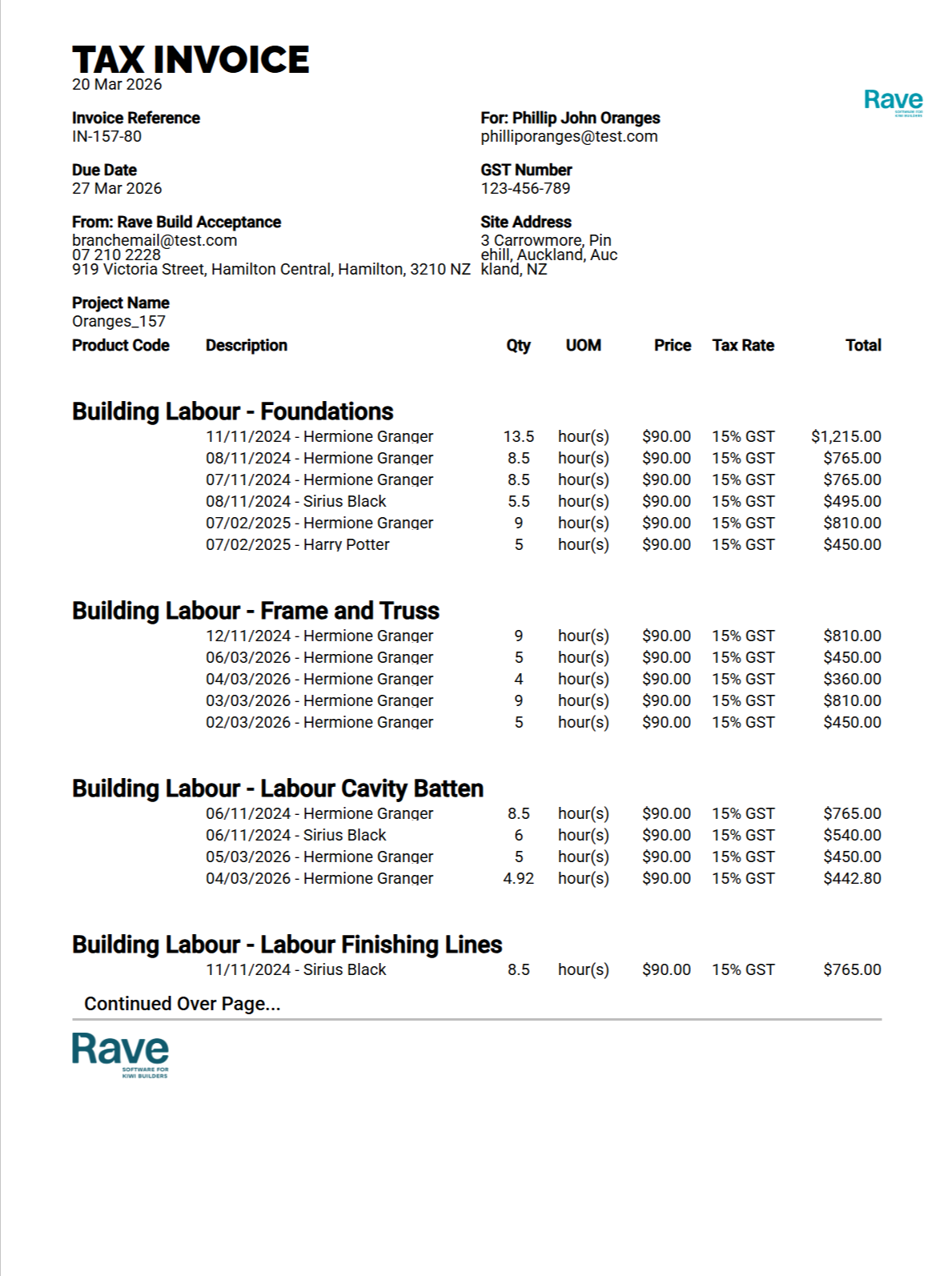
An example of choosing both Category and Subcategory Headers is shown below.
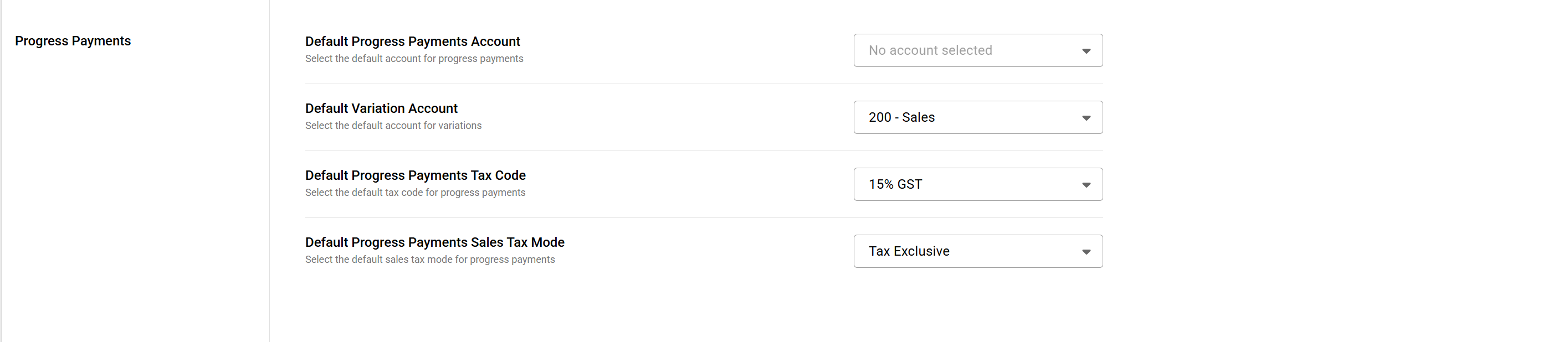
Progress Payments
Bills
Total Cost updates Quantity
When enabled, changing a Bill line item's Total Cost updates Quantity. When disabled, it updates Cost Price.
Timesheets

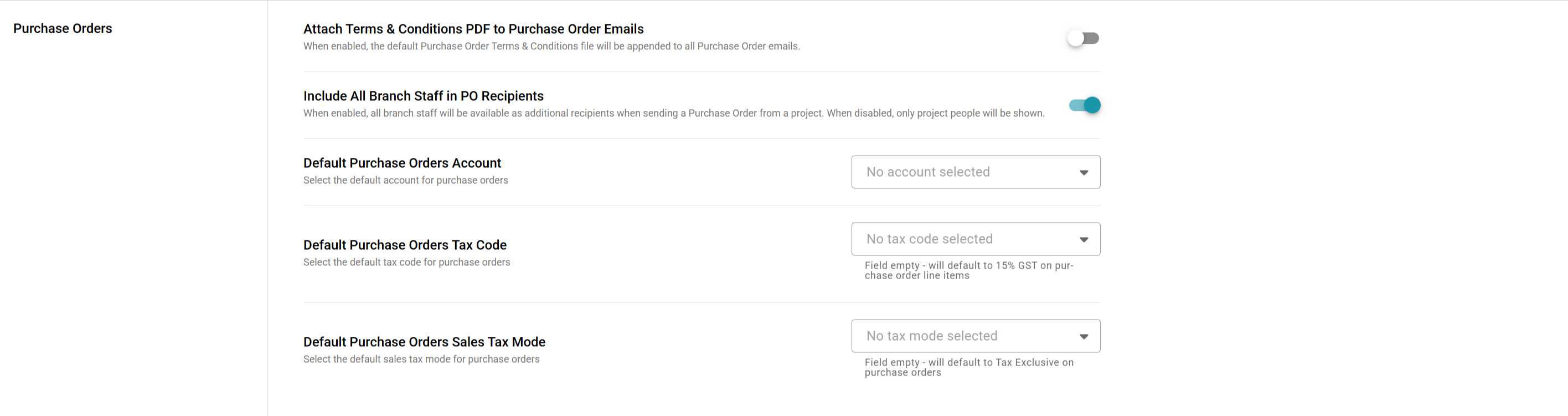
Purchase Orders
- Attach Terms & Conditions PDF to Purchase Order Emails
When enabled, the default Purchase Order Terms & Conditions file will be appended to all Purchase Order emails.
- Include All Branch Staff in PO Recipients
When enabled, all branch staff will be available as additional recipients when sending a Purchase Order from a project. When disabled, only project people will be shown.
 Quotes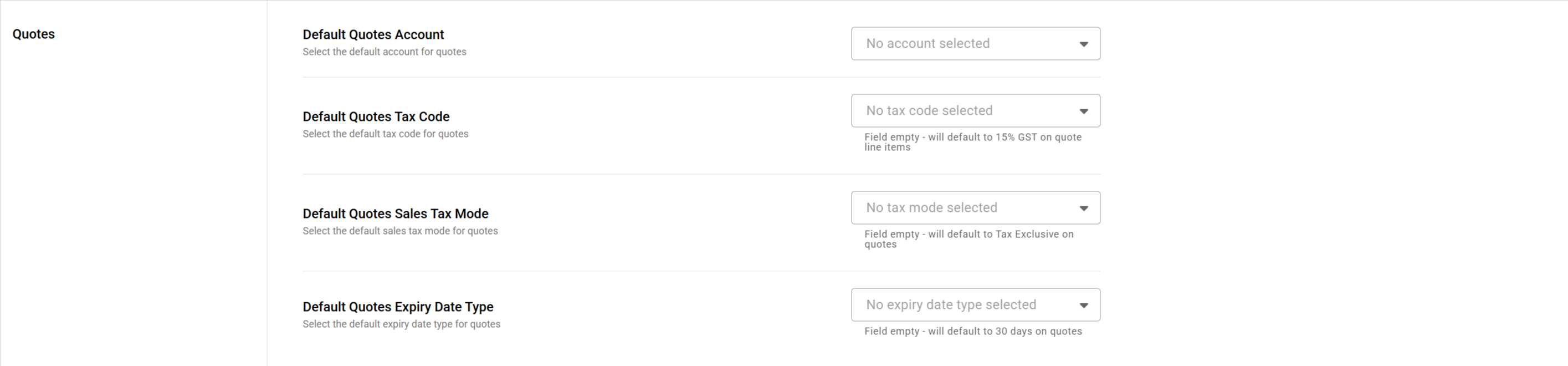
 Default Rounding Account
Select a default account code for code rounding to
Default Line Item Rounding Method
Select a default number of decimal places that your rounding will display (2, 4 or 6)
Default Tax Rounding Method
Select a default method: either Per Line - Two decimal places or Per document total
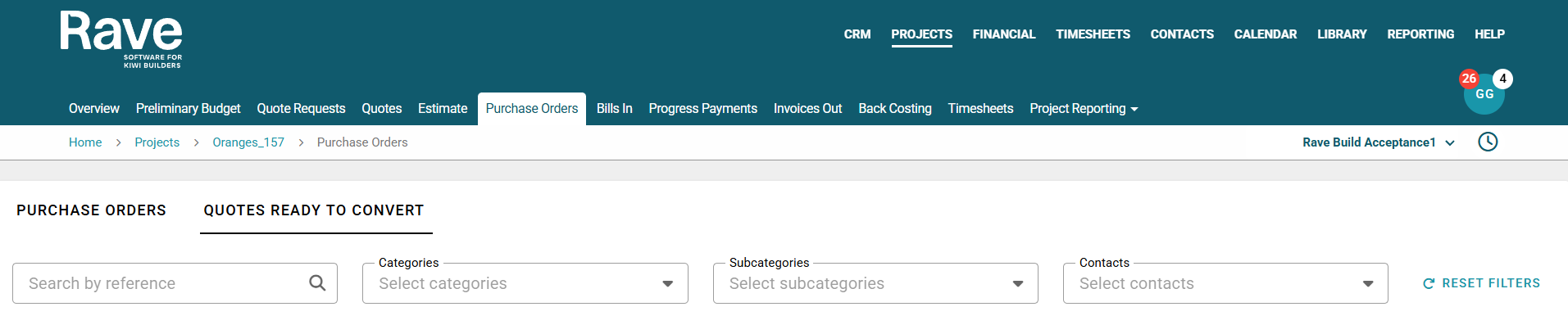
Ready to Convert Badges
When enabled, this will display a red badge showing the number of documents awaiting conversion.
This is on the Purchase Order, Bills and Invoices Page

This is an example of the setting Enabled

Was this article helpful?
That’s Great!
Thank you for your feedback
Sorry! We couldn't be helpful
Thank you for your feedback
Feedback sent
We appreciate your effort and will try to fix the article