The Branch Financial settings screen includes several sections where you can customise different aspects of your Financial configuration.
To access your Branch Financial settings (with the appropriate permissions):
Click on your profile icon – the teal circle with your initials located at the top right of the page.
From the dropdown menu, scroll down and select Branch Settings | Financial settings
This will open the Branch Financial settings screen, which has three separate Sub Tabs
This article will focus on Terms and Conditions.
If you are looking for Financial Defaults check out the article here.
If you are looking for Footer Text check out the article here.
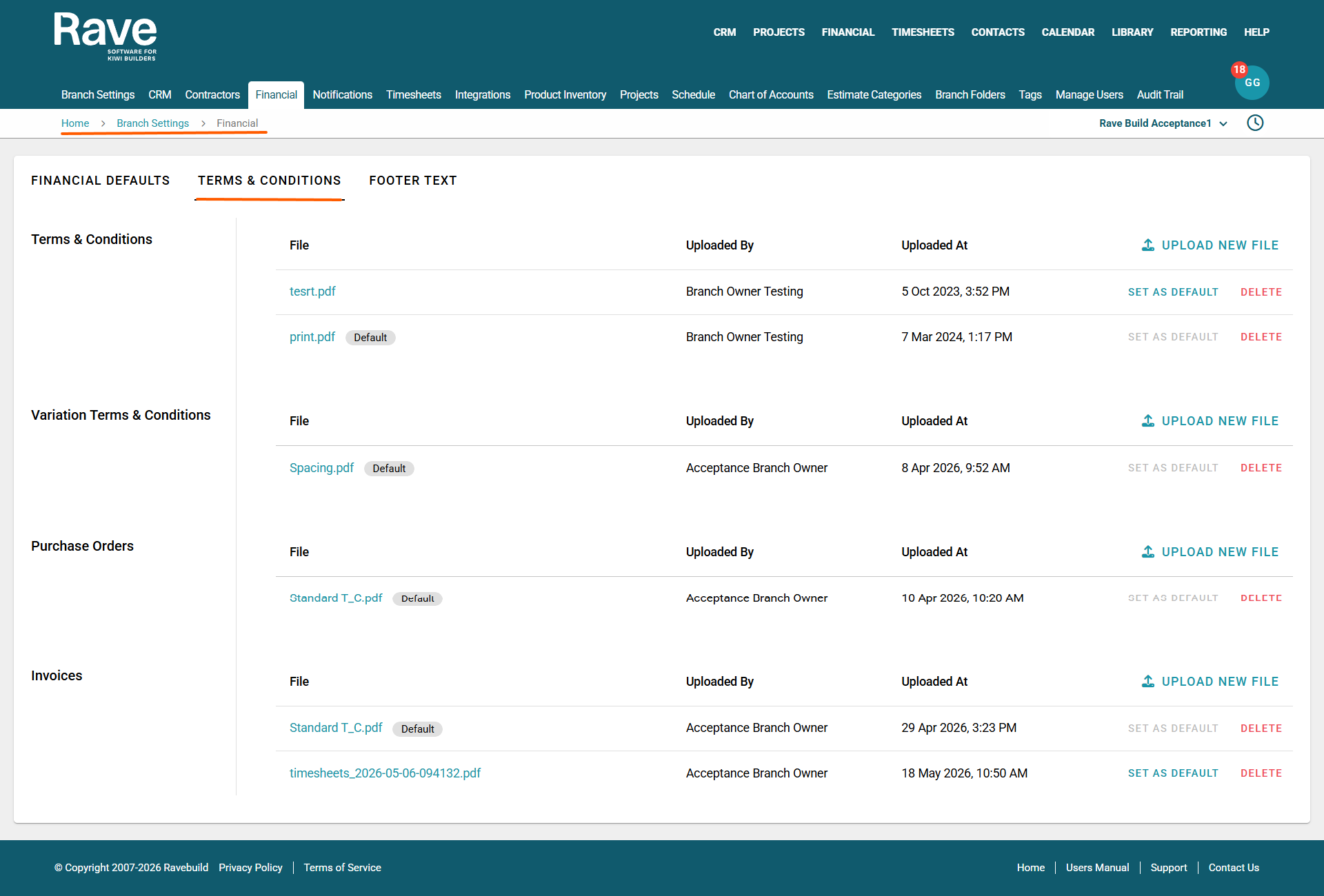
The Terms and Conditions sub-tab is where you can upload your Estimate, Variation, Purchase Order and Invoice Terms and Conditions.
You can upload multiple versions of your Terms and Conditions, set one as your default, and delete any that are no longer needed. The default option will be automatically used until you either slide the setting off under Financial Defaults, change it to be a new one or Delete them all.
Uploading a New Document
To upload a new Terms and Conditions document:
Select Upload New File in either:
Choose your document and click Open
Once uploaded, you can:
Set it as the default, or delete it
Managing Your Documents
Each uploaded file will display:
File name
Uploaded by
Date and time of upload
You can delete a document as long as it is not currently set as the default.
Note: Deleting a document here will not remove it from any previously generated or downloaded documents. It will simply prevent it from being selected for future use.
Was this article helpful?
That’s Great!
Thank you for your feedback
Sorry! We couldn't be helpful
Thank you for your feedback
Feedback sent
We appreciate your effort and will try to fix the article