Rave's AI Document Scanner automatically reads supplier bills and credit notes, identifying key information such as supplier names, quantities, pricing, and quote or Purchase Order numbers.
However, not all suppliers format their documents the same way. Some use unusual layouts, different trading names, or alternative quantity measurements, which can cause the AI scanner to interpret information incorrectly.
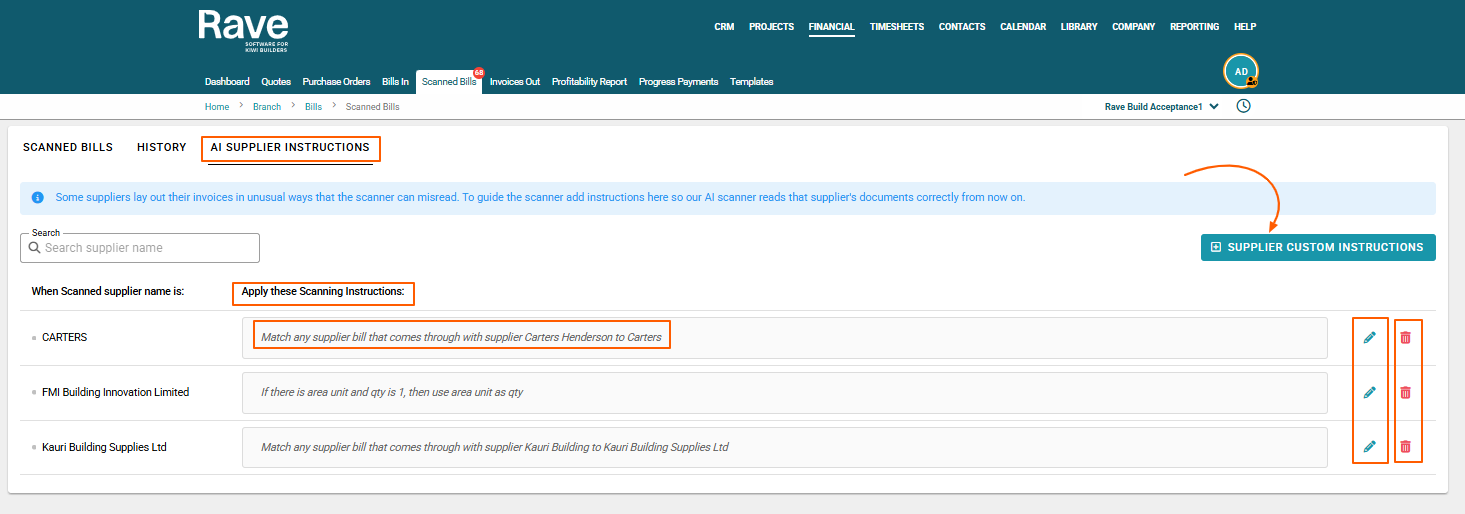
The AI Supplier Instructions tab lets you create custom rules that tell Rave's AI scanner how to read documents from specific suppliers, improving scanning accuracy for future documents.
What Can AI Supplier Instructions Do?
You can create instructions to help the scanner:
- Identify suppliers correctly – Match bills to the correct supplier in Rave, even when the bill name differs.
- Read quantities accurately – Tell the scanner which quantity or measurement field to use when a supplier's bill has an unusual layout.
- Interpret supplier-specific information – Provide additional guidance for documents that are regularly scanned incorrectly.
- Apply consistent scanning rules – Guide the AI to interpret future documents using your saved instructions.
Examples of AI Supplier Instructions
- Example 1: Matching Different Supplier Names
Scenario: You receive bills from Carters Henderson, but Rave saves the supplier as Carters.
Instruction to add:
"Match any supplier bill that comes through with the supplier name Carters Henderson to Carters."
How it works:
When a bill is received showing Carters Henderson, the AI scanner will be instructed to select Carters as the supplier instead of treating Carters Henderson as a separate supplier.
- Example 2: Correcting Bill Quantities
Scenario: A supplier bill lists a quantity of 1, but also includes an Area Unit field showing 45 m². You want Rave to use the area measurement as the quantity rather than 1.
Instruction to add: "If there is an Area Unit value and the Qty is 1, use the Area Unit value as the quantity."
How it works:
For example, the supplier bill shows:
- Qty: 1
- Area Unit: 45 m²
- Unit Price: $25 per m²
The scanner will be instructed to use 45 as the quantity rather than 1, ensuring the scanned line item reflects the area being charged.
- Example 3: Matching a Supplier's Trading Name
Scenario: Your bill displays Kauri Building, but the supplier is recorded in Rave as Kauri Building Supplies Ltd.
Instruction to add:
"Match any supplier bill that comes through with supplier Kauri Building to Kauri Building Supplies Ltd."
How it works:
When you receive a bill from Kauri Building, the scanner matches it to the existing Kauri Building Supplies Ltd supplier record in Rave.
This helps prevent supplier mismatches caused by shortened business names or trading names.
- Example 4: Reading the Correct Bill Number
Scenario: A supplier's bill includes both an Order Number and a bill Number. The AI scanner sometimes selects the Order Number by mistake.
Instruction to add:
"For bills from ABC Building Supplies, always use the number labelled Tax bill Number as the bill number, not the Order Number."
How it works:
If the document displays:
- Order Number: PO-12345
- Tax bill Number: INV-98765
The scanner will be instructed to use INV-98765 as the bill number.
- Example 5: Using the Correct Quantity Field
Scenario: A timber supplier displays both the number of packs ordered and the total number of individual lengths supplied.
Instruction to add:
"For bills from ABC Timber, use the Total Pieces field as the quantity, not the Packs field."
How it works:
If a bill shows:
- Packs: 2
- Total Pieces: 24
The scanner will be instructed to use 24 as the quantity rather than 2.
Examples 4 and 5 are suggested instructions. As with any custom AI rule, check the scanned results to confirm the instruction works as intended.
Example 6: Finding the correct field to match to
Scenario: The supplier Bill has a Work Completed Field rather than an order number.
Instructions to add: Use the Work Completed field to search for the project reference when matching these bills.
How it works: The scanner will look for the Work Completed field and match the information in it to find the Rave project ID to match the bill to.
Managing Your AI Supplier Instructions
Adding a New Rule
- Open the AI Supplier Instructions tab.
- Add a new instruction describing how you want the scanner to interpret a supplier's documents.
- Be as specific as possible, including the supplier's name and the information the AI should look for.
- Save your instruction.
The saved instruction will guide the AI scanner when processing relevant supplier documents going forward.
Editing an Existing Rule
If a supplier changes its bill layout, or you need to refine an instruction:
- Find the existing instruction in the AI Supplier Instructions tab.
- Select Edit Rule.
- Update the instruction as required.
- Save your changes.
The updated instruction will guide future scans.
Deleting a Rule
If an instruction is no longer required:
- Find the instruction you want to remove.
- Select Delete Rule.
- Confirm the deletion if prompted.
The deleted instruction will no longer guide future document scans.
Tips for Writing Effective AI Instructions
For the best results:
- Be specific: Include the exact supplier name and field names shown on their documents.
- Keep instructions clear: Tell the scanner exactly what to look for and what action to take.
- Use conditions where needed: For example, "If Qty is 1 and an Area Unit value exists, use the Area Unit value."
Check your results: Review your next scanned invoice from that supplier to confirm the instruction is being interpreted correctly.
Update rules when needed: If a supplier changes its invoice format, you can edit or delete your existing instructions.
Important: AI Supplier Instructions guide the scanner and improve accuracy. They do not guarantee that every document will be interpreted correctly. We recommend reviewing scanned documents before approving or exporting them to your accounting software.
Was this article helpful?
That’s Great!
Thank you for your feedback
Sorry! We couldn't be helpful
Thank you for your feedback
Feedback sent
We appreciate your effort and will try to fix the article