The following is the recorded version of the help article outlined below.
You can automatically forward your supplier invoices and bills from Gmail to RAVE using your dedicated RAVE AI Bill Scanning email address.
Step 1: Add Your Forwarding Address
Open Gmail and click Settings (gear icon), then click See all settings.
Select the Forwarding and POP/IMAP tab.
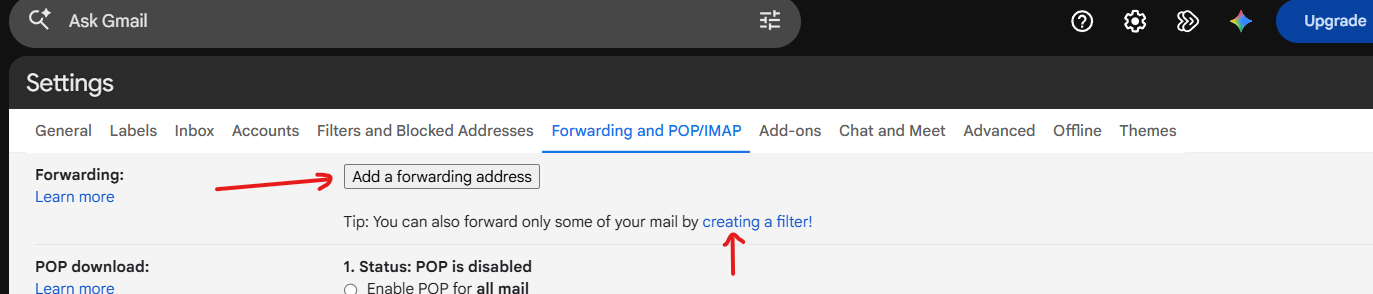
Click Add a forwarding address.
Enter the unique RAVE AI Bill Scanning email address provided by our Support Team.
Follow the prompts to confirm the forwarding address.
Step 2: Confirm Your Forwarding Address
A verification email will be sent to your dedicated RAVE AI Bill Scanning email address.
Open the email and click on Verify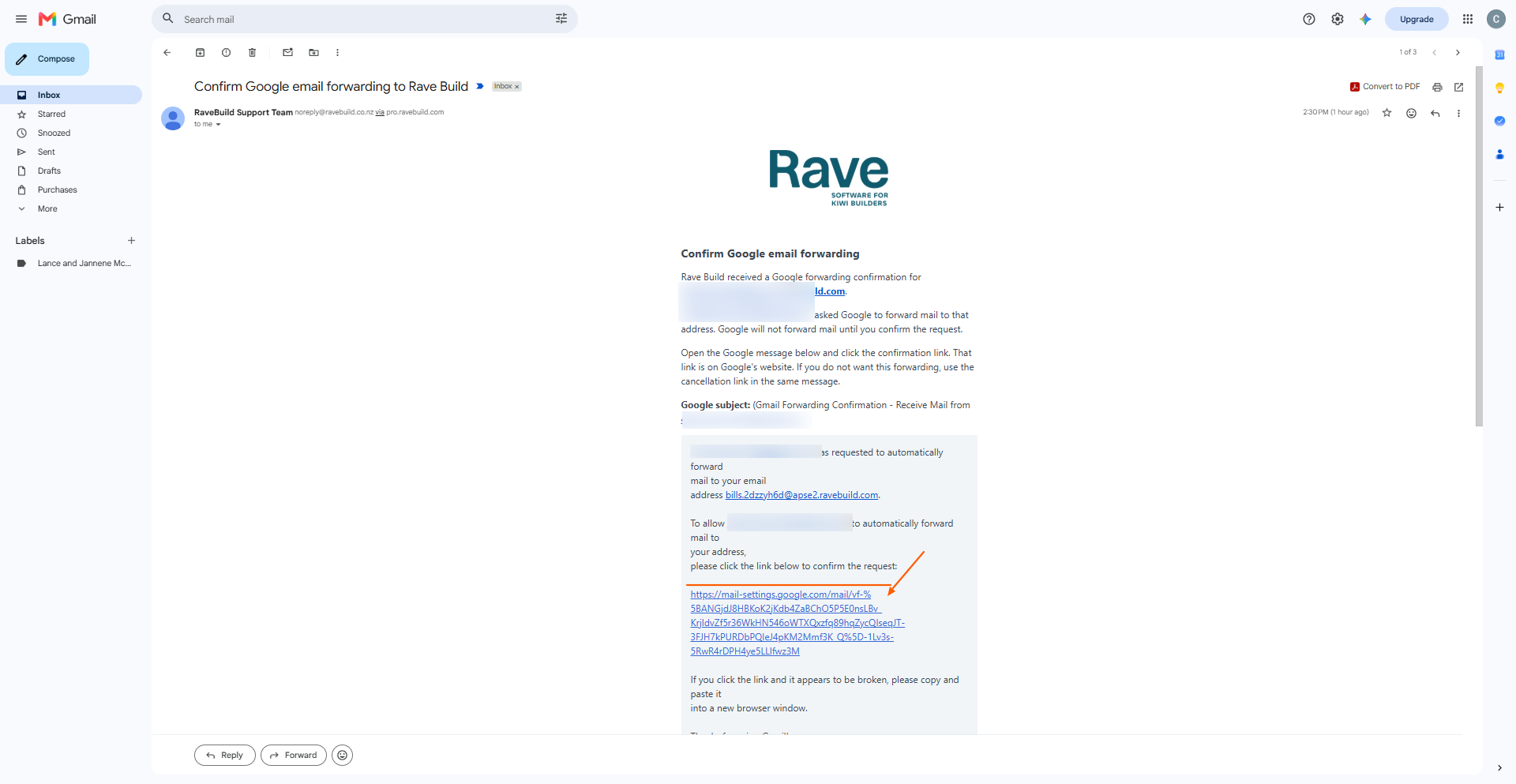
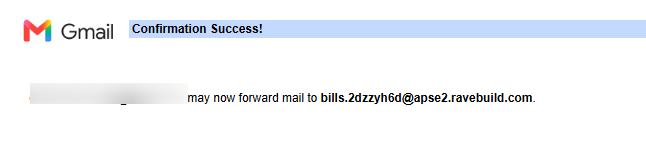
You should then receive a Success reply
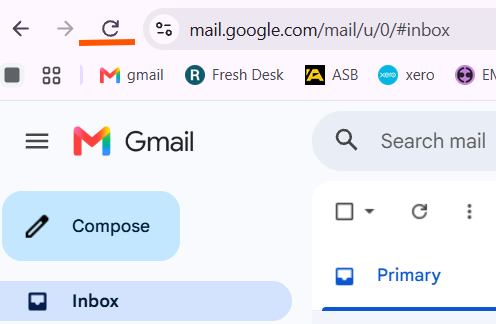
 Go back to your Inbox, and for the next step to work, refresh your browser.
Step 3: Create Your Forwarding Rules
Once your forwarding address has been verified, you can set up Gmail filters to automatically forward relevant emails to RAVE.
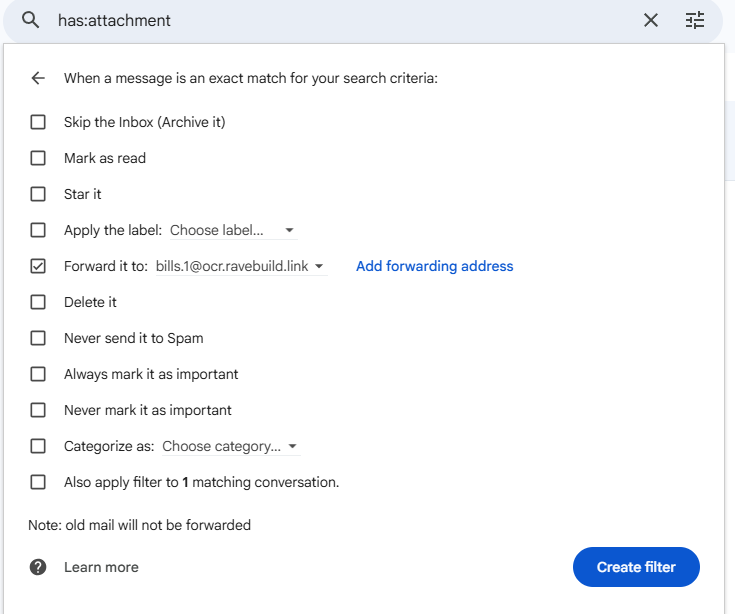
In Gmail, click the list icon at the end of the Show search options in the search bar.
Choose the criteria for the emails you want to forward, such as specific suppliers, subject lines or emails containing attachments.
Click Create filter.
Tick Forward it to and select your dedicated RAVE AI Bill Scanning email address.
Click Create filter to save your rule.
Step 4: Customise Your Rules
You can choose which emails are automatically forwarded to RAVE, including:
All emails from specific suppliers.
Emails containing attachments.
Emails with particular words in the subject line, such as "Invoice" or "Bill".
Emails that match a combination of these conditions.
You can create multiple forwarding filters to suit your business requirements. We recommend ensuring your rules don't overlap to avoid forwarding the same bill more than once.
Important: You do not need to forward your entire Gmail inbox. Filters let you control exactly which emails are sent to RAVE for bill scanning.
RAVE AI Bill Scanning can process invoices provided as links within an email, rather than as attachments, provided that:
- The link does not require a login or sign-in to access the invoice.
- The website hosting the invoice does not block automated access (bots).
For example, if a supplier emails you a link to an invoice, RAVE AI may be able to retrieve and scan the document, provided both conditions above are met. MYOB will block forwarding links as they dont let BOTS access their invoice links.
Was this article helpful?
That’s Great!
Thank you for your feedback
Sorry! We couldn't be helpful
Thank you for your feedback
Feedback sent
We appreciate your effort and will try to fix the article