Clicking the Timesheets tab will open My Timesheets. The Summary and Details tabs are located next to it.
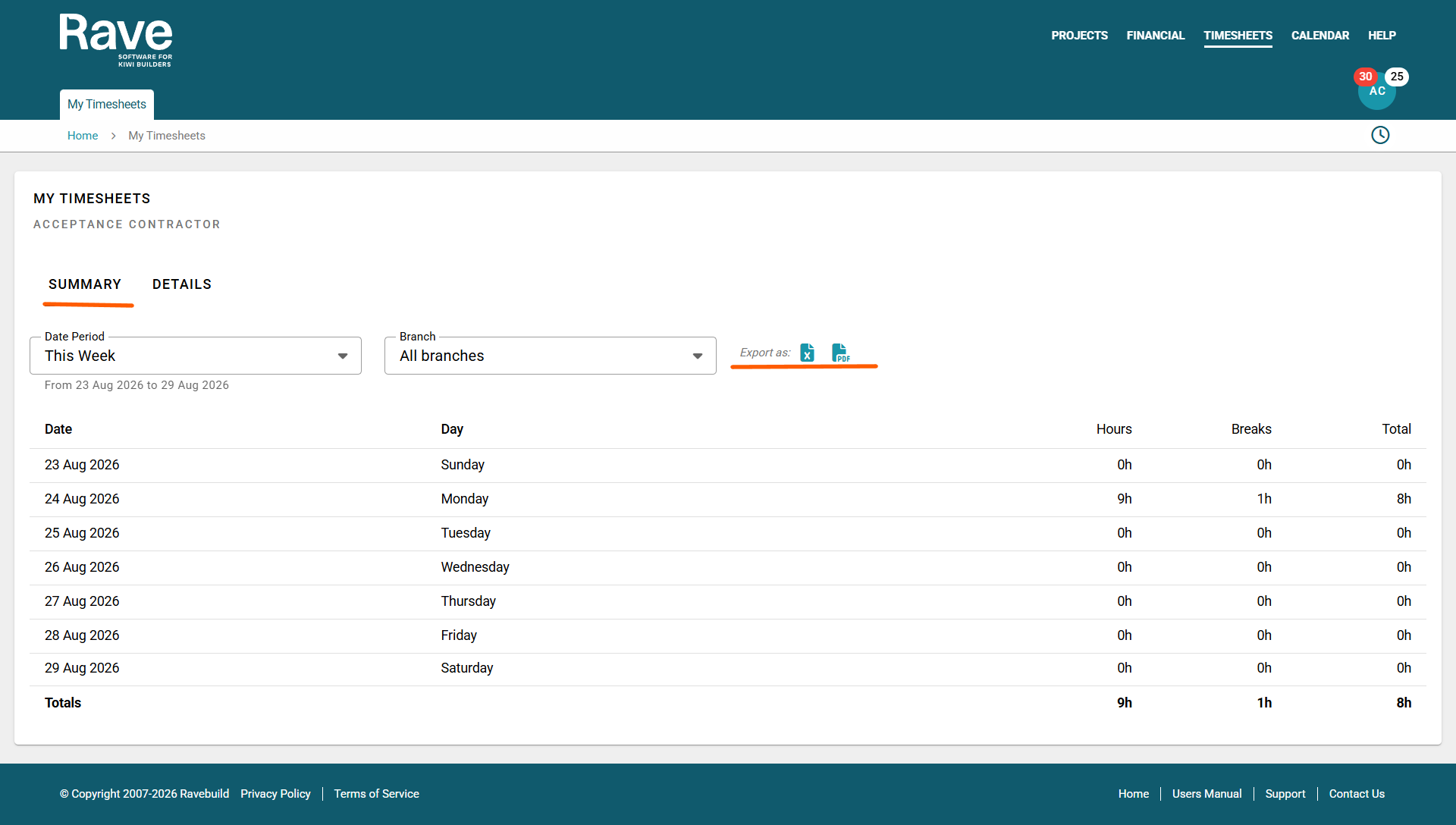
The Summary tab provides a high-level overview of all timesheets you have entered.
From here, you can:
- Switch between branches if you have timesheets entered in more than one branch.
- View your total hours, breaks, and total timesheet hours.
- Use the Date Period selector to change the date range you are viewing.
- Export the summary to Excel or PDF.
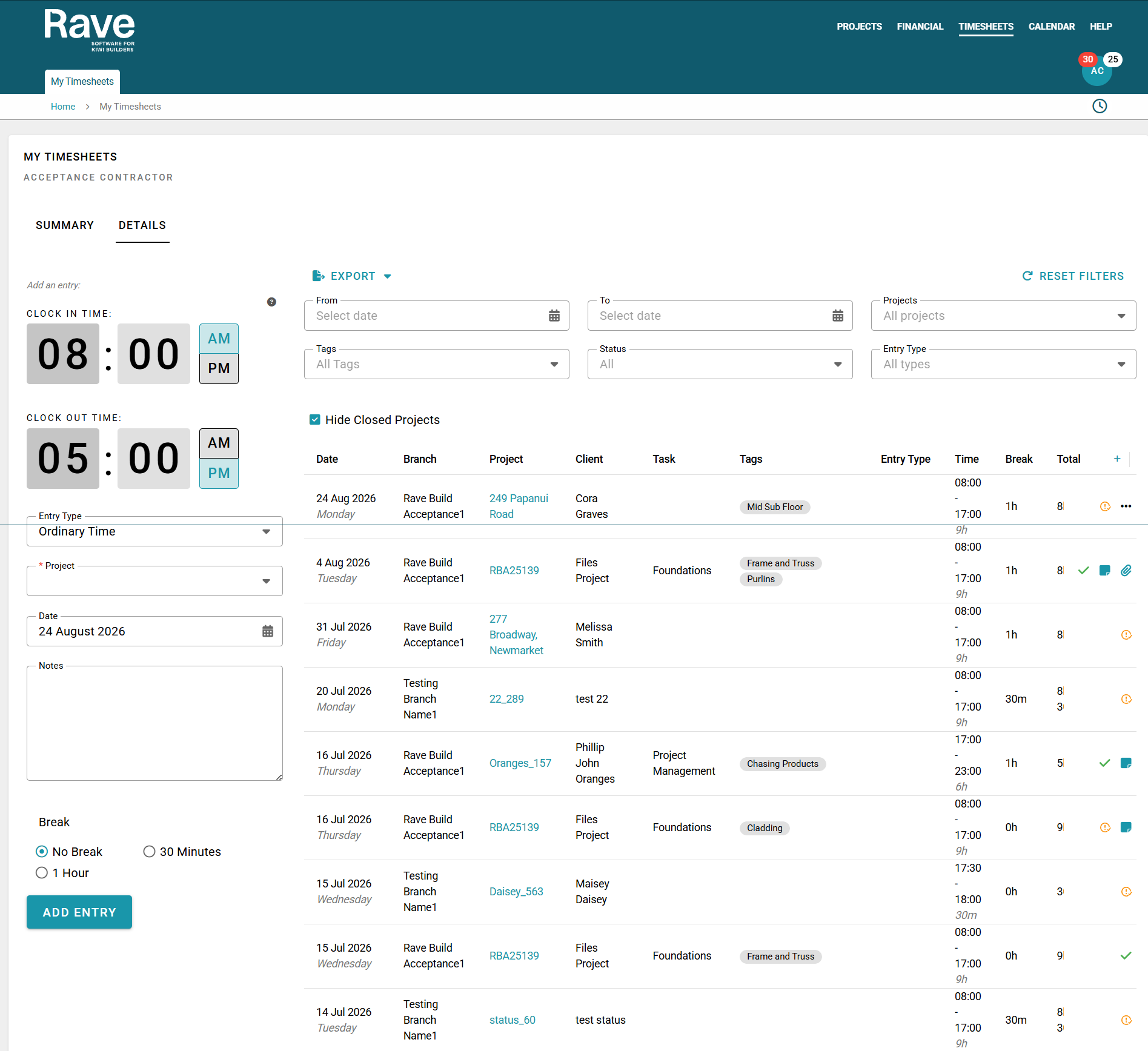
The Details sub-tab provides you with a detailed breakdown of your timesheet entries.
From this screen, you can:
Add a new timesheet entry for yourself using the Add an Entry option on the left.
Export data to a CSV or PDF.
Reset filters.
Filter by date, with enhanced date selection.
Filter by project.
Filter by Timesheet Tags or Timesheet Tasks*.
Filter by Payroll Entry Type*, such as annual leave or sick leave.
Edit or delete a timesheet entry.
Click the Notes icon to view timesheet notes.
Click the + | - icons in the notes column header to show or hide all notes.
Click the project name or number to go back to that project.
Each entry includes the date, project (as a clickable link), client, Timesheet Task*/Tag details, Payroll Entry Type*, start and finish times, total time logged, any breaks, and the total hours logged less breaks.
Each entry also has a three-dot action icon, which allows you to edit or delete the entry.
For the date period you are viewing, a totals line at the bottom of the page displays the total for each column.
Was this article helpful?
That’s Great!
Thank you for your feedback
Sorry! We couldn't be helpful
Thank you for your feedback
Feedback sent
We appreciate your effort and will try to fix the article