The following is the recorded version of the help article outlined below.
To access your project's schedule from your home page, click on the project that you want to view. there are several ways of doing this.
Firstly, from your home page, you can click on the project reference on your Schedule Tasks table, which will take you to the Project Overview page
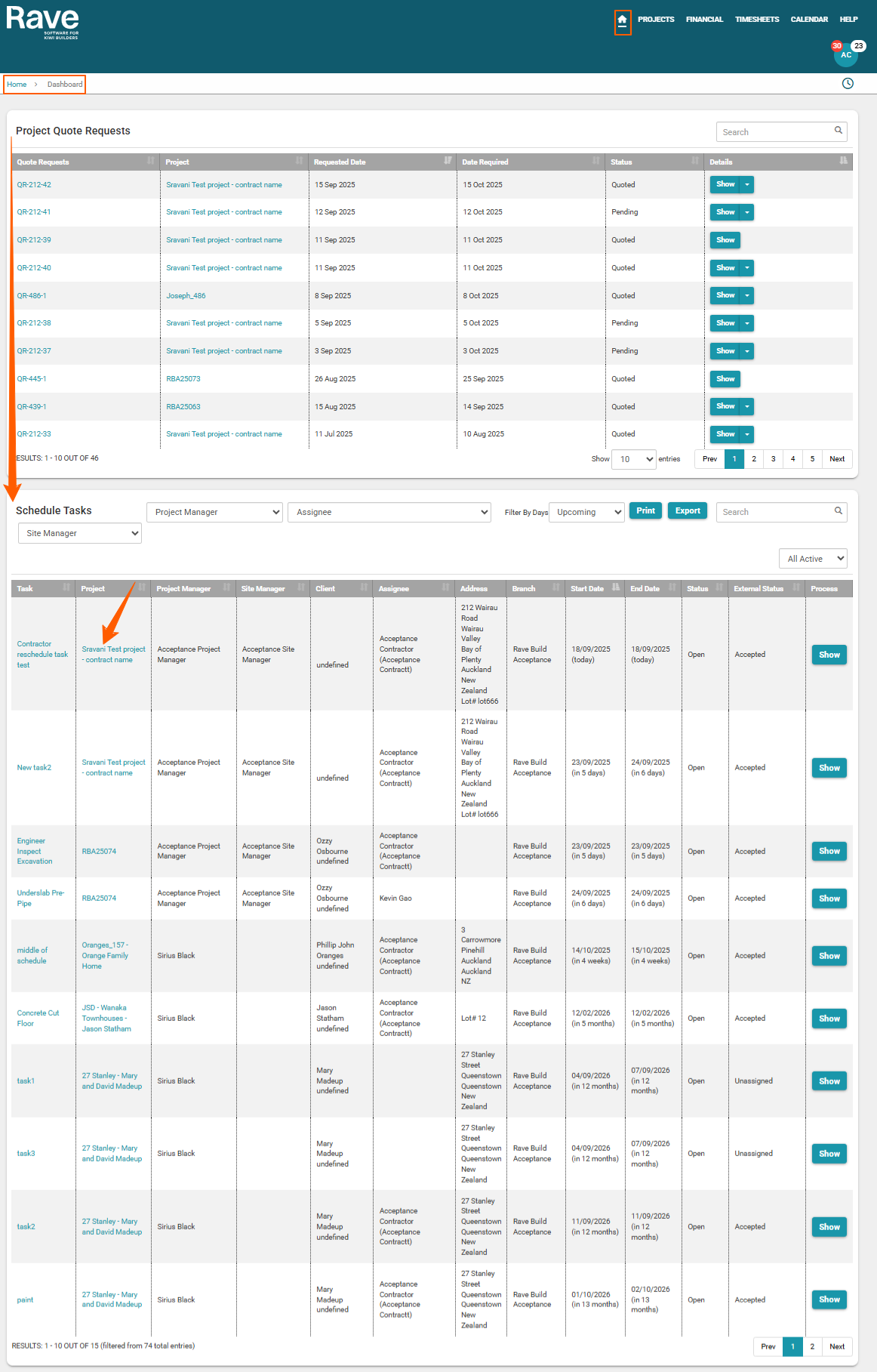
or by clicking on the Project clickable link this will direct you to the Project Overview for that build - Click on the Link to see Project Overview. From here you can access your schedule. You can access the schedule by clicking on the schedule pie graph or by clicking on the Schedule tab.
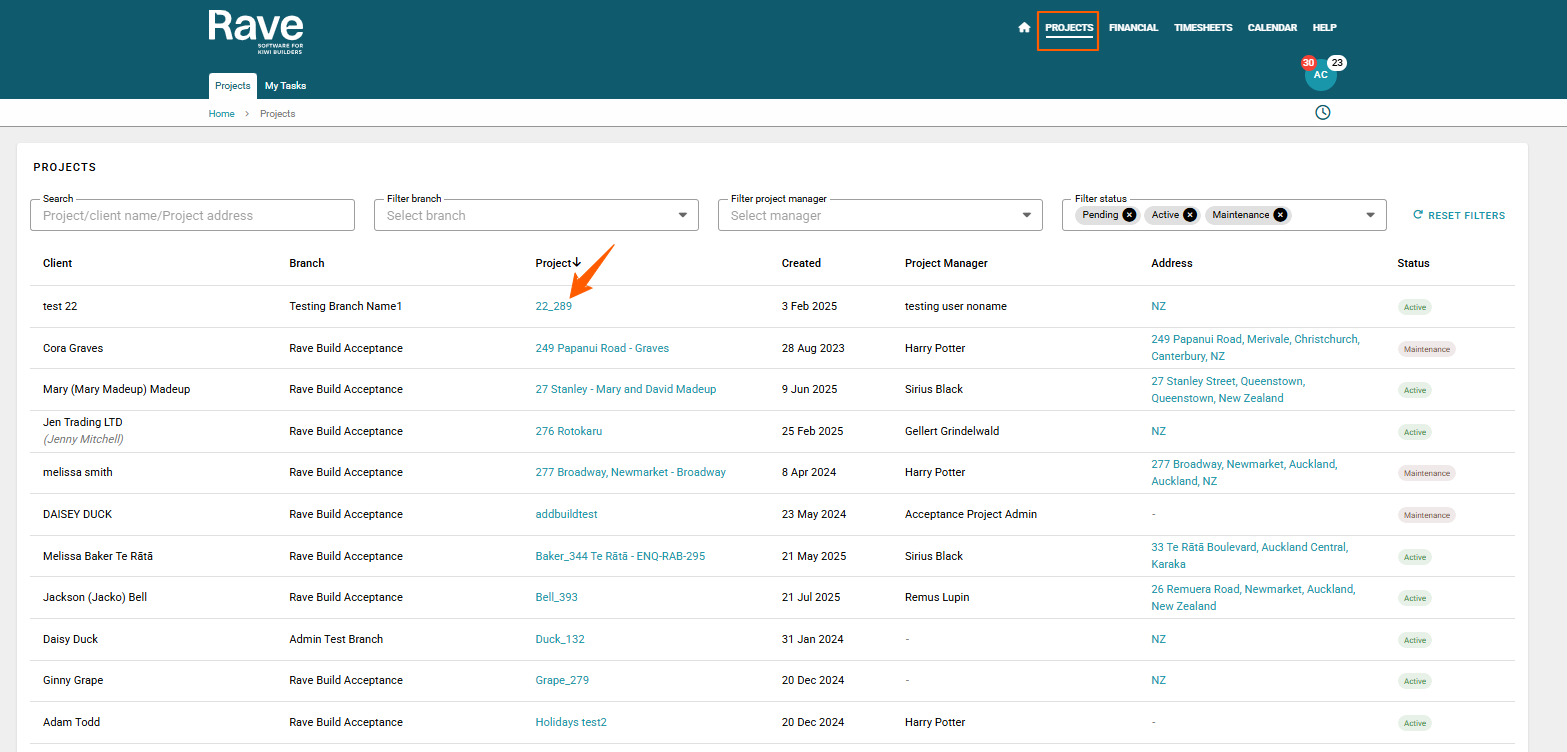
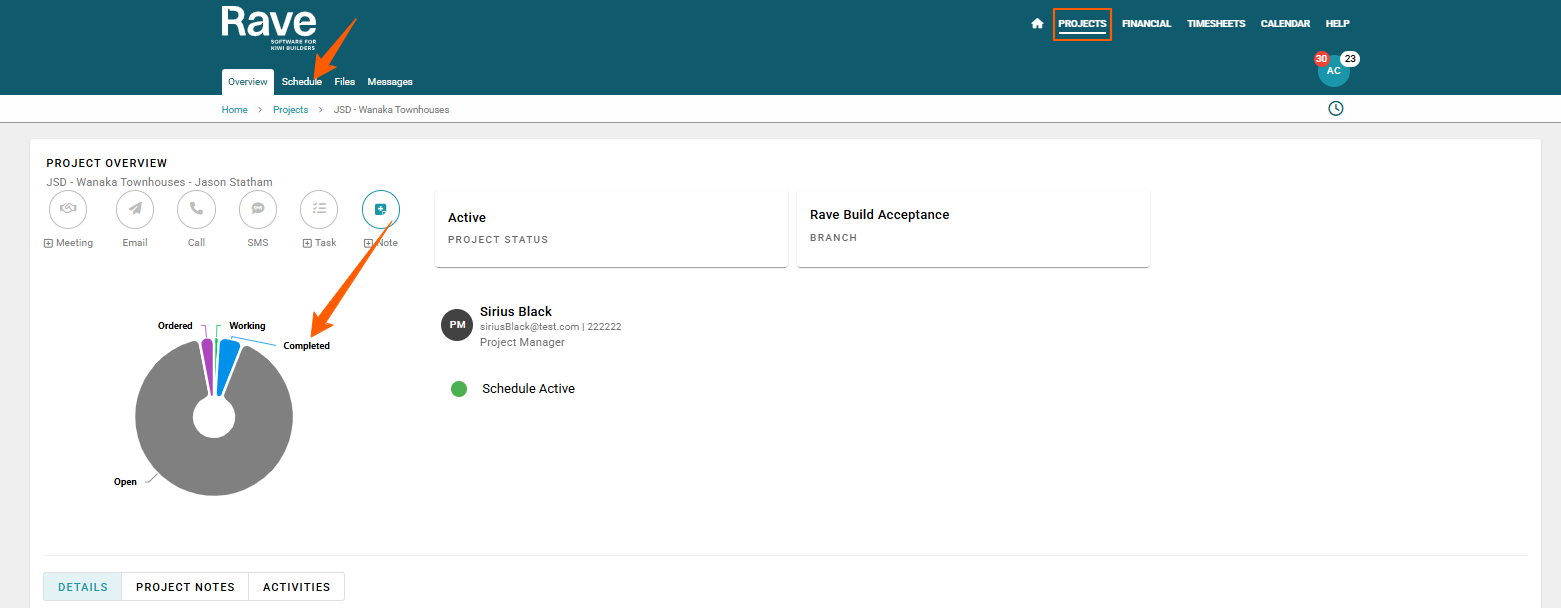
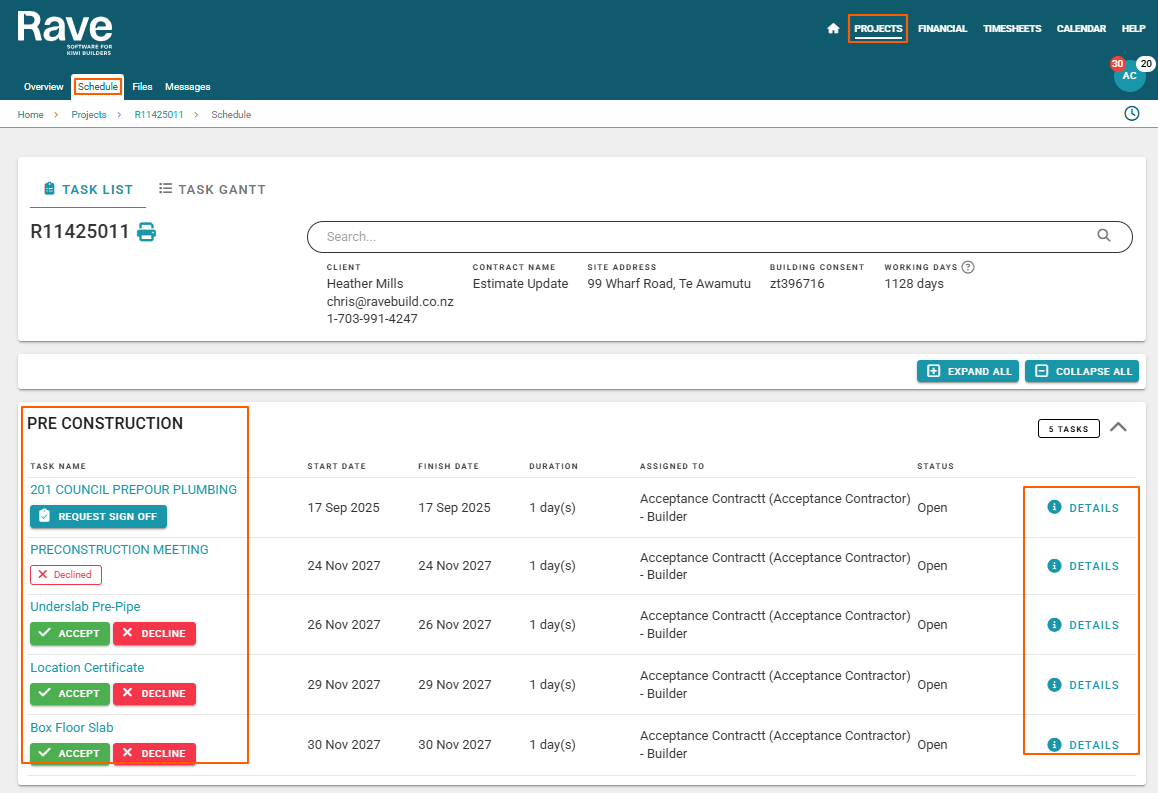
The Project Information in the header of the Page will show the relevant information such as:
- Clients name
- Contract Name
- Site Address
- BC Number
- & working days of schedule
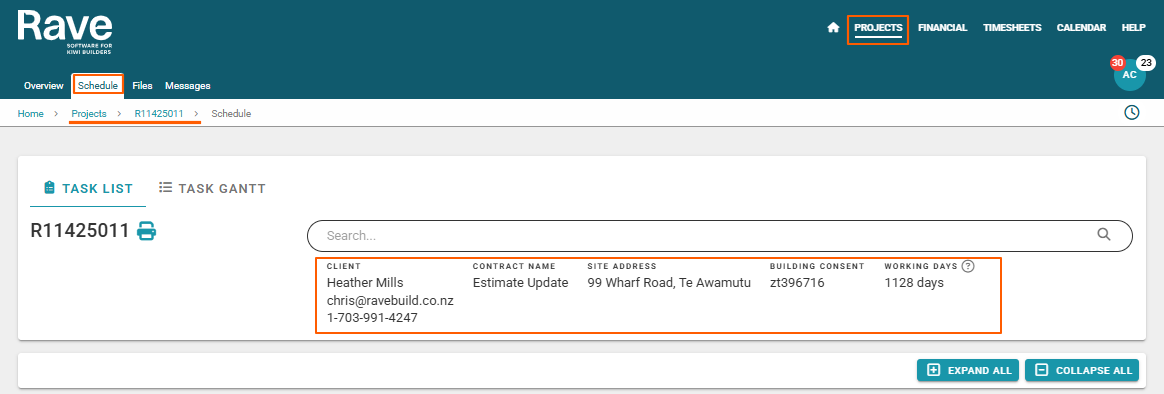
Once you are in your Project Schedule Task List you can
- Request Task Sign-off if enabled)
- Accept the Task (if enabled)
- Decline the Task (if enabled)
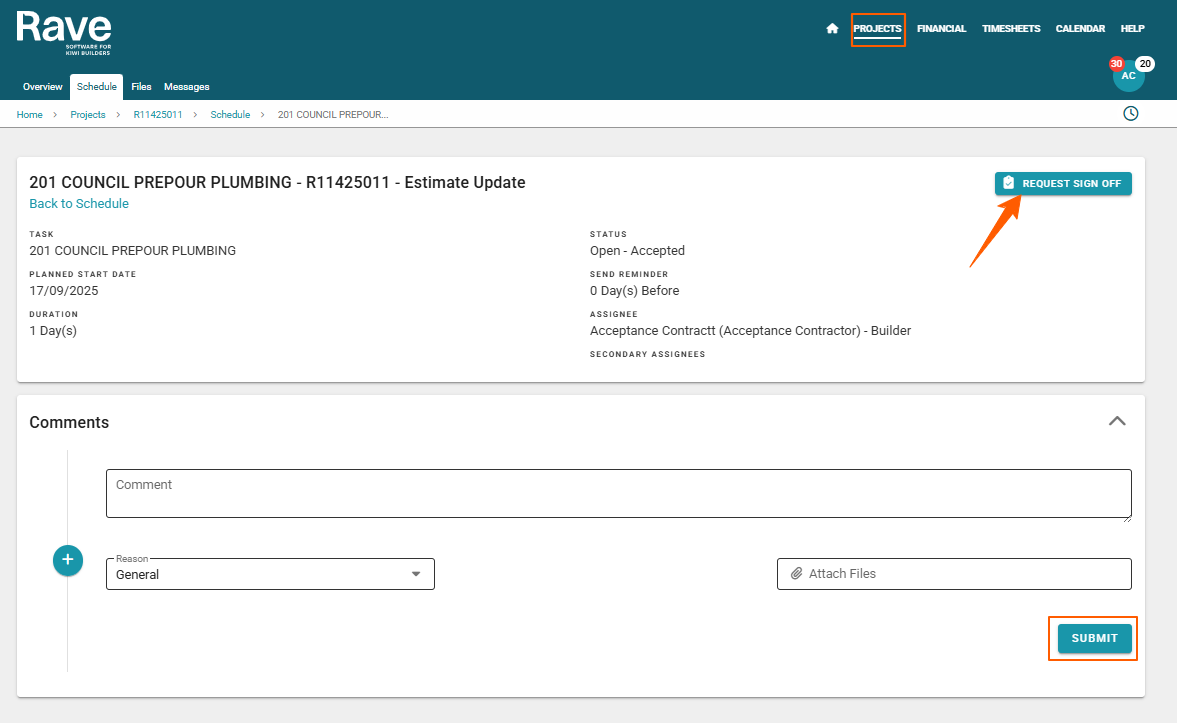
- Access more Task details & add comments & files to the task.
Screenshot below of Task Details Screen
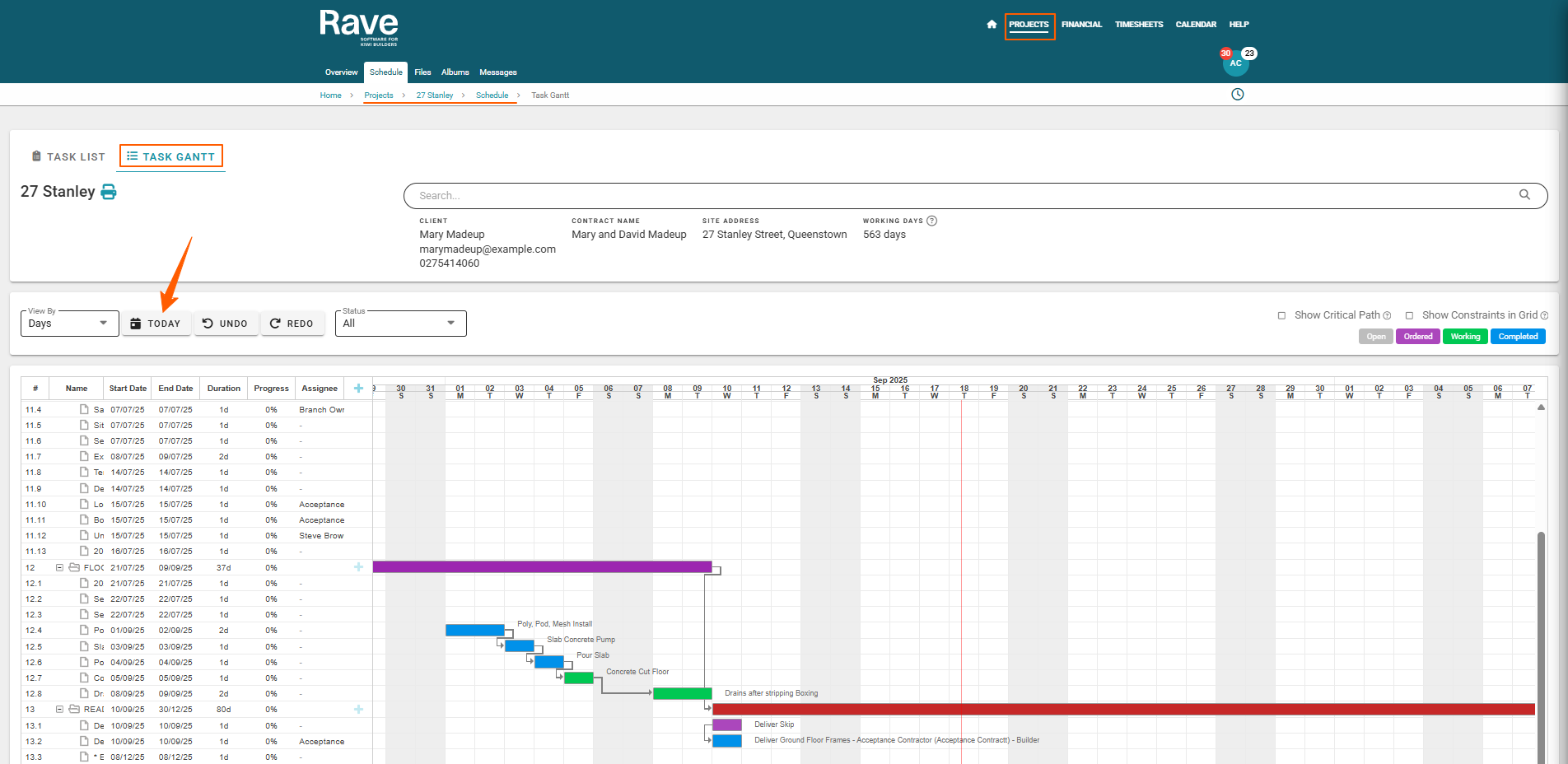
Project Schedule Task Gantt
On task gantt we show your earliest open/ordered/working task first which could be in past or future. You can click on the Today button to take you to the current day tasks.
Was this article helpful?
That’s Great!
Thank you for your feedback
Sorry! We couldn't be helpful
Thank you for your feedback
Feedback sent
We appreciate your effort and will try to fix the article