To view all Rave User Group Options and their Default and Optional Permission screenshots, please click here for the Article
At Rave Build, we know you like to have options—so we offer different user group types to suit a variety of roles within your business. These user groups give you the flexibility to control access across your team, ensuring the right people have the right tools at the right time.
In the following article, we’ll explain each user group in as much detail as possible, with the caveat that Rave is constantly improving and evolving. We add new permissions almost monthly to enhance your user experience.
Permissions are broken down into either:
The default permissions assigned to each group or the optional permissions you can enable based on your needs.
The Project Manager user group is designed for team members responsible for managing projects, clients, contractors and day-to-day project activity in Rave.
Recommended For;
- Project Managers
- Senior Project Coordinators
- Construction Managers
- Team members responsible for the day-to-day management of projects
Important: Project Managers have broad access to project management features by default. You can enable additional permissions as needed, including access to financial information, reporting, and additional Branch Settings.
How to View Your Project Manager Permissions
To view and manage your users:
1. Click the Profile dropdown in the top-right corner of the screen. 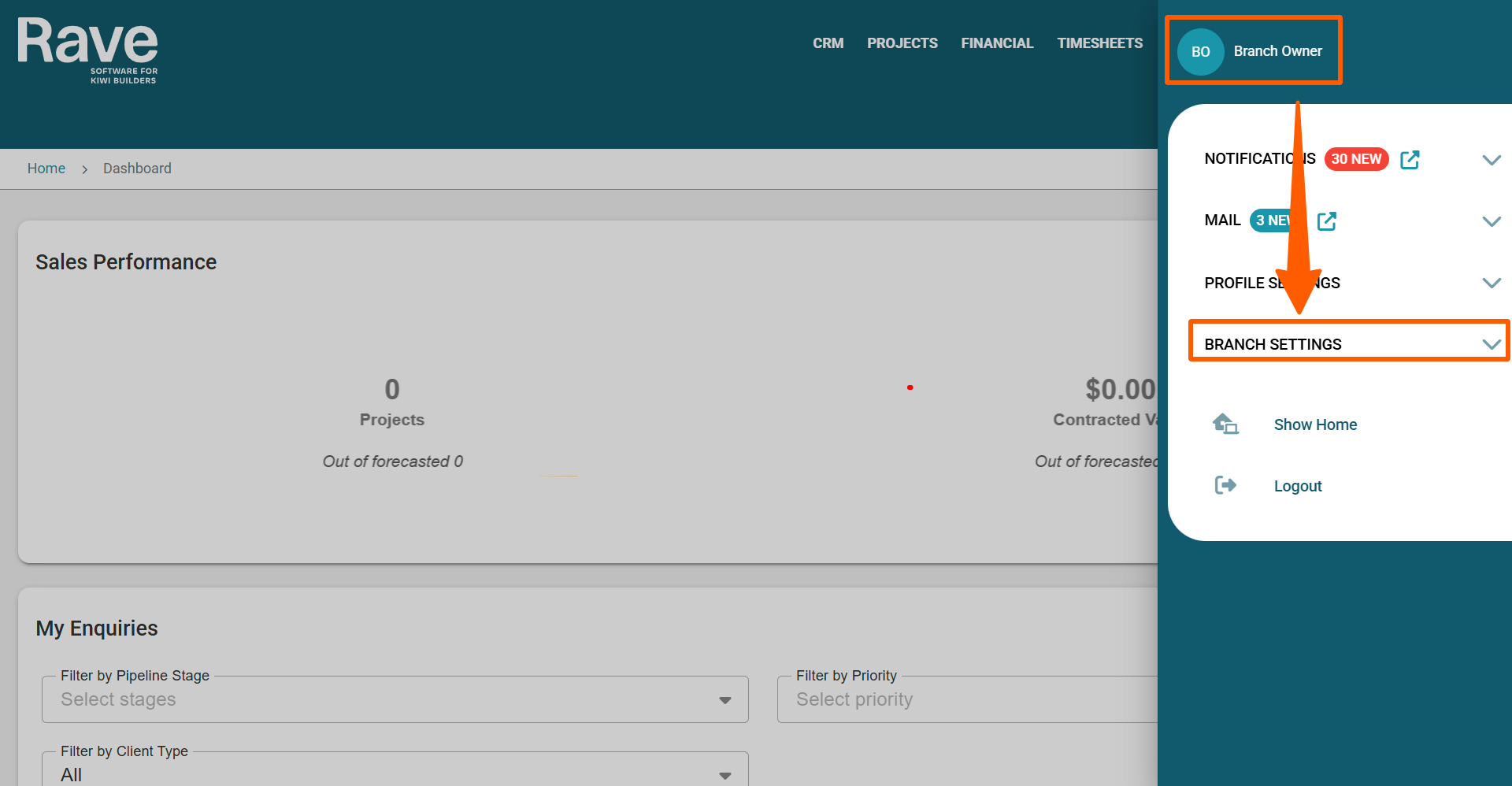
2. Scroll to the Branch Settings section, then select Manage Users. 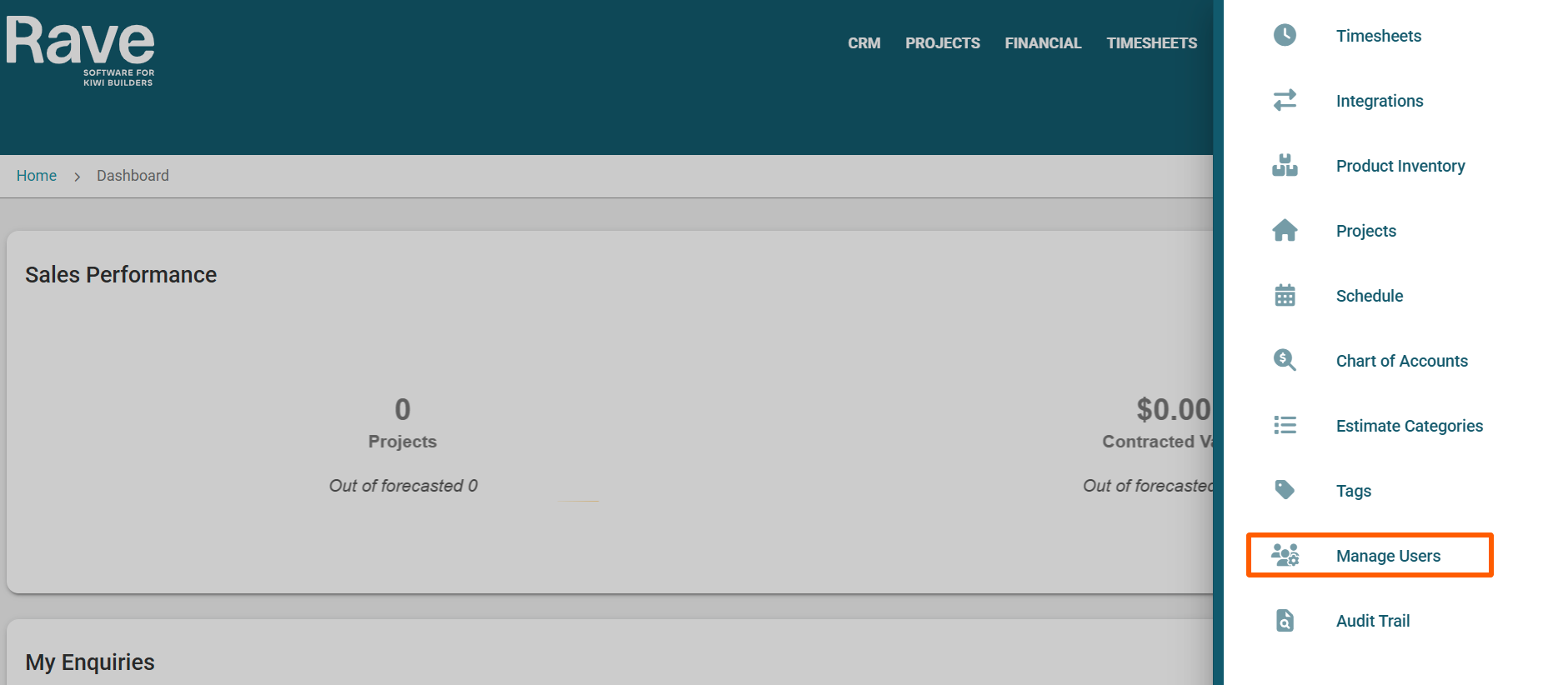
3. Select the user whose permissions you want to view, then click Edit in the top-right corner of the page. 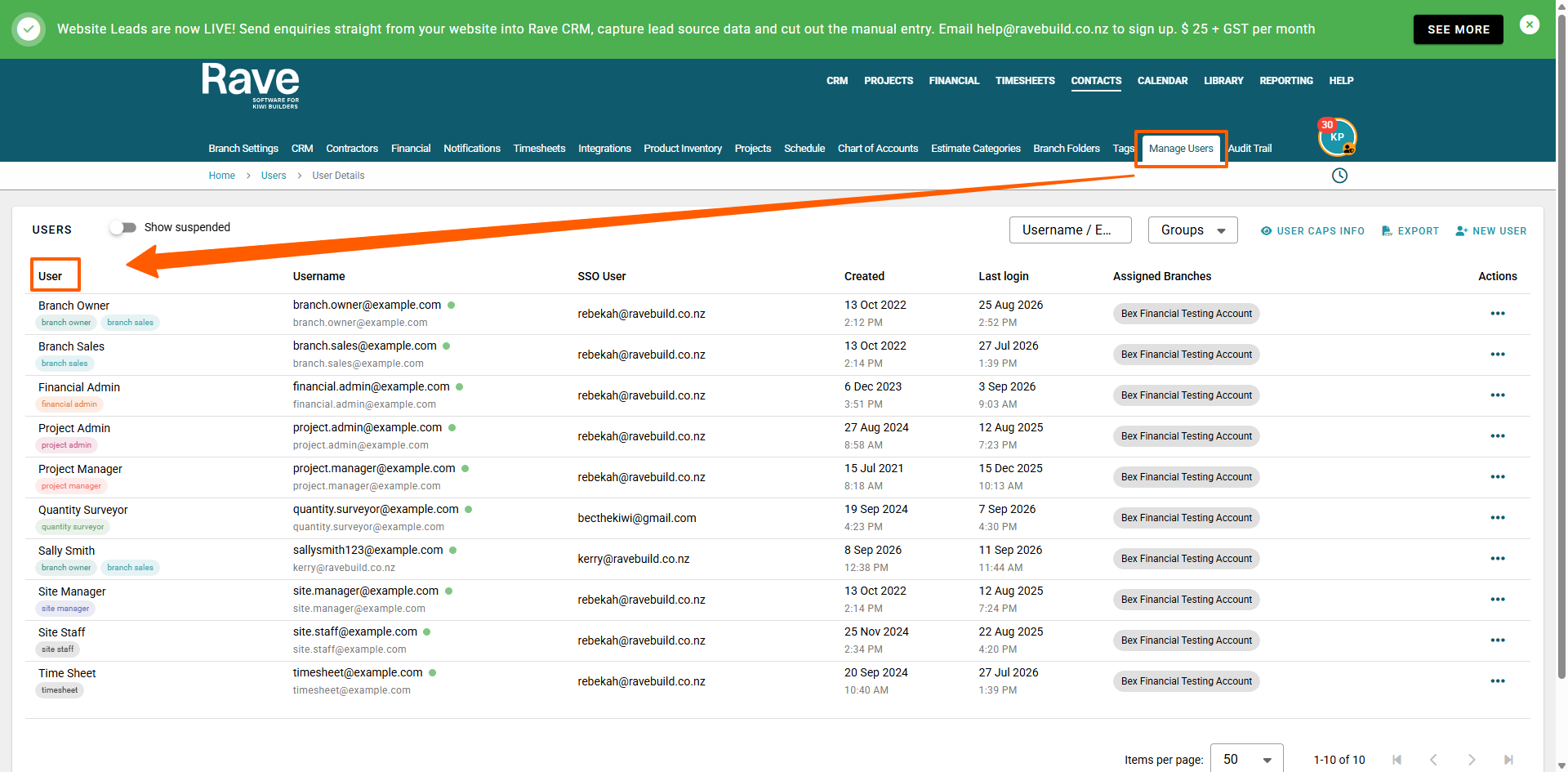
4. Select the Groups & Permissions tab. Under Groups, ensure Project Manager is selected to view the permissions. 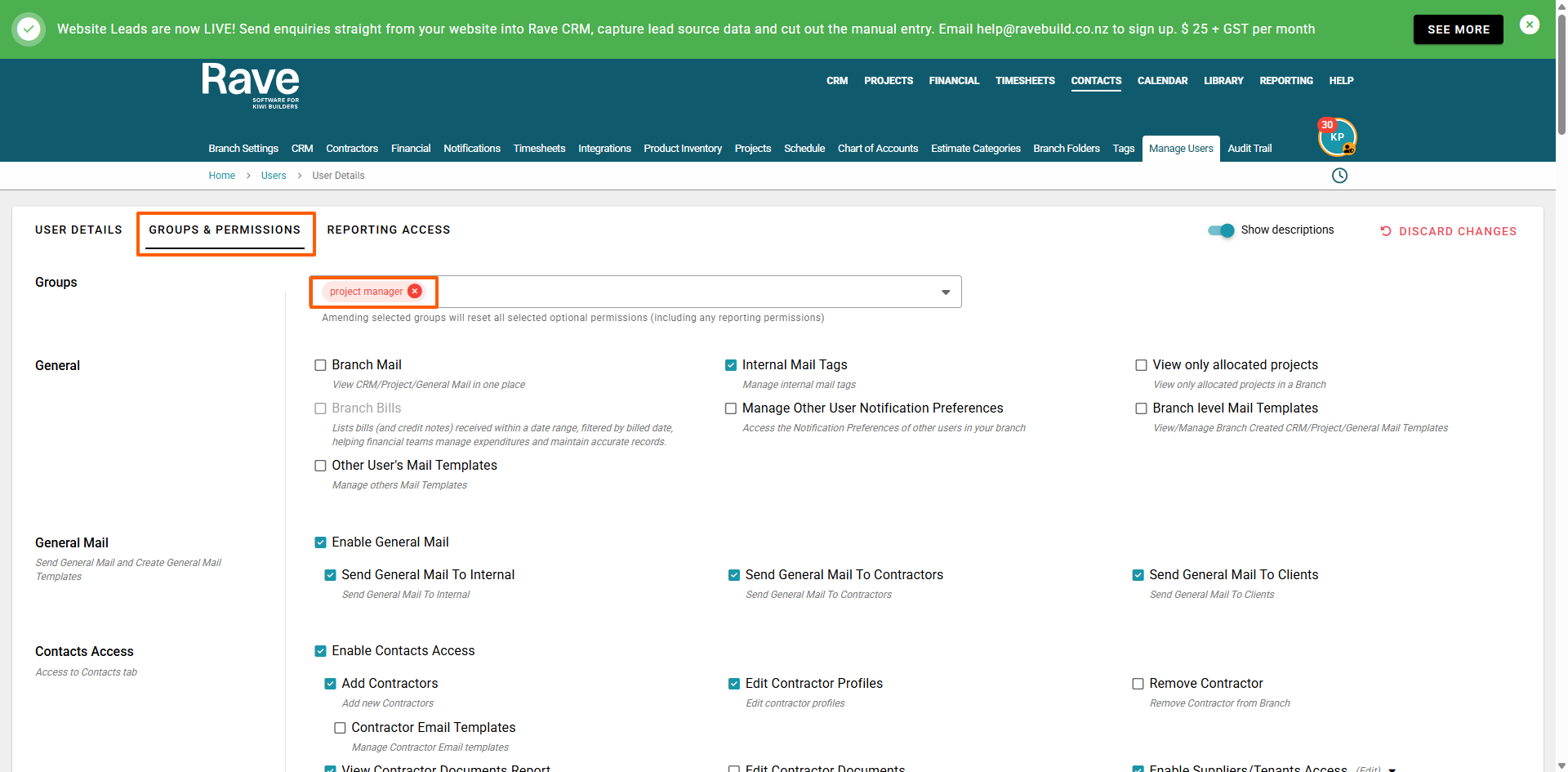
Default Access
Project Managers have access to a broad range of Rave features, including:
- General Mail – Send General Mail to internal users, contractors and clients.
- Contractors & Contacts – Add contractors, edit contractor profiles, view Contractor File Reports and manage contacts.
- CRM – Manage Clients and Leads, including enquiries, notes, photos and activities.
- Projects – Broad access to project management features, including Project Mail, Project Notes, Project Activities, documents, Workflow, Schedule editing, task progress, and project settings.
- Albums – Create, edit and delete Albums and manage Album items.
- Document Library – Add, edit, delete, share and view documents.
- Branch Folders – Manage and access Branch Folder documents.
- Project Folders – Manage project documents and access relevant client, contractor and task documents.
- Progress Payments – Access Progress Payments and request Progress Payments.
- Timesheets – Add and manage their own timesheets.
Finance, Branch Settings and Branch Reporting are not enabled by default.
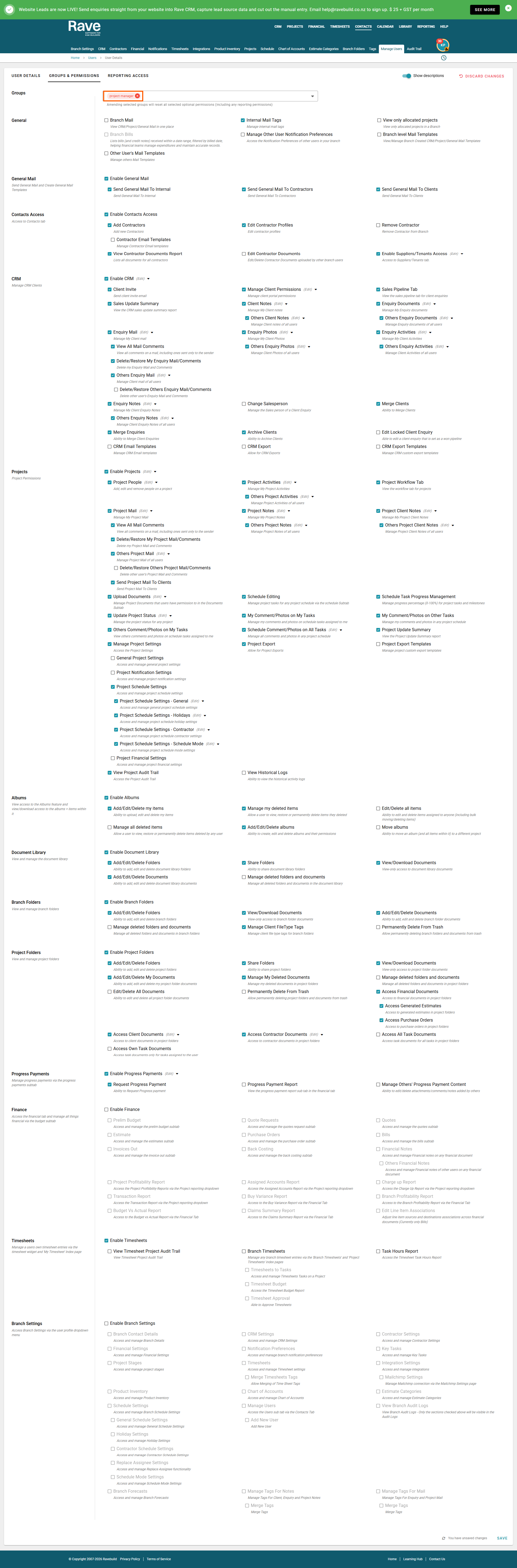
Optional Permissions
You can enable additional permissions based on the user's responsibilities.
These can include:
- General Mail – Additional mail and template permissions.
- CRM – Additional Client and Lead permissions, including deleting, merging, archiving, exporting and managing locked enquiries.
- Projects – Additional project, mail, activity, document, schedule, photo/comment, export and project settings permissions.
- Albums – Additional permissions for managing Albums and Album items.
- Document Library & Branch Folders – Additional document access and management permissions.
- Project Folders – Additional document and financial document access.
- Progress Payments – Additional reporting and Progress Payment permissions.
- Finance – Access to financial areas such as Quotes, Estimates, Purchase Orders, Bills, Back Costing and financial reports.
- Timesheets – Branch Timesheets, Timesheet Approval and Task Hours Report.
- Branch Settings – Access to selected Branch Settings features.
Some permissions are only available where the relevant Rave module or subscription feature is enabled.
Reporting Access
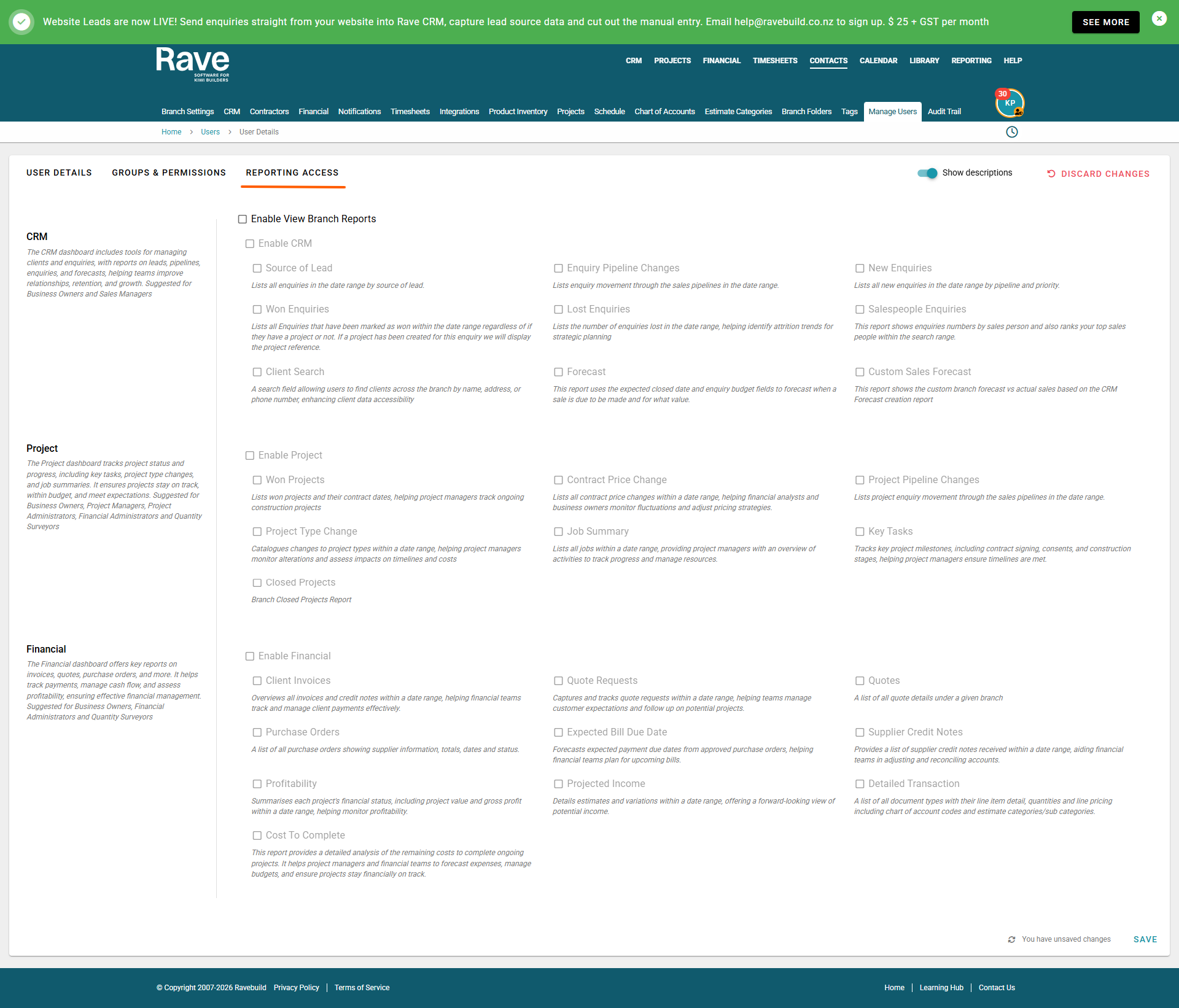
Reporting Access is managed separately from the Groups & Permissions settings.
Project Managers do not have Branch Reporting access by default. You can enable reporting access separately when a user needs additional reporting visibility.
Was this article helpful?
That’s Great!
Thank you for your feedback
Sorry! We couldn't be helpful
Thank you for your feedback
Feedback sent
We appreciate your effort and will try to fix the article