The 'Activate Schedule' Button and Pop-up Explanation
In our project admin/job set-up training, we learned how the active and maintenance build status makes the project details and documentation visible to your contractors, but we keep the schedule hidden until you are ready to share it. Making the schedule visible is done via the ‘Activate Schedule’ button.
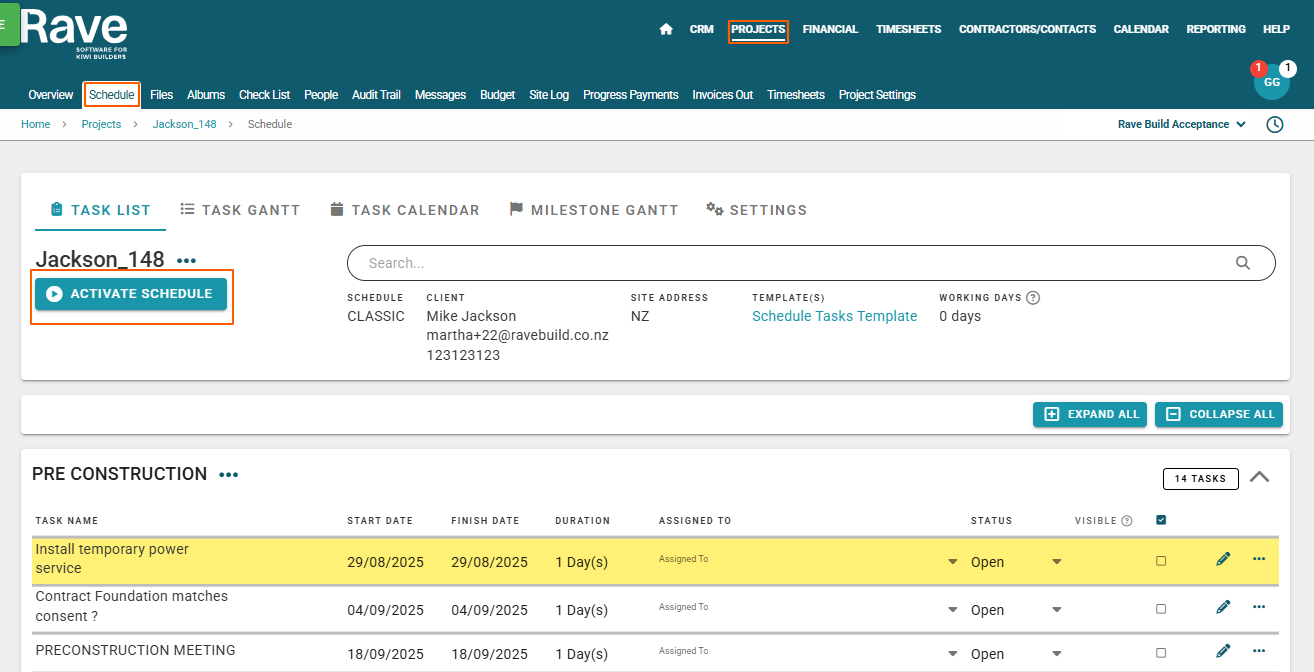
Activating the schedule means the schedule is now live. Your contractors and your clients (if you have given them access to the job and the schedule) will be able to access the schedule, view and comment on tasks assigned to them, and view all other visible tasks if you have given them the 'view all visible tasks' permission.
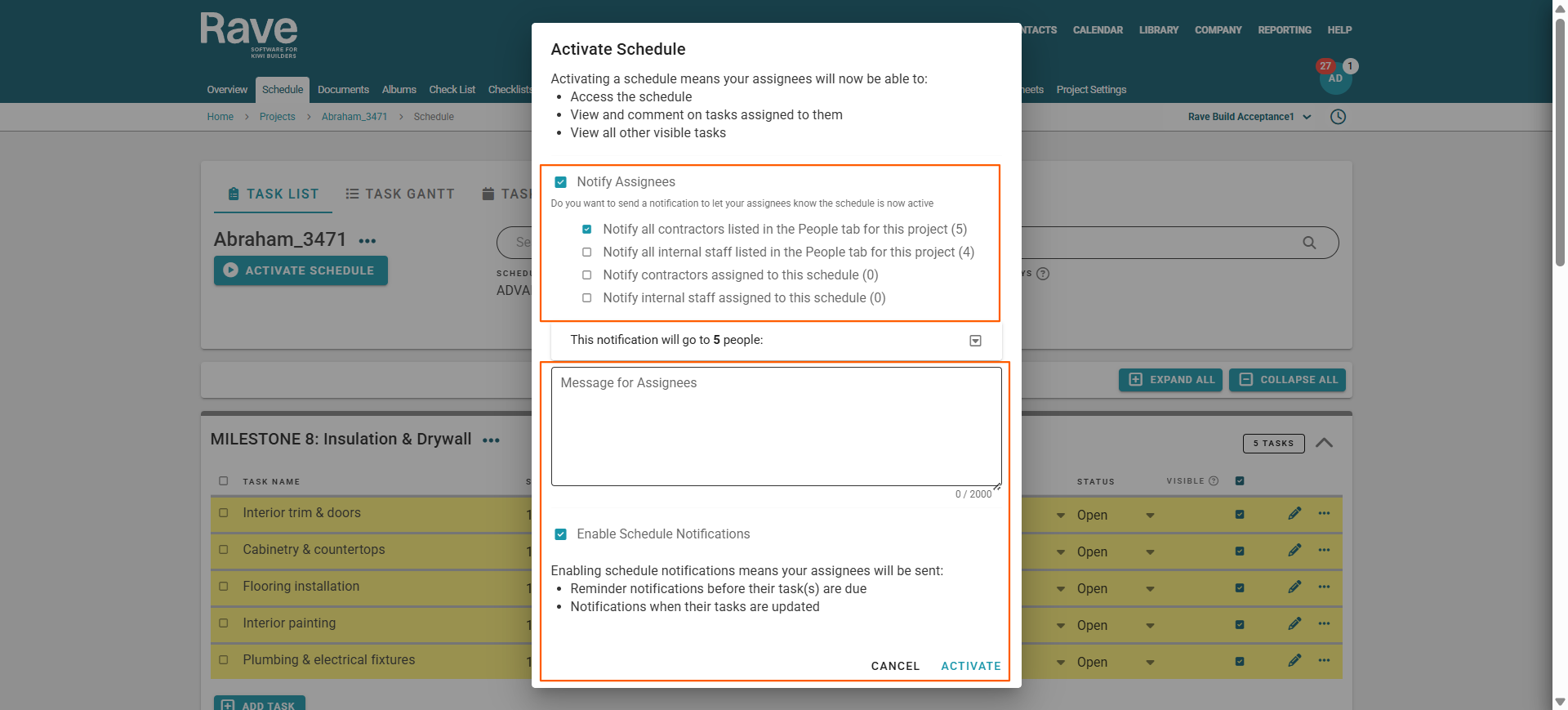
In addition to making the schedule live, you can also let your assignees/trades know that the schedule is now ready to view, by selecting the Notify options that suit your business. The notification drop-down to the right, allows you to see all of the asignees being given access to this project and notified i.e. who the notification email is going to be sent to.
You can also include a customised message within your activate schedule notification, sent to your contractors.
RAVE HELP TIP: If you need to make changes to your contractor line up i.e. you have spotted an extra electrical company that should not be listed or a trade that is missing from the list, just click off the pop-up, go back to the People's sub-tab, make the changes by adding or removing contractors as required, and go back to the 'Activate Schedule' pop-up to double check.
Finally, you can tick the 'Enable Schedule Notifications' which will allow contractors to receive:
- The reminder notifications for when this task is due to commence
- The prompt notifications (if added to a task) to let them know this task is due to start in 'x' number of days
- And scheduled task change notifications when a task they are assigned to has had a start date change
Once the 'Activate Schedule' pop-up has been set as you need - you can just click the ‘Activate’ button to make the schedule live, send a notification if required, and enable schedule notifications too.
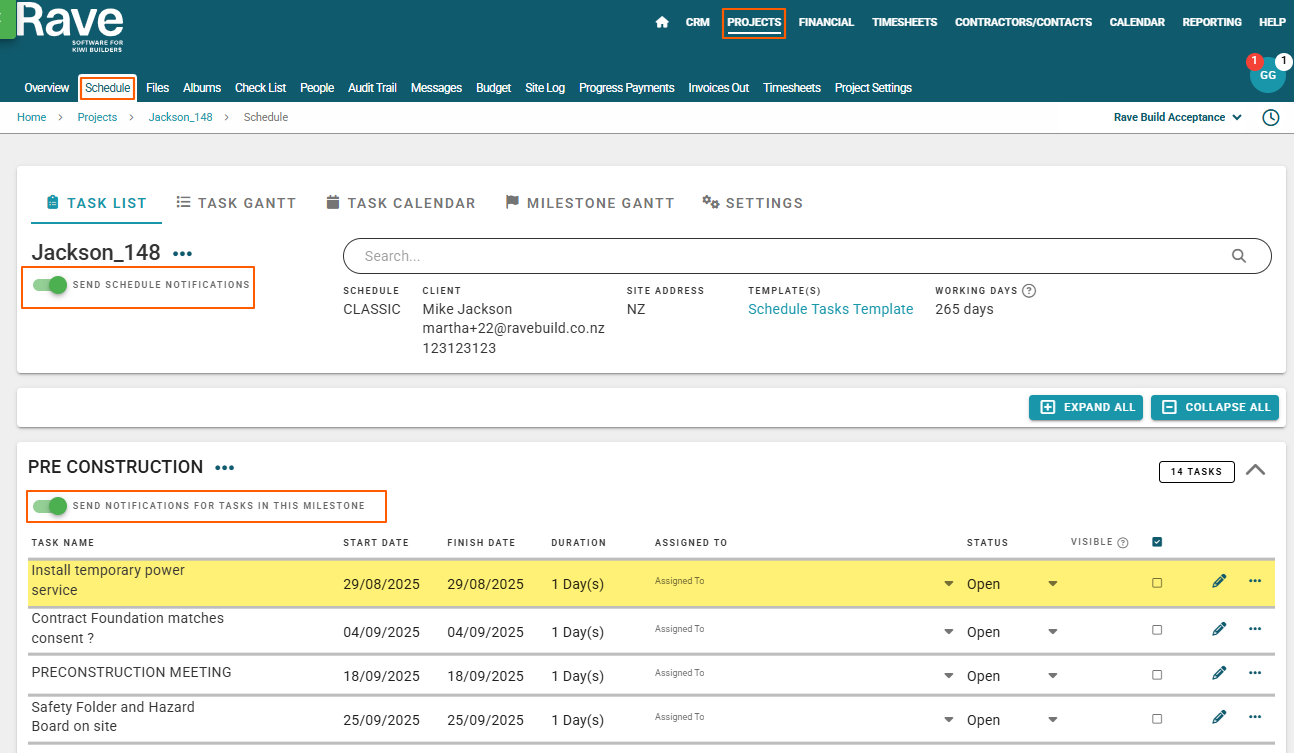
The 'Activate Schedule' button will be replaced by the 'Send Schedule Notifications' switch - which will be turned on (green) if the notifications check box was ticked.
NOTE: The key point here is that activating the schedule is a one-time action. You do not want to activate the schedule until you need to i.e. you have got your schedule set up, tasks assigned out and you want to communicate this information.
You can choose to:
Notify all contractors listed on the people tab regardless of if they are assigned to the schedule
Notify all internal people on the people tab regardless of if they are assigned to the schedule
Notify only all Contractors who are assigned to one or more schedule tasks
Notify only internal people who are assigned to one or more schedule tasks
Or a combination of both
Was this article helpful?
That’s Great!
Thank you for your feedback
Sorry! We couldn't be helpful
Thank you for your feedback
Feedback sent
We appreciate your effort and will try to fix the article