We have added a new 'Bulk Change Schedule Tasks Status' feature to Rave Scheduling, which allows project managers, and those with schedule editing permissions, to set the status of multiple tasks.
Changing the task status can be done via the task list view
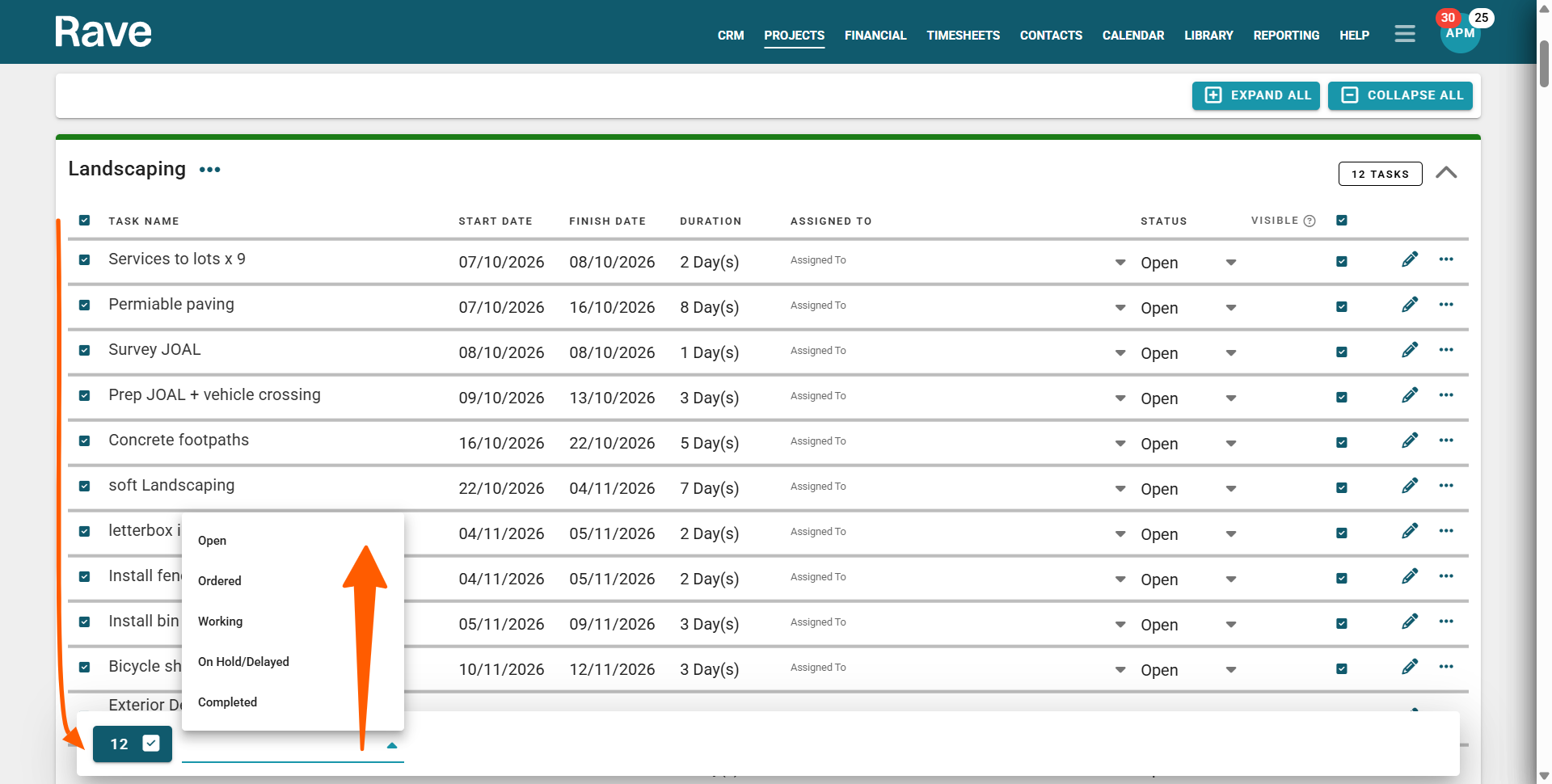
- you can update all milestone tasks by clicking on the check box header to the left of the Task Name header
- you can select specific tasks to update by click clicking on the check box to the left of each task
This will open a bulk update footer pop-up, confirming the number of tasks selected to update, with a dropdown selector to select one of the five task states:
- Open - This is awaiting work to start
- Ordered - Product/Service has been ordered and/or we are awaiting delivery
- Working - Work has started on this task, but it is not yet complete
- On Hold/Delayed - This task is on hold, and/or has been delayed
- Completed - This task has been signed off by the PM, or a team member with permissions, as being completed
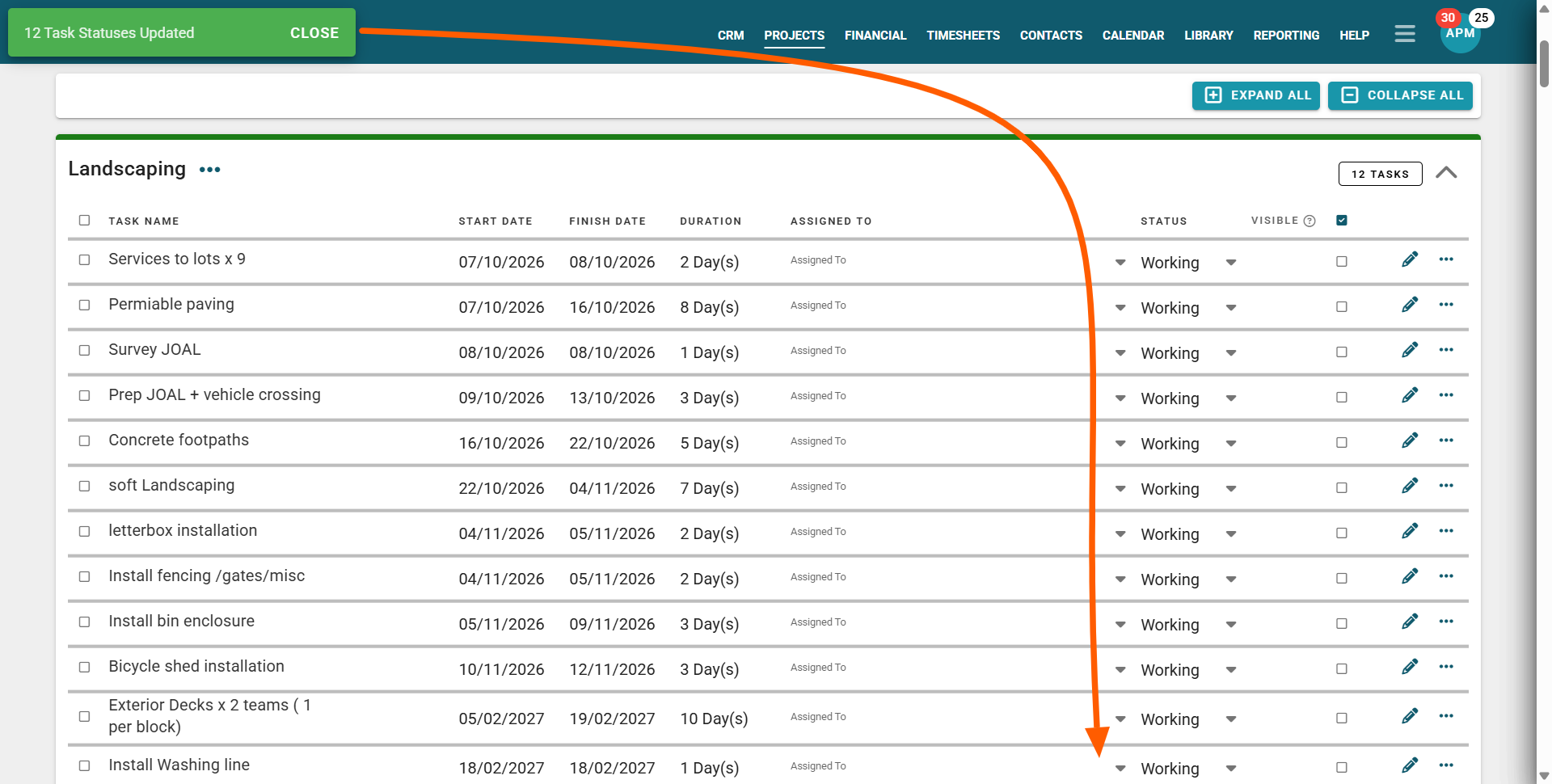
As soon as a task state is selected, Rave will change all of the checked tasks' states accordingly.
Was this article helpful?
That’s Great!
Thank you for your feedback
Sorry! We couldn't be helpful
Thank you for your feedback
Feedback sent
We appreciate your effort and will try to fix the article