This guide explains how to sign in to the Rave Mobile App using Single Sign-On (SSO).
Please ensure your APP is version 1.9.0
Before signing in, ensure:
You have downloaded the latest version of the Rave Build app from the Apple App Store or Google Play Store.
The email address you use to sign in matches the email address on your Rave account.
If you're signing in with Google or Microsoft, you're using the account associated with that same email address.
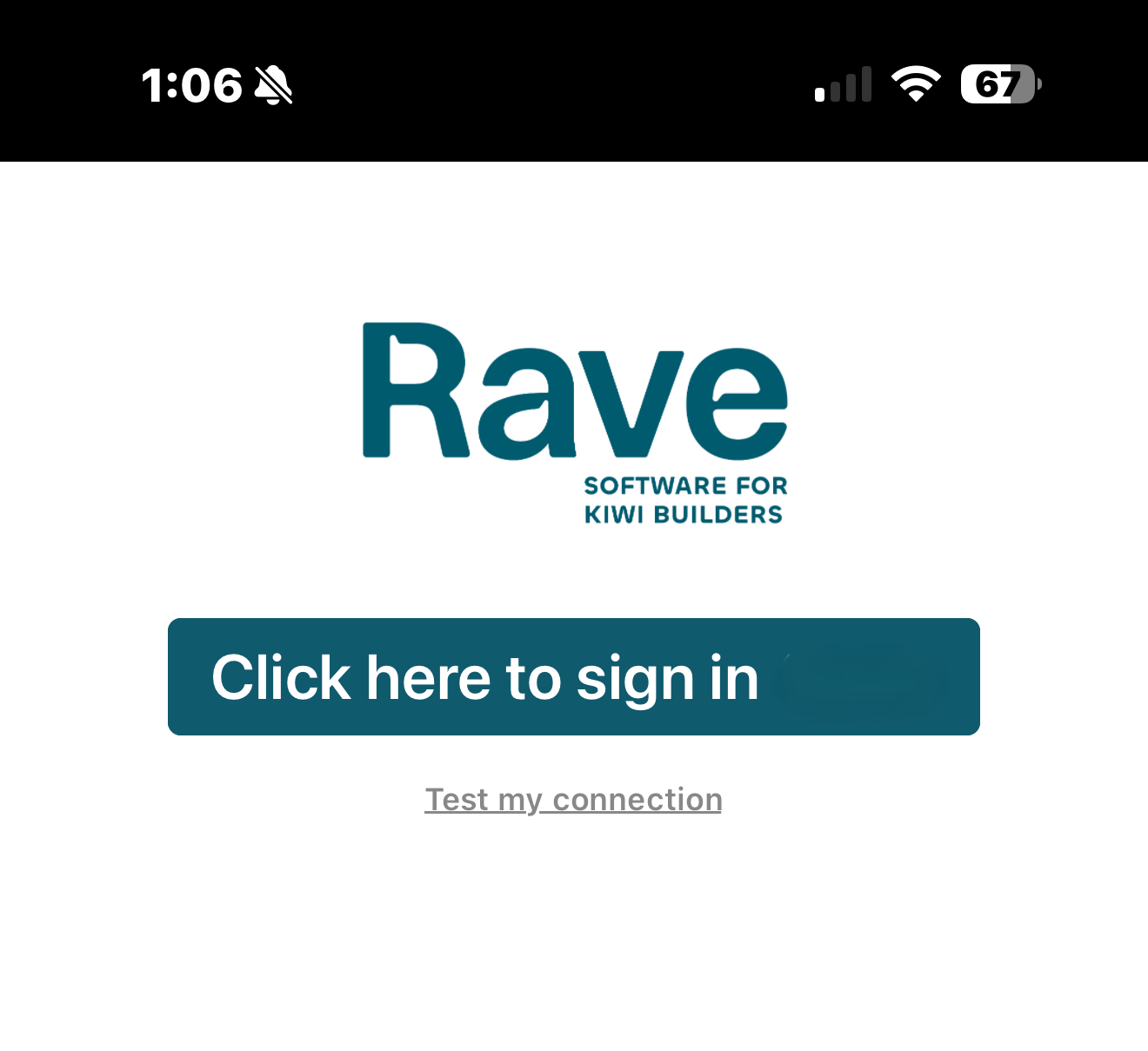
Step 1 - Open the Rave App
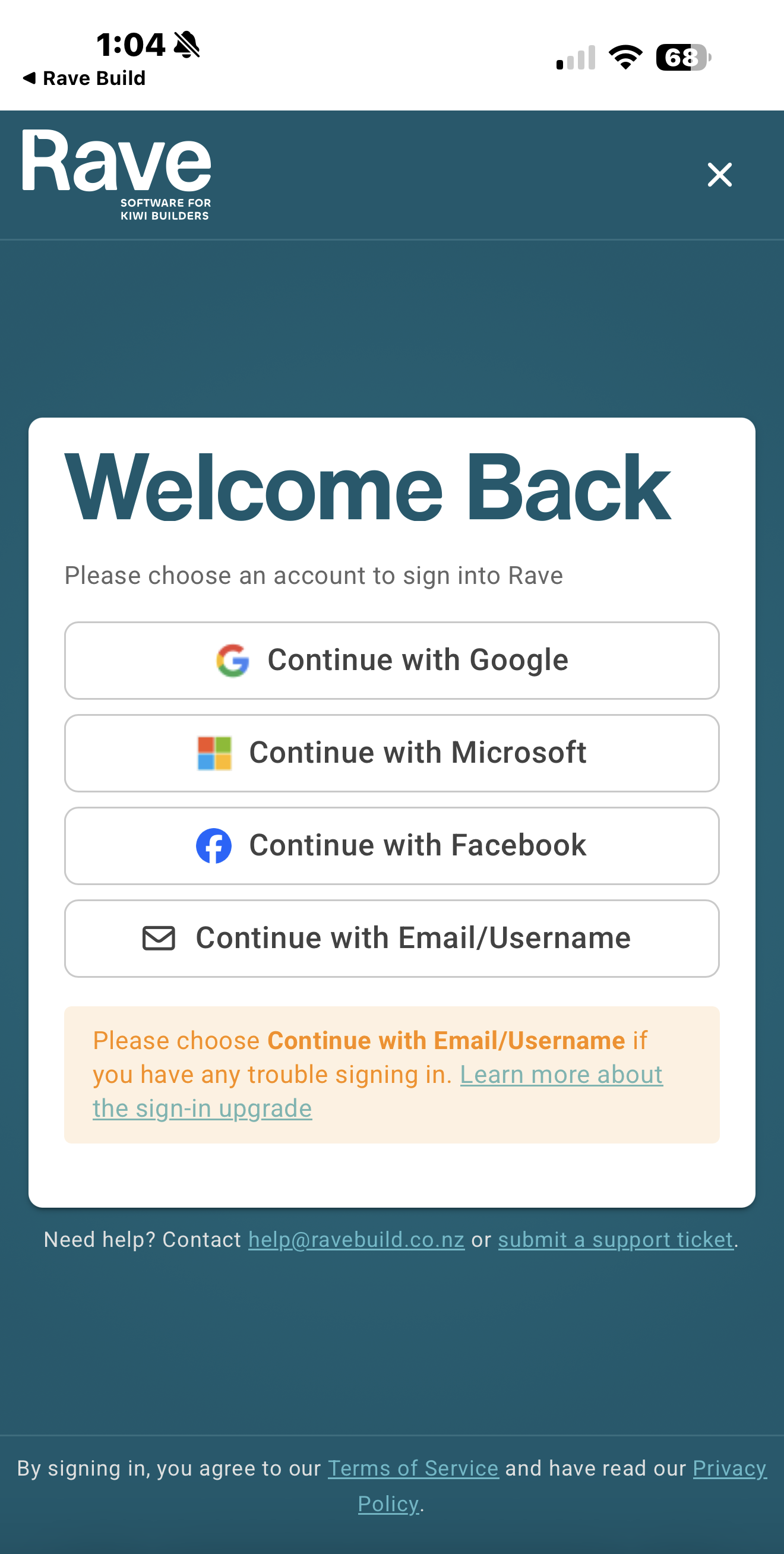
Step 2 - Choose Your Sign-In Method (it is preferred to link to Microsoft or Google as this is a more secure system than a one-time password)
Available options may include:
Continue with Microsoft
Continue with Google
Continue with Facebook (if enabled by your business)
Continue with Email
Signing in with Microsoft
Tap Continue with Microsoft.
Select or enter your Microsoft email account.
Enter your Microsoft password if prompted.
Complete any Microsoft authentication requirements.
You'll automatically be returned to the Rave App.
Signing in with Google
Tap Continue with Google.
Select your Google account.
Enter your Google password if prompted.
Complete any Google security verification.
You'll automatically return to the Rave App.
Signing in with Email
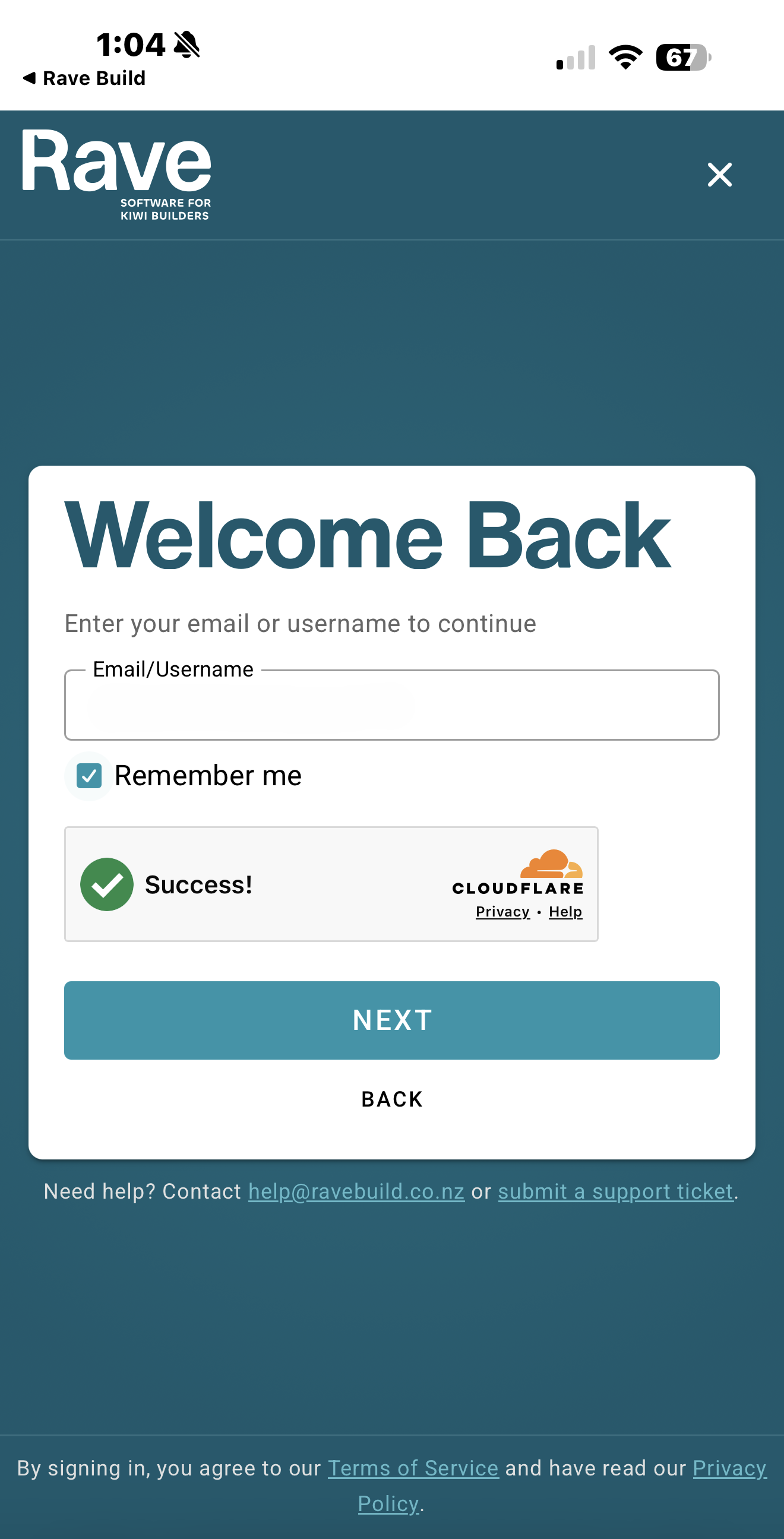
If you don't use Microsoft or Google, choose Continue with Email.
Enter the email address linked to your Rave account, tick Remember me, and press Next.
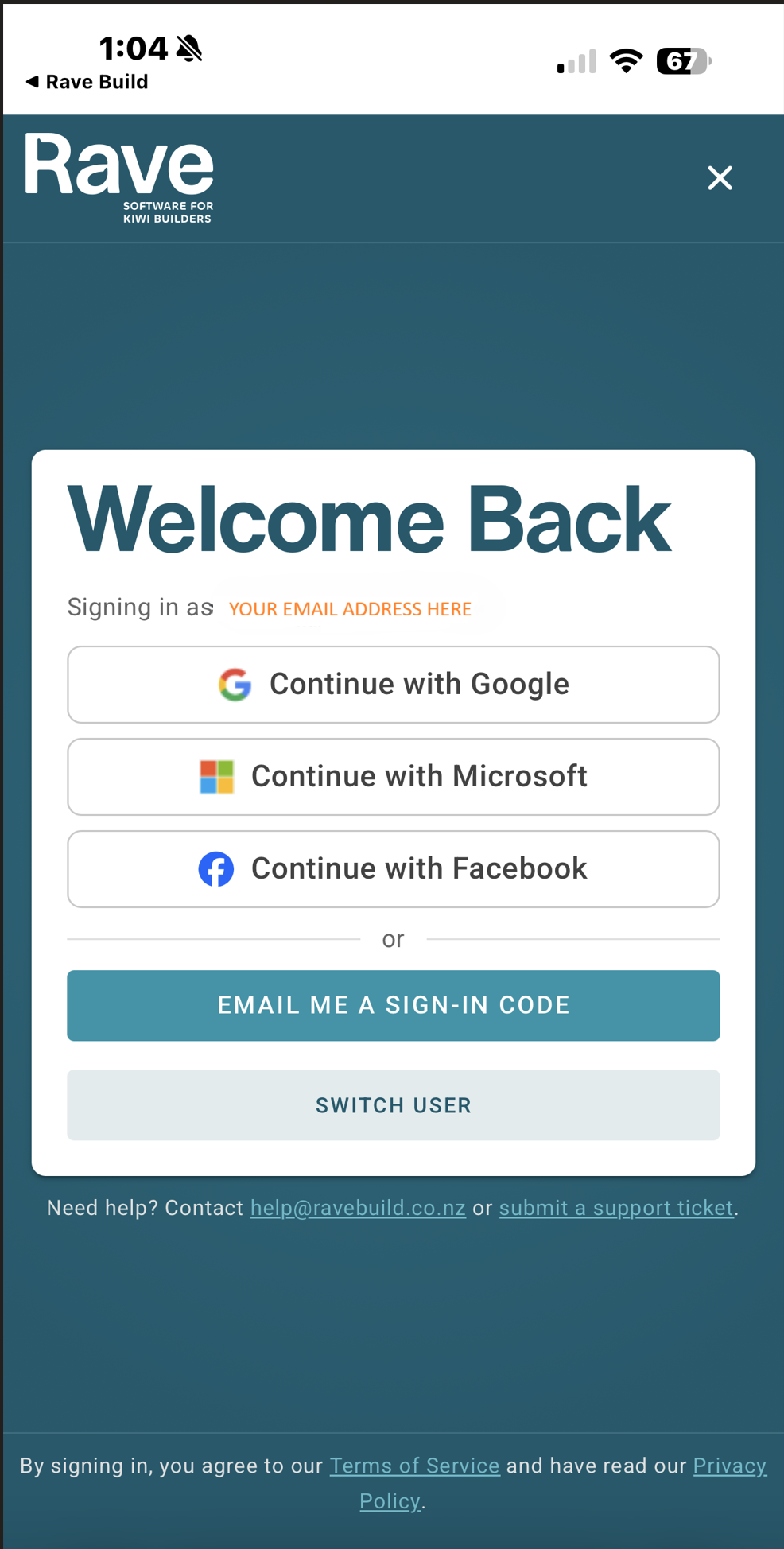
Select Email me a sign-in code.
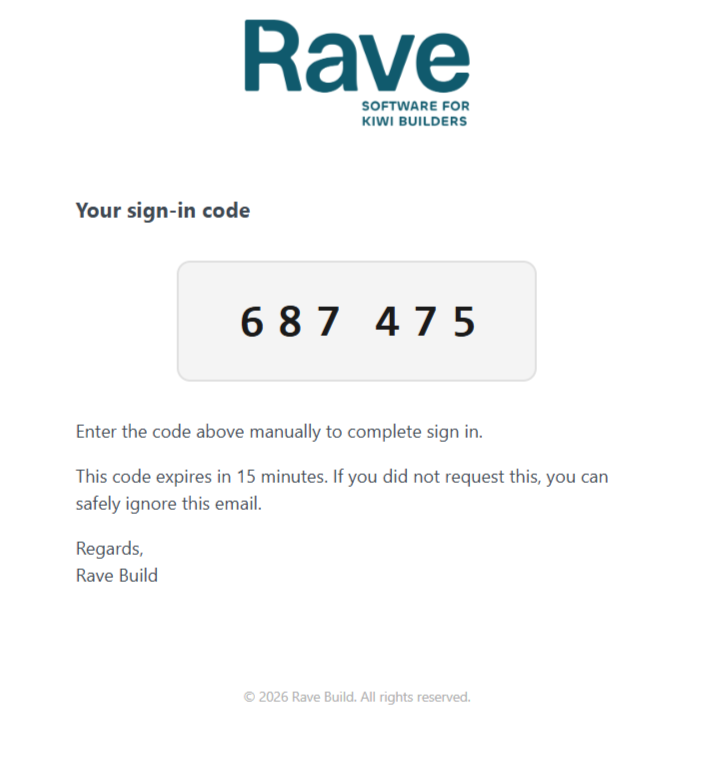
Open the email sent by Rave.
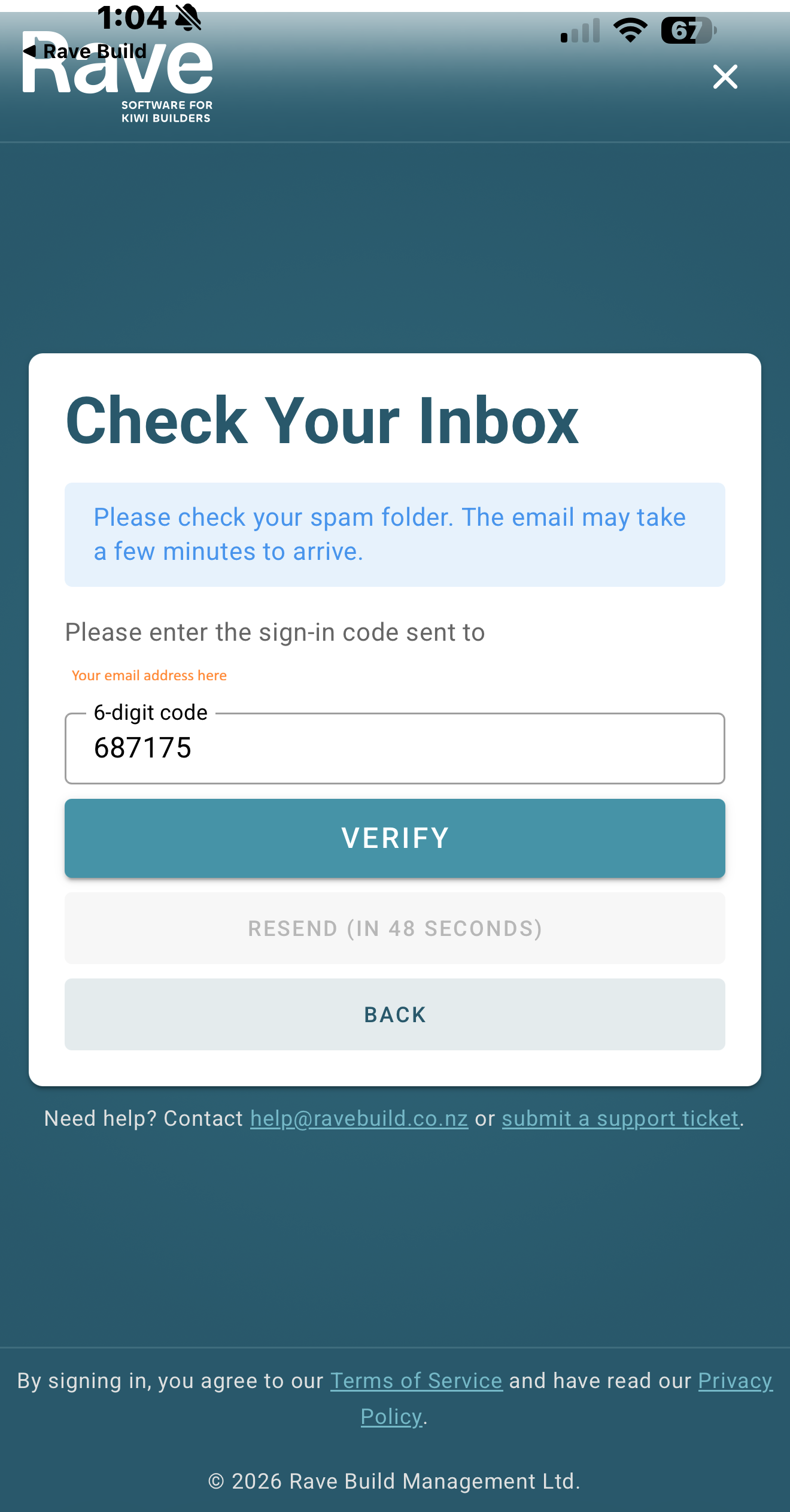
Enter the six-digit verification code into the app.
Tap Verify.
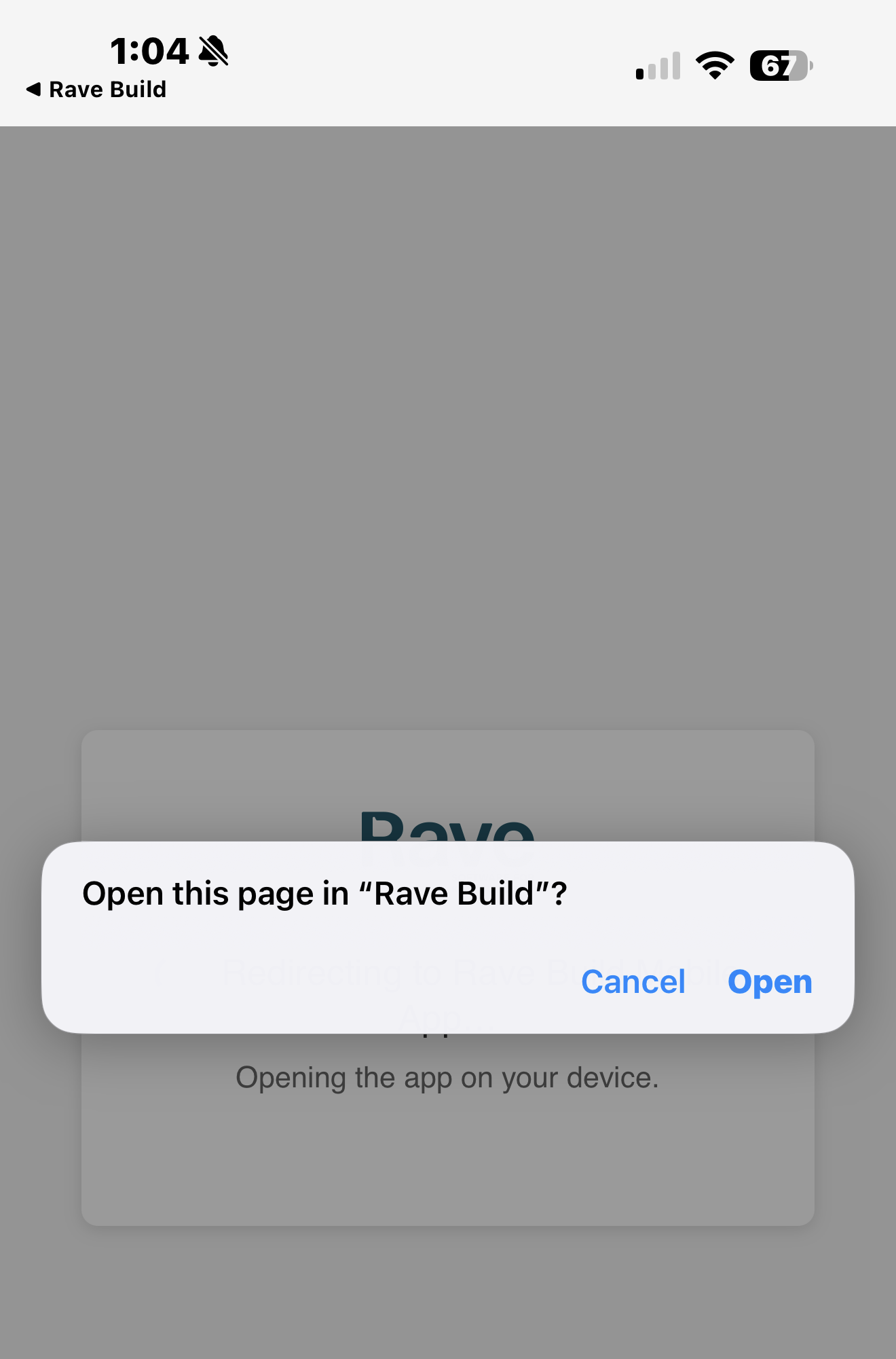
The page will then say Open this page in Rave Build select open.
You'll then be securely redirected back to the Rave Build App to create your 4-digit PIN and enable Face ID if your device allows.
Note: Verification codes expire after a short time and can only be used once. If your code expires, simply request another one.
Two-Factor Authentication (2FA)
If your organisation requires Two-Factor Authentication, you'll be prompted to verify your identity after signing in.
Simply:
Open your authenticator app.
Scan the QR code (Do not scan the QR code using your phone camera)
Enter the six-digit code displayed.
Tap Verify.
If this is your first time signing in, you may be asked to set up your authenticator app before continuing. Supported apps include Microsoft Authenticator, Google Authenticator, Authy, Bitwarden and other TOTP-compatible authenticators.
Create Your App PIN
The first time you successfully sign in, you'll be asked to create a 4-digit PIN.
This PIN allows you to quickly access the app in future without completing the full sign-in process every time.
Choose a PIN you'll remember, then confirm it.
Future Sign-Ins
After your initial sign-in:
Open the Rave app.
Enter your 4-digit PIN.
You're ready to go.
If your sign-in session expires or you sign out of the app, simply repeat the Single Sign-On process above.
Having Trouble?
If you can't sign in:
Check you're using the same email address that's registered against your Rave account.
Ensure you're selecting the correct Microsoft or Google account.
Check your spam or junk folder if you're waiting for an email sign-in code.
Make sure your internet connection is active.
Update the Rave app to the latest version if prompted.
If you still need assistance, contact your Rave Administrator or the Rave Support Team.
Was this article helpful?
That’s Great!
Thank you for your feedback
Sorry! We couldn't be helpful
Thank you for your feedback
Feedback sent
We appreciate your effort and will try to fix the article