If you are looking for the help article on the Library, click here to read it.
If you are looking for the help article on Branch Folders and Trash, click here to read it.
If you are looking for the help article on Branch Folders, Tags, & Notifications, click here to read it.
If you are looking for the help article on Document Permissions, click here to read it.
If you are looking for the help article on Document Notifications, click here to read it.
If you are looking for the Contractor help article, click here to read it.
If you are looking for the Client help article, click here to read it.
The new Project Documents tab replaces the previously known Files tab, providing a more organised and flexible way to manage all project documentation.
When you first open a project and select Documents, you'll see your mandatory Folders displayed across the top of the page.
Project Document - Project-level document structure
Client Documents - Client project documents which are only visible to the client and the Branch
Contractor Documents - Contractor project documents that are visible only to the specific contractor and Branch. Contractors cannot view each other's folders or documents.
Financial Documents- Purchase Orders and Estimate/Variation PDFs are saved here by default, with the latest version always presented
Task Files - Images that have been loaded to a schedule task comment will save here automatically.
Trash - Soft deleting of documents will save them in Trash, where those with permissions can permanently delete.
You'll also find options to:
Export to ZIP – This will create a ZIP file and email it to the user who has selected this option. This may take some time, depending on the number of documents to export and email.
+ Folder – Create additional folders within the selected document type.
Project Documents subtab
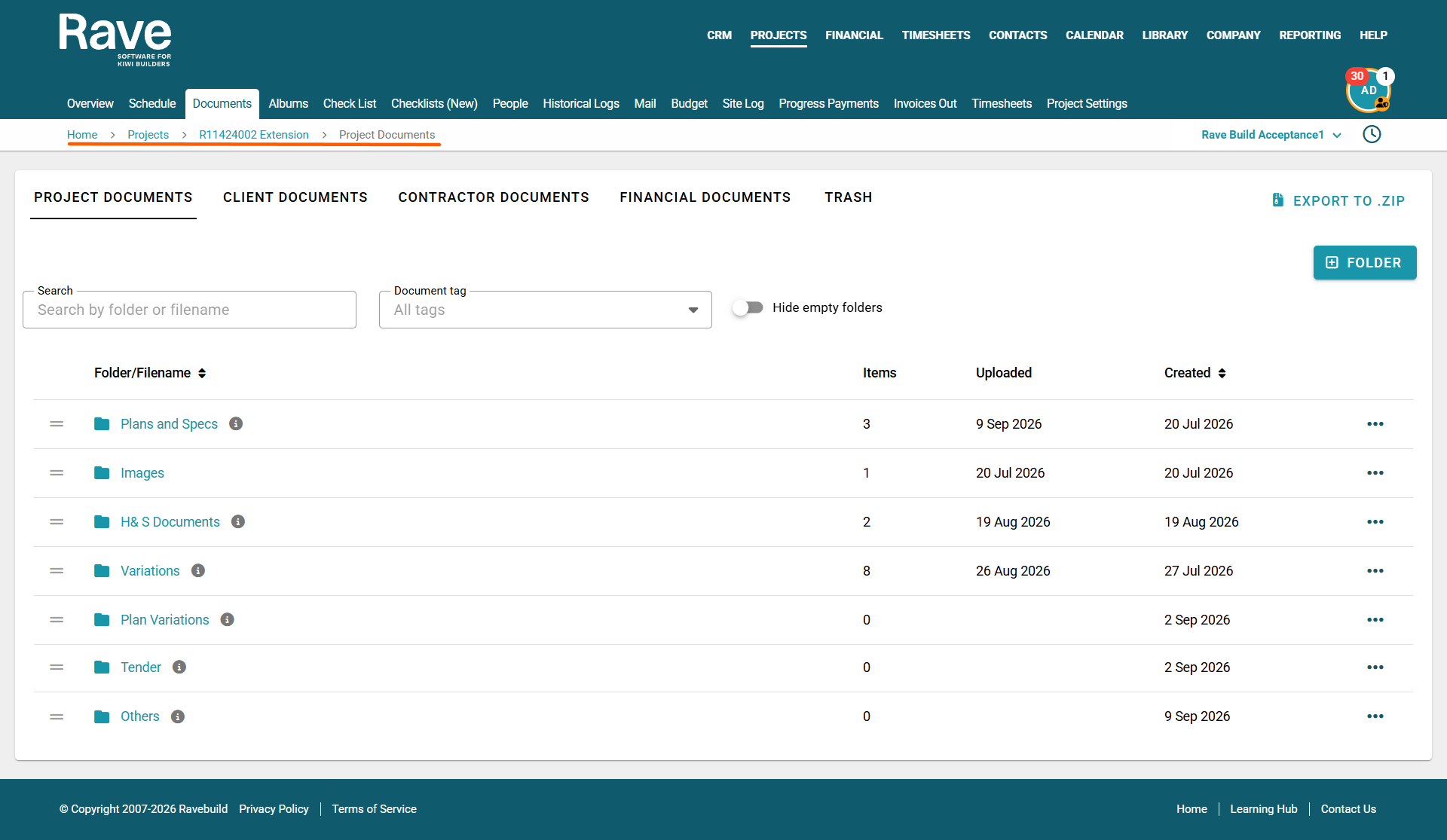
In the Project Documents section, Rave displays your branch-mandatory folders first, followed by any project-specific folders that have been created.
You can easily:
Drag and drop folders to reorder them using the = icon.
Create additional project-specific folders as needed by clicking the +Folder button.
Mandatory branch folders are identified with an information ℹ️ icon. These folders are controlled by your branch settings and cannot be deleted from here.
Each folder displays:
The date it was created and added to the project.
The date a document was last uploaded to the folder
The items count shows how many items are inside the folder
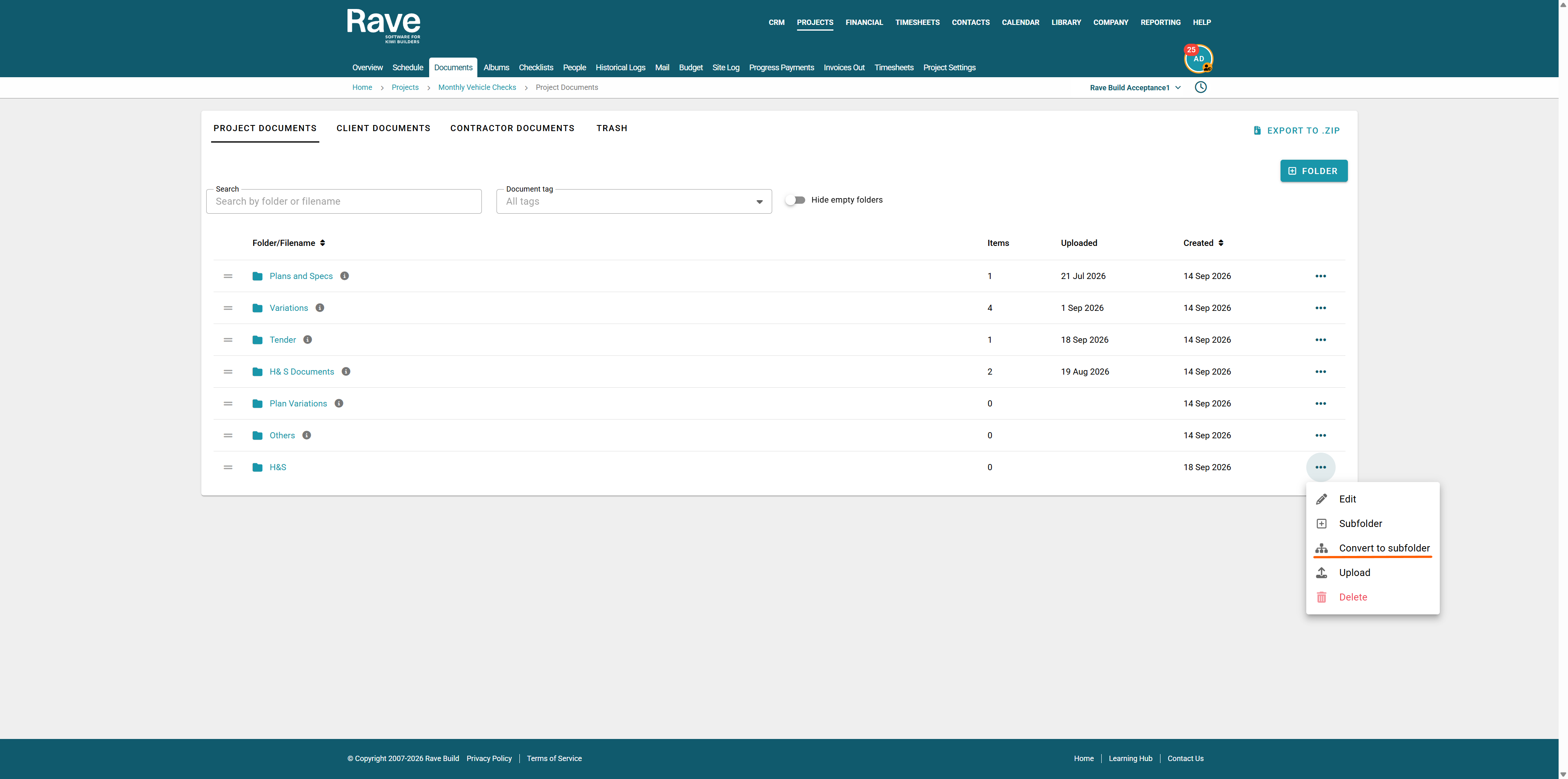
A three-dot (⋮) menu that allows users with the appropriate permissions to:
Edit - Edit the folder permissions and Name
+Subfolder - Create Subfolders
Upload new documents directly into the folder.
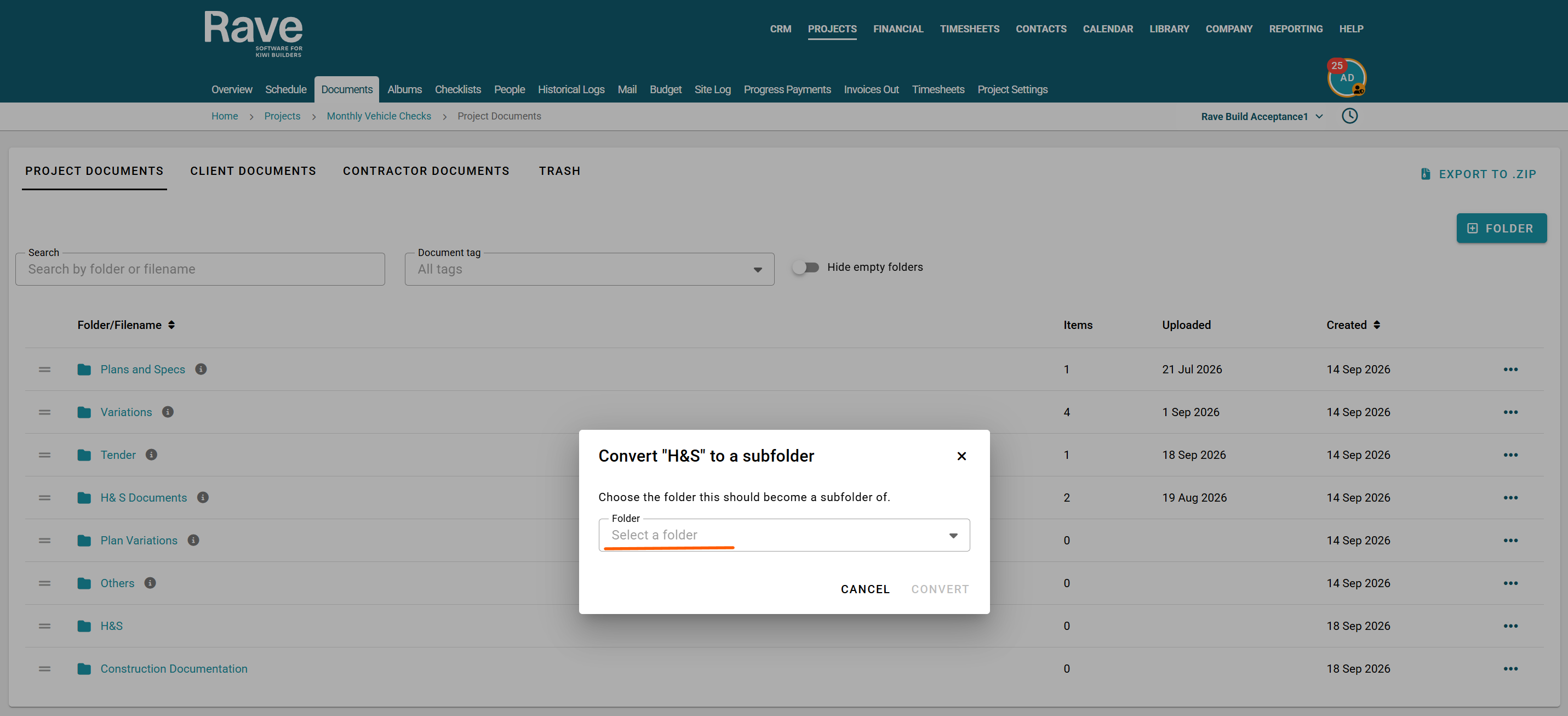
Convert to Subfolder - Allows you to make a non-branch set primary folder a subfolder
Download the folder contents as a ZIP if it has contents
Delete the folder (with permission)
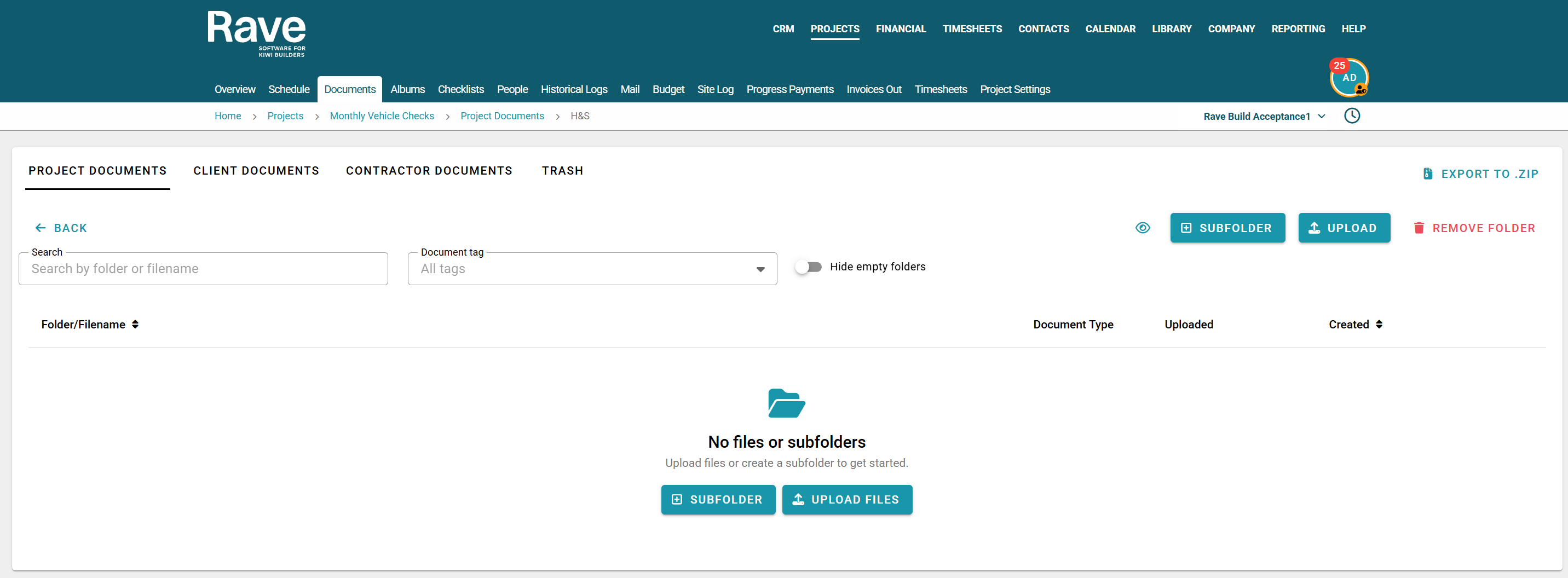
Inside a Folder
You have the same layout, showing the document or subfolder name and, where applicable, the document type. For subfolders, the Last Uploaded date shows the most recent upload, while for individual documents, the Created Date reflects the date the document was uploaded.
You also have:
Remove Folder button if the folder is empty.
Upload to add new documents
+Subfolder to add a new subfolder
Export to zip
If the document has been loaded from your branch template menu, you cannot delete it from here or move it to a different folder.
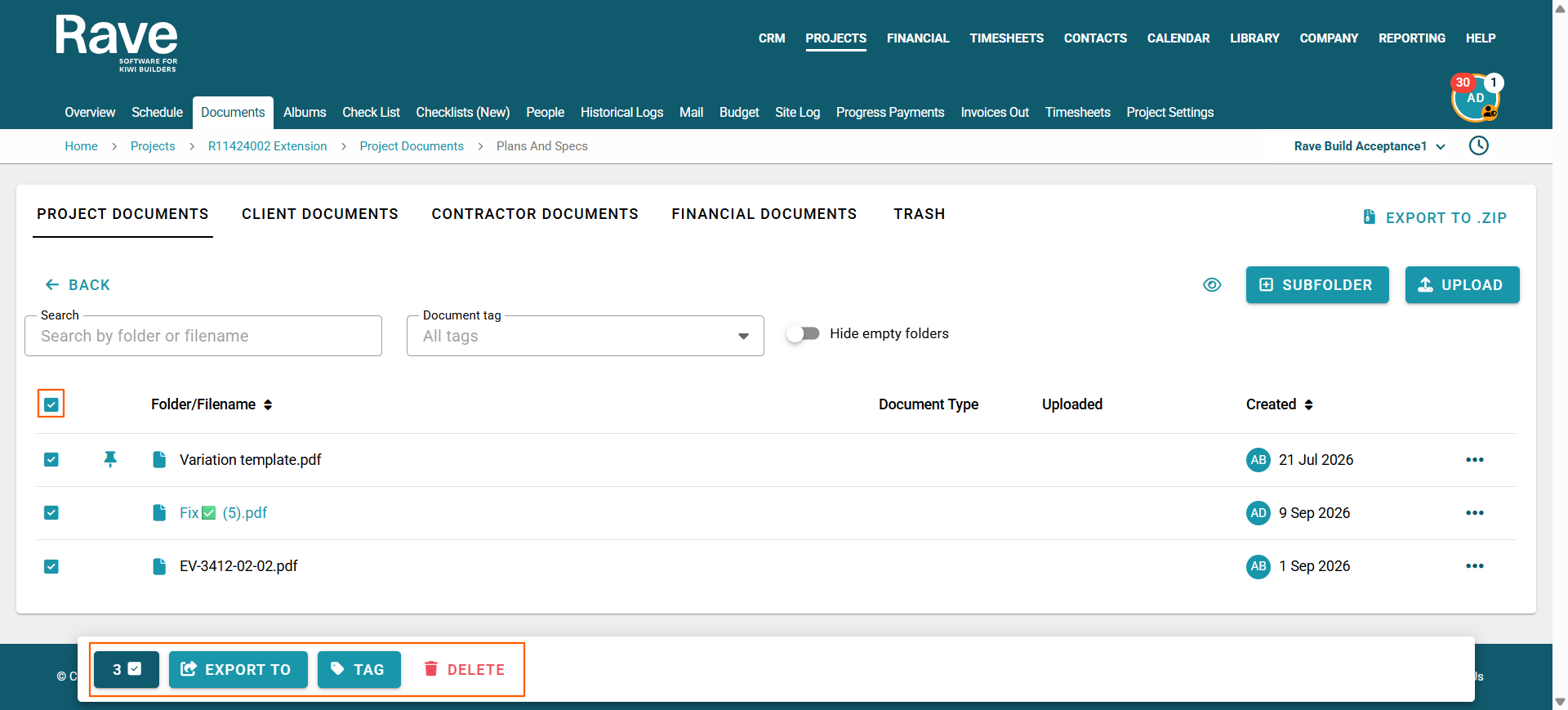
Bulk Select
Select multiple items within a folder, or use the bulk select box to update tags, delete items, or export them. These actions are available only to users with the appropriate permissions.
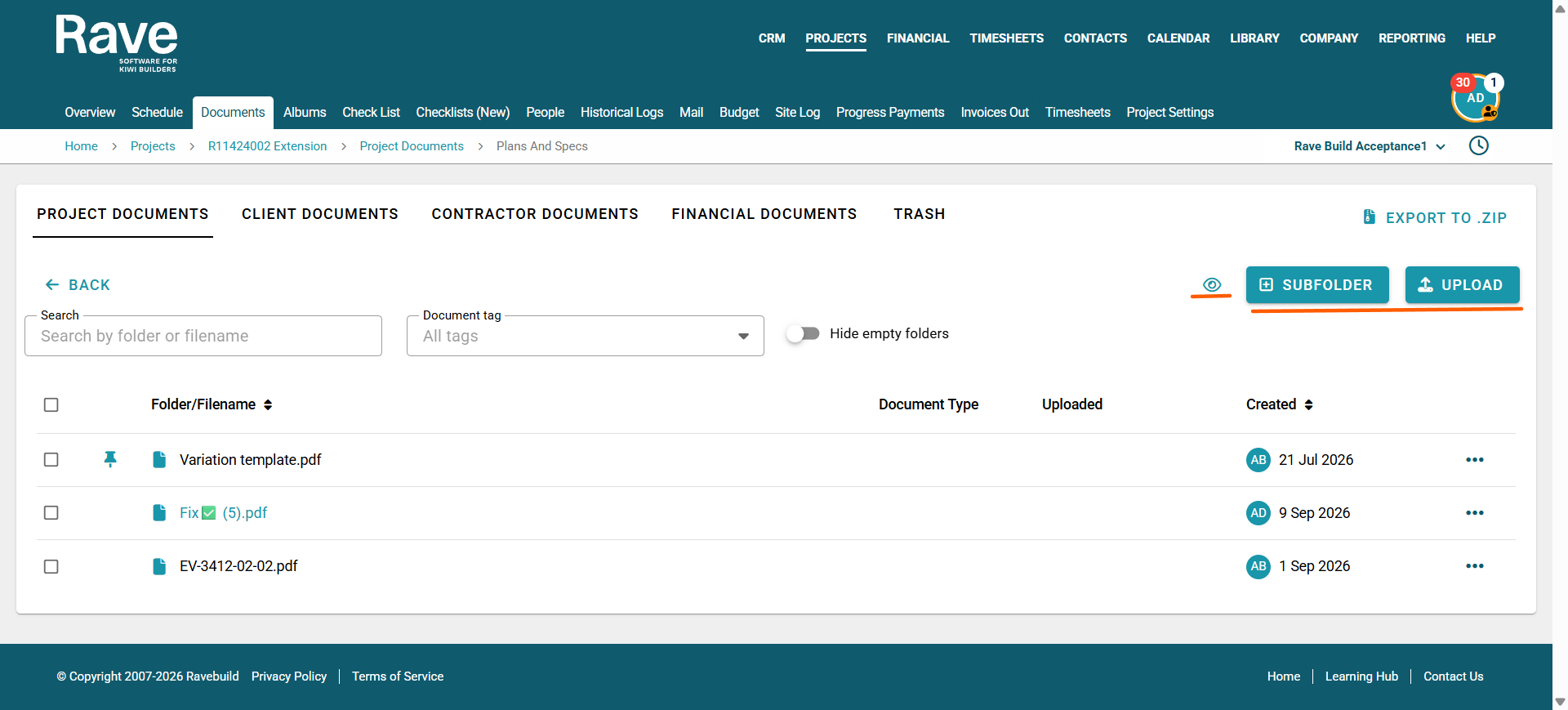
Clicking into a folder allows users with the appropriate permissions to:
- Drag and drop documents to reorder them using the = icon.
Create a subfolder by clicking +subfolder
Upload a document by clicking the upload button
Export Folder to ZIP
Manage the permissions of that folder by selecting the eyeball icon.
You can also simply drag and drop documents directly into the folder to upload them quickly.
The Document Tag filter allows you to filter documents by the tag assigned when the document is loaded. To add a document tag you can edit the item and add the tag. 
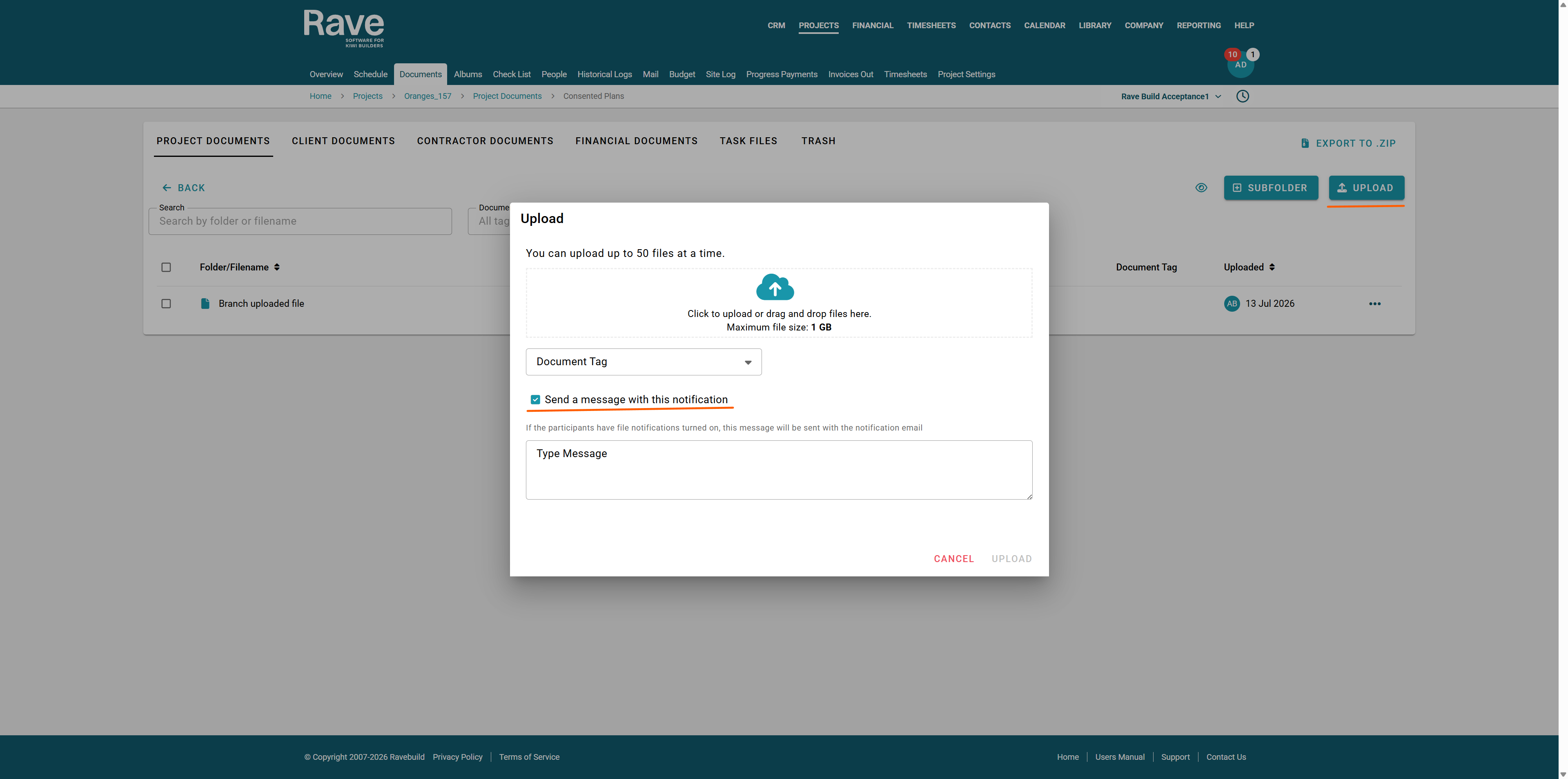
The Upload button lets you upload up to 50 documents at a time, with an option to notify users
when notifications are turned on and new documents are added.
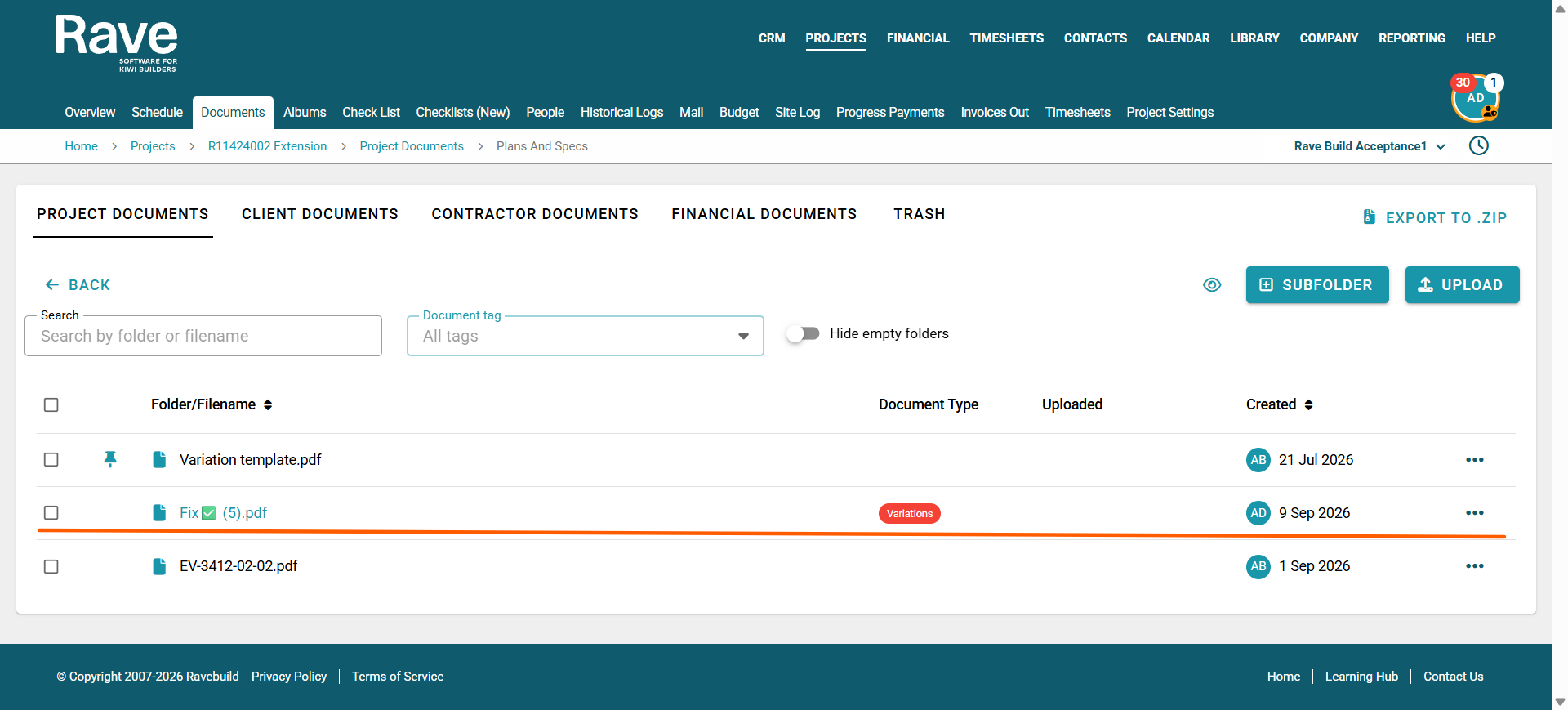
Once a document has been uploaded, you will see the following information displayed:
Document name
Tag (if one has been assigned)
Initials of the person who uploaded the document
Upload date
Previewing A document
You can click on the document title to open up a preview.
From the three-dot (⋮) menu, you can then pin to top, edit, open in a new tab, download, print, export to, move, copy or delete. (Some options are permission based so may not show for everyone).
Note: Some devices won't let you open in a new tab as this is a web based option only from a browser.

Click the three-dot (⋮) menu next to the document to access additional options.
If the document has been inherited from Branch Settings, you cannot delete it or add or change its tag. However, you can still preview, print, open in new tab and export the document for use throughout Rave, including attaching it to emails, checklists, schedules, variations, and other areas of the system.
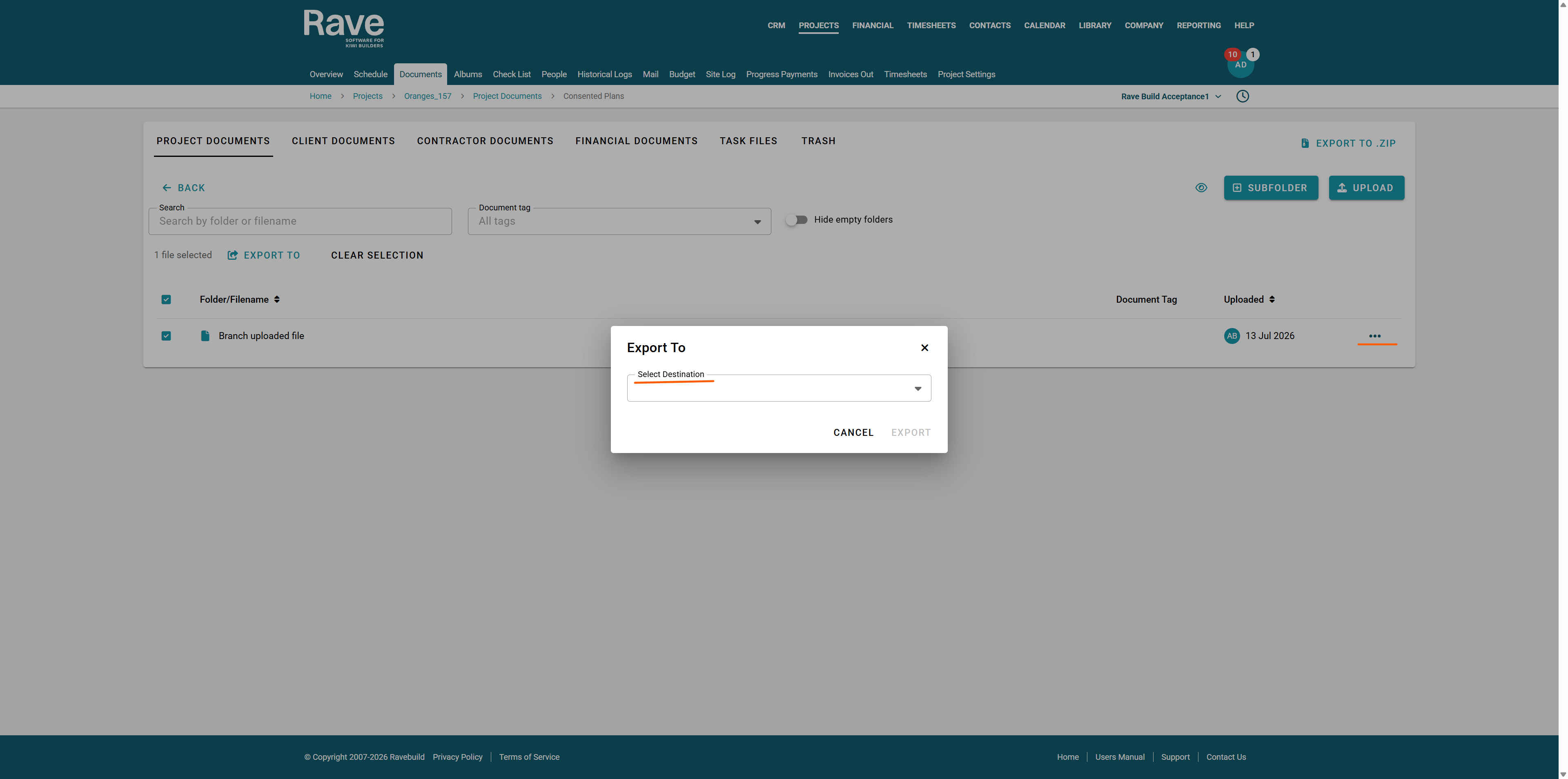
If the document has been added at the project level, click the three-dot (⋮) menu next to the document to access the available actions.
From here, you can:
Pin the document to the top of the folder for quick access.
Edit the document name and tag, and, with permission, replace the file with a new version
Open in a new Tab
Download the document to your device.
Print
Export the document to other areas of Rave, as outlined in the previous instructions.
Move the document to a different folder.
Copy the document and save it in a different folder or subfolder.
Delete the document if it is no longer required.
Replacing File Contents
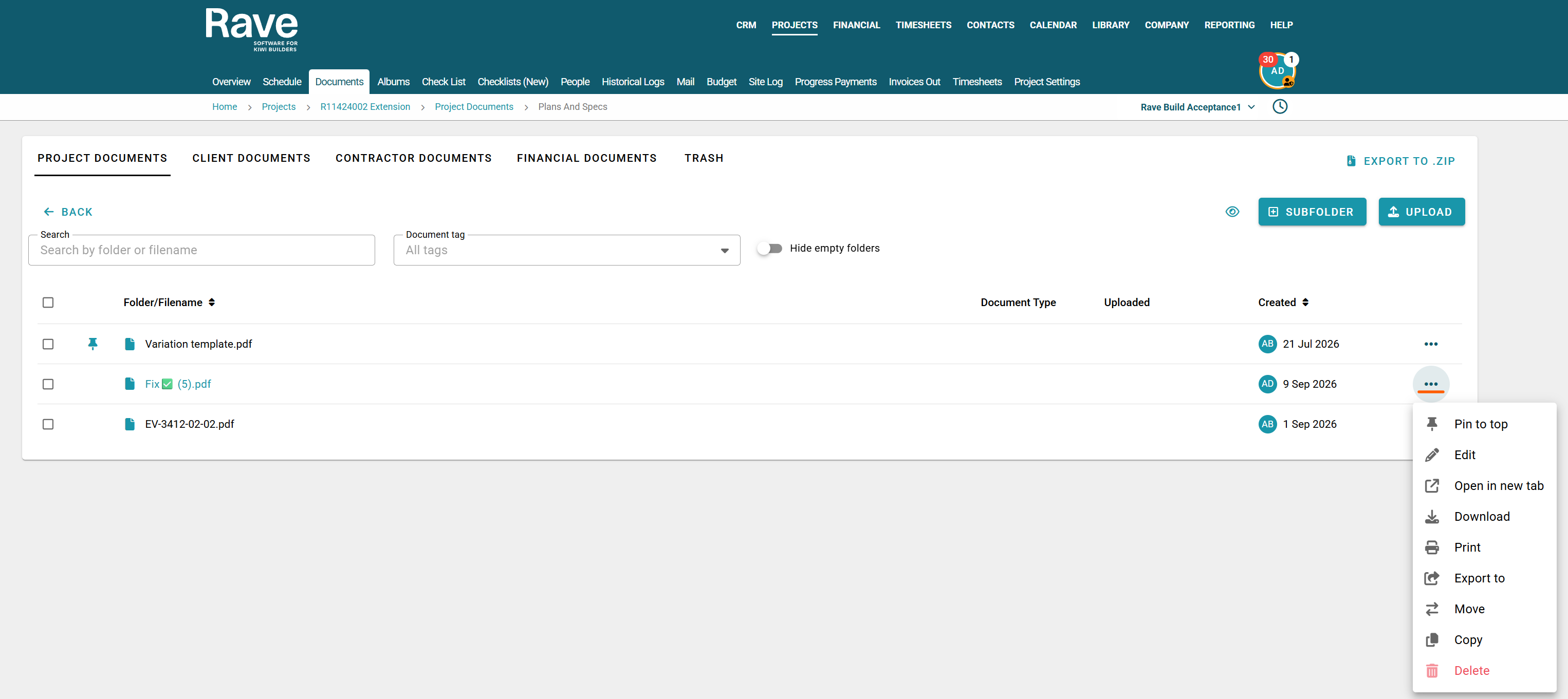
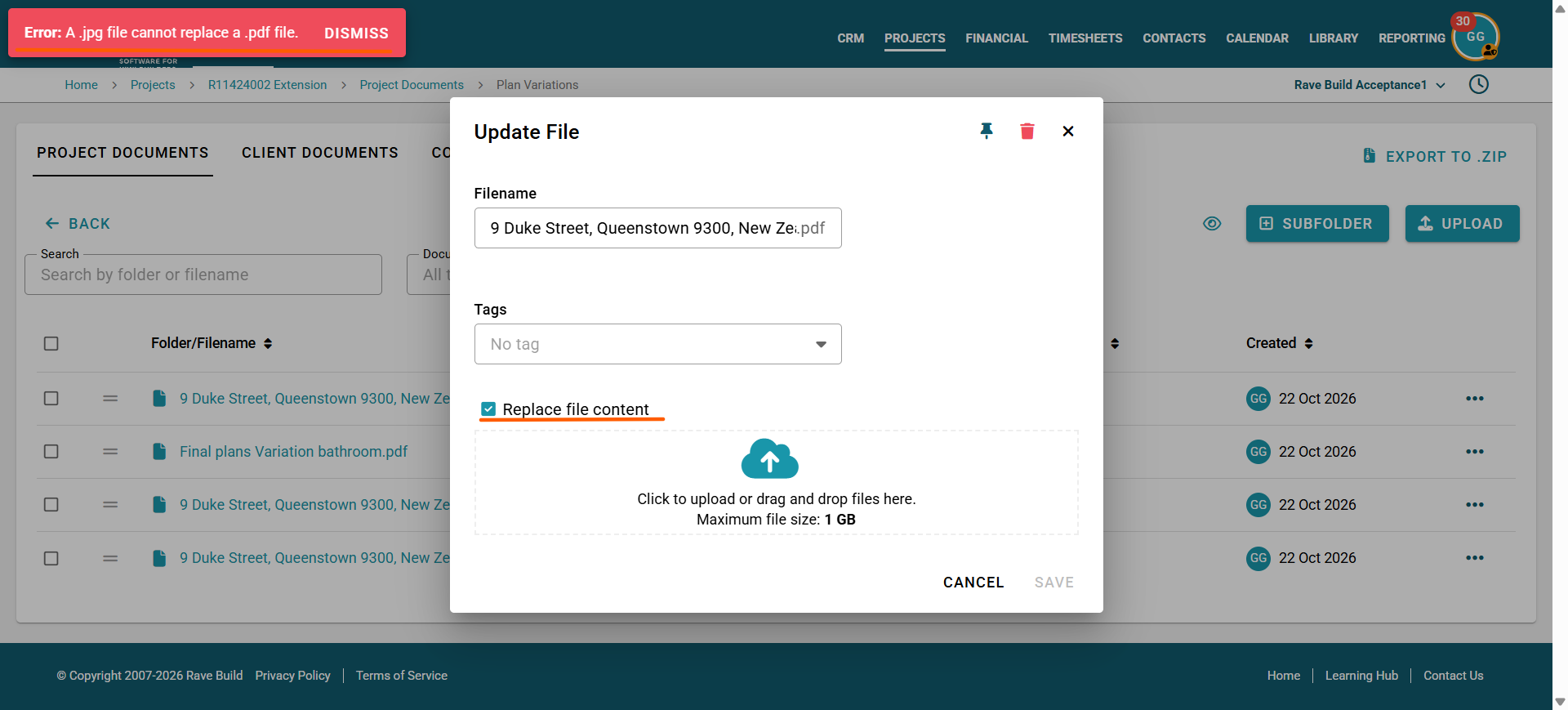
You can replace the original file with a new version by clicking Edit and ticking the Replace file content box. You will then see a new upload box to replace the file with.
If you try to replace the file content with a different file type, you will receive an error.
You must replace it with the same file type as the original. Example: a .PDF for a new .PDF
Note:
The file name will not change unless you also edit the File name.
The audit trail will record that the file content has been updated but we do not store what the attachment was before it was replaced.
Export To
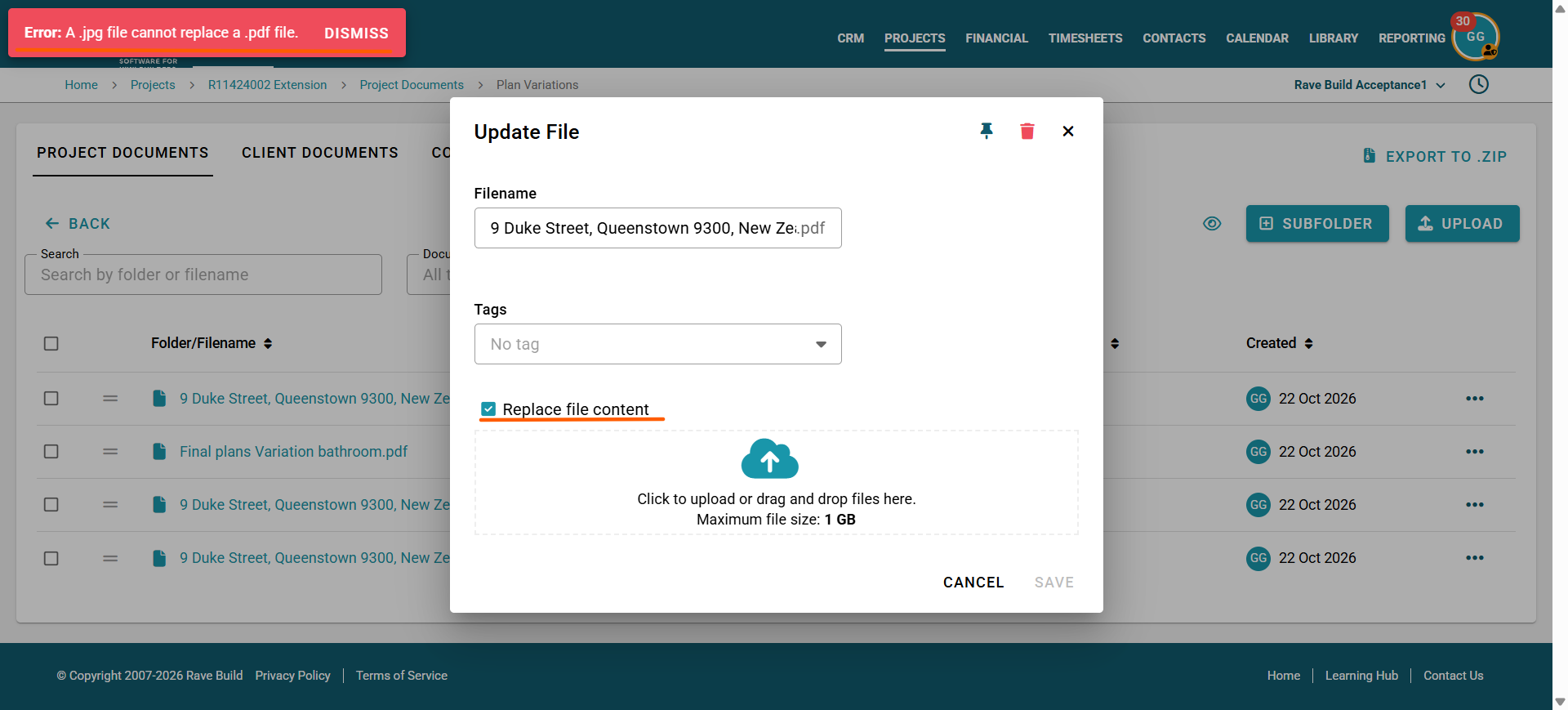
The Export To feature allows you to share a document or attachment with other areas of Rave without needing to download and re-upload it.
Click Export To and select the destination, such as:
Email
Schedule Task Comment
Client Note
Variation
Or other supported areas within Rave
Once you've selected the destination, Rave will open the relevant screen with the document already attached, ready for you to complete and save.
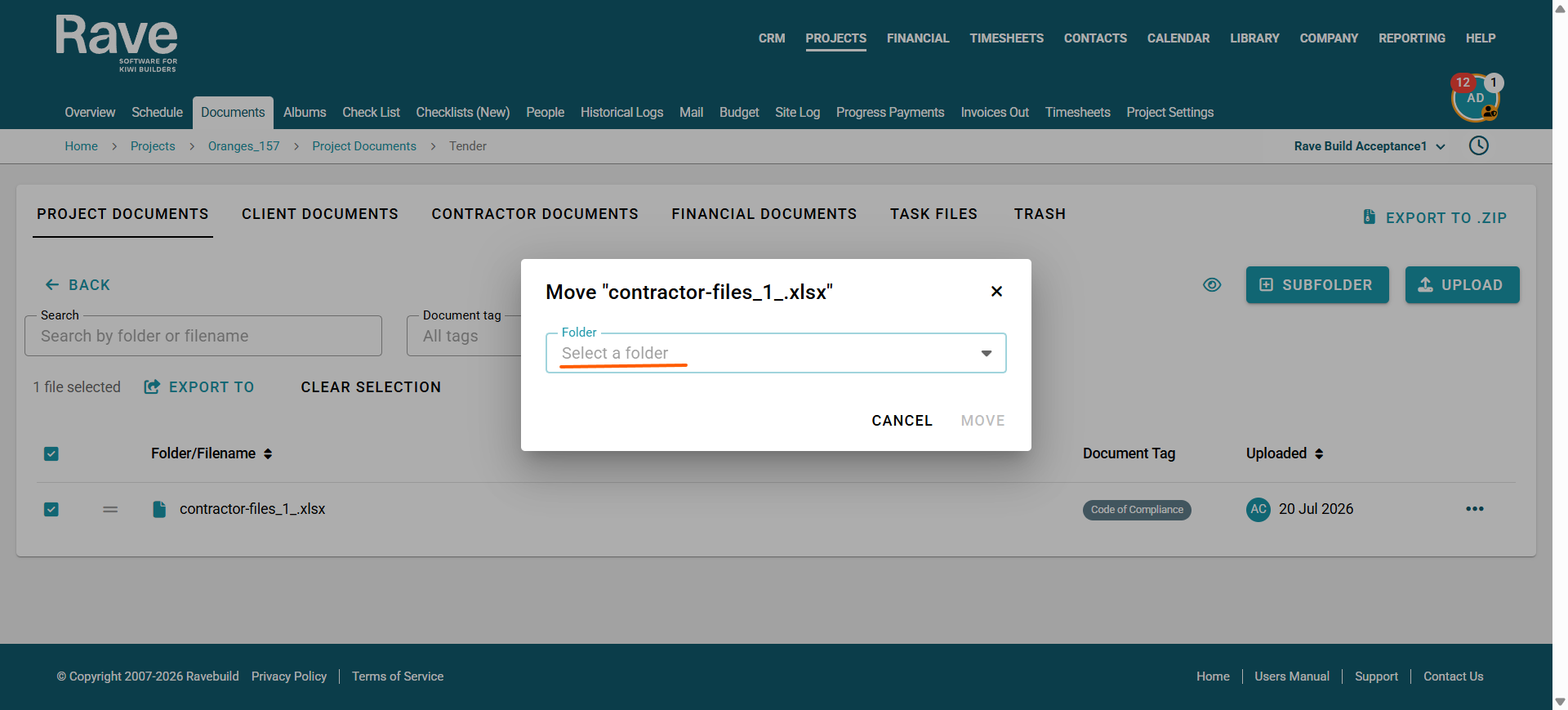
Move
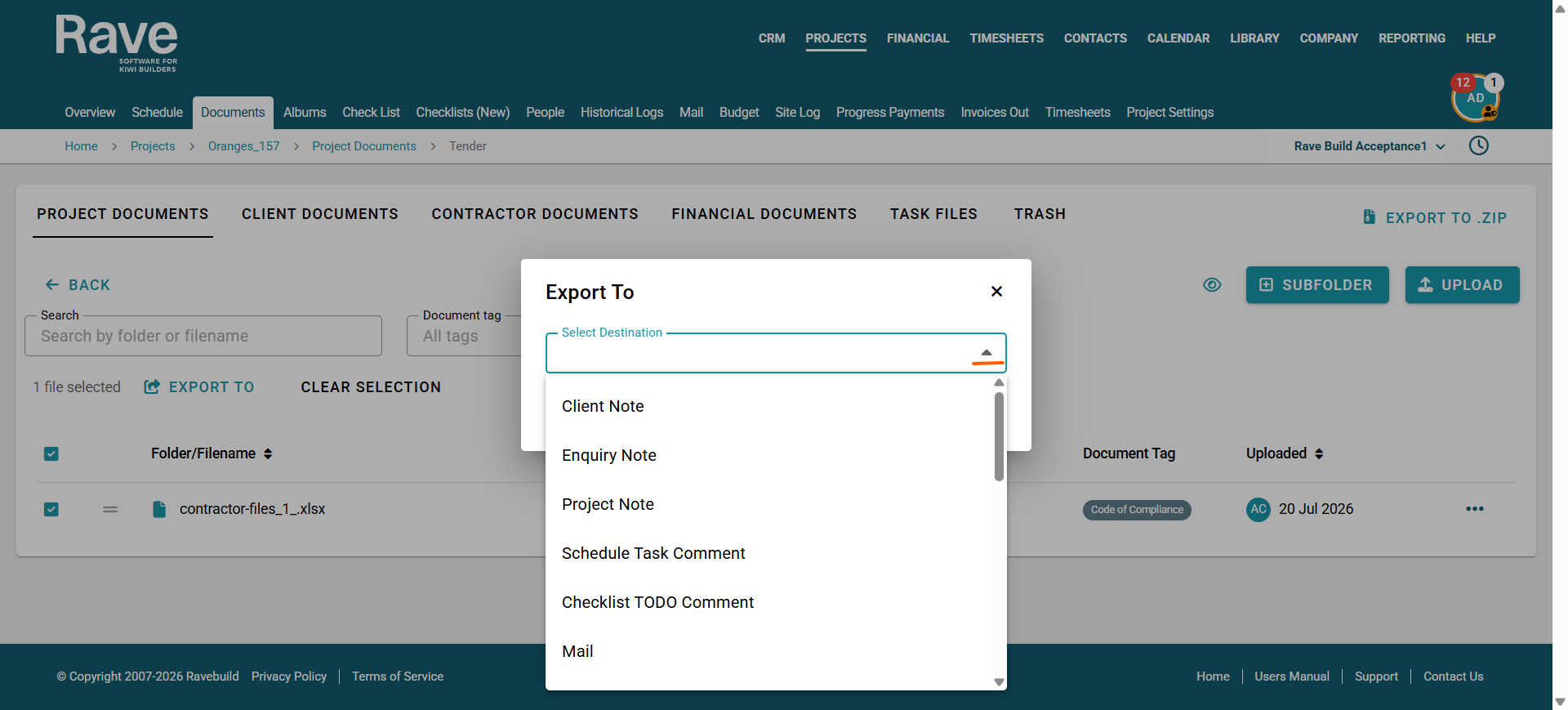
Move allows you to move the document to a different folder or subfolder within the same project. This includes moving it to a client folder or Contractor Folder.
Client Documents
The purpose of the Client Documents folder is to provide a dedicated place for clients to upload and share documents with you, without affecting your main project document structure. This helps keep client-supplied files separate from your internal project documentation while still making them easy to access.
The Client Documents tab works in much the same way as the Project Documents tab, with two key differences:
You cannot delete the main Client Documents folder.
There is an orange Text warning that this folder is Visible to clients and all branch staff with permission
You cannot remove client access to this folder.
Clicking into the folder, along the top, you can:
Create a subfolder using +subfolder
Upload new documents using Upload
Export to zip
Then click the three-dot ellipsis
Pin the document to the top of the folder for quick access.
Edit the document name and tag and replace the file contents
Open in a new tab
Download the document to your device.
Print
Export the document to other areas of Rave, as outlined in the previous instructions.
Move the document to a different folder.
Copy the document and save it in a different folder or subfolder.
Delete the document if it is no longer required.
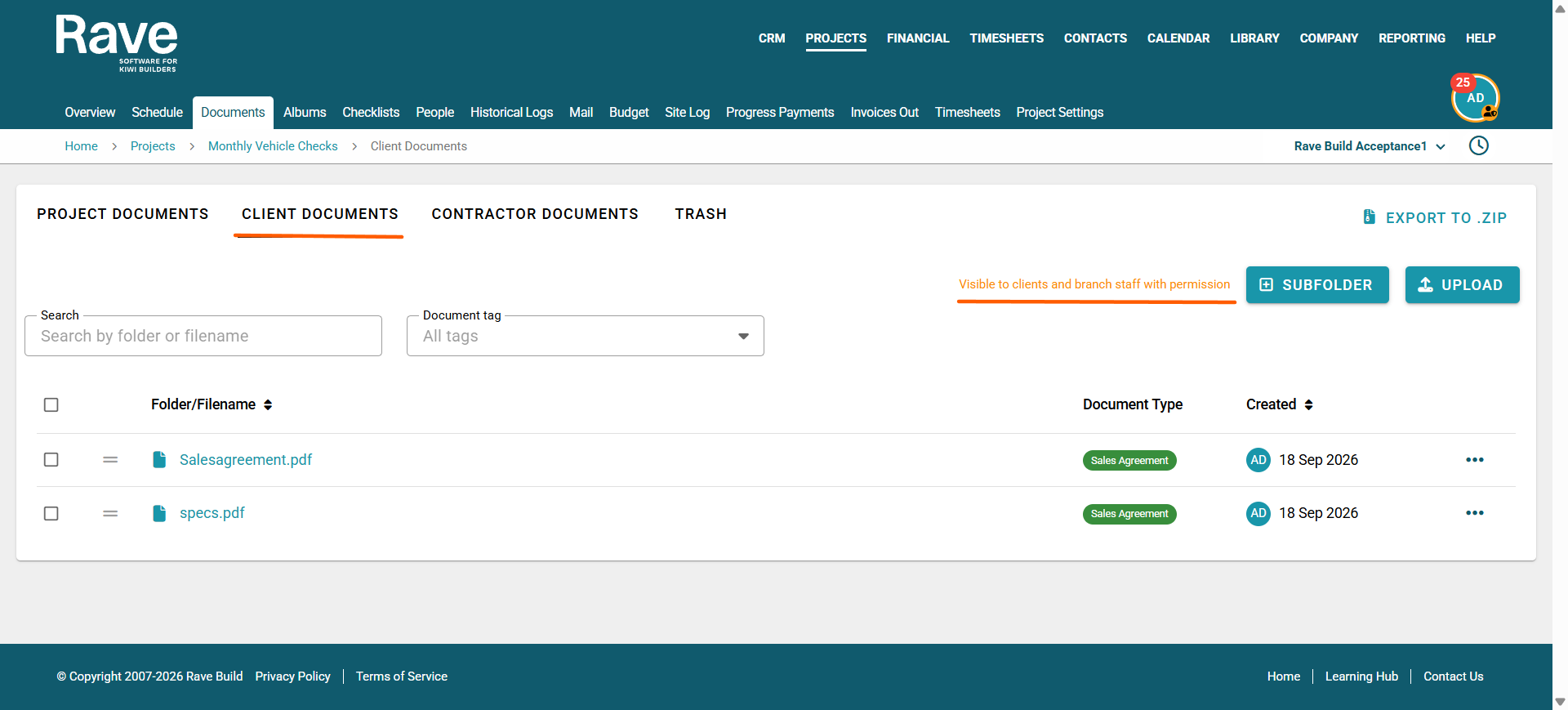
Replacing File Contents
You can replace the original file with a new version by clicking Edit and ticking the Replace file content box. You will then see a new upload box to replace the file with.
If you try to replace the file content with a different file type, you will receive an error.
You must replace it with the same file type as the original. Example: a .PDF for a new .PDF
The file name will not change unless you also edit the File name.
Contractor Documents
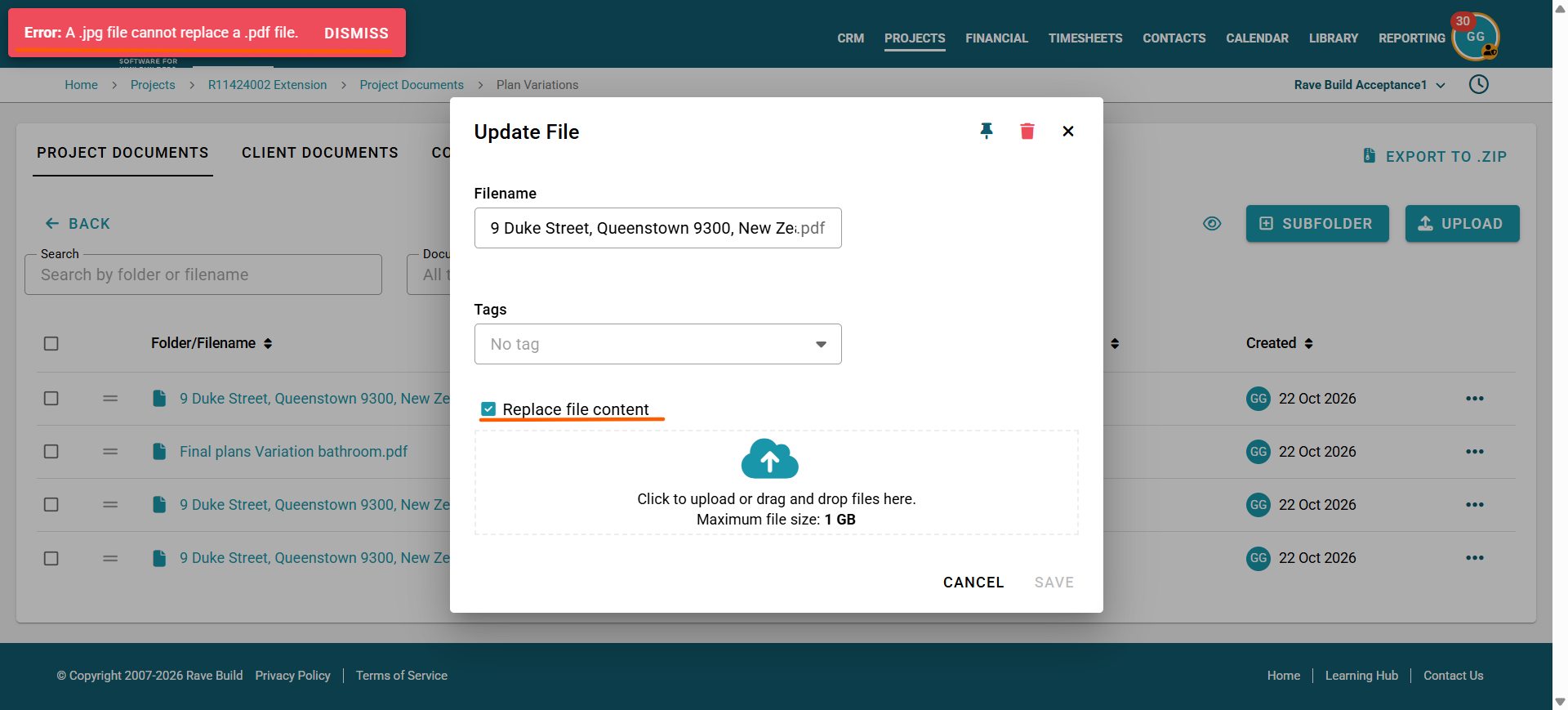
The Contractor Documents tab automatically creates a folder for each contractor added to the People tab of the project.
Each contractor folder is only visible to:
Branch users with the appropriate permissions.
The contractor assigned to that folder.
When you click into each contractor's folder, there is an orange Text warning that this folder is Visible to *Contractor Name* and all branch staff with permission
For privacy and security, contractors cannot see each other's folders, and you can't configure permissions to allow contractors to access another contractor's documents.
At the top of the screen, you'll find the Hide Empty Folders toggle. When enabled, any contractor folders that do not contain documents will be hidden, making it easier to navigate and focus on folders that contain files.
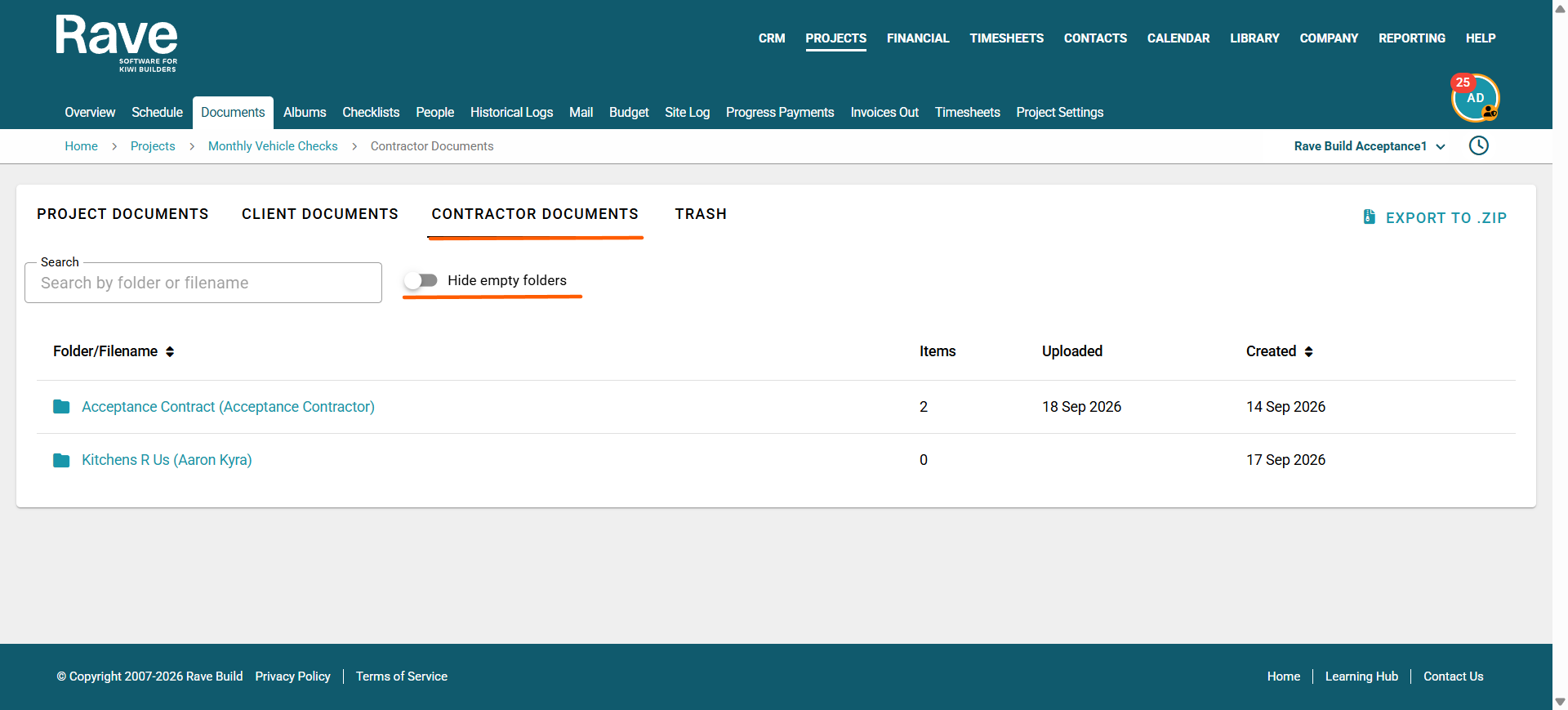
Clicking into each folder, you have the same options you have on Project Documents:
Along the top, you can:
Create a subfolder using +subfolder
Upload new documents using Upload
Export to zip
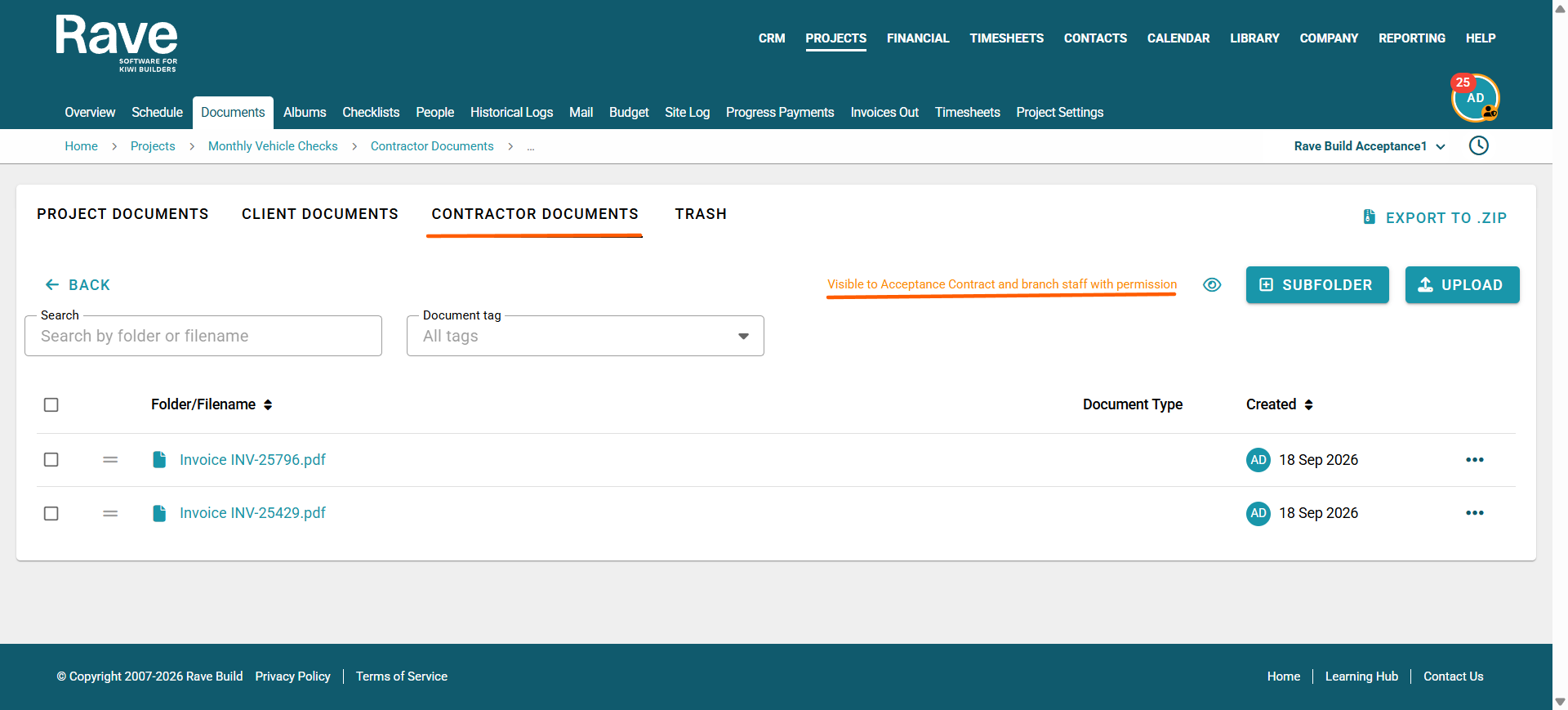
Then click the three-dot ellipsis
Pin the document to the top of the folder for quick access.
Edit the document name and tag, and replace the file contents
Open in a new tab
Download the document to your device.
Print
Export the document to other areas of Rave, as outlined in the previous instructions.
Move the document to a different folder.
Copy the document and save it in a different folder or subfolder.
Delete the document if it is no longer required.

Replacing File Contents
You can replace the original file with a new version by clicking Edit and ticking the Replace file content box. You will then see a new upload box to replace the file with.
If you try to replace the file content with a different file type, you will receive an error.
You must replace it with the same file type as the original. Example: a .PDF for a new .PDF
The file name will not change unless you also edit the File name.
Removing a Contractor from a project with Existing Documents
If you remove a contractor from the People tab while they still have documents stored in the Contractor Documents section, those documents will not be deleted automatically.
Instead, users with the appropriate permissions will see a warning banner at the top of the Contractor Documents tab, prompting them to resolve the unassigned documents.
From here, you can choose to:
- Reassign the documents to another contractor.
- Move the documents to a new folder.
- Delete the documents if they are no longer required.
This ensures that important documents are not lost when a contractor is removed from the project.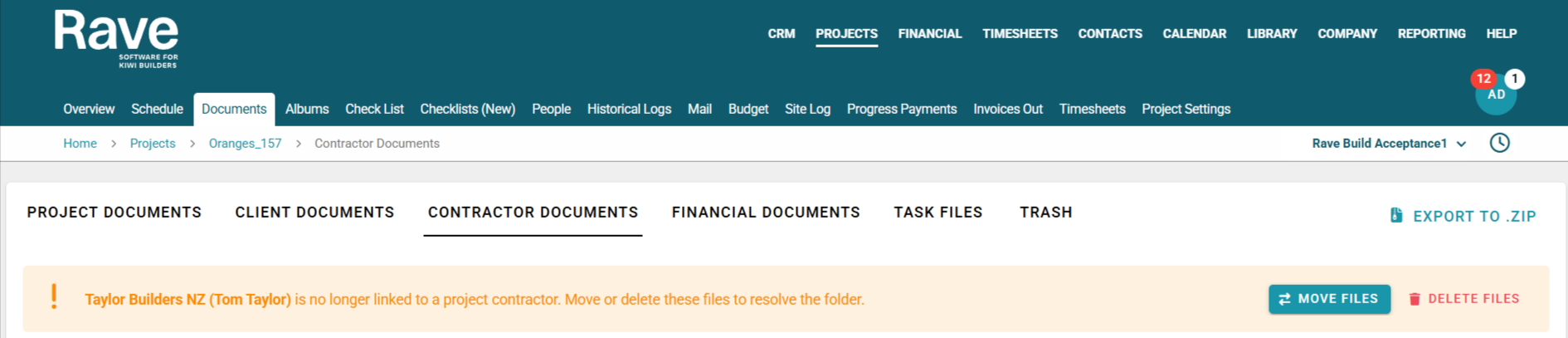
Financial Documents
If your branch uses Rave Financial, a Financial Documents tab will be available within your project.
This folder is automatically populated with PDF copies of key financial documents, including:
The latest version of each Estimate or Variation
All sent Purchase Orders.
The Financial Documents folder gives authorised branch users access to PDF copies of important financial documents, even if they don't have permission to access the full financial modules. This allows team members to view and reference the latest financial information without being able to edit or access the underlying financial data.
You can toggle the "Show Latest Version " box on or off.
Filter by Only Purchase orders or proposals (estimate or variation)
Each document can be downloaded to your device, exported, and Copied.
You cannot delete these documents.
You cannot replace the contents of these documents as they are automatically generated by Rave.

Task Files
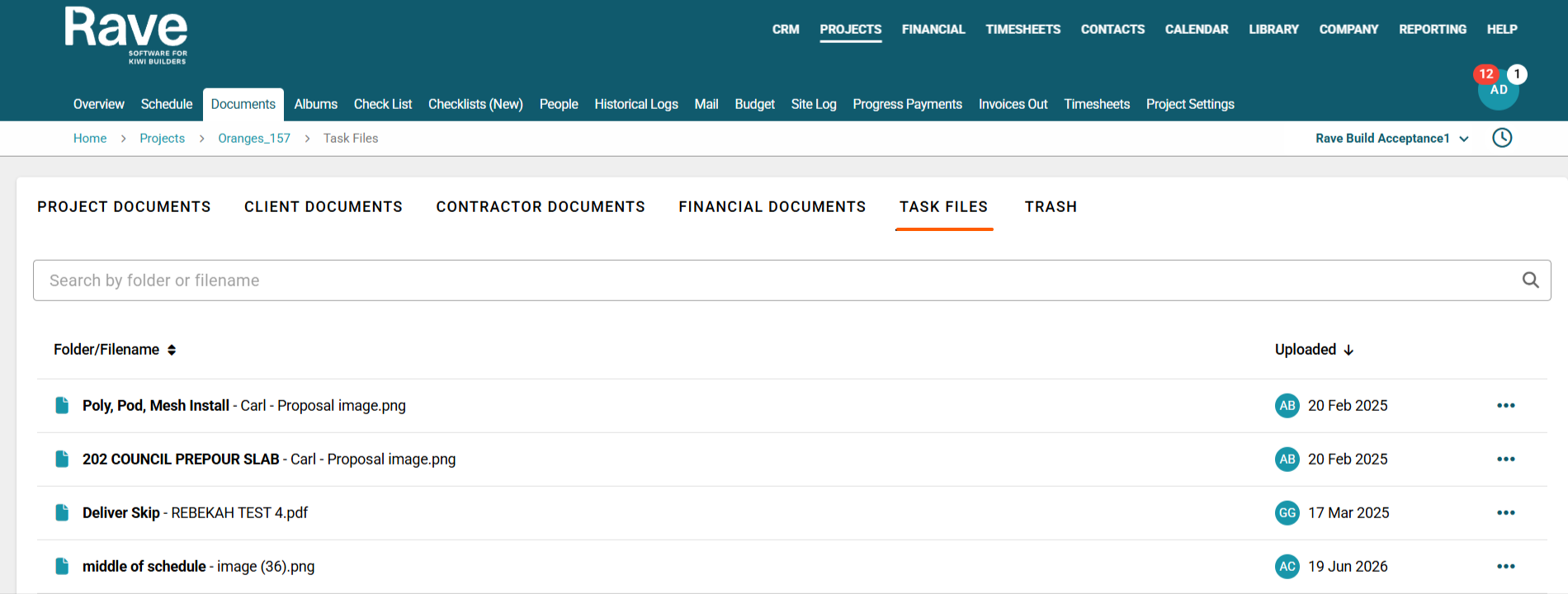
The Task Files tab contains a copy of every attachment that has been added to a Schedule Task Comment within the project.
This provides a central location to view and access files shared through task comments without needing to open each individual schedule task.
You can perform the following actions on files in the Task Files tab:
Download the document to your device.
Export the document to other areas of Rave, such as emails, variations, client notes, or schedule task comments.
Copy the document to another folder.
You cannot delete documents from the Task Files tab, as they are linked to Schedule Task Comments. To remove a document, you must delete it from the original schedule task comment where it was attached.
You cannot replace the contents of these documents as they are automatically generated by Rave.
The Trash tab contains all documents that have been deleted from your folders.
For each deleted document, you'll see:
Document Name
Date and Time Deleted
Deleted By
Original Folder/Subfolder
Days Remaining until the document is permanently deleted by the system
Click the three-dot (⋮) menu next to a document to access the available actions. Depending on your permissions, you can:
Restore the document to its original folder or subfolder.
Permanently delete the document immediately. This action cannot be undone.
To permanently remove all documents in the Trash, click Empty in the top-right corner of the screen.

Was this article helpful?
That’s Great!
Thank you for your feedback
Sorry! We couldn't be helpful
Thank you for your feedback
Feedback sent
We appreciate your effort and will try to fix the article