If you are looking for Office 365 Calendar instructions, please click here.
If you are looking for Google Calendar instructions, please click here.
You can now sync your Rave schedule tasks to an external calendar.
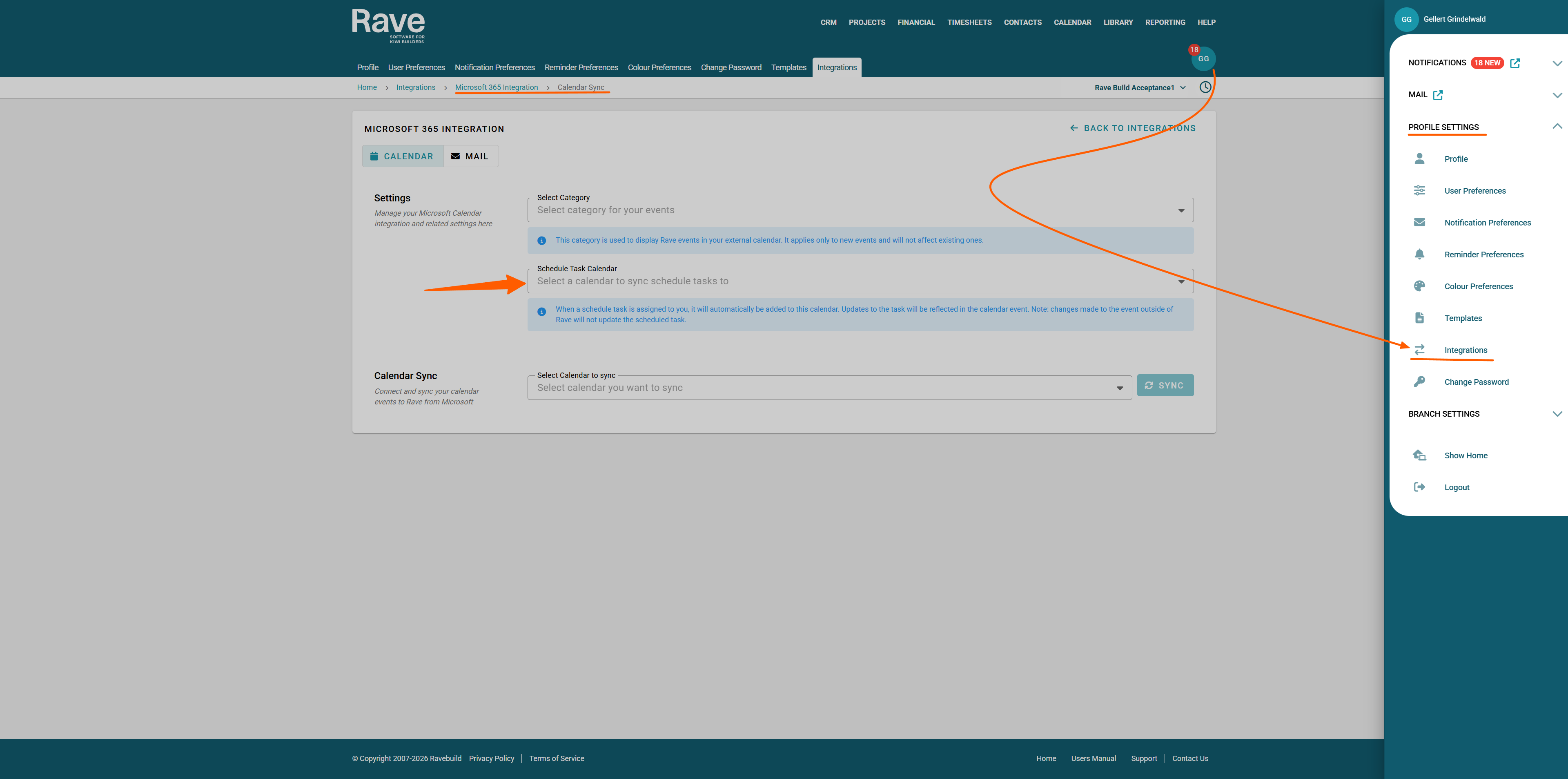
From your profile dropdown, select Integrations, then choose either Google Calendar or Office 365 Calendar.
Select Manage, then use the Schedule Task Calendar dropdown to choose which calendar your schedule tasks should sync to. We recommend selecting your default calendar.
Once selected, click Sync.
Rave will begin syncing schedule tasks from open projects where the schedule is activated,
and where you as the calendar owner are the primary or secondary assignee. We will only begin syncig schedule tasks from the day the calendar is selected and syncing is enabled.
Note: Changes made to schedule tasks in your external calendar will not sync back to Rave.
Only one calendar can be selected at a time for scheduling task syncing. This can be either Google Calendar or Outlook, but not both.
Was this article helpful?
That’s Great!
Thank you for your feedback
Sorry! We couldn't be helpful
Thank you for your feedback
Feedback sent
We appreciate your effort and will try to fix the article