The following is the recorded version of the help article outlined below.
With Rave's new Calendar syncing feature you can easily book your meetings, set tasks/follow ups without double booking yourself or needing to open your external calendar.
This feature is only enabled for adding a CRM Activity Meeting or CRM Activity Task.
Setting up your calendar syncing is easy.
If you use Google please follow the steps here
If you use Office 365/Microsoft please follow the steps here.
Once your calendar syncing is complete you will now be able to create CRM appointment meetings or tasks using the new calendar view.
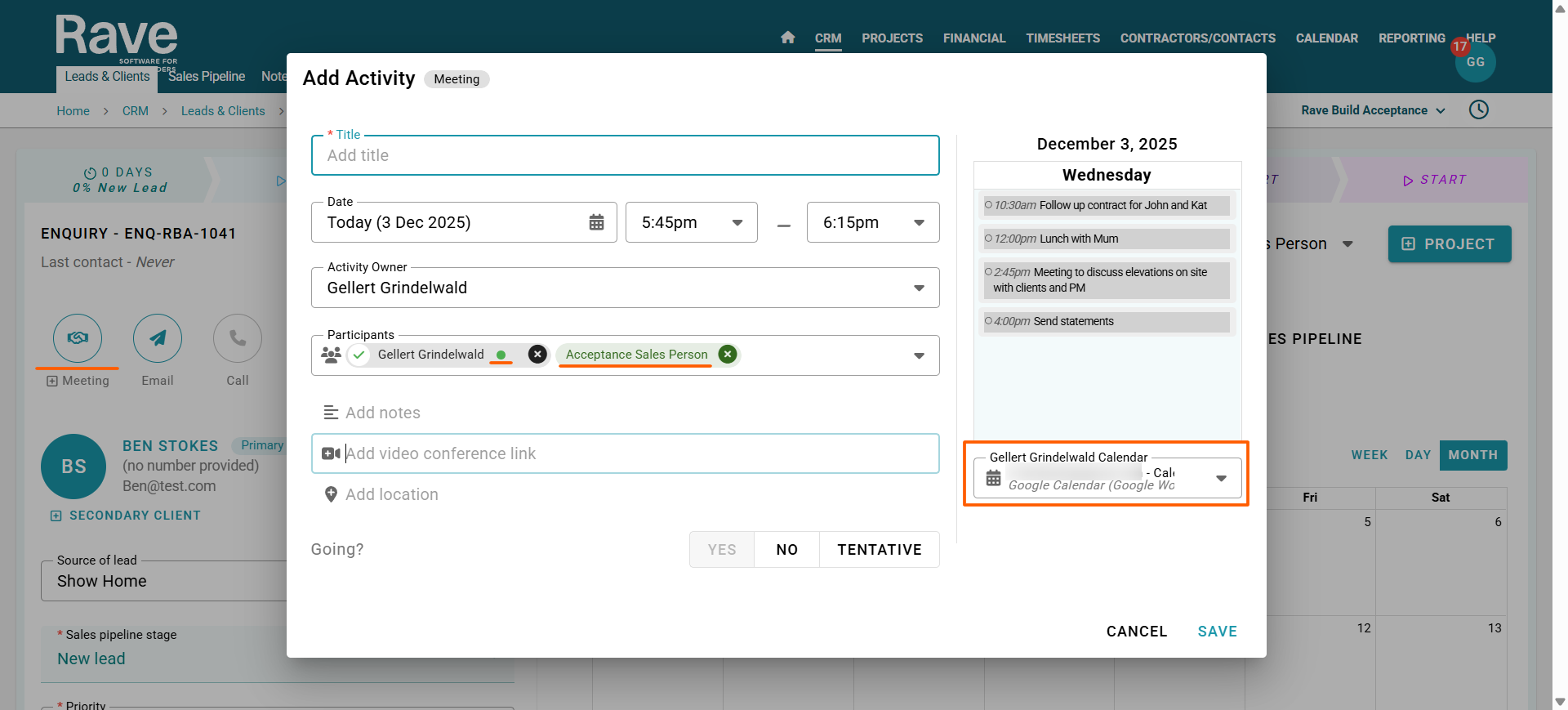
Those with permission to manage their own calendars will see a pop up to the right of the add activity model. If you have more than one calendar sync set up in Rave you can switch between them using the arrow to the bottom right where it displays your calendar type and email address under your user name. If you only have one calendar it will be the default.
All of your external activities will sync to this view not just the ones that were created in Rave. In this example we can see 4 activities. 2 created from Rave and 2 external ones that this person has loaded to their google calendar. Deleting an activity from your external calendar will delete it from Rave as the sync is both ways.
When adding attendees to your activities, you’ll see their availability status if they have calendar syncing enabled. A red dot beside their name means they are busy/not available at the time you’re inviting them. A green dot means they are free/available. If a participant does not have calendar syncing enabled, no dot will appear beside their name.
If you have granted others permission to add activities or tasks on your behalf, they will not be able to see the details of your meetings/tasks in the calendar view. Instead, they will only see your availability as Busy, without any specific information. This is designed to protect your privacy.
Even with limited visibility, they can still create activities and tasks for you in the same way you can. They simply cannot view the detailed information from your calendar.
Example:
In the scenario below, our Sales Manager, Cho, is creating a meeting for herself and Gellert. Because Gellert is the owner of the activity, the calendar displayed on the right shows Gellert’s schedule. If we want to view Cho’s calendar instead, we would change the activity owner to Cho.

Once you have created the activity or task, you need to press Save.
This will automatically send the participants a calendar meeting invite, allowing them to accept, decline or tentatively accept. For the owner of the activity the meeting or task will automatically go to their calendar as accepted regardless of if you create it or someone does on your behalf.
The Client Name, Enquiry Reference and Notes will all be added to the invite as well as any meeting links or addresses added.
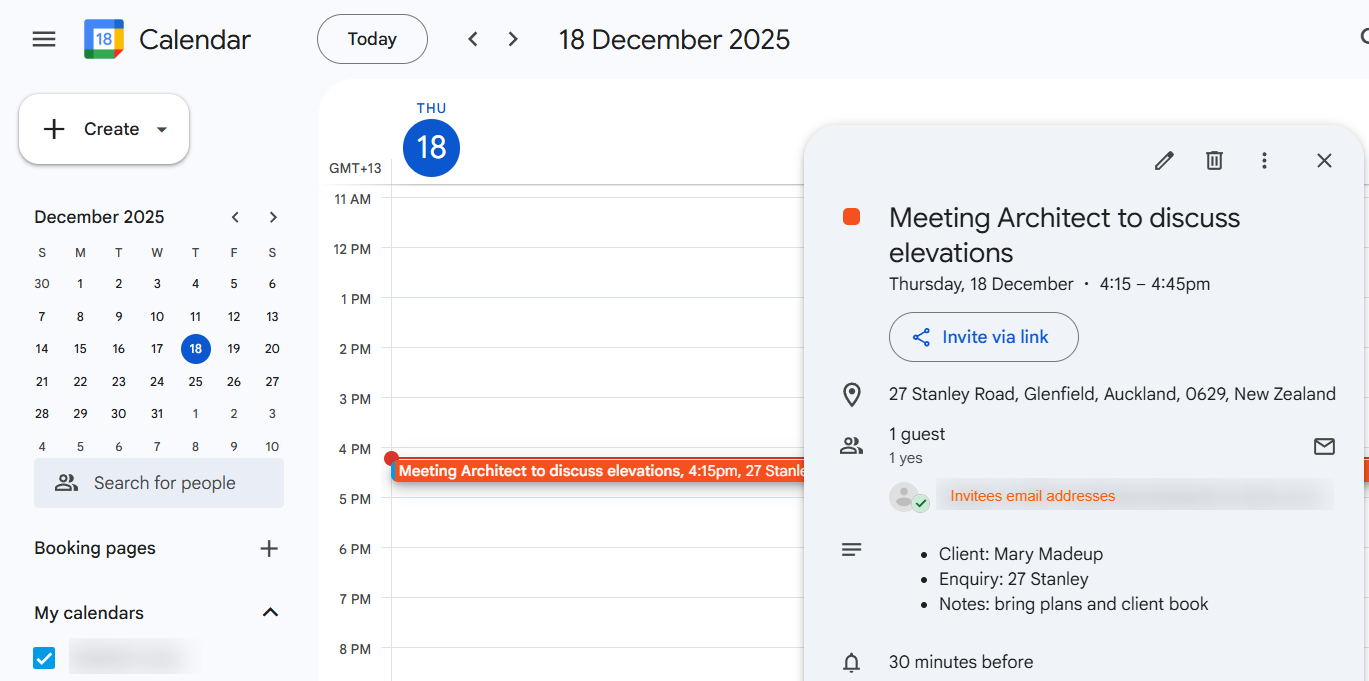
Making any changes outside of Rave will sync back into Rave.
Removing participants, adding participants, changing time etc
Example:
In the scenario below, we added a new participant Shelley Smith, the secondary client, to the activity using her email address directly from the google calendar. We then updated the meeting title in Google Calendar, and the change synced back into Rave. If the new participant is not an existing Rave user, they will not appear in the Rave model.
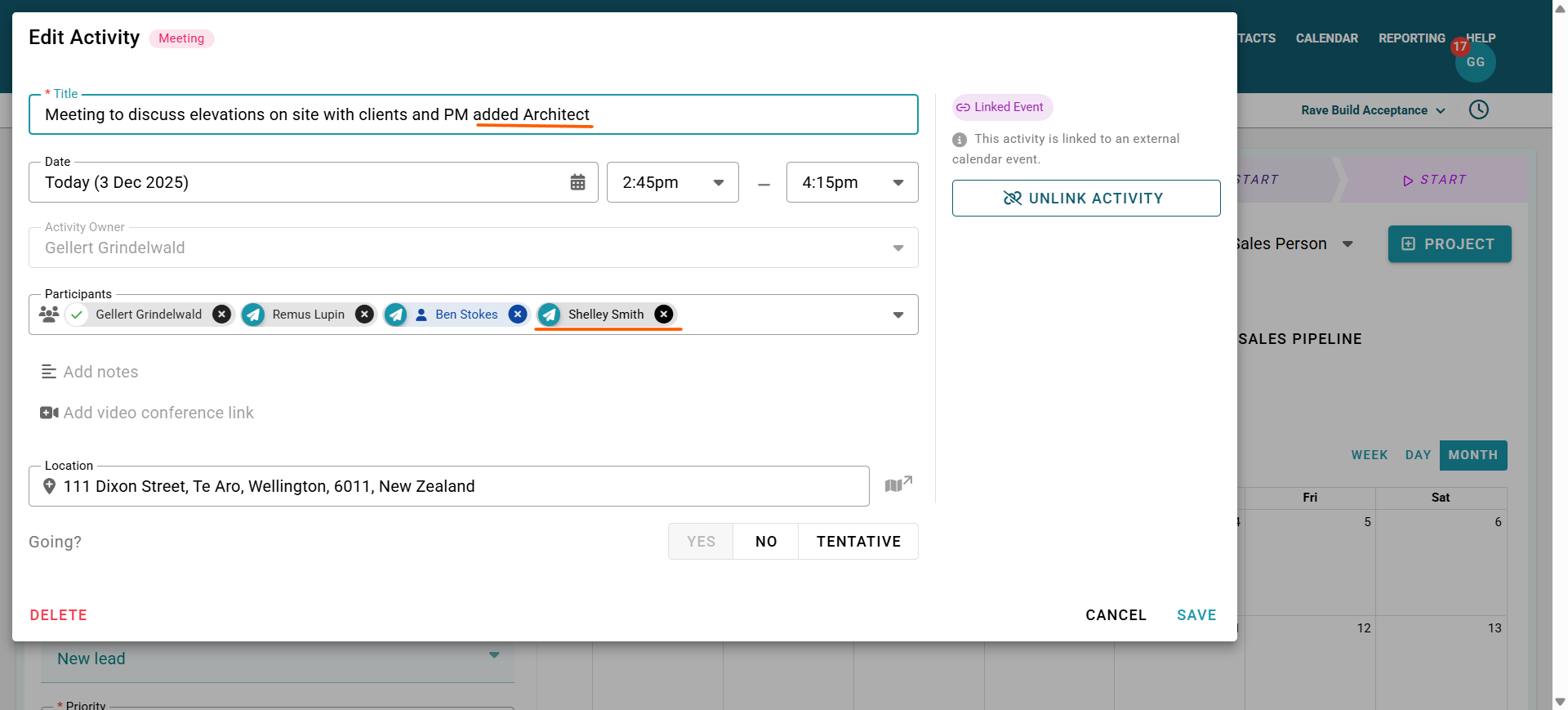
If you want to unlink an activity from your external calendar, you can select the Unlink Activity button. Once unlinked, any changes made in Rave will no longer sync to your external calendar, and changes in your external calendar will no longer sync back to Rave.
Enquiry Calendar Activity View
All your Enquiry Activities will appear in your enquiry activities calendar or task list view. As you have the option to colour code your activities you can easily see which ones are Meetings vs Tasks. To learn how to colour code your Activities please read the help article here.
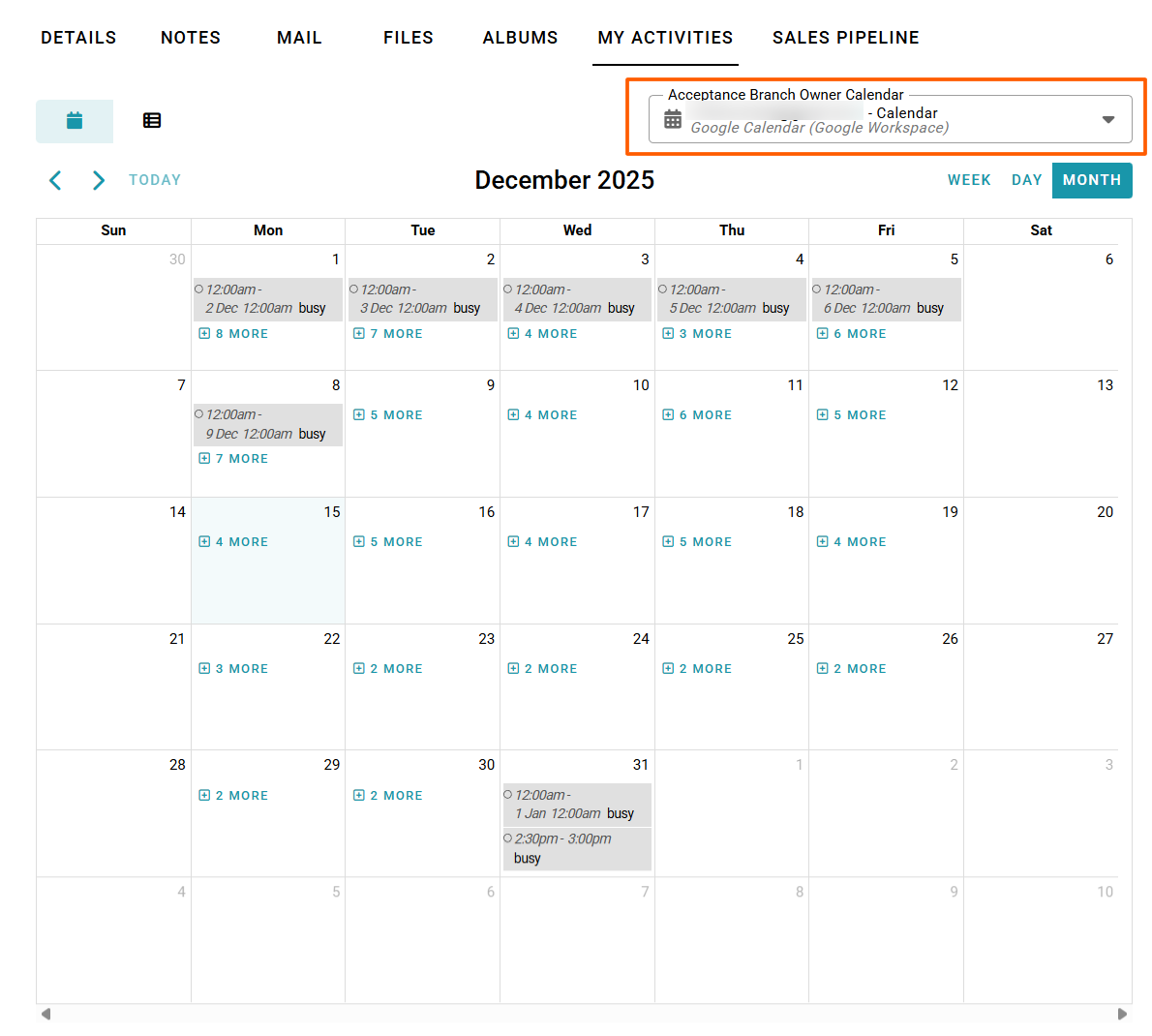
When logged in, your Enquiry Activities Calendar will display all busy periods from your connected external calendar as well as all activities created in Rave.
External activities are grey by default. Rave Activities are coloured coded from your preferences you set up earlier.
If you have both Google and Microsoft calendars connected, you can use the calendar switch to the top-right of the calendar view to choose which external calendar is shown.
Only the user who has connected their calendar can see their external appointments in this view, and these will appear as Busy only. Other team members can still view your availability by creating a new Meeting or Task and selecting you as the activity owner.
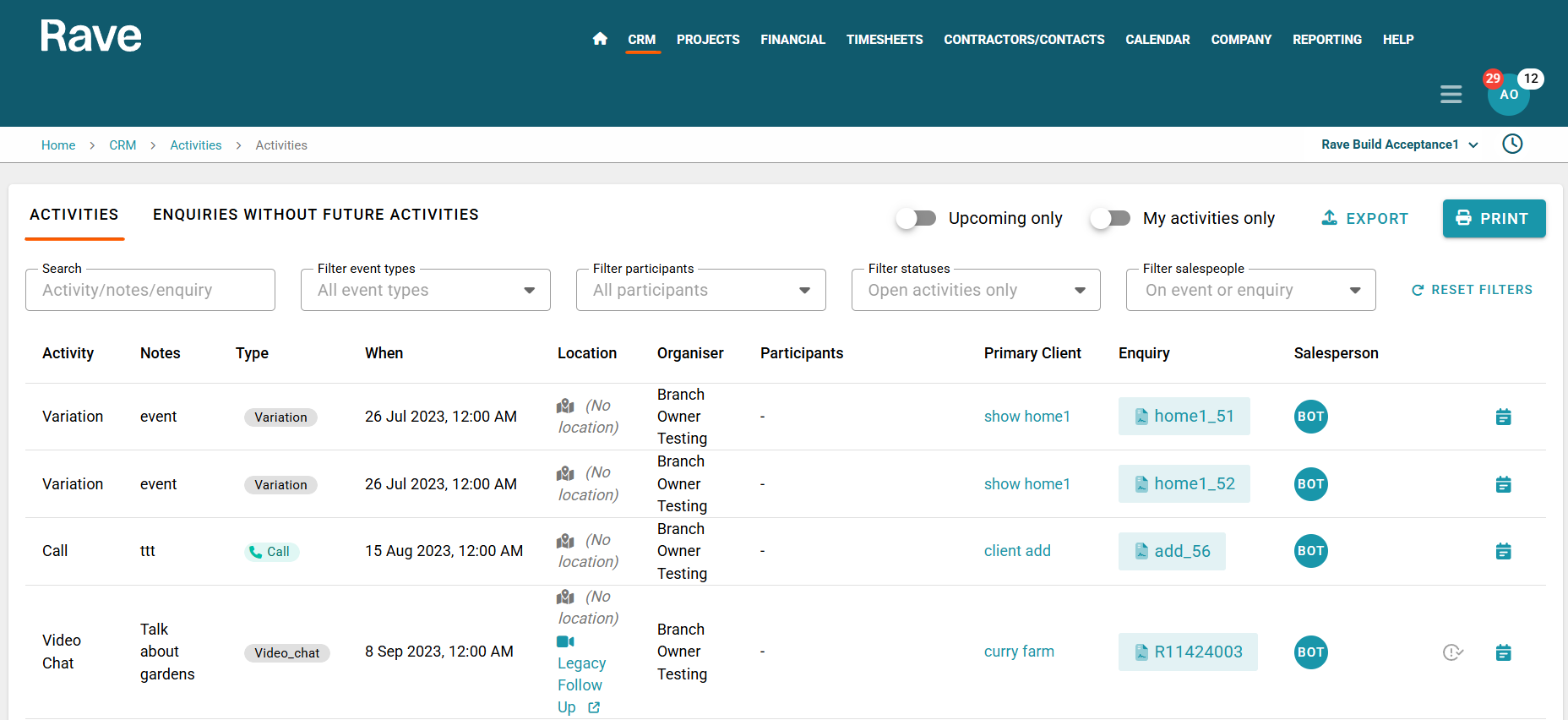
Branch CRM Enquiry Activities List View
To read how the Branch level CRM Enquiry Activities page works please click here for the help article.
Was this article helpful?
That’s Great!
Thank you for your feedback
Sorry! We couldn't be helpful
Thank you for your feedback
Feedback sent
We appreciate your effort and will try to fix the article