The Rave Calendar link in the top navigation lets you view all your event invitations in one place across Rave. With calendar syncing enabled, all of these activities will also appear in your external Office 365 or Google Calendar. You will also see external appointments here as well.
Select Calendar from the top navigation. If you do not see Calendar at the top of your Rave Navigation bar, please contact your business owner or Rave Support for help.
If you have permission, you will see two tabs: My Calendar and Branch Calendar.
In this article, we will focus on My Calendar
If you are looking for the Branch Calendar, click here for the help article.
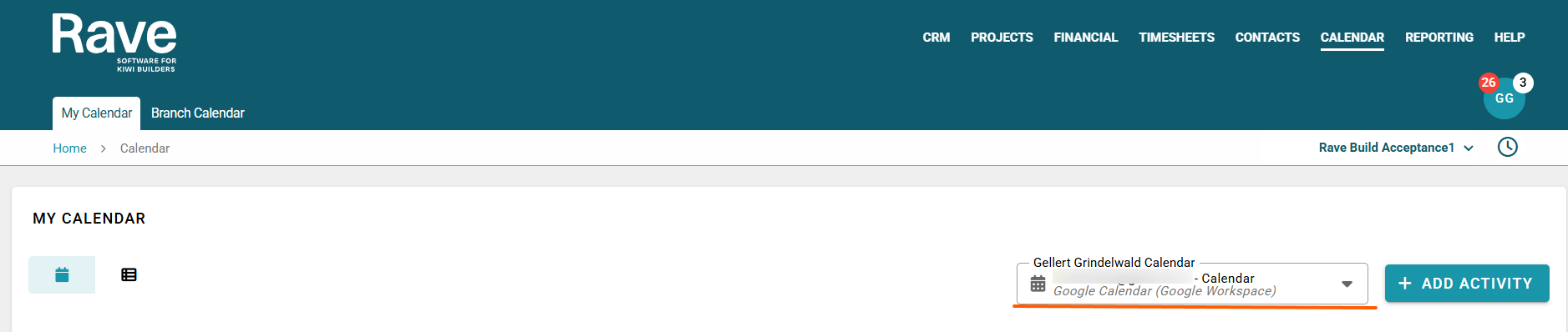
With calendar syncing enabled, you will see a drop-down box to the top right where you can switch between your Google and Office 365 calendars if you have both, or you can uncheck a single calendar by hovering over the name of the calendar and pressing the x to stop viewing external appointments.
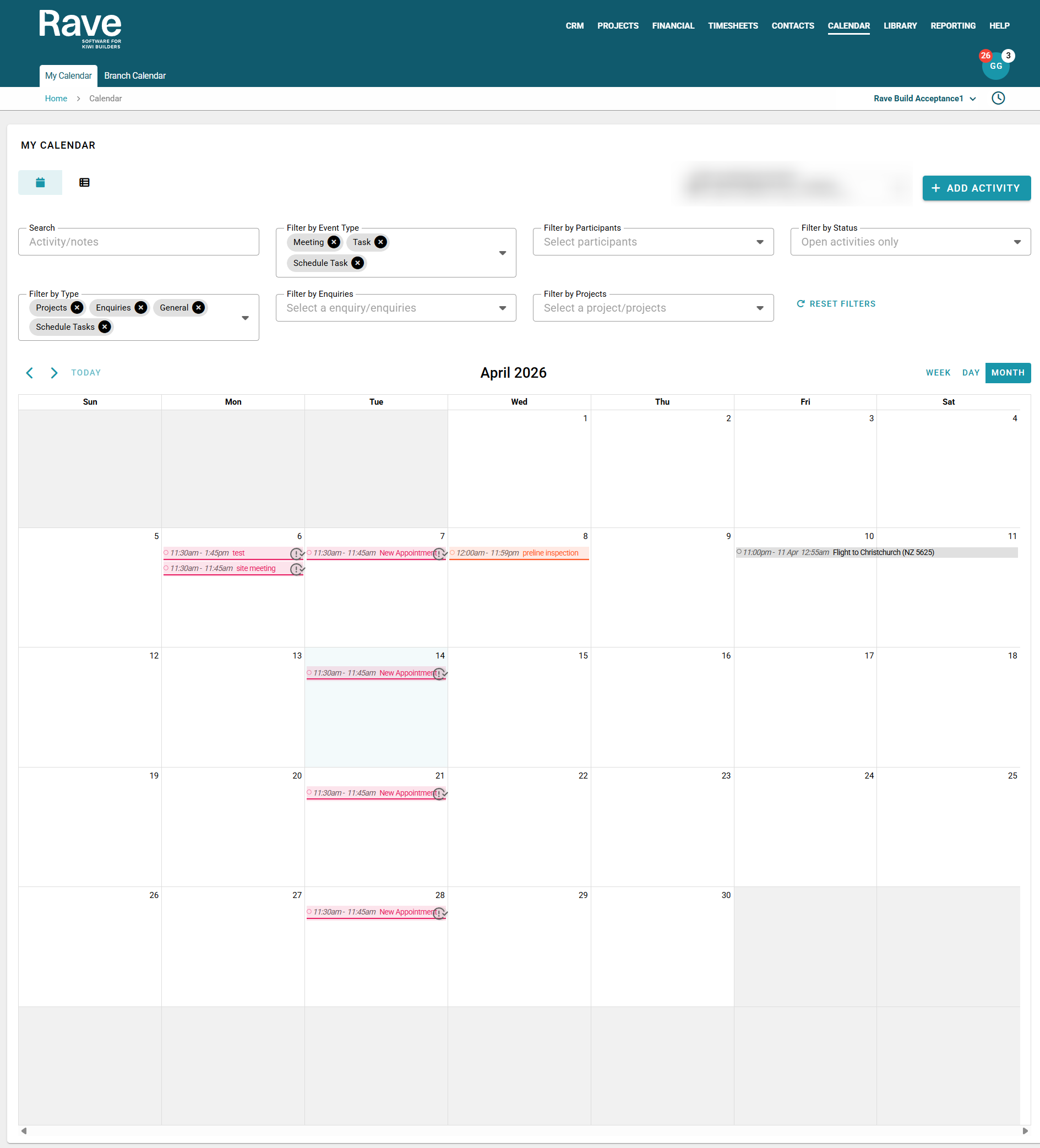
You will see your calendar in the traditional month view with options to view Day, Week, or change months.
You can switch to a modern List view depending on your preferences by using the icons at the top left.
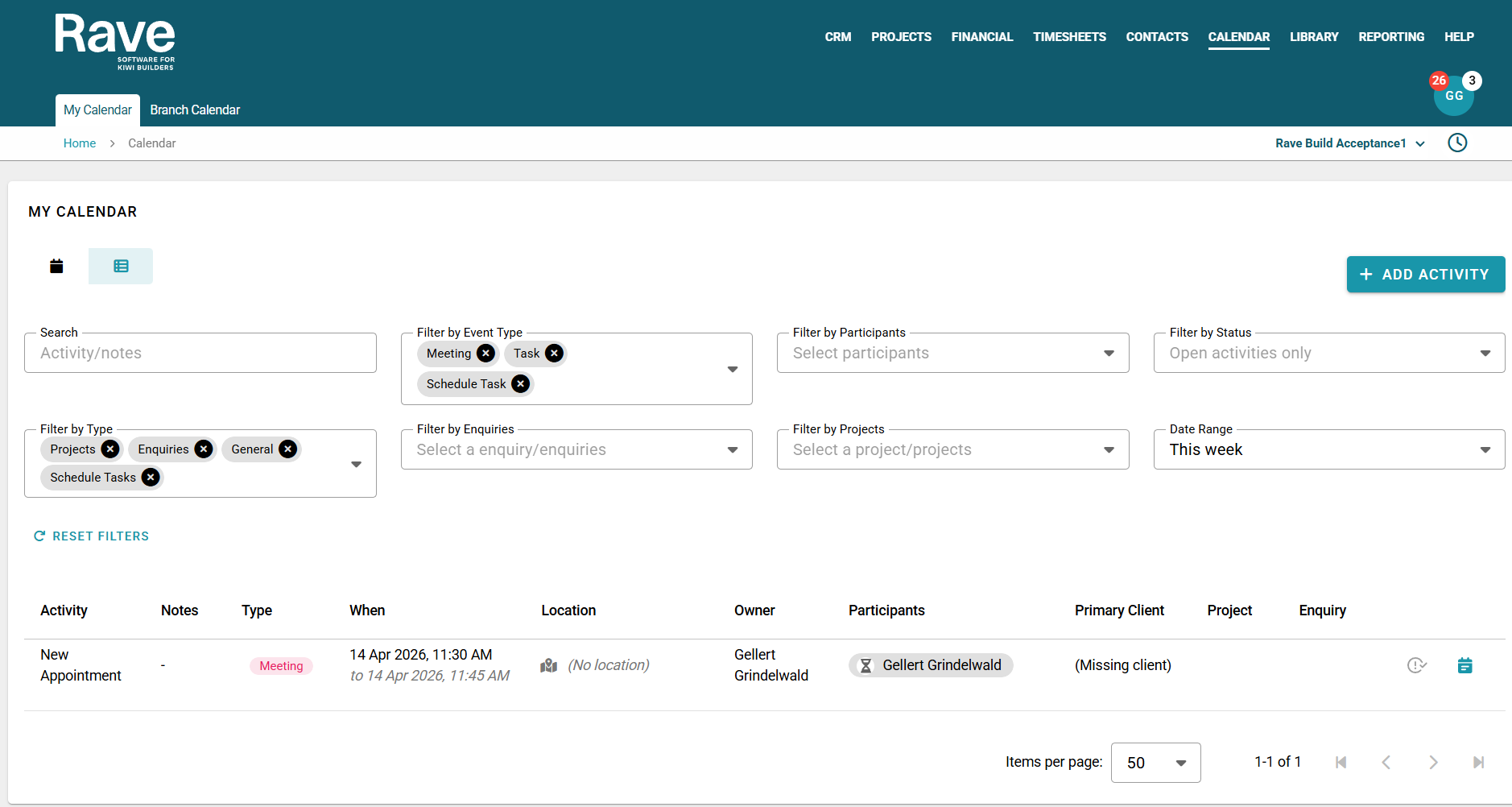
You can search for a specific Activity or Note, filter by event type, participants, open or completed activities, or Activity Type; or choose specific Enquiries or Projects to view activities for and also filter by a certain date range.
By default, we will show all
CRM- Enquiry Meetings and Tasks, Project - meetings and tasks, all scheduled tasks assigned to you and all General Meetings in the calendar view.
Clicking on the event will provide you with more information, such as the time, attendees, and location (if in person) or the meeting link (if online).
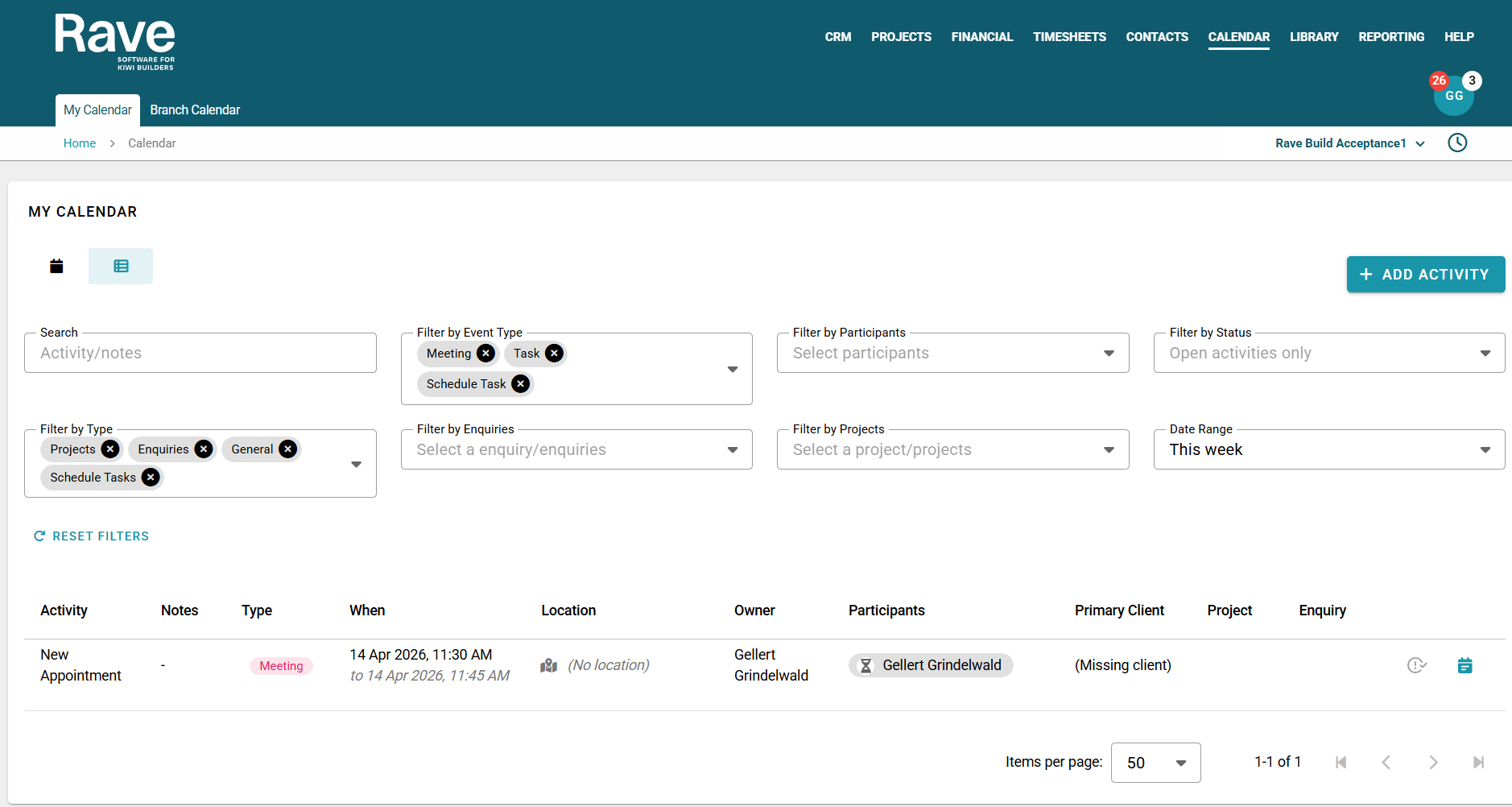
You can hover over the schedule tasks to get a pop-up of handy information or click on the task, and it has the same information plus a link that takes you back to the schedule.
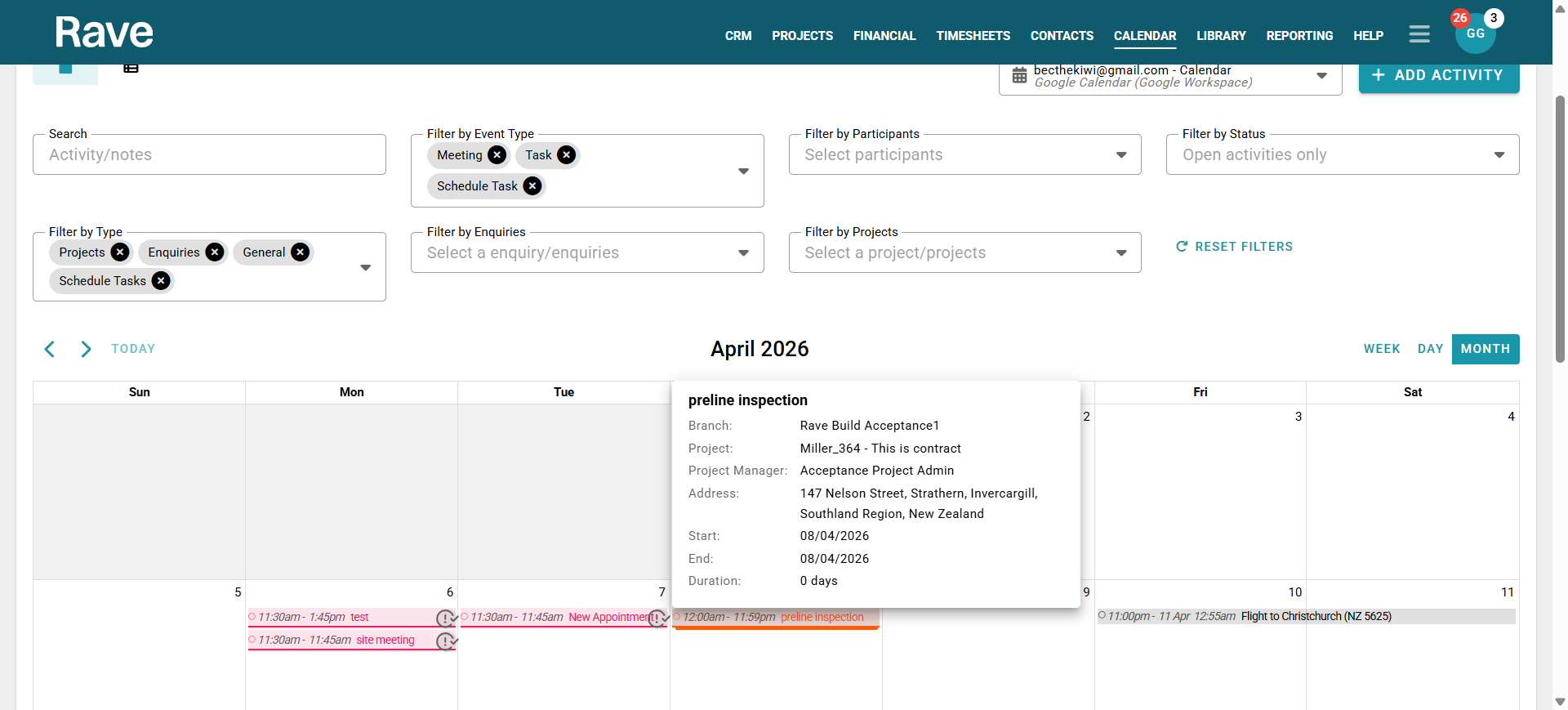
You can accept, decline, or tentatively accept meeting invites here, or change the status of a previously set one.
You can also delete activities from your Rave Calendar. With calendar syncing enabled, this will delete them from your external calendar.
You will also see whether the activity is a recurring event by the orange recurring icon when you click into the event.
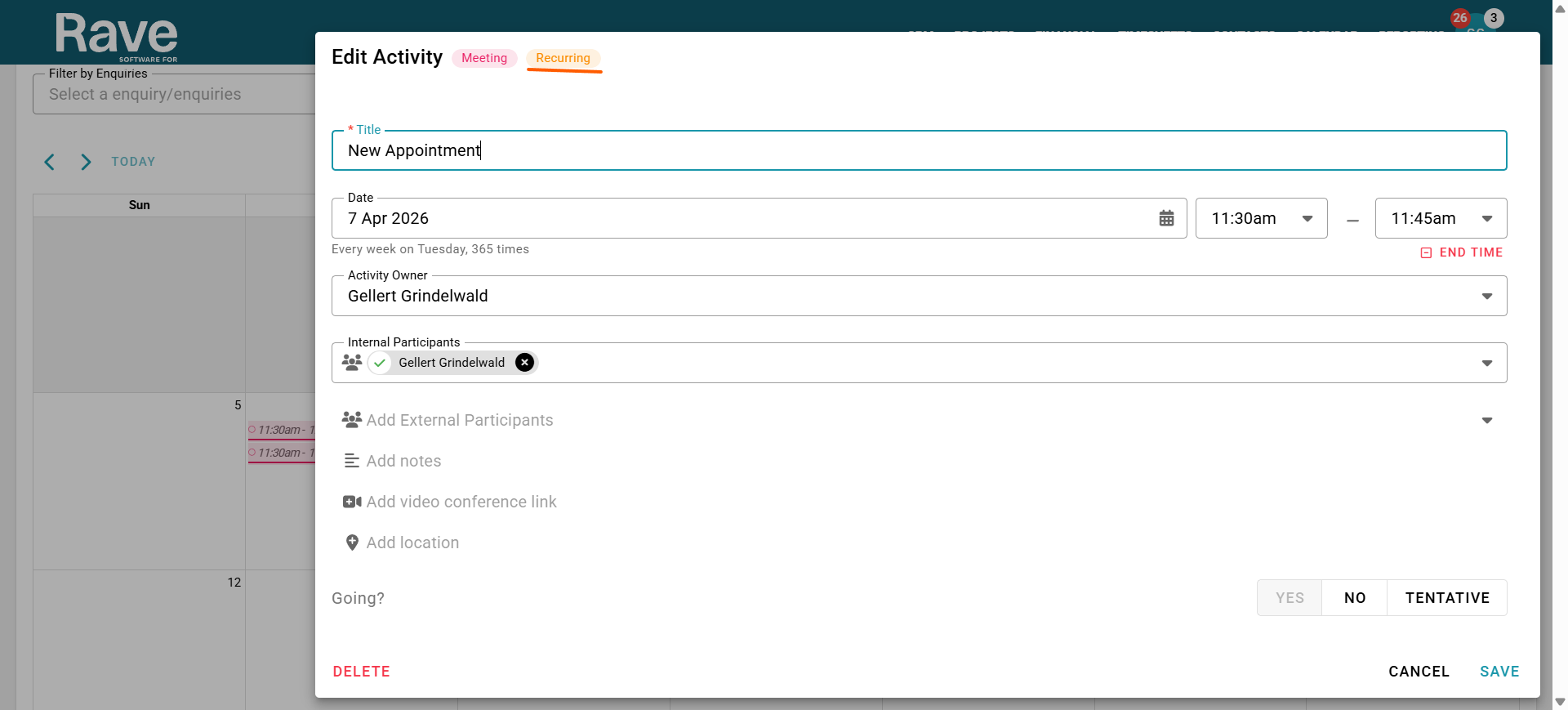
All user groups have access to their own calendar. The ability to invite people to activities is restricted to tier 1 users and higher and is permission-based both for CRM and project activities.
Contractors, Clients, Timesheet users and Site Staff can only add activities for themselves or be invited to activities by a Tier 1 user.
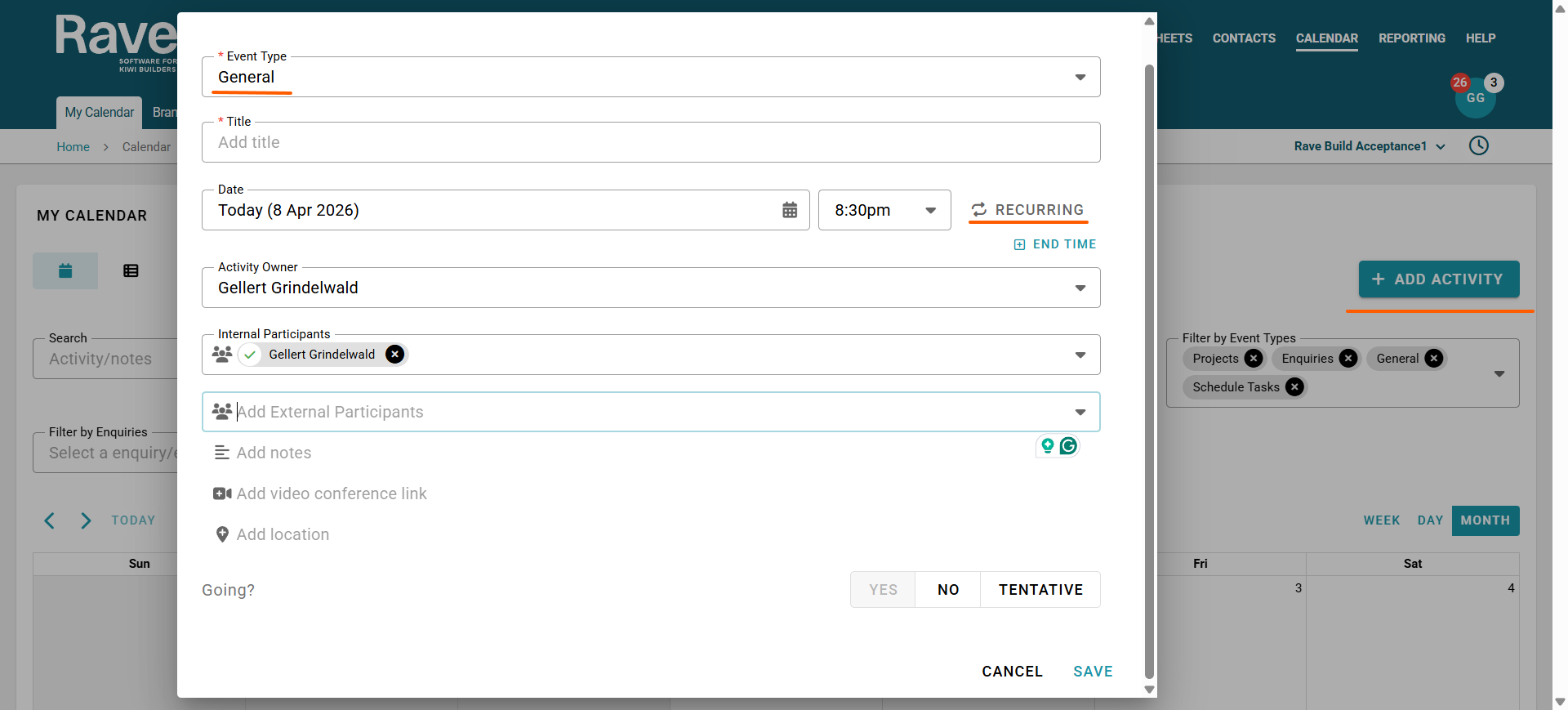
To create a new activity, click the + Add Activity button in the top-right corner.
First, choose the activity type:
- General activity — not linked to a project or enquiry
- Project event
- Enquiry event
If you select Project event or Enquiry event, you will also need to choose the specific project or enquiry to link the event to.
Next, enter a title for the event.
Then select the date and time. If the activity is recurring, select the recurring option and choose the appropriate recurrence settings.
You will also need to select an activity owner. If the owner is not yourself, choose another person from the dropdown list. Please note that creating events for other people is permission-based.
After that, select the participants:
- For general activities, this may include all branch staff and/or all contractors, depending on your permissions.
- For project and enquiry activities, participants are limited to those already associated with that specific project or enquiry.
You can then add notes, insert a video conference link (e.g., Zoom, Teams, or Google Meet), or enter the location for an on-site meeting.
Once everything is complete, click Save.
Once saved the event will then show in your Rave calendar plus all other participants Rave Calendars and with Calendar Syncing enabled it will also show in their external calendar.
Note:
When selecting participants for Project activities, the user must be on the people tab for them to appear in the drop-down.
When selecting participants for Enquiry (CRM) activities, the user can only be Clients or internal staff members. You cannot email Contractors on Enquiry (CRM) activities.
For General Activities, you have a separate drop-down for Internal Participants and External Participants. As this list is not restricted, it will include all staff members and all contractors.
You cannot create a General Activitiy to All Clients.
Was this article helpful?
That’s Great!
Thank you for your feedback
Sorry! We couldn't be helpful
Thank you for your feedback
Feedback sent
We appreciate your effort and will try to fix the article