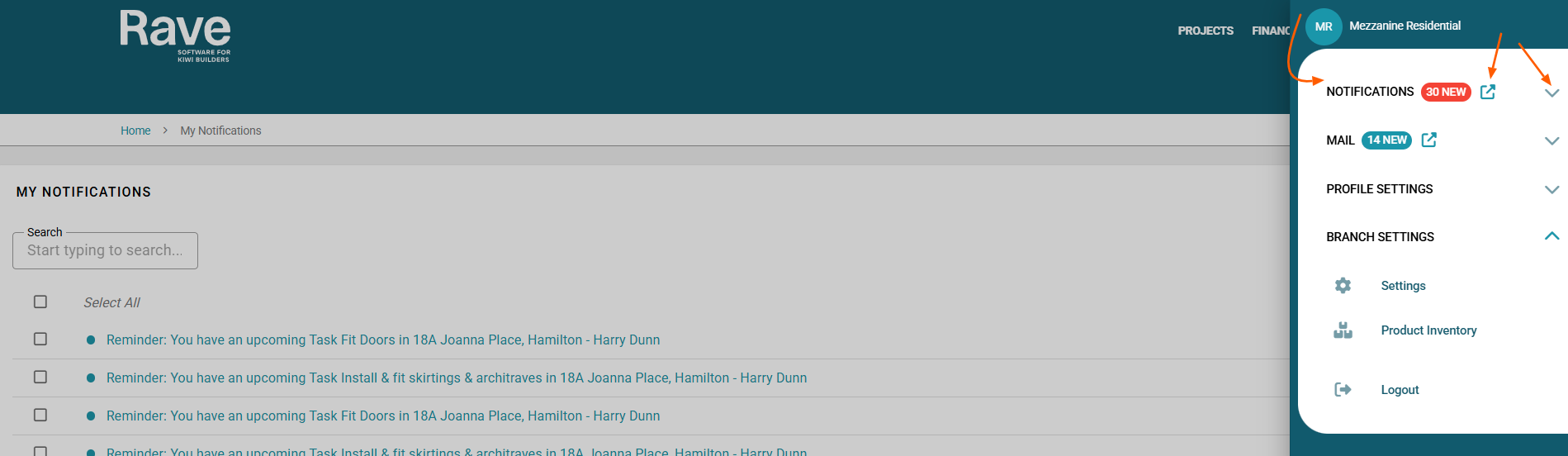
From your profile dropdown, you’ll find a Notifications option.
You can expand or collapse with the arrowhead icon to quickly view new notifications, or click the icon right beside the Red bubble to navigate to the full Notifications page.
Once on the Notifications page, you can view all notifications, including those that have already been read, from the quick menu.
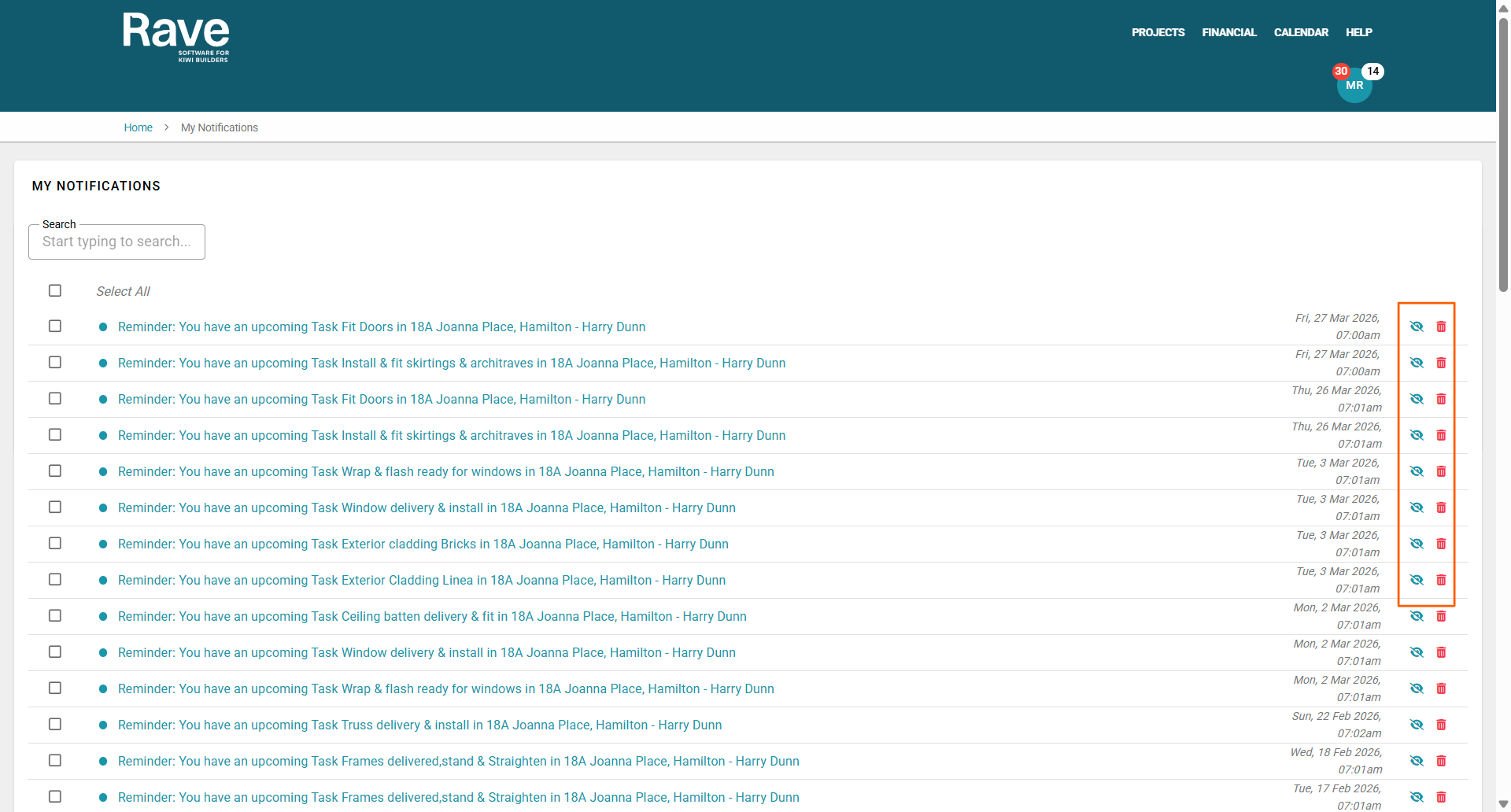
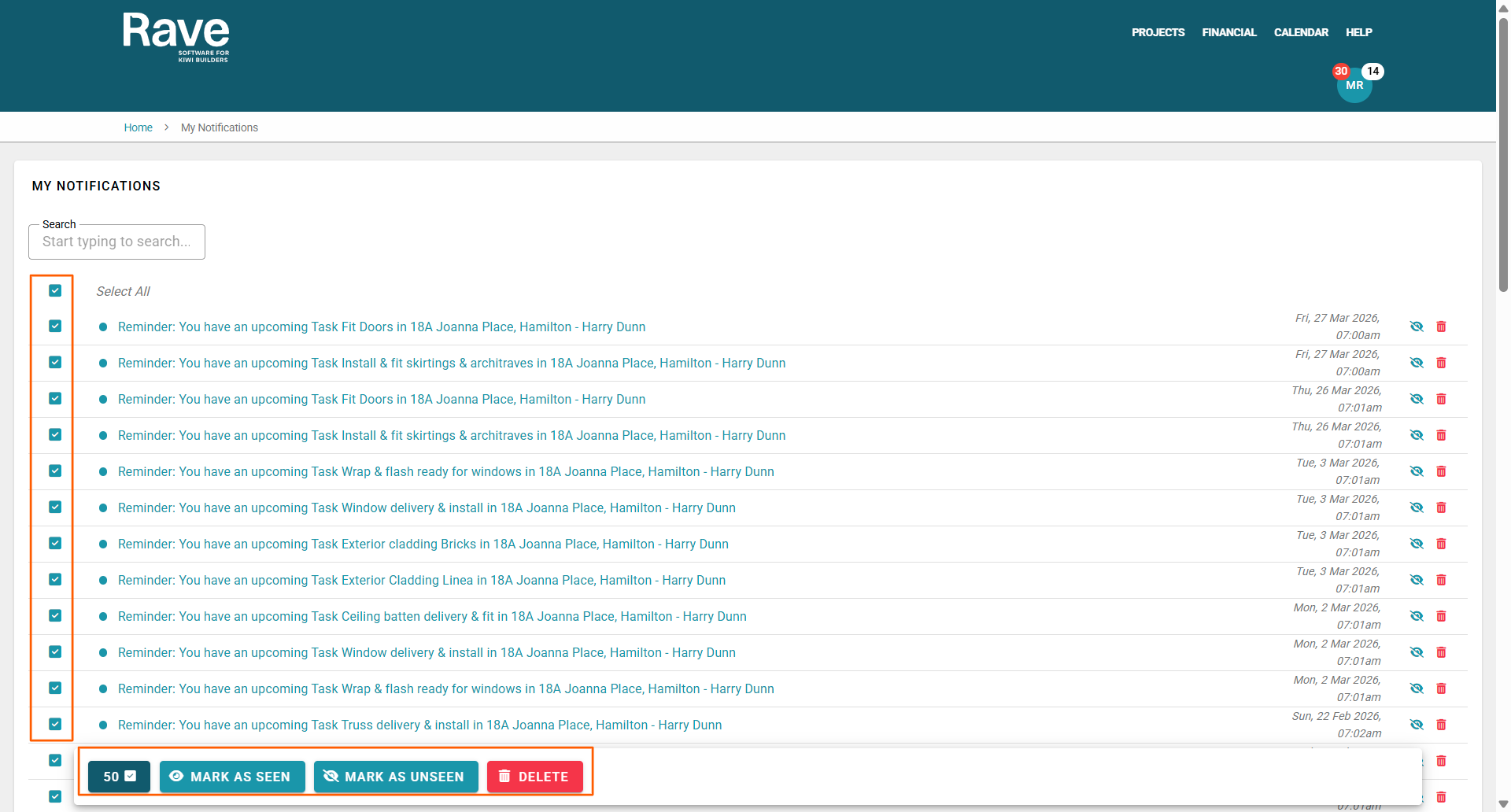
You can manage notifications individually using the options beside each one to mark as read, mark as unread, or delete. Alternatively, you can select multiple notifications and use the bulk action bar to apply these actions.
Clicking a notification takes you directly to the corresponding page. For example, if the notification is about a new project note, it will open the corresponding project notes section.
Please note that notifications are user-specific, so you will only see your own notifications when logged in.
Was this article helpful?
That’s Great!
Thank you for your feedback
Sorry! We couldn't be helpful
Thank you for your feedback
Feedback sent
We appreciate your effort and will try to fix the article