With the latest updates to Rave’s CRM and Project Activities, you can now customise your activity views by assigning different colours to various activity types across different building companies. This makes it easier than ever to visually distinguish between your different building companies' schedule tasks and activities in the Rave
To set your custom calendar colours:
Click on your profile dropdown in the top-right corner of the Rave screen.
Select Profile Settings.
Go to Colour Preferences.
From here, you can assign colours for each Building Company you work with by selecting the Branch drop down:
CRM Activities and Tasks
Project Activities and Tasks
Schedule Tasks -
General Meetings -
Take advantage of this new feature to personalise your workflow and improve calendar visibility!
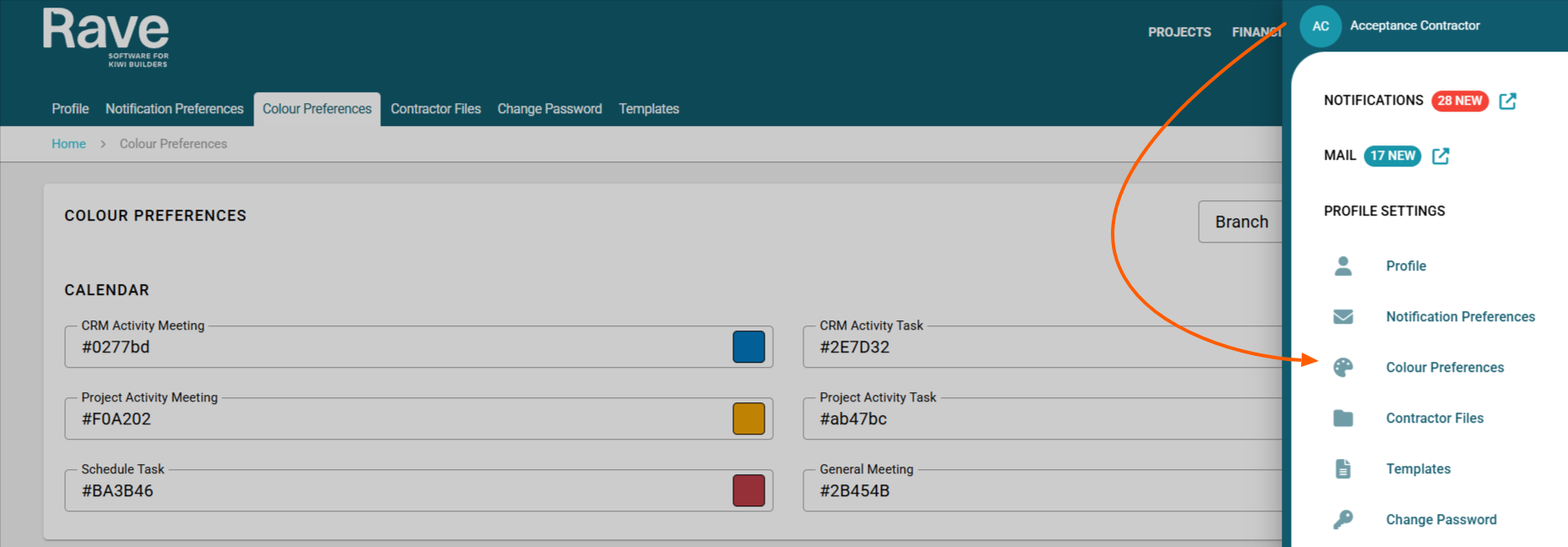
Select the branch from the drop down
Click on the default colour next to each option to open the colour picker. You can scroll through the base colours and then select a lighter or darker shade depending on your preferences.
Note: This is a personal profile setting, so your colour choices will only apply to your own view.
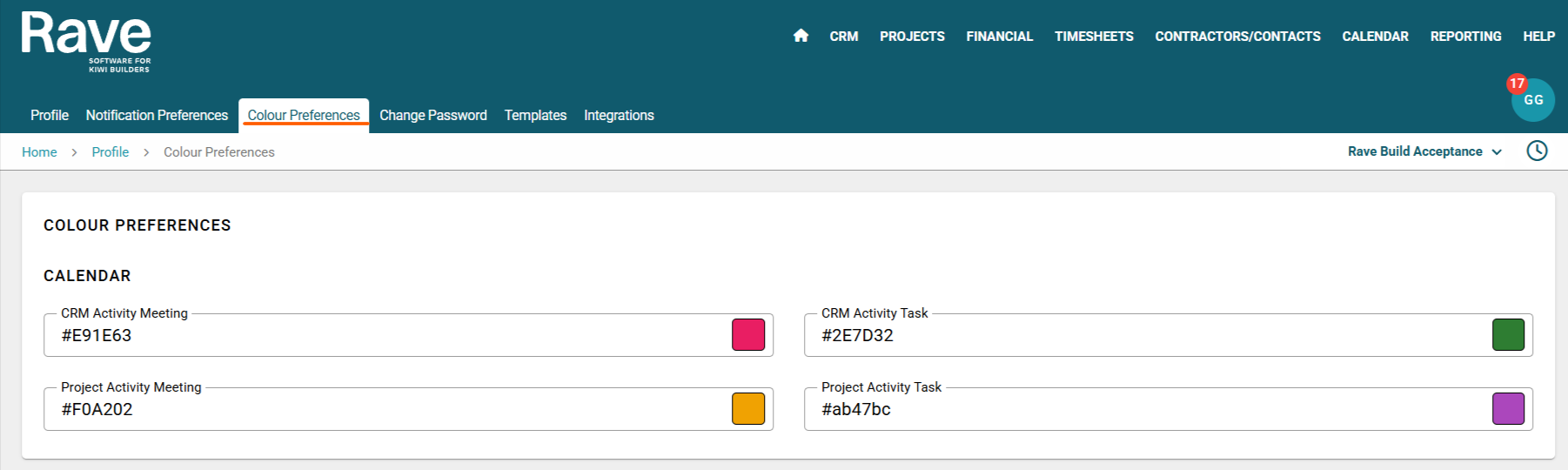
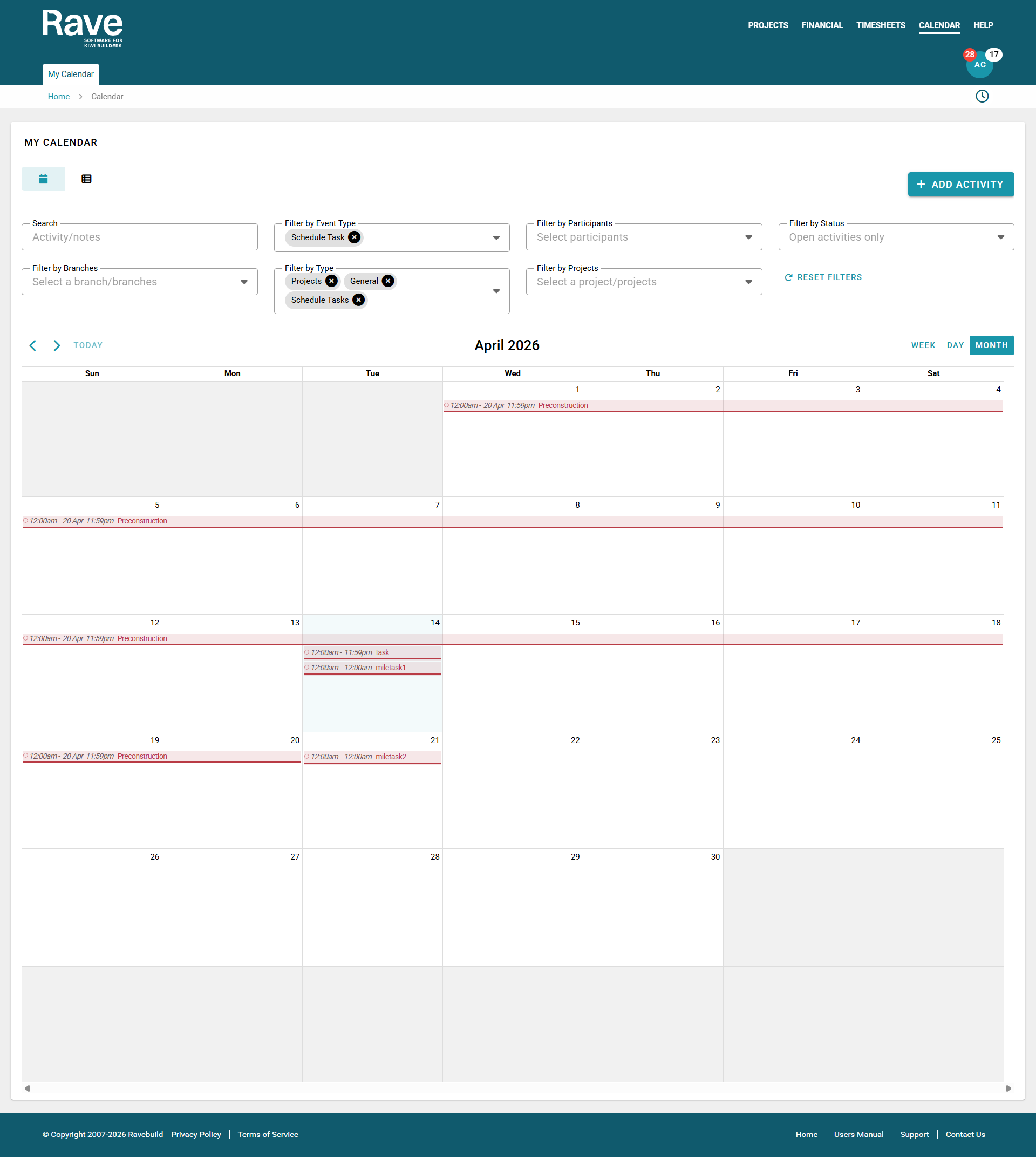
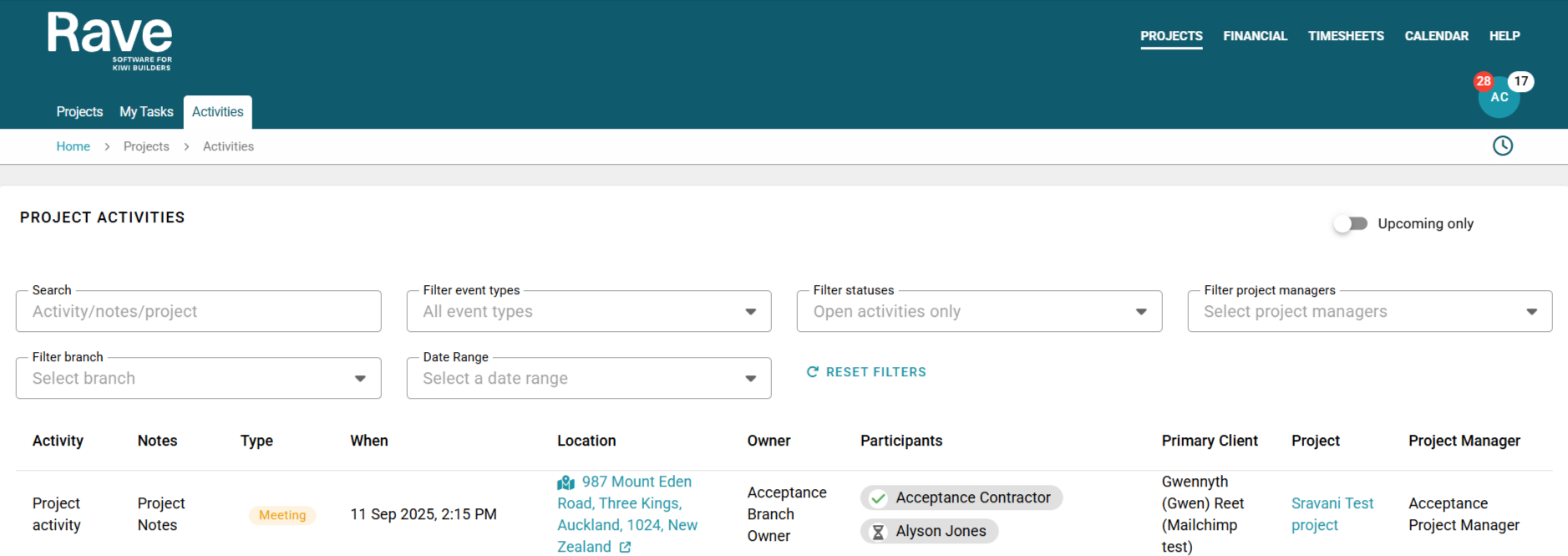
Once your colours have been selected you will be able to view them in your Rave Calendar at the top of the rave page. You will also see the colours in your Activities tab which sits inside Project.
Calendar View
Branch Project Activities List View
Was this article helpful?
That’s Great!
Thank you for your feedback
Sorry! We couldn't be helpful
Thank you for your feedback
Feedback sent
We appreciate your effort and will try to fix the article