To learn about the Outlook plug-in, please click here to view the help article.
You can now sync your Outlook Email directly with Rave using your Microsoft 365 account. Here’s how to set it up:
Note: If you see the screen below when you follow the instructions, you are not subscribed to this module and will need to upgrade your branch.
Note: We only offer Microsoft 365 email syncing not Google Workspace.
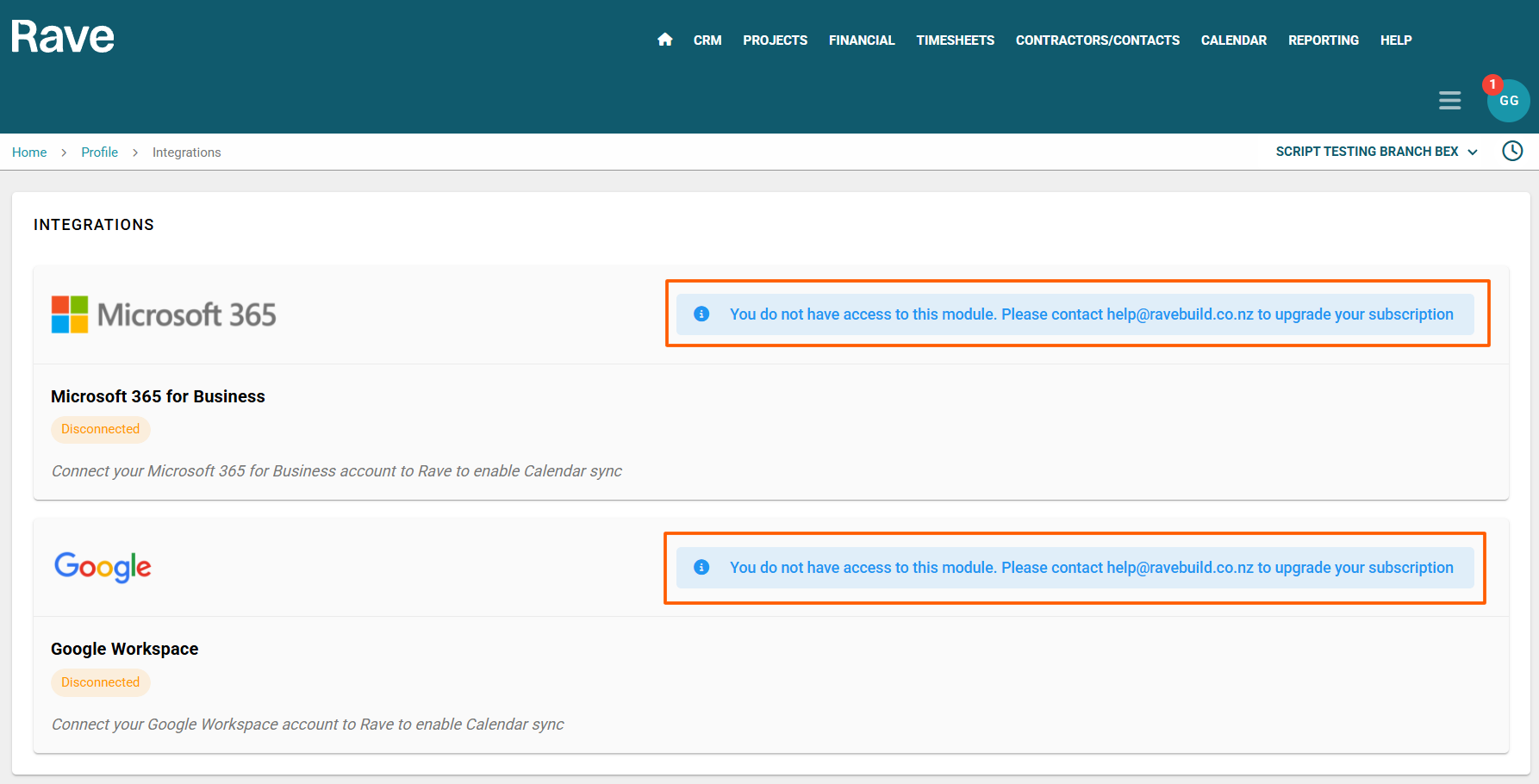
If you have already connected your 365 account to Rave with Calendar syncing, please skip to Step 7.
- Click on your profile dropdown in the top-right corner of the Rave screen.
- Select Profile Settings - Navigate to the Integrations tab.
- On the Microsoft 365 integration page, click Connect.
- When prompted, choose your default email account. Note: You may have more than one 365 account, but can only sync one Microsoft to Rave. If you are an admin on your accounts, please ensure you choose the correct email to sync, as your admin email may not be the correct one.
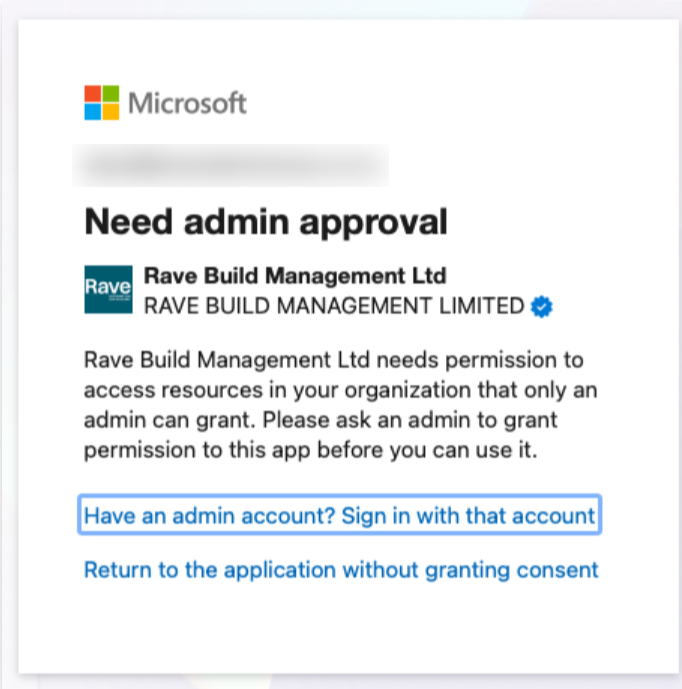
- Check the Consent box and click Accept. If you get a "Need admin approval" image, you will need to have the owner of your Microsoft account approve the connection between Rave and Microsoft. This could be your IT manager or your Business Owner
- You'll be redirected back to the integration screen, where the box will show your name and your email address, along with a Disconnect option in the top right. A Manage button in the bottom left.
- Click Manage to choose your specific email syncing preferences.
- Visibility options are "Shared" or Private"
- Set a sync date to start from (the further back in time you go, the more emails need to be synced and the longer it will take.
- Set the folders (and subfolders) you wish to sync to Rave. If you only use a single inbox for all mail, then you can just choose the Inbox only. If you use folders to organise your mail, you will need to sync the specific folders as well and press Sync. Please note that it can take up to 10 minutes for your sync to be completed successfully. It will say active in green text beside the mailbox once complete.
Step 1 and 2
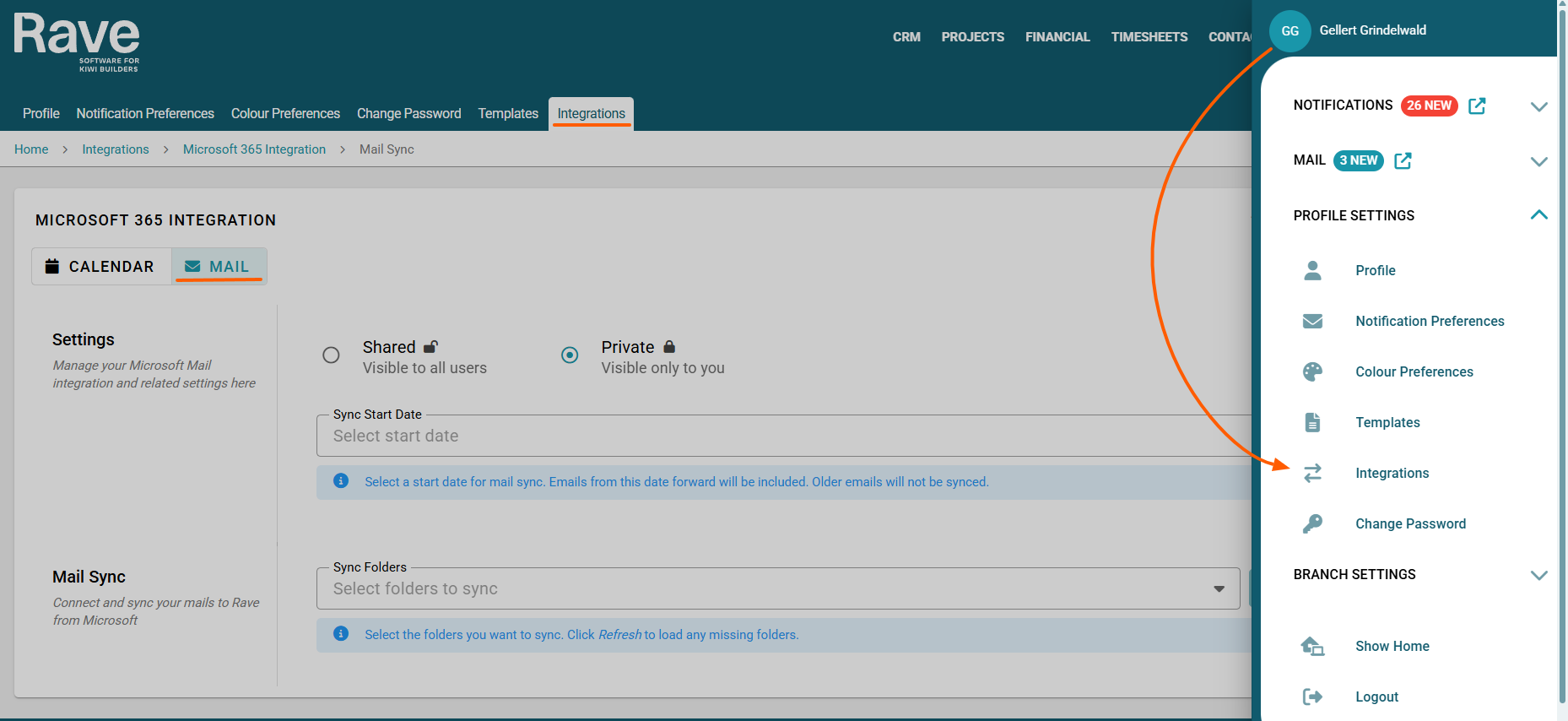
Step 3
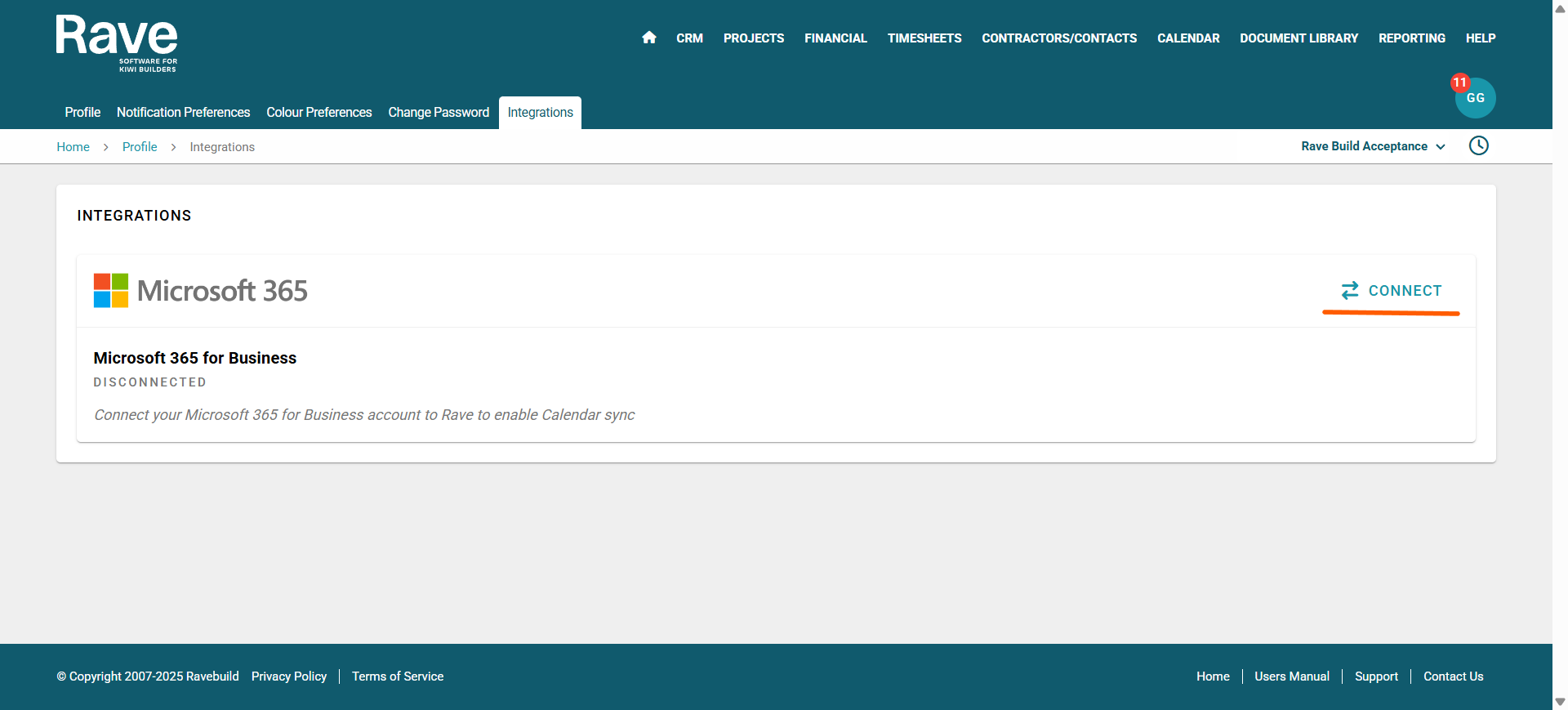
Step 4
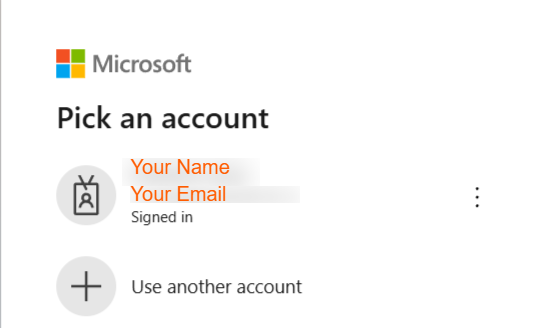
Step 5
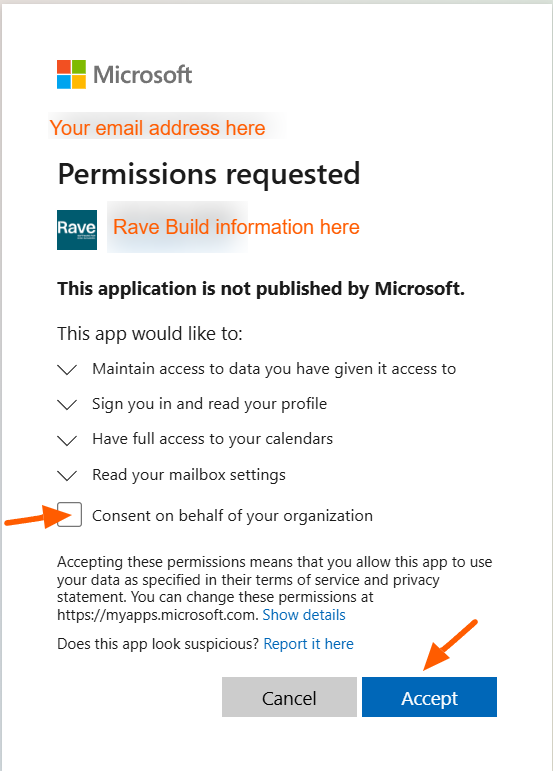
Step 6
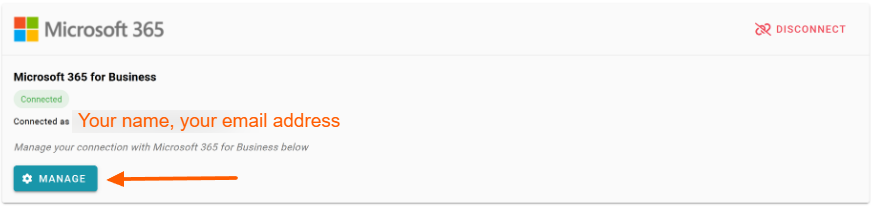
Step 7-10
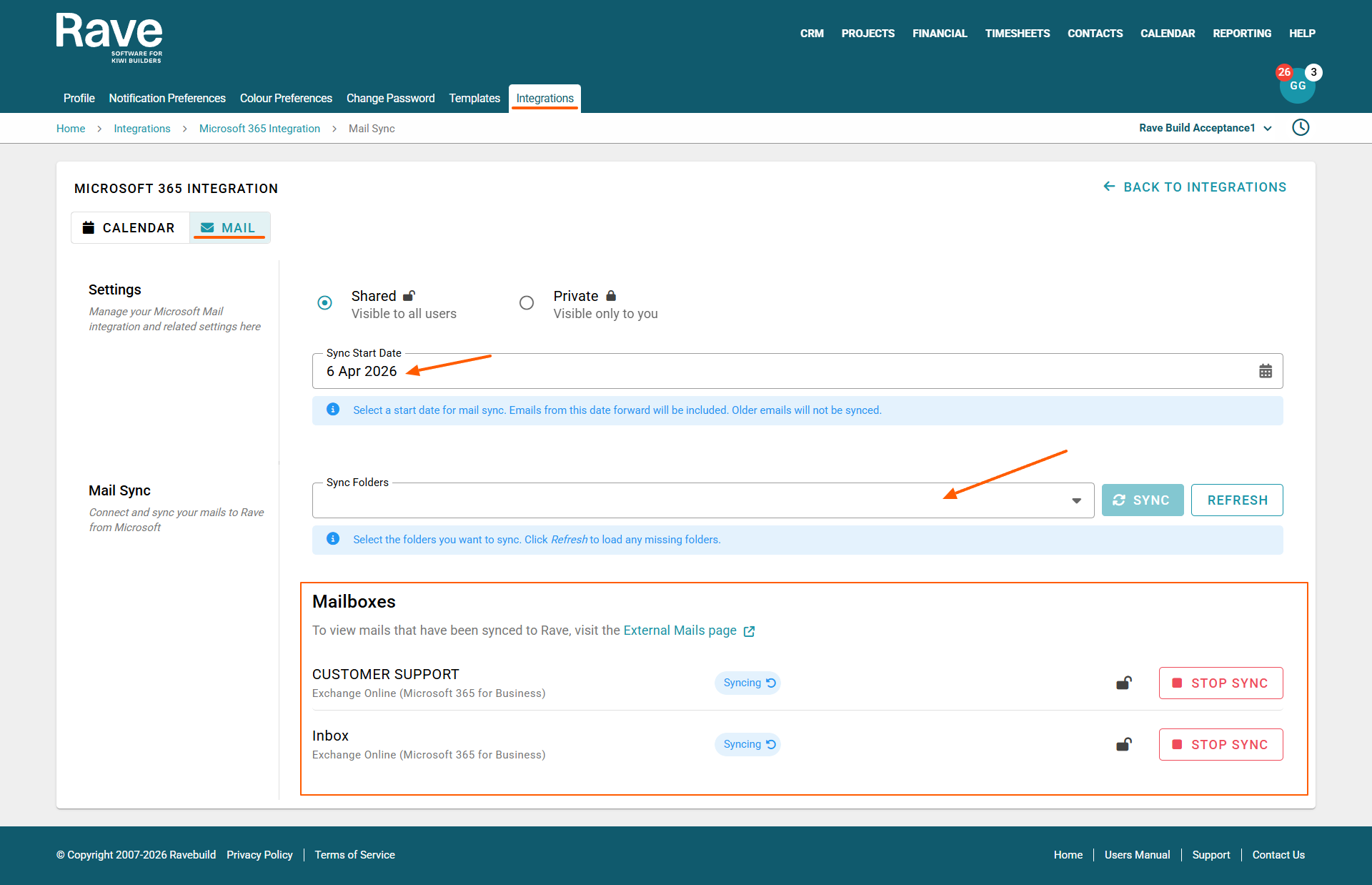
To stop syncing a specific folder, you can click the Red Stop Syncing button.
To completely cancel all syncing, you need to press Stop Sync on all folders, then you can Disconnect Rave from Microsoft 365 altogether from the main Integrations page.
Note that if you are syncing a calendar, this will also disconnect the calendar.
Was this article helpful?
That’s Great!
Thank you for your feedback
Sorry! We couldn't be helpful
Thank you for your feedback
Feedback sent
We appreciate your effort and will try to fix the article