To set up Office 365 Email Integration, please click here to view the help article.
To read about My Mail, please click here to view the help article.
To read about Branch Mail, please click here to view the help article.
To learn about General Mail templates, please click here to view the help article.
To learn about the Outlook plug-in, please click here to view the help article.
If you have already completed the syncing setup, select the mail icon in your profile dropdown to open the Mail options.

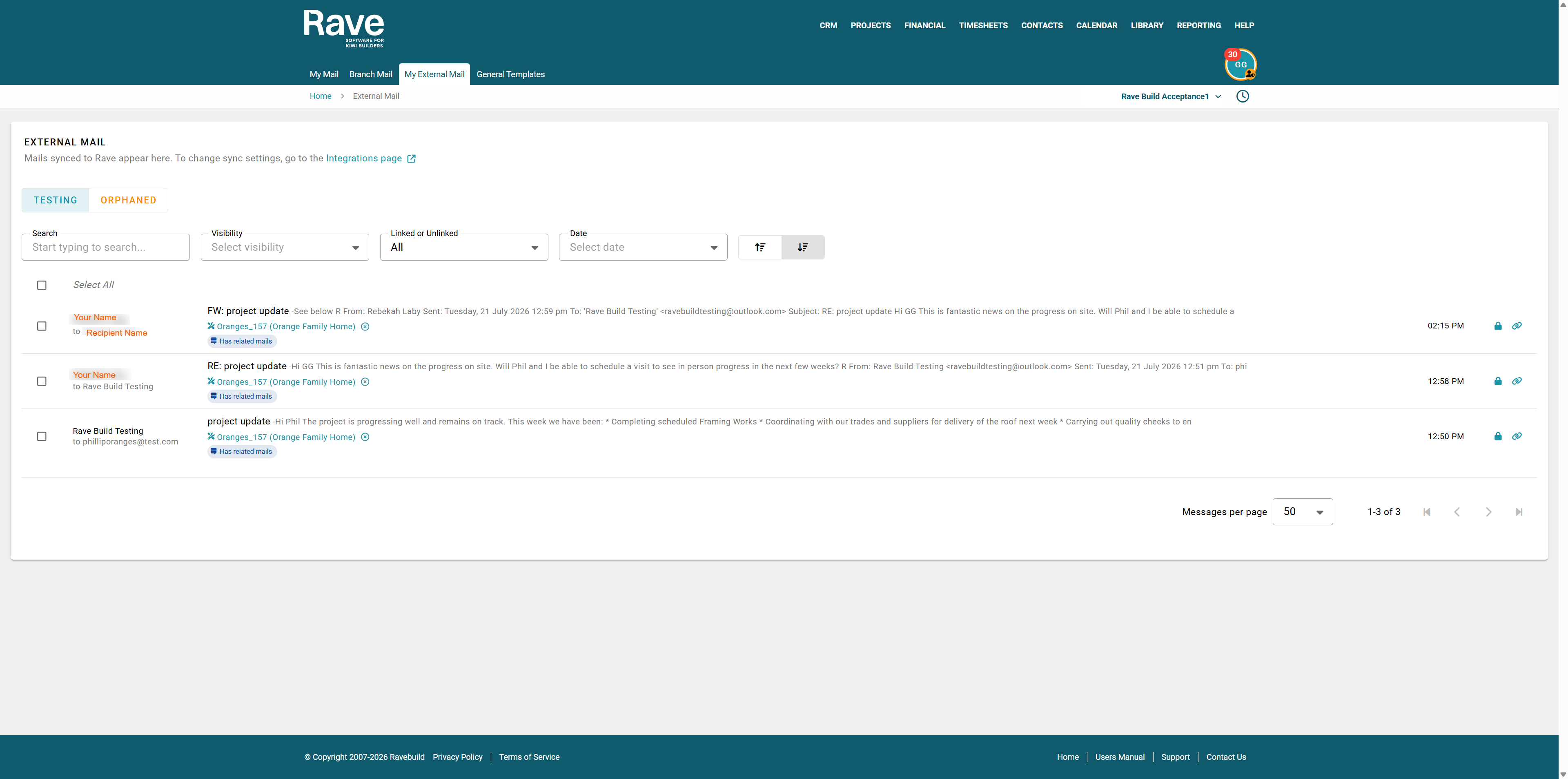
From here, select My External Mail

Under My External Mail, you will find a list of all the folders you have chosen to sync. You will also see an orange folder called Orphaned.
The Orphaned folder contains all emails that have previously been synced to Rave and connected to either a project or an enquiry, but whose original folder has since been removed from syncing with Rave via the integration settings.
You can set the privacy per email by checking or unchecking the padlock icon.
A closed padlock means Private - Only you can view this email, even if it's linked to a project or enquiry.
An open padlock means Shared - Anyone who has permission to view other people's mail can view this email if it has been linked to a project or enquiry.
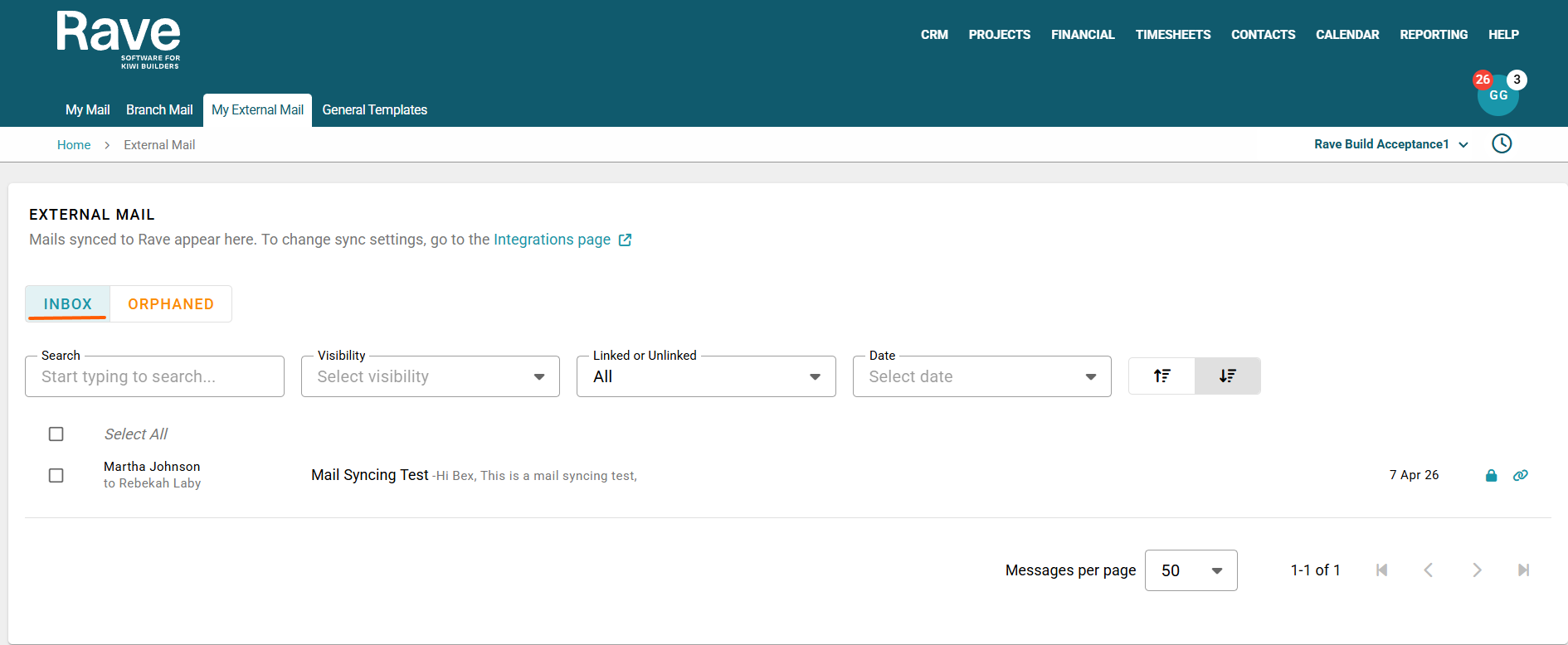
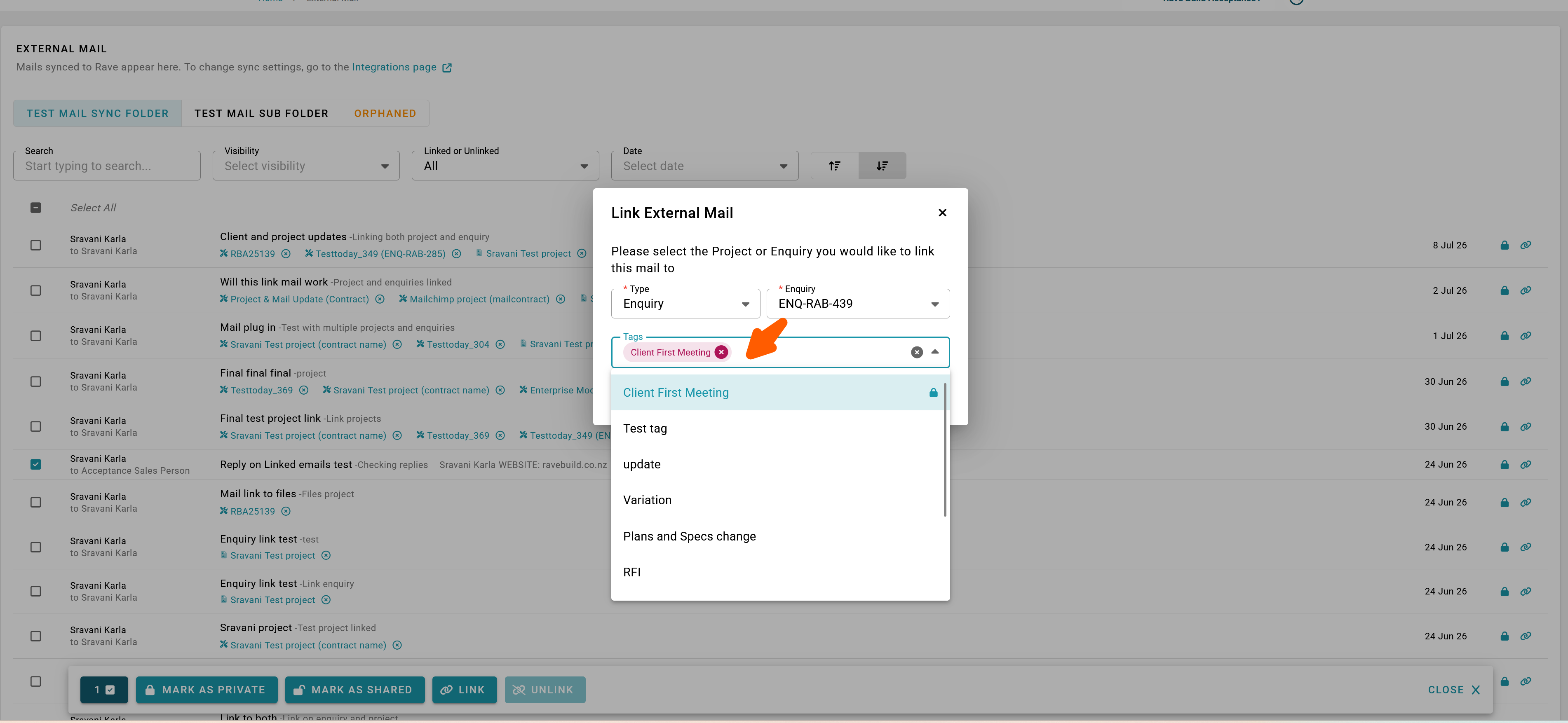
You can bulk-mark mail as Private or Shared using the bulk selection bar, and link or unlink emails to specific Enquiries or Projects.
Select the email(s), then click Link. A modal will open, allowing you to select either Project or Enquiry, and then choose the correct project or enquiry based on its reference.
You can also choose to Add Mail Tags.
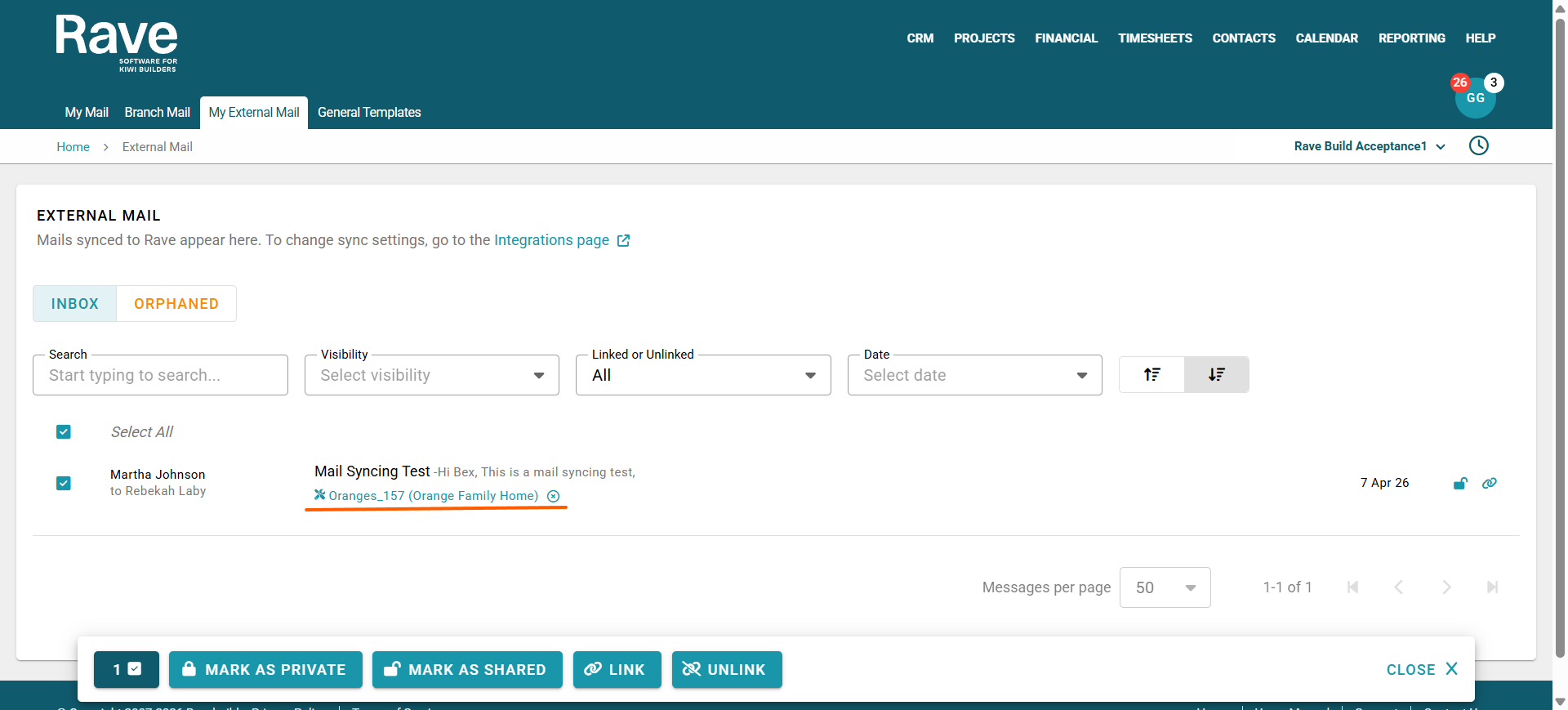
Once linked, the mail will show the Project or Enquiry hyperlink underneath.
You can link an external email to more than one enquiry or project by repeating these steps.
You can also use the icons to the right of each email to manually adjust privacy settings and link or unlink emails to projects or enquiries.
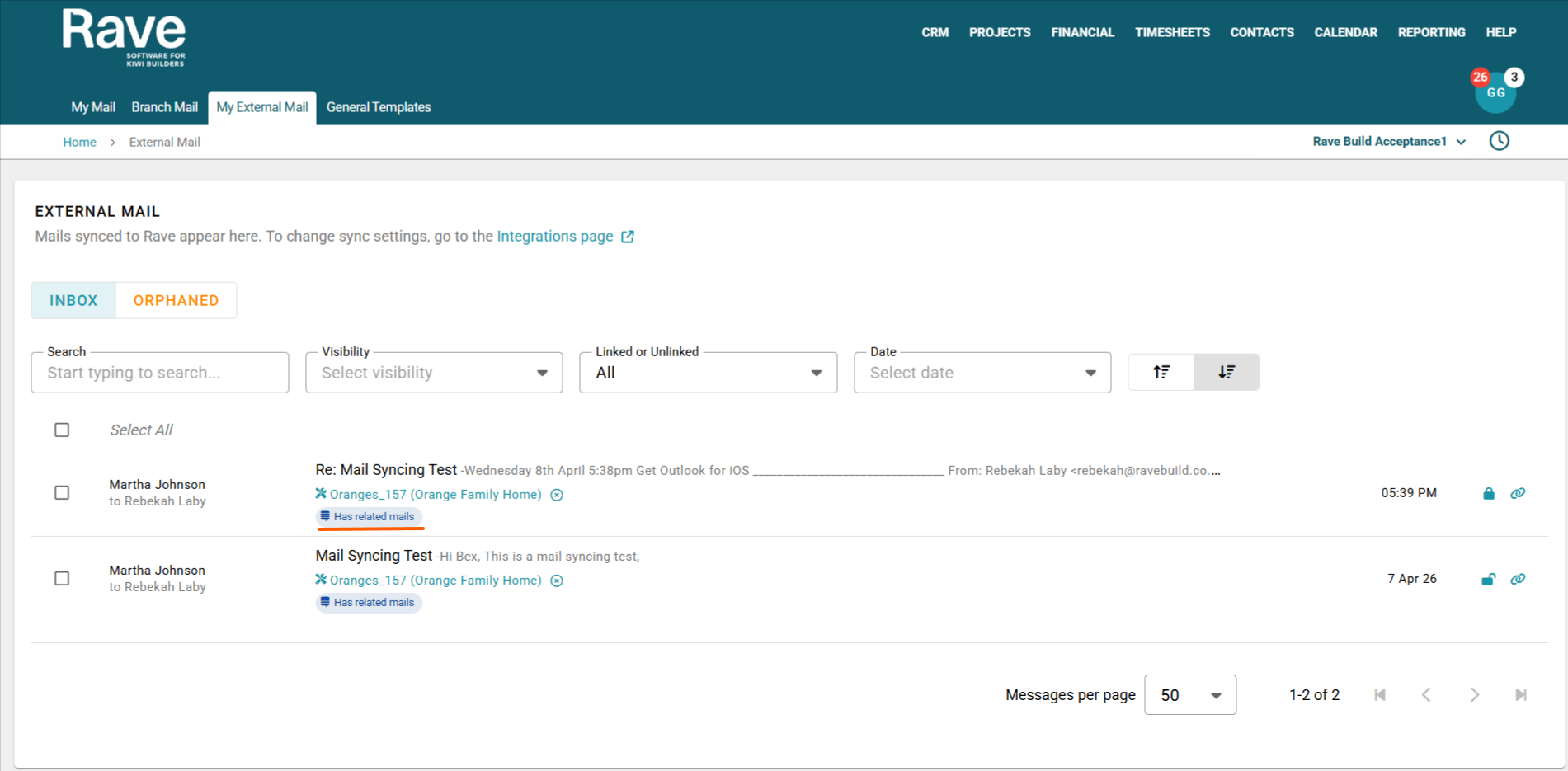
When you create an external email and the recipients respond, those conversations are automatically linked together in Rave and displayed with a “Has Related Mails” icon.
Once these emails are linked to a Project or Enquiry, you can open the latest email to view the full conversation thread, including each recipient’s replies.
As the thread grows, there will be more content to read. A search box has been added to help you quickly find specific content within those threads.

Forwarding Mail
You can forward mail both internally in Rave and Externally from outlook and the mail chain will continue to Grow. The new linked mail that has been forward on with say has related mails and will include the person you have forwarded the chain to
From within the Project or Enquiry, you can add mail tags to organise emails using helpful labels. You can also update privacy settings or choose to unlink a specific email.
Emails linked from external sources will display a purple “Linked” icon.
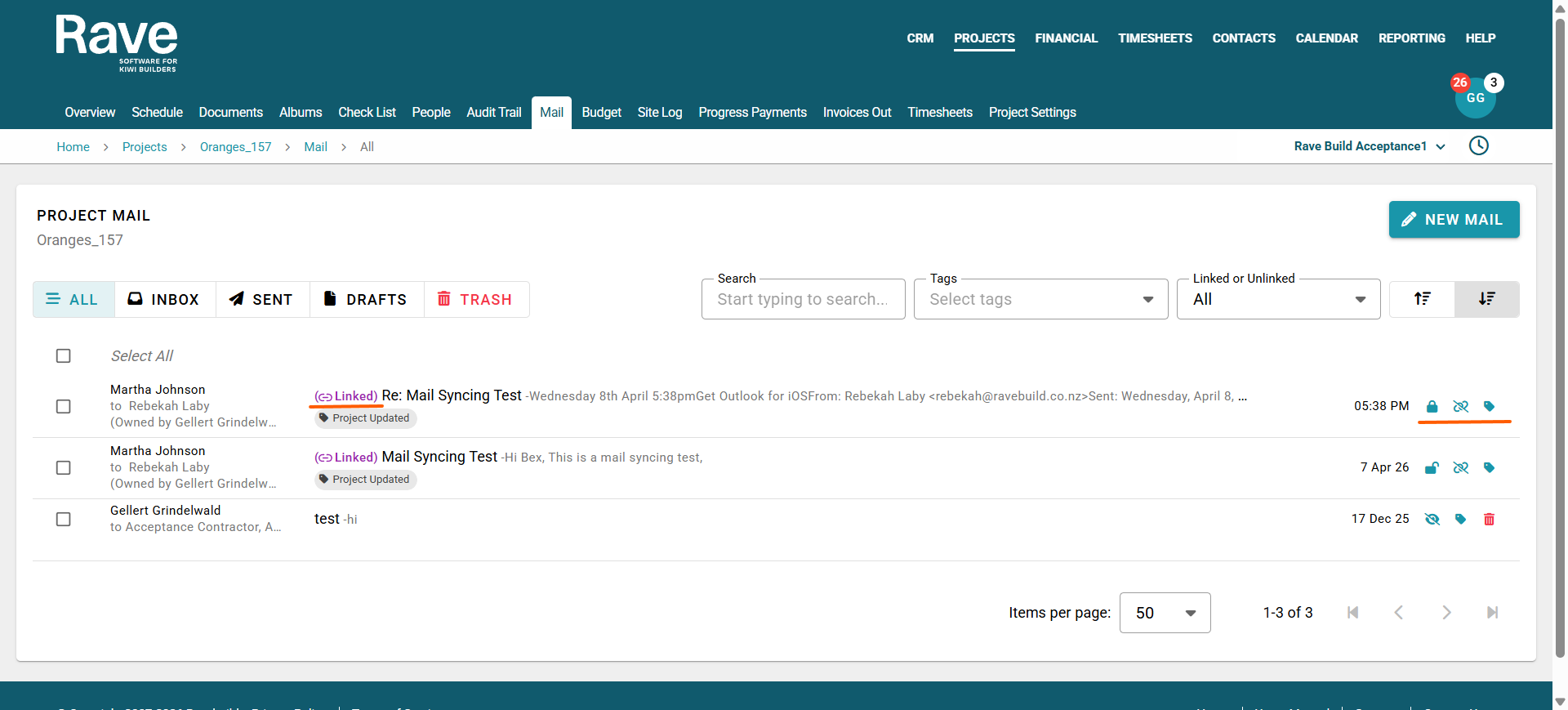
If you choose to unlink a specific Email folder, the mail that has been linked will still show in the Project or Enquiry; the emails themselves will sit under the Orphaned tab under the external Mail tab of your Mail.

Was this article helpful?
That’s Great!
Thank you for your feedback
Sorry! We couldn't be helpful
Thank you for your feedback
Feedback sent
We appreciate your effort and will try to fix the article