To set up Office 365 Email Integration, please click here to view the help article.
To read about My External Mail, please click here to view the help article.
To read about My Mail, please click here to view the help article.
To read about Branch Mail, please click here to view the help article.
To learn about the Outlook plug-in, please click here to view the help article.
From the Mail tab, there is a General Templates section where you can create and manage your own General email templates, as well as branch-wide general email templates (if you have permission). These templates are only for creating General mail which is not linked to a specific enquiry or Project.
Select the mail icon in your profile dropdown to open the Mail options.

From here, select General Templates
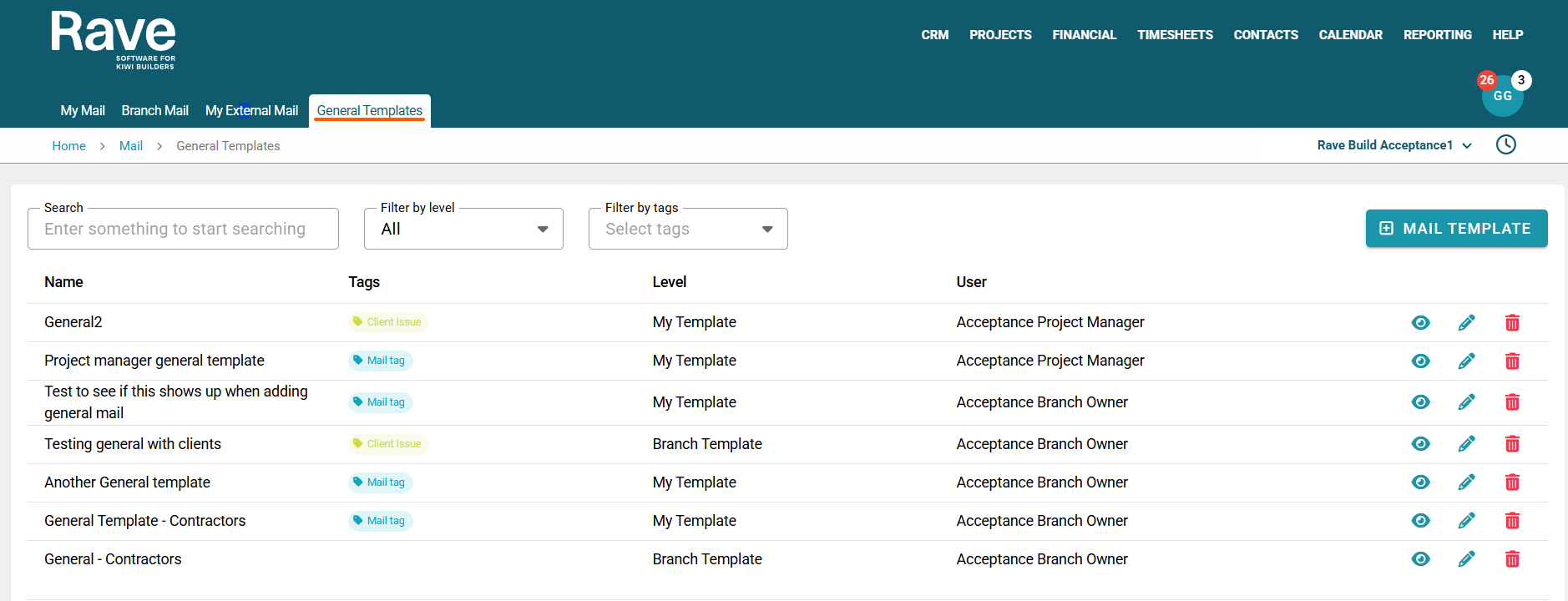
Using the search bar, you can find a specific template by entering keywords from the template name.
You can also filter templates by My Templates or Branch Templates, and further refine results using assigned mail tags.
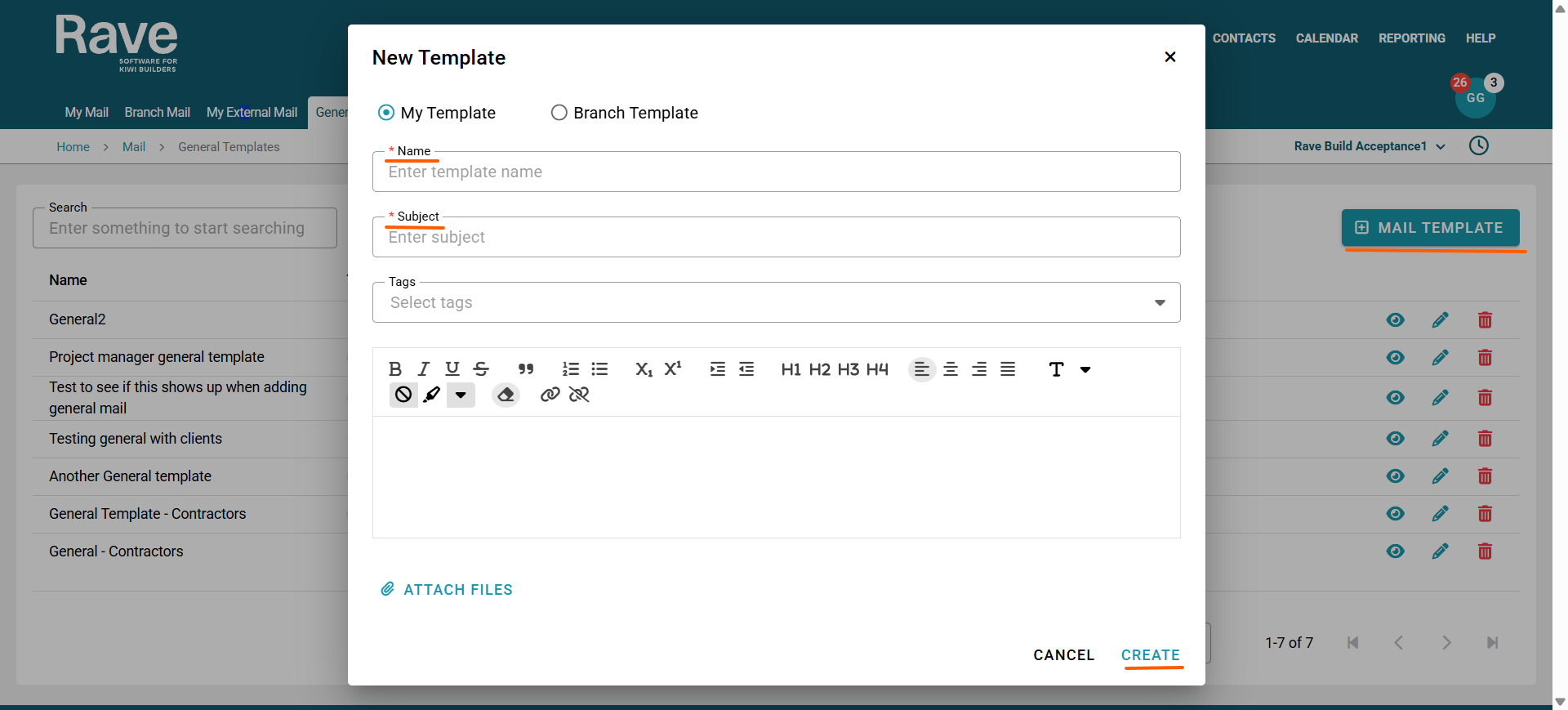
Click the + Mail Template button in the top right to open the create template option. With the appropriate permissions, you can create either branch-wide templates or your own personal templates.
When creating a template, you’ll need to enter a name and a subject line, and optionally add tags. You can then pre-populate the email content and include any attachments before clicking Create to save the template.
You have th e option to click the eyeball icon to view a template, click the pencil icon to edit an existing template, or, with permission, select the trash can to delete a template.
Both my general template and Branch general Templates can be used to create a general mail from either my mail or Branch mail.
Was this article helpful?
That’s Great!
Thank you for your feedback
Sorry! We couldn't be helpful
Thank you for your feedback
Feedback sent
We appreciate your effort and will try to fix the article