The Update Summary Report is located under the Projects main tab.
Navigate to Projects, then Update Summary to access the report.
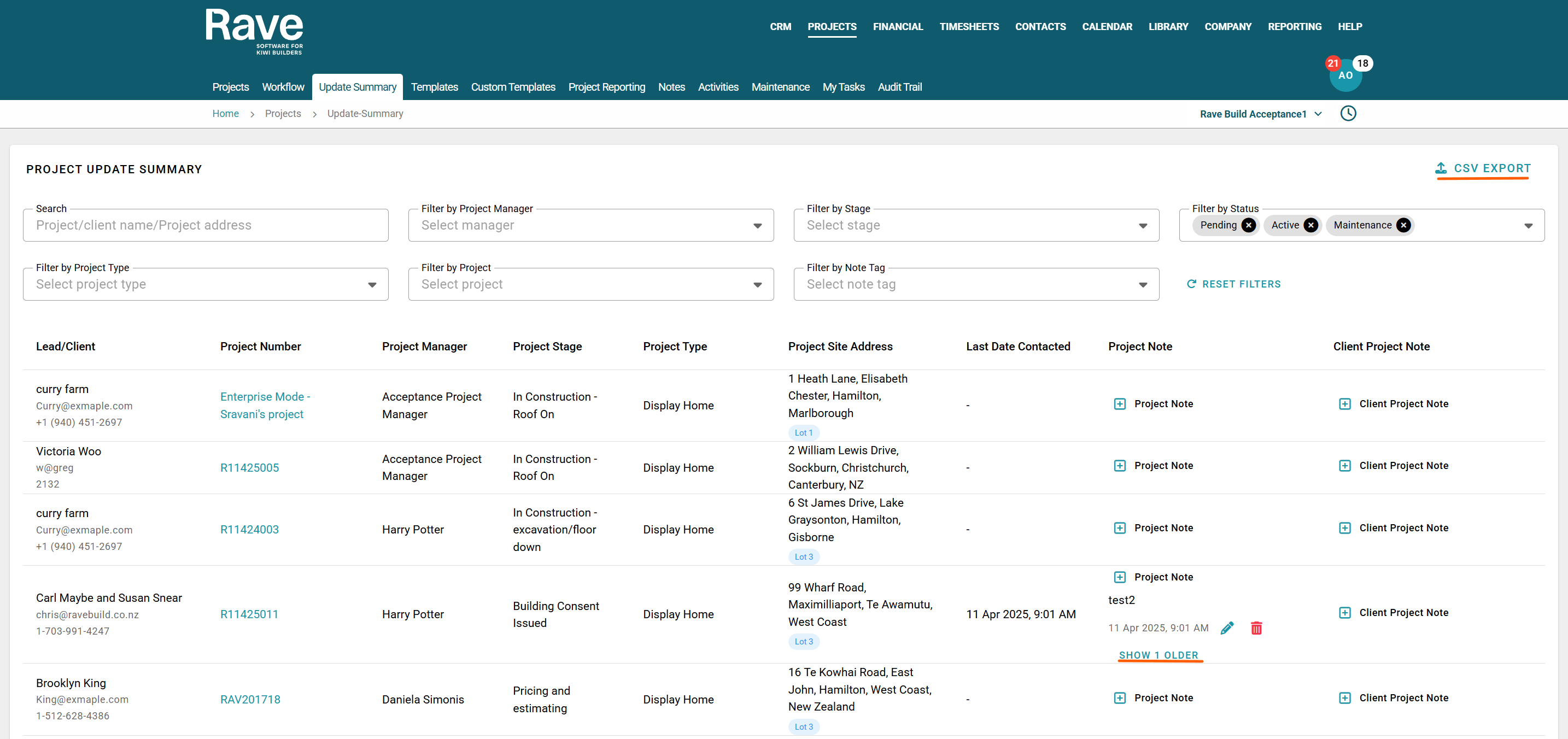
Overview
The Update Summary Report is ideal for internal project update meetings, team check-ins, and quick status reviews across multiple projects. It enables the entire team to view and discuss the latest notes in a clear, easy-to-use format. With the most recent Project notes and/or Client project notes as the key focus.
Tips for Use
- Regularly update notes to keep information current
- Use clear, concise language in notes for team visibility
- Ensure to tag notes so they are easy to filter
- Check this report before meetings to stay up to date
Report Layout
The Report is organised by Client Name first, then by Project Reference, Project Manager, Project Stage, and Type. Site Address, Last Contact, then Project Note and Project Client Note.
Search and Filters
Use the search function to find Project reference, Client Name, and Project Address
Use the filters to refine results by:
- Project Manager
- Project Stage
- Project Status
- Project Type
- Project Reference
- Note Tag
You can sort the Last Contacted column oldest to newest or in reverse using the little arrow beside the header.
Add New Notes
Use the handy + Project Note or + Client Project Note button to add a new project or client project note directly from the report.
Or click the Show older button to read all Project or Client Project Notes to get a full history.
Export to CSV
Export the report using the CSV export button located at the top right.
Was this article helpful?
That’s Great!
Thank you for your feedback
Sorry! We couldn't be helpful
Thank you for your feedback
Feedback sent
We appreciate your effort and will try to fix the article