Log in to Rave or click the Home icon to land on (or return to) the Rave homepage/dashboard.
At the top centre right of the home screen (and on any other screen within Rave), you'll find the main navigation buttons.
Click on the Projects button to open the Projects module.
Then click on Workflow to access the Kanban style view of the Projects List Page.
This view is turned on by default for all Tier 1 users who have Projects access excluding Clients, Contractors, Site Staff and Timesheet.
If you don't see this view and would like it turned on contact your branch owner or Rave support.
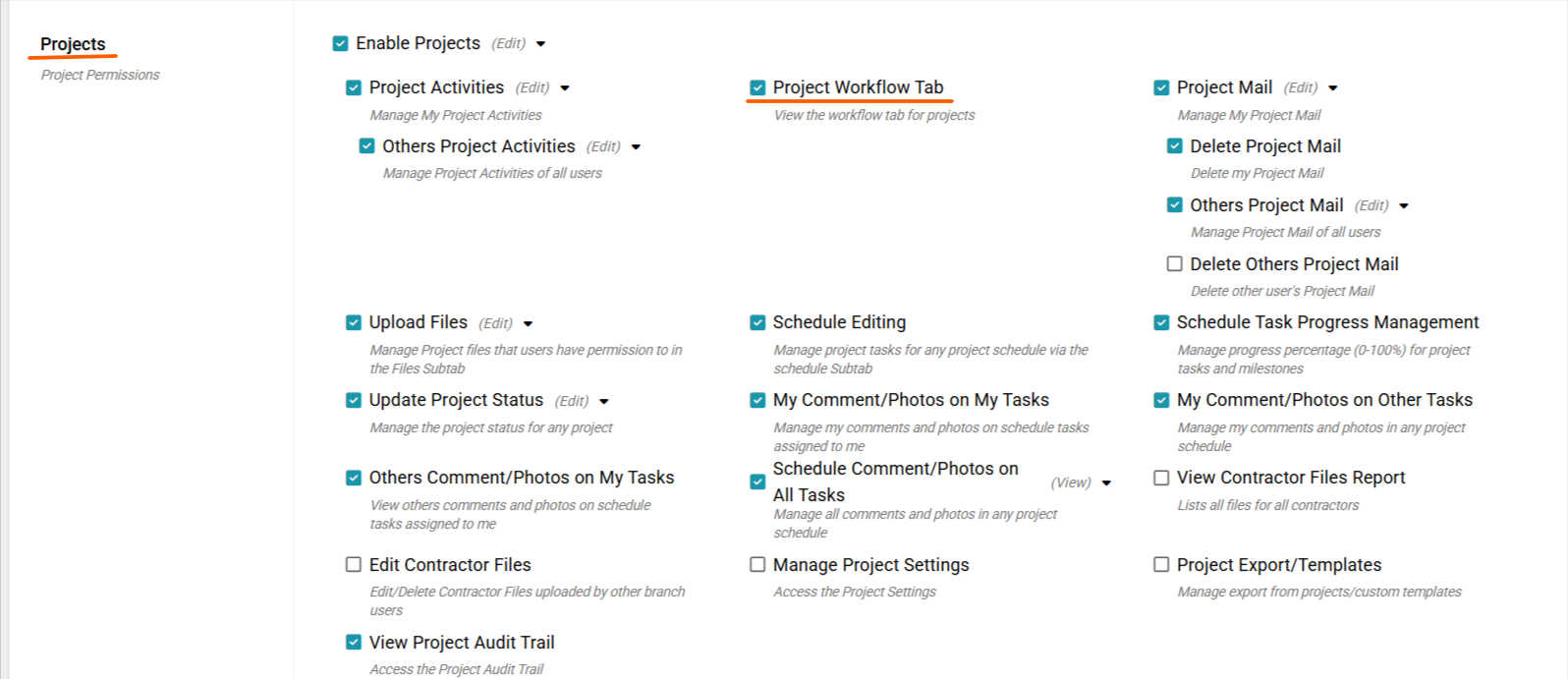
If you have permission to edit users you'll find the permission to turn this view on/off here.
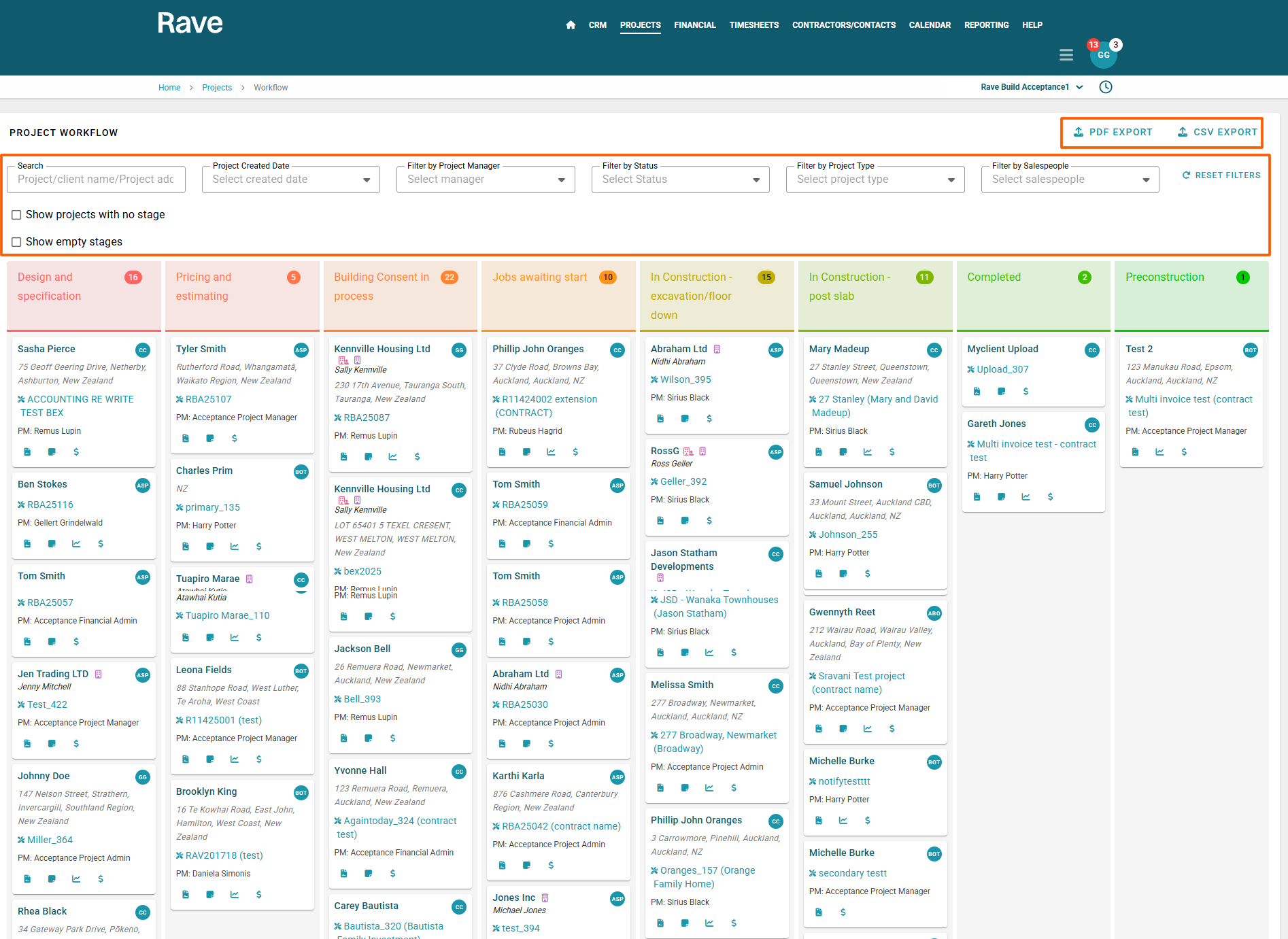
The Project Workflow view provides a traditional Kanban style interface, allowing you to track and manage your Projects by project Stage in a clear, column-based format.
Key Features:
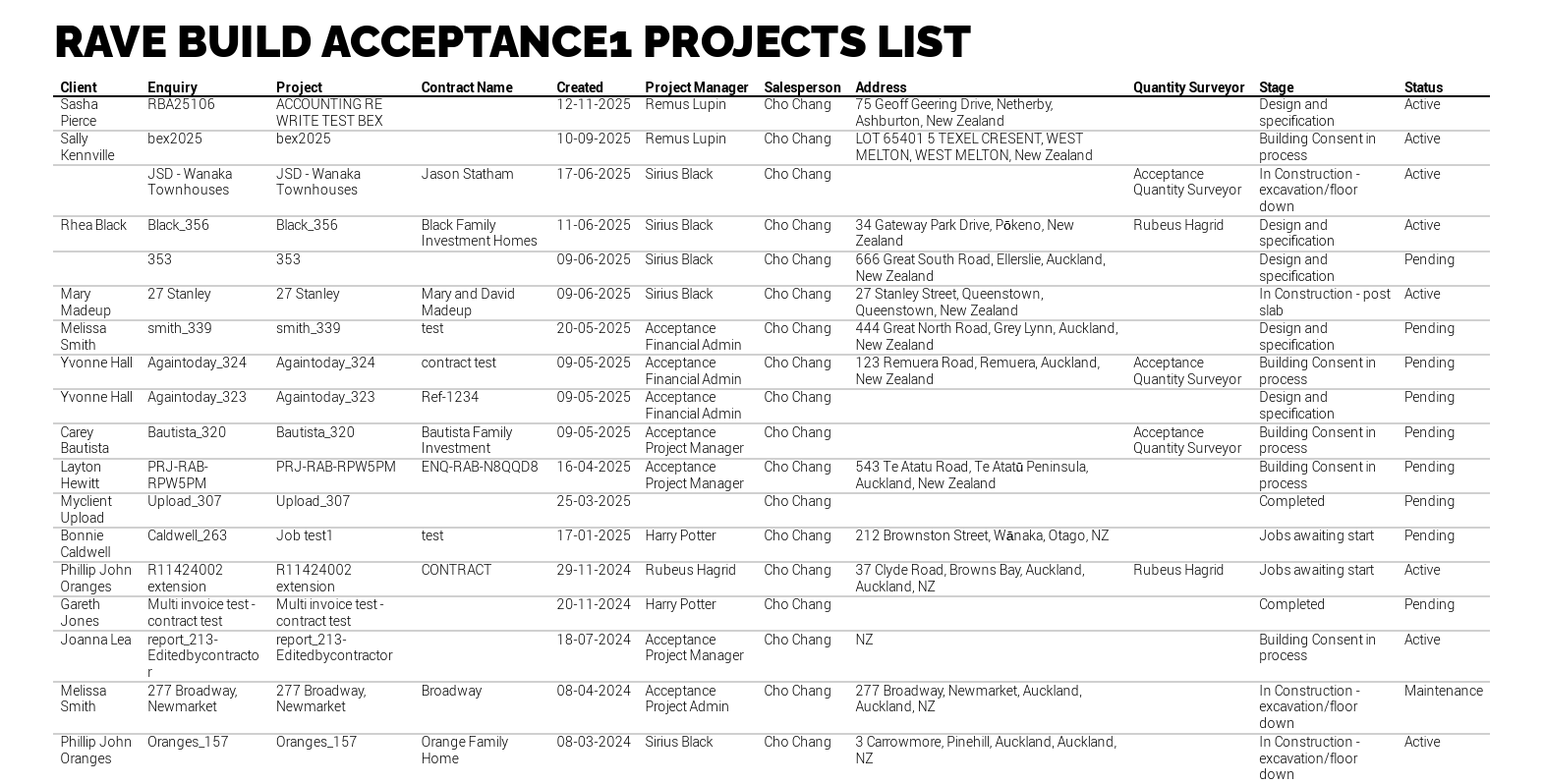
Export to CSV or PDF: You can now export either the entire page or with specific filters selected. Click export to CSV or PDF and a new tab will open with the PDF Export ready to download or print.
Filtering Options: Use the filters at the top of the page to refine the projects displayed based on various criteria. You can filter by Project Created date, Project Manager, Project Type and Status as well as Salesperson to refine down the number of projects displayed.
- To select a specific date range, first click Pick a Date, then click the start date, scroll to the end date you want, click it, and the system will automatically select all the days in between.
- to reset all filters on the page click the reset filters button to the top right of the screen.
Project Stages: Each column represents a stage in the projects workflow and displays the total number of projects currently in that stage. You can learn how to customise your Project Stages here.
Client Information: Each project displays the client’s name. Hovering over the name reveals their email address and phone number. We also display the handy company and Organisation icons to distinguish between clients who belong to an organisation and those who are owned by head/support office.
Project Name: The Project name and if applicable contract name will be displayed alongside the spanner/screw driver icon to take you directly to the project overview page.
Enquiry Reference: The Enquiry Reference is a clickable link with a paper icon to the left that takes you directly to the detailed Enquiry Page in the CRM module.
Project Note You can click on the note icon to the right of the Enquiry Reference and add a project note via this shortcut.
Schedule: There is a schedule icon you can click to land on the schedule page. This only shows if there is a schedule present
Financial: Those with Financial Management will find a $ icon which will shortcut the user to the financial management tabs.
Show Projects with No Stage: Projects that have not been assigned a stage are hidden by default clicking the Show Projects with no Stage will show in the first column for you to drag and drop into the correct stage.
Show Empty Stages Stages: Clicking this will show all project stages currently not in use.
Drag & Drop Projects: You can easily move projects between workflows by clicking and dragging them to the desired stage.
Infinite Scrolling:
Scroll down the page to continuously load more projects so there no need to manually change pages.
Was this article helpful?
That’s Great!
Thank you for your feedback
Sorry! We couldn't be helpful
Thank you for your feedback
Feedback sent
We appreciate your effort and will try to fix the article