You can access your Project’s financial workflows from either the Financial button or the Project button's Project list, clicking on the project’s reference number, and finally selecting the Progress Payments Subtab.
An Invoiceable can be edited while they are in a 'to be invoiced' state - via the pencil (edit) icon to the right of the invoiceable.
However, once the invoiceable has been converted to an invoice, and further if any payment has been recorded in the 'Invoices Out' sub-tab - the eyeball icon now shows, meaning you can view the line items of the invoice but the Invoiceable can no longer be edited.
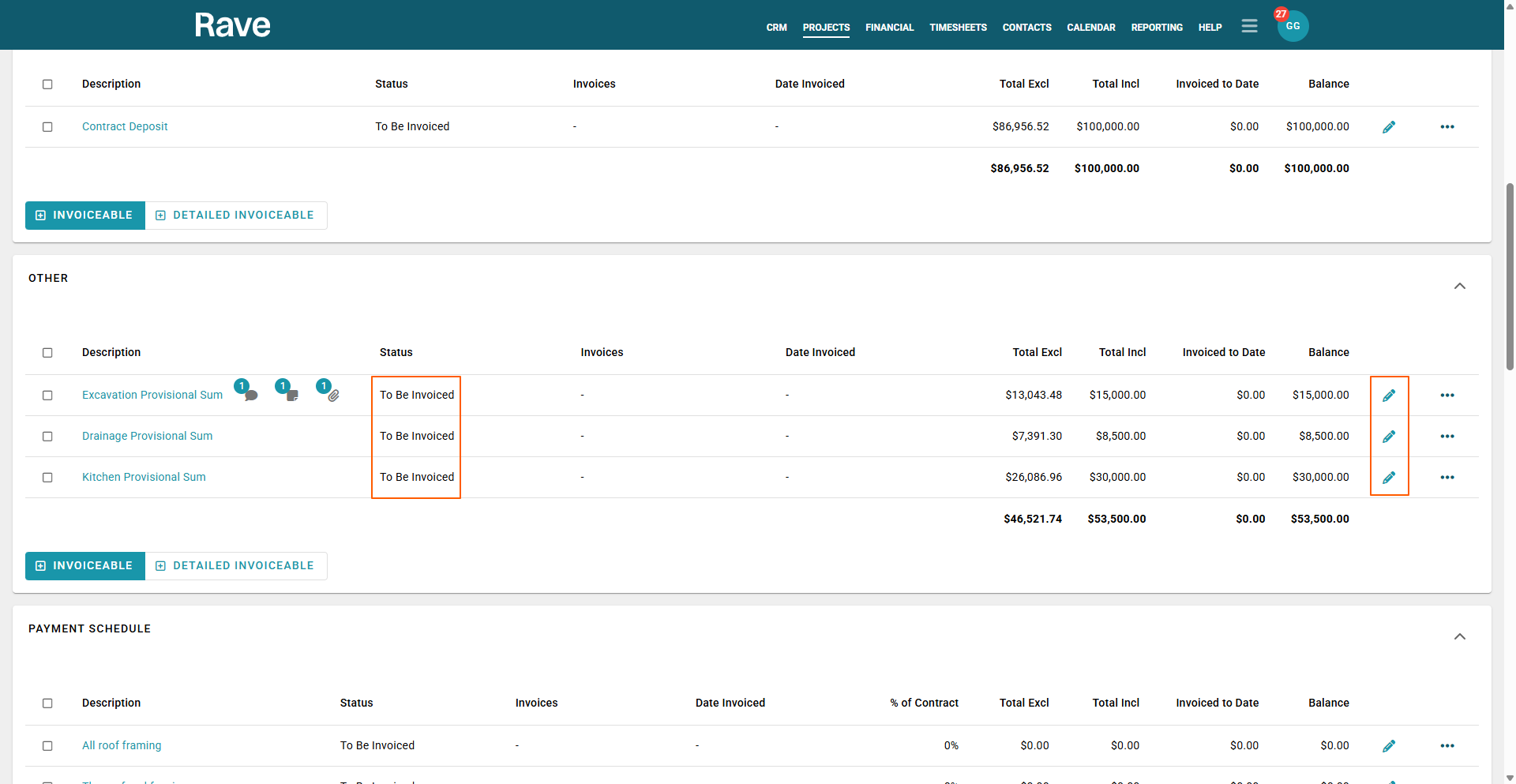
Can No Longer Edit the Invoice - View Only Mode - screenshot below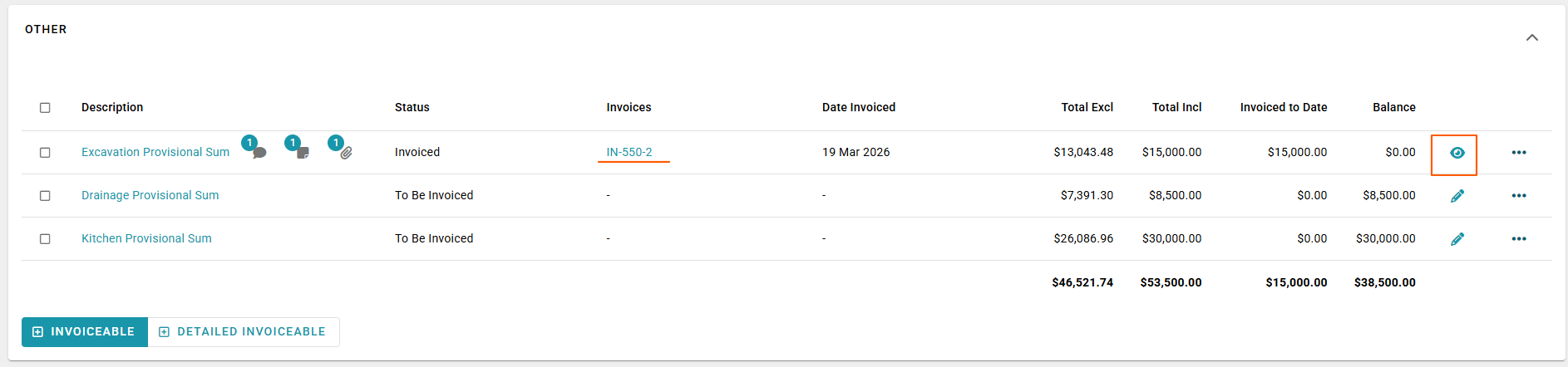
The fix for these scenarios is:
For an 'Invoice' that has been partially or fully paid
Go to the 'Invoices Out' sub-tab, click on the 3-dot dropdown to the right of the partially/fully paid invoice, select 'View/Remove Payments', and delete the payment by clicking on the Trash Can or 'View the Receipt' of payment if a part payment has been received.
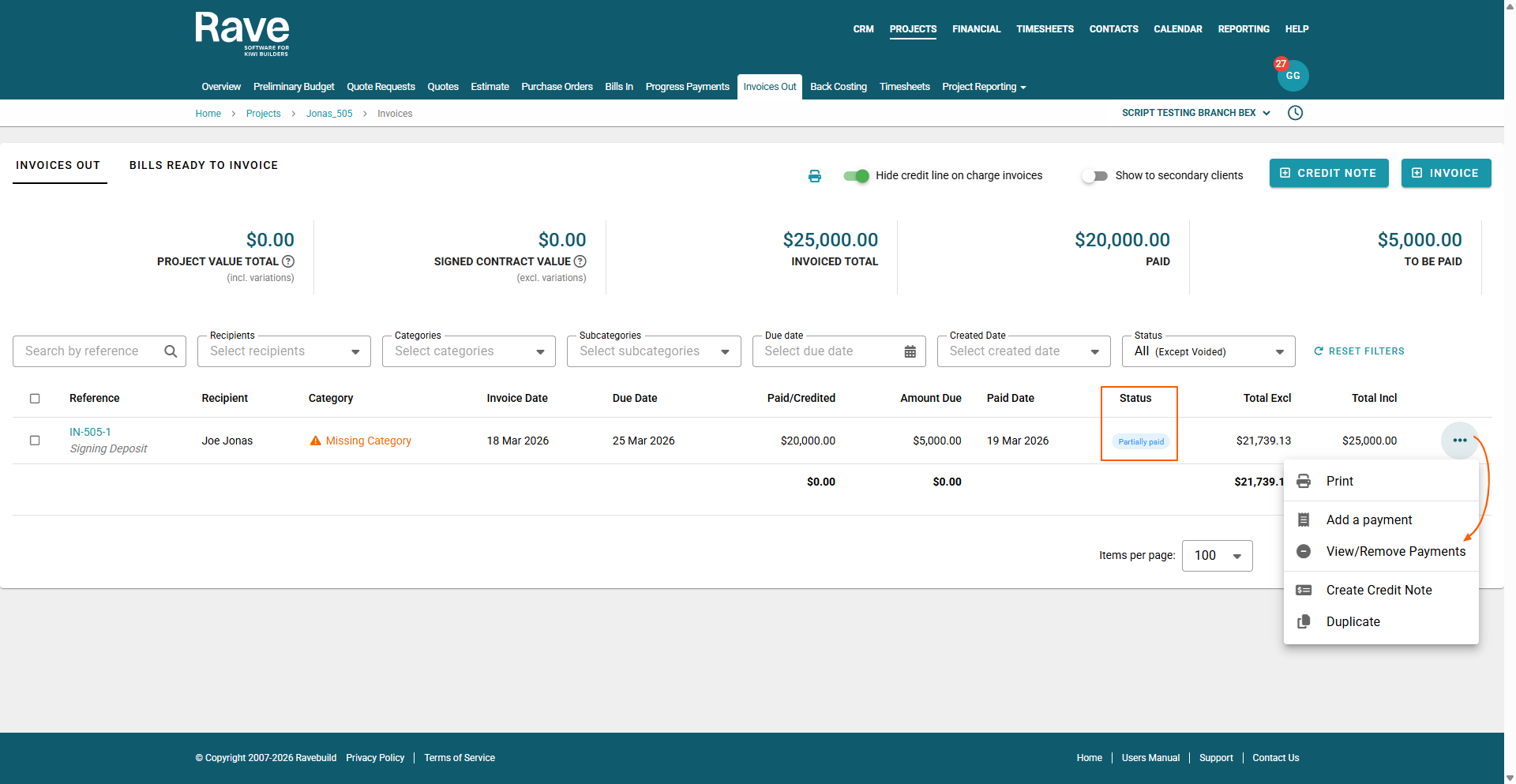
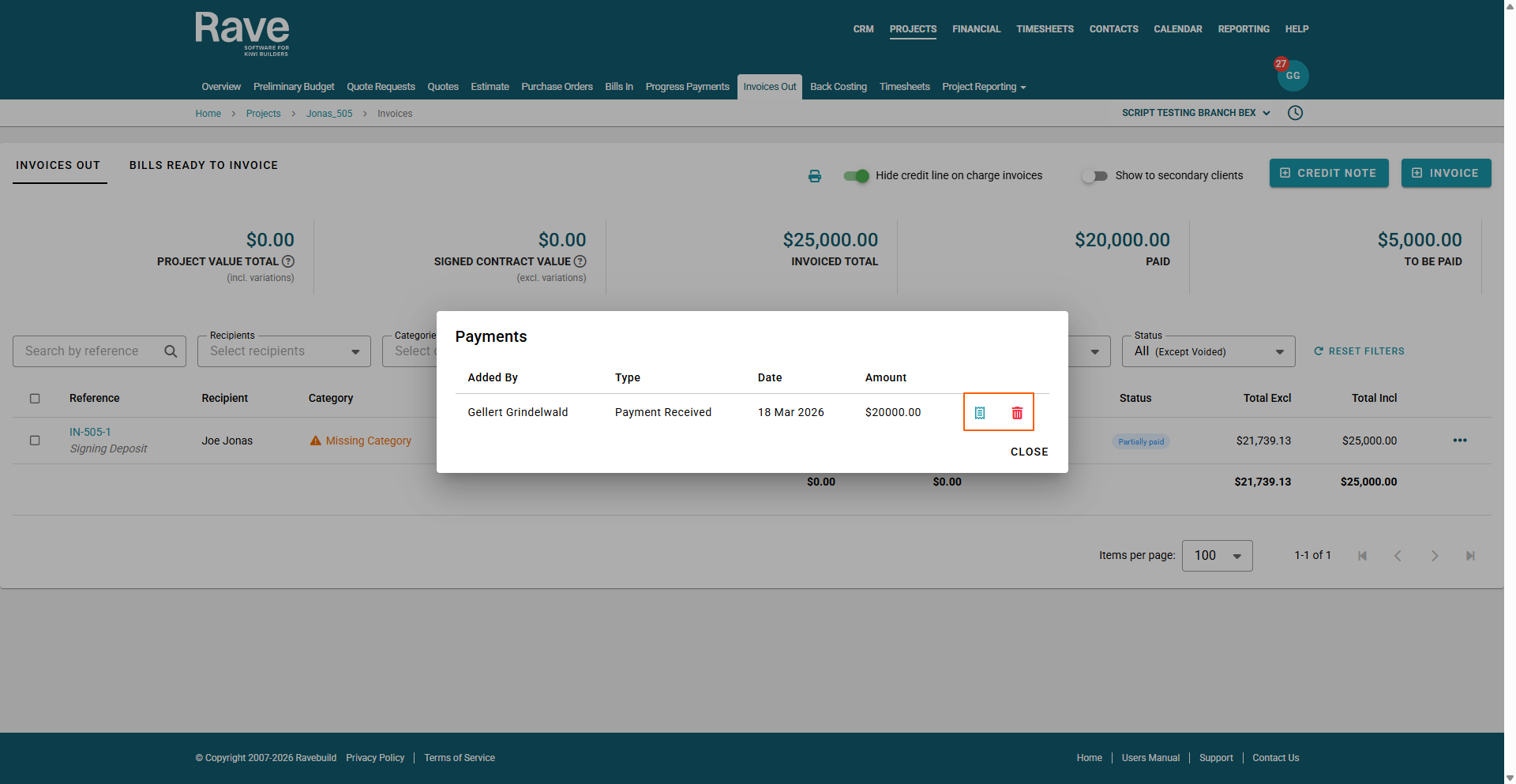
NOTE: If you intend to redo the payments later, you will want to make a note of the payment amounts and dates.
This will remove all payments and change the payment status to 'Unpaid'.
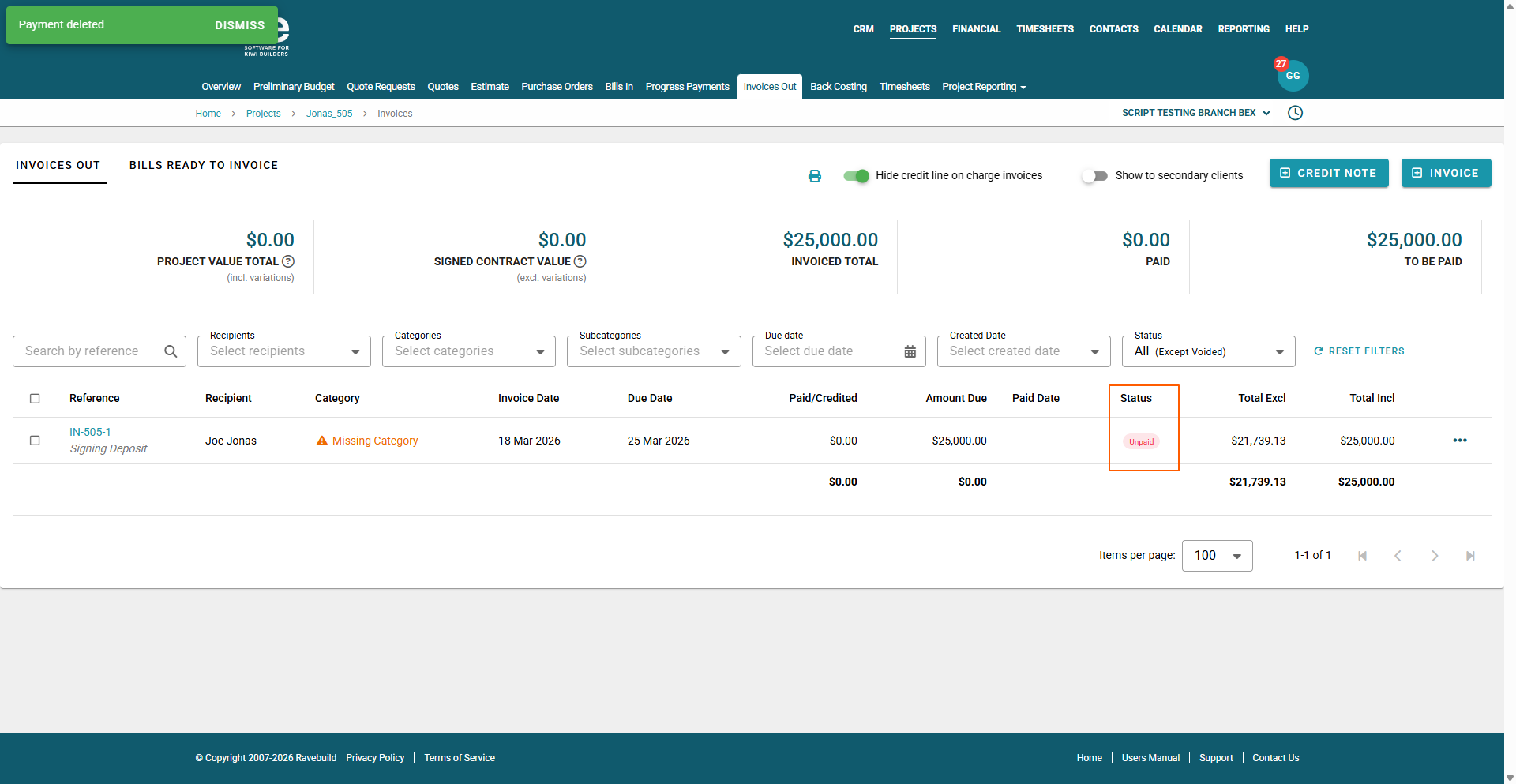
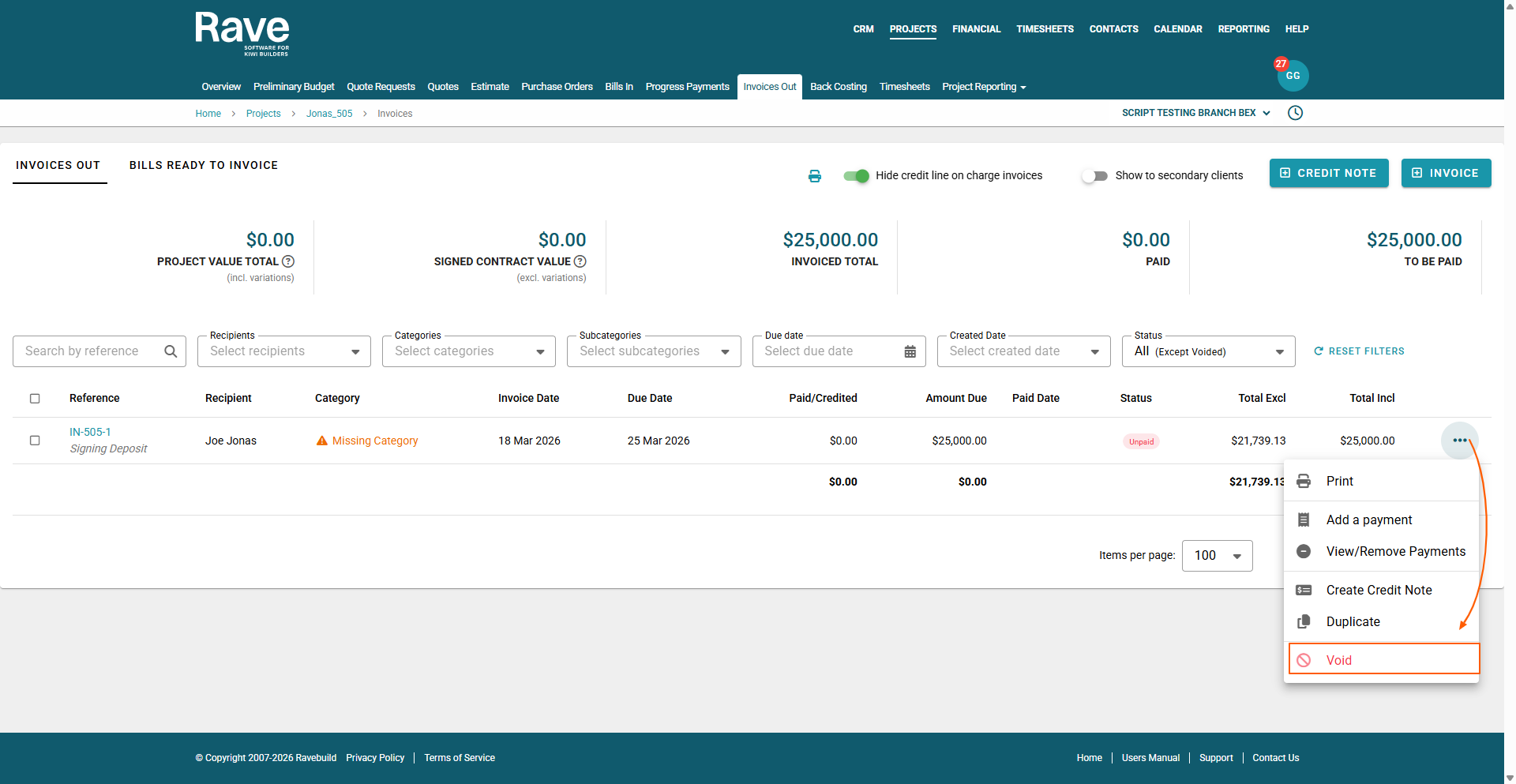
Staying in the Invoices Out tab, now go back to the 3 dots and Void this invoice, to free it up to edit in the Progress Payments subtab.
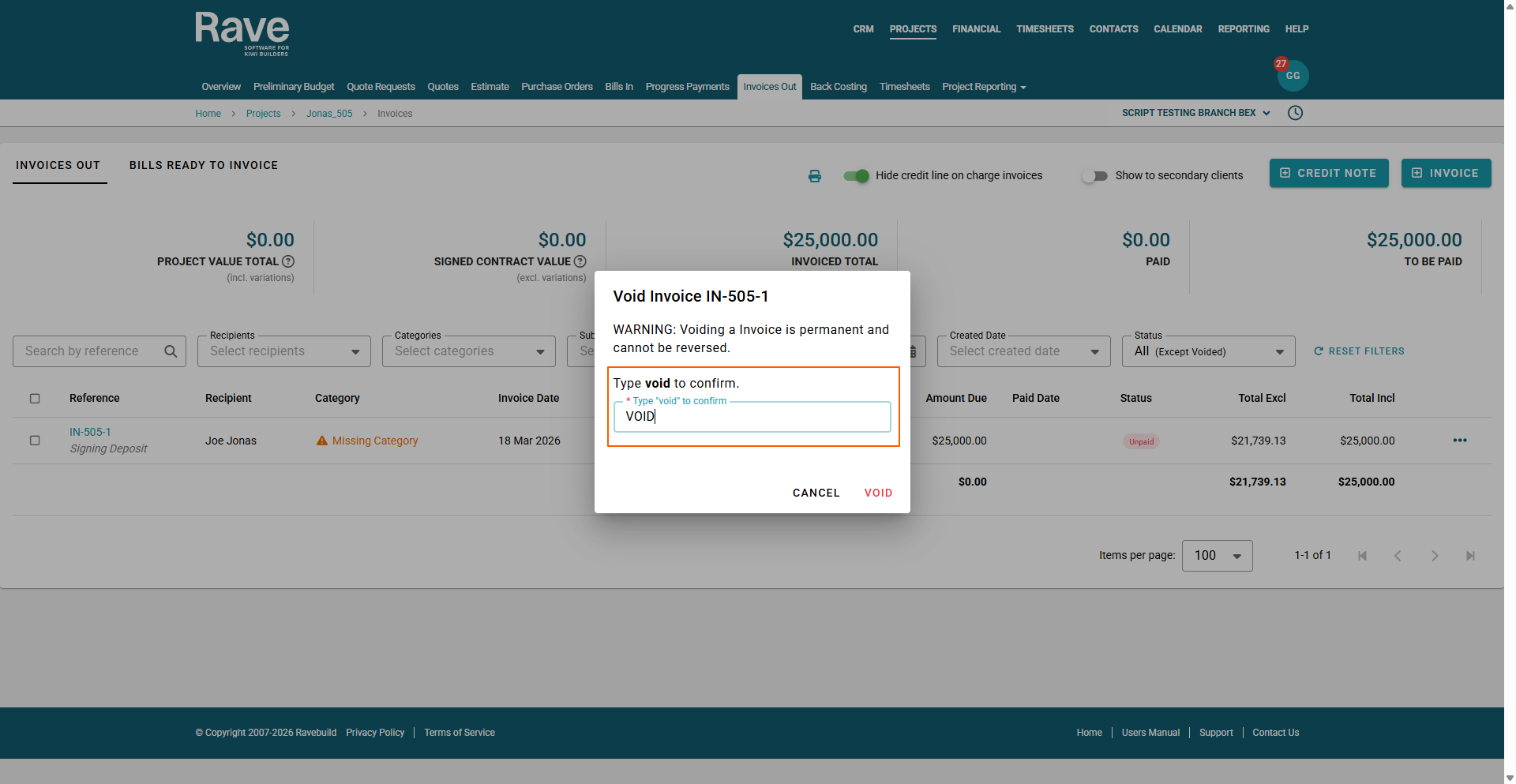
Voiding an Invoice is not something that can happen by mistake. Rave then gives you a second chance to absolutely confirm that you want to void the invoice. In the 2nd pop up box you need to type VOID to confirm.
Returning back to the 'Progress Payments' sub-tab, we see that the invoice has moved back to an invoiceable and is again in a 'Pending' state - the pencil (edit) icon is now selectable, and the invoiceable can be edited.

For an 'Invoice' that has not yet had any Payments made
For an 'Invoice' that has not yet had any payments made, we can skip the remove payment(s) steps, and instead:
Go straight to the 'Invoices Out' sub-tab to cancel the invoice. We do this by, clicking on the invoice's 3-dot dropdown, selecting the 'Void' option, confirming this action via the 'void' pop-up.
Was this article helpful?
That’s Great!
Thank you for your feedback
Sorry! We couldn't be helpful
Thank you for your feedback
Feedback sent
We appreciate your effort and will try to fix the article