Rave scheduling's task gantt view, allows you to select the columns you would like to display on your report i.e. you can hide selected columns to display more of your gantt chart. What's more, this function is available to all 3 scheduling modes - classic, advanced, and enterprise.
How to customise your Task Gantt Columns
To customise your task gantt columns, click on the 'Columns' button, to the right of the 'Today' buttons. Then via the 'Visible Columns' drop-down, leave the columns you would like displayed ticked. As you make your selections, Rave will update the columns in real time.
Note: Only the # and Name columns can not be hidden. Furthermore, the selected columns will stay selected during an active session i.e. the selections will stay, even if you go to another project and return, for the duration of your current session in Rave.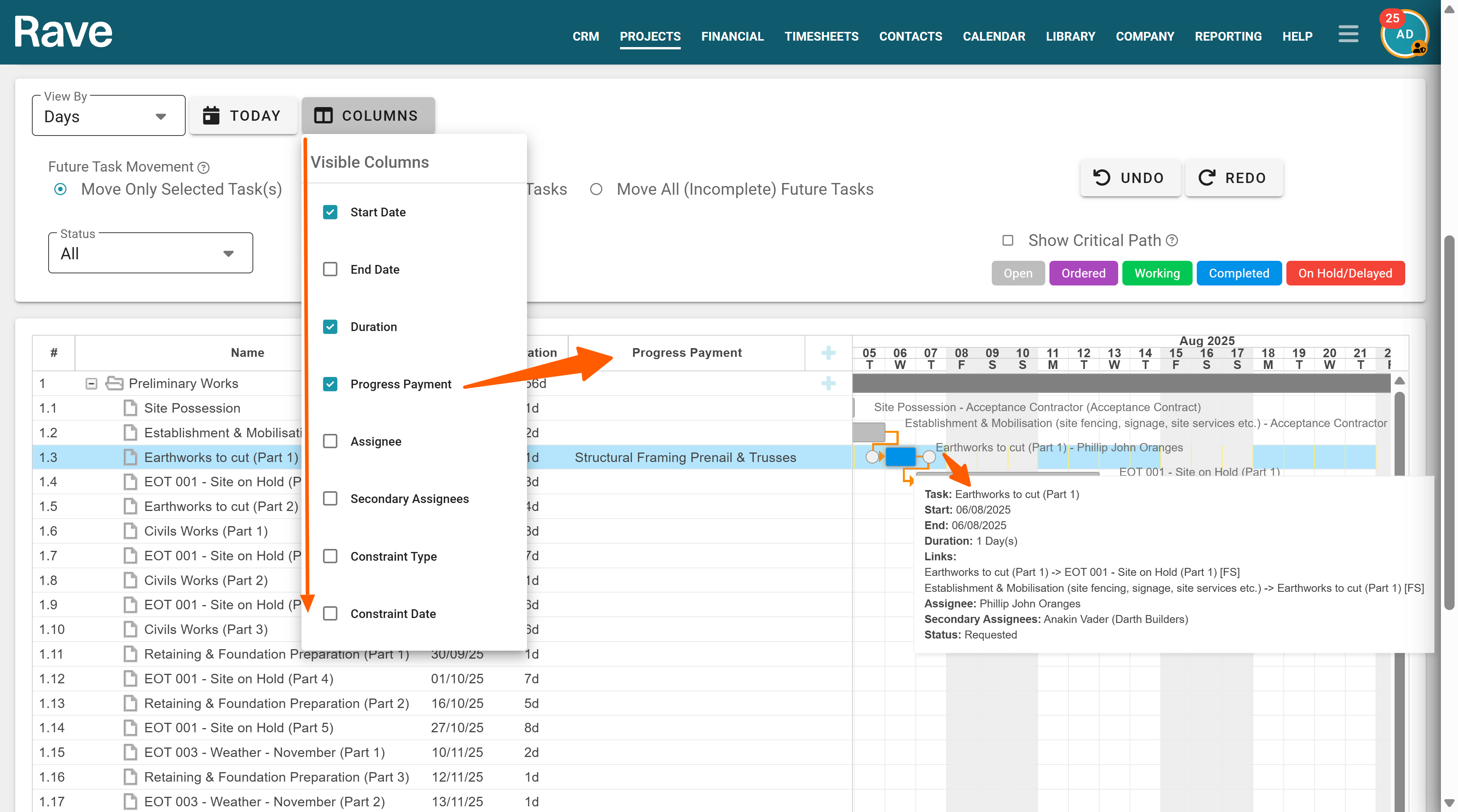
Was this article helpful?
That’s Great!
Thank you for your feedback
Sorry! We couldn't be helpful
Thank you for your feedback
Feedback sent
We appreciate your effort and will try to fix the article