The Key Task Progress Report allows you to view all Key Tasks by contractor or assignee, helping you quickly identify important tasks and their current status.
How to Access the Report
- Navigate to Projects
- Select Project Reporting
- Select Schedule Reporting, then Key Task Progress Report
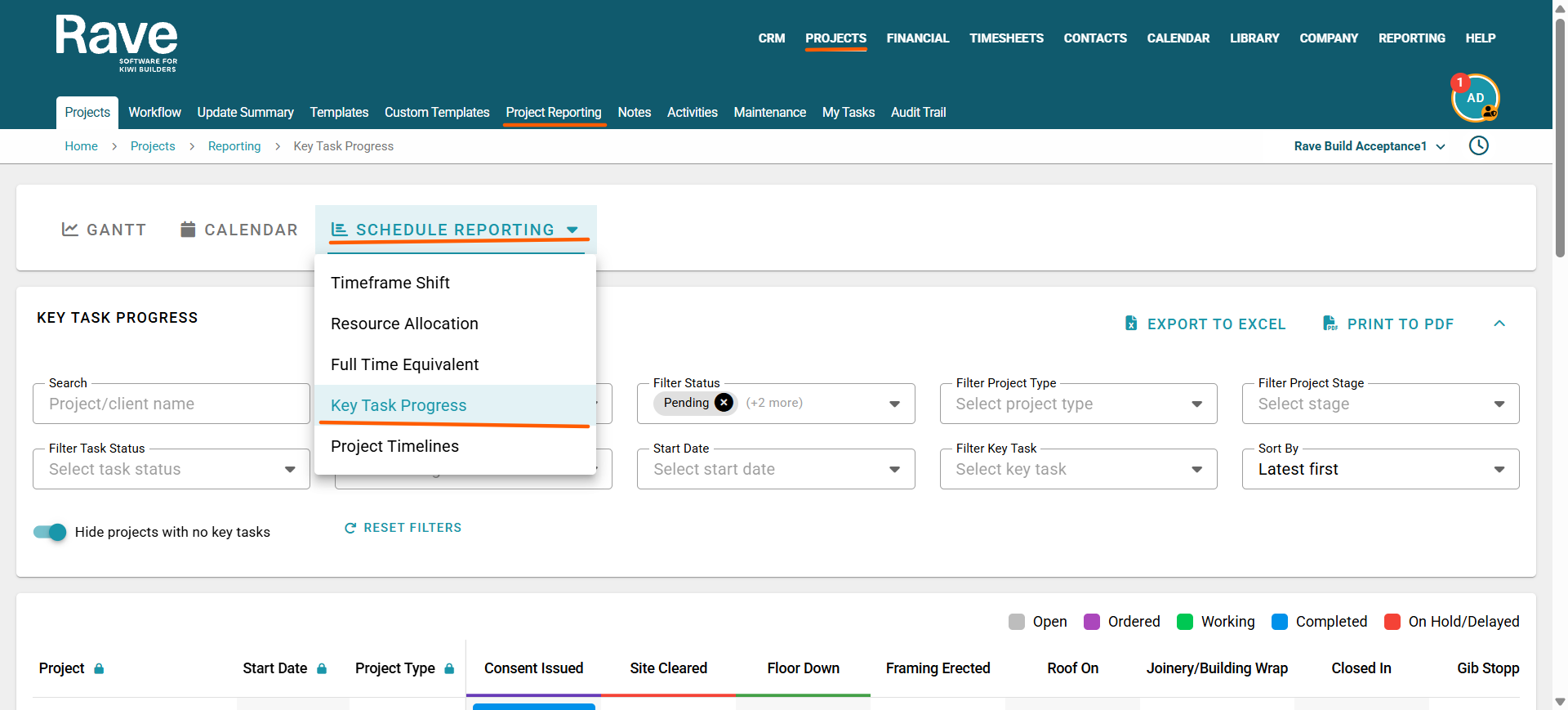
If you cannot see this report, you may not have the required permissions. In this case, please contact your Business Owner or Rave Build Support
This report helps you quickly review resource allocation by assignee using colour-coded status indicators.
You can easily identify:
Gaps in workload
Overlapping tasks
Potential scheduling issues
This means you can address resource conflicts without needing to individually filter through each task or schedule.
Understanding the Report
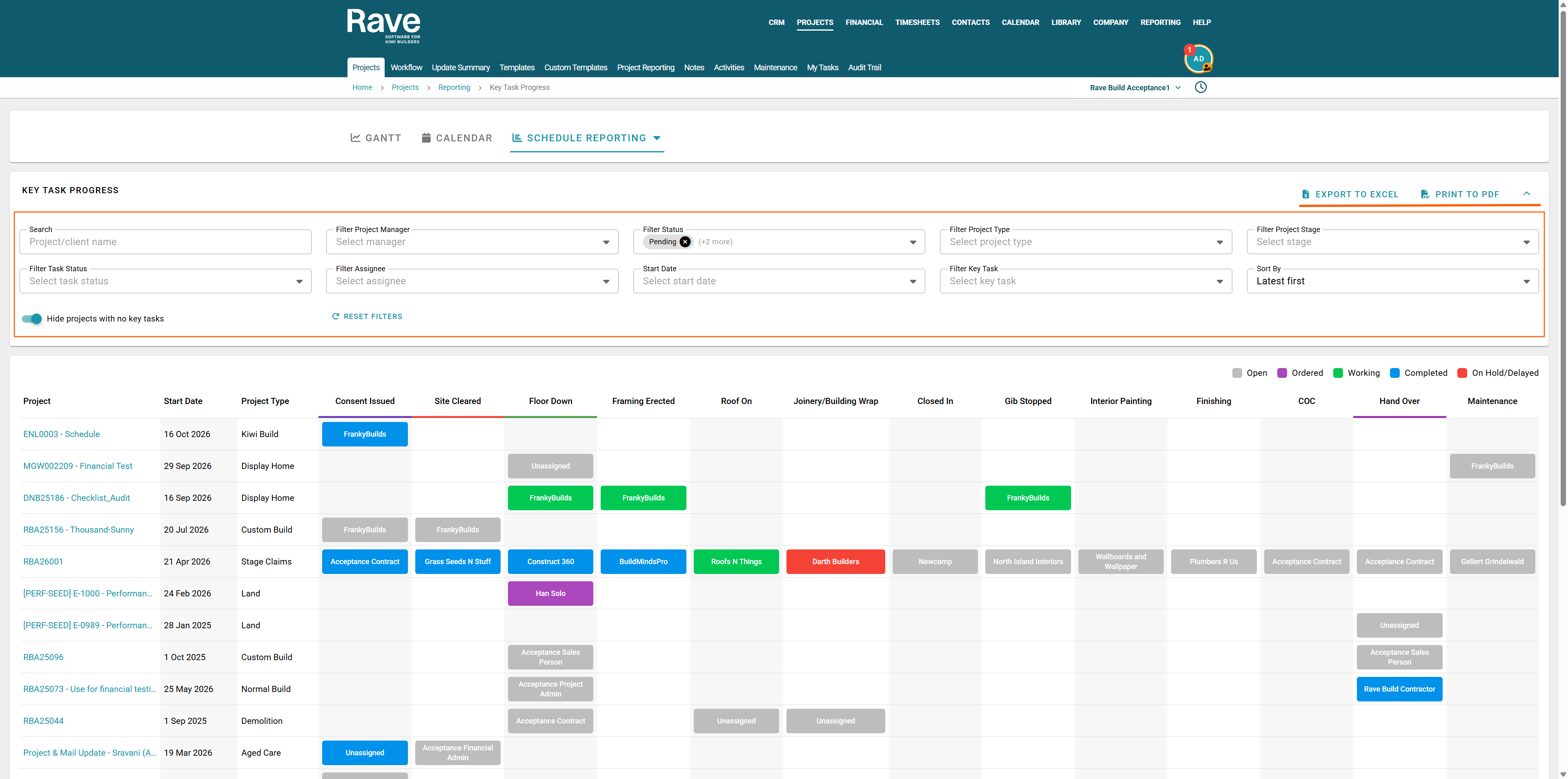
The report displays:
Each Key Task linked to a schedule in your branch.
The Assignee responsible
The current task status, displayed using colour coding.
Hovering over a task box will show additional information such as:
Completed Date (if the task is finished)
Started Date (if the task is currently in progress)
On Hold Date
Scheduled Start Date (if the task has not yet started)
Using the Filters
At the top of the page, there are several filters that allow you to refine the information displayed:
Project Manager
Project Status
Project Type
Project Stage
Schedule Task Status
Assignee
Start Date
Key Task
Sort by Latest First, A-Z or Z-A
There is also a Search Box where you can search by Client Name or Project Reference.
By default, the Hide Projects with no Key tasks option is switched on to prevent projects from showing that don't have at least 1 key task assigned.
You can also lock the first three columns so they freeze during horizontal scrolling to avoid losing the Project, Start Date and Project type. Select the padlock item to lock and unlock this column from being frozen.
Exporting the Report
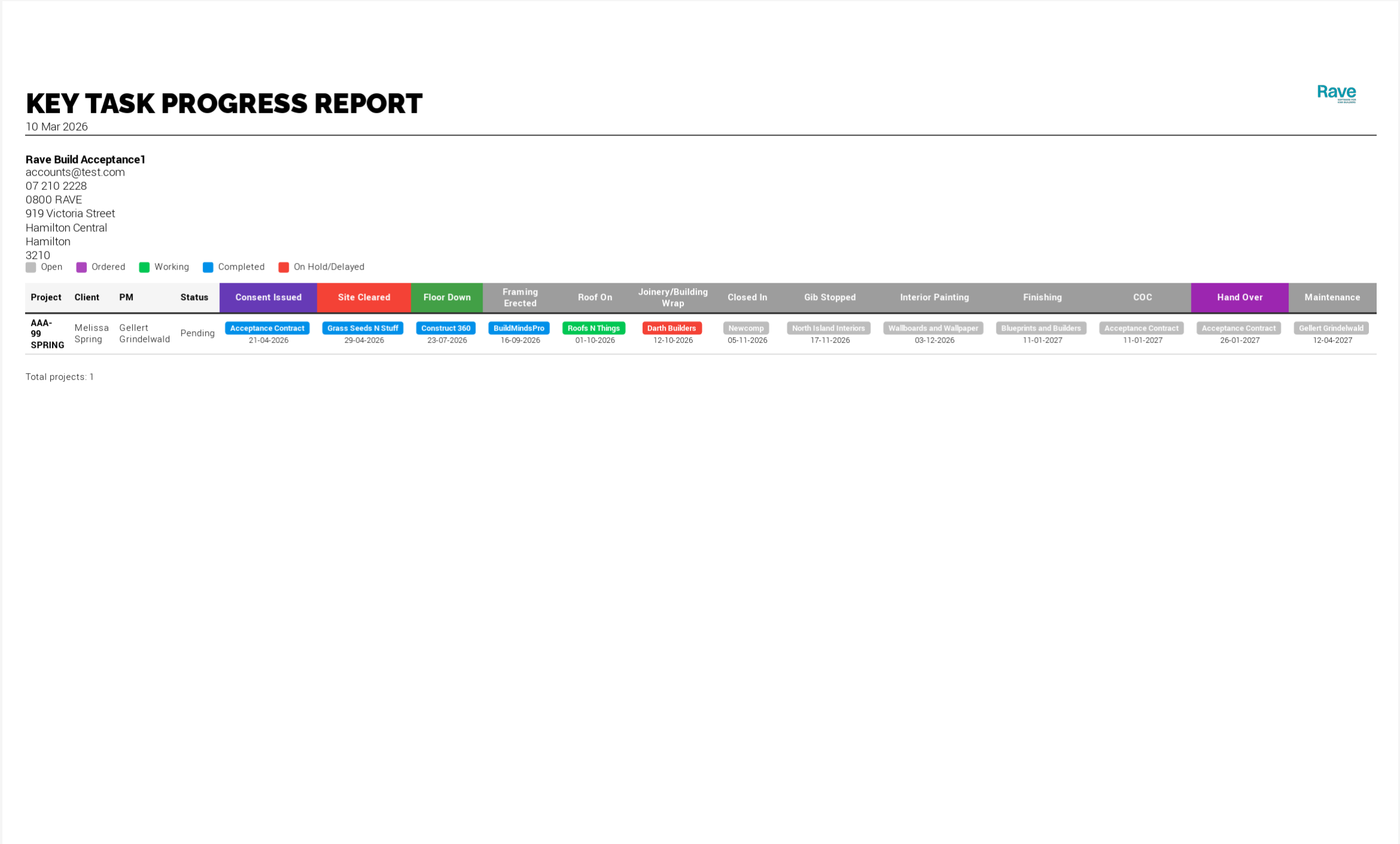
You can also use the Export button at the top of the page to export the report to PDF or Excel, depending on your preference.
Both export formats will retain the same colour coding shown on the screen, making it easy to review task statuses outside the system.
We recommend applying filters before exporting so that the report only includes the relevant projects or tasks. Exporting without filters may include all projects, which can result in a much larger report than needed.
Was this article helpful?
That’s Great!
Thank you for your feedback
Sorry! We couldn't be helpful
Thank you for your feedback
Feedback sent
We appreciate your effort and will try to fix the article