Rave's Enterprise Scheduling mode now supports two nested levels: Milestone → Task Category → Task. This also means that you can now import MS Project files to two nested levels. Below are guides for adding and managing Task Categories via the Task List and Task Gantt views - Task Categories are not visible via the Task Calendar or Milestone Gannt views.
Click here for instructions How to Upload an MS Project .mpp or .xml File into Rave
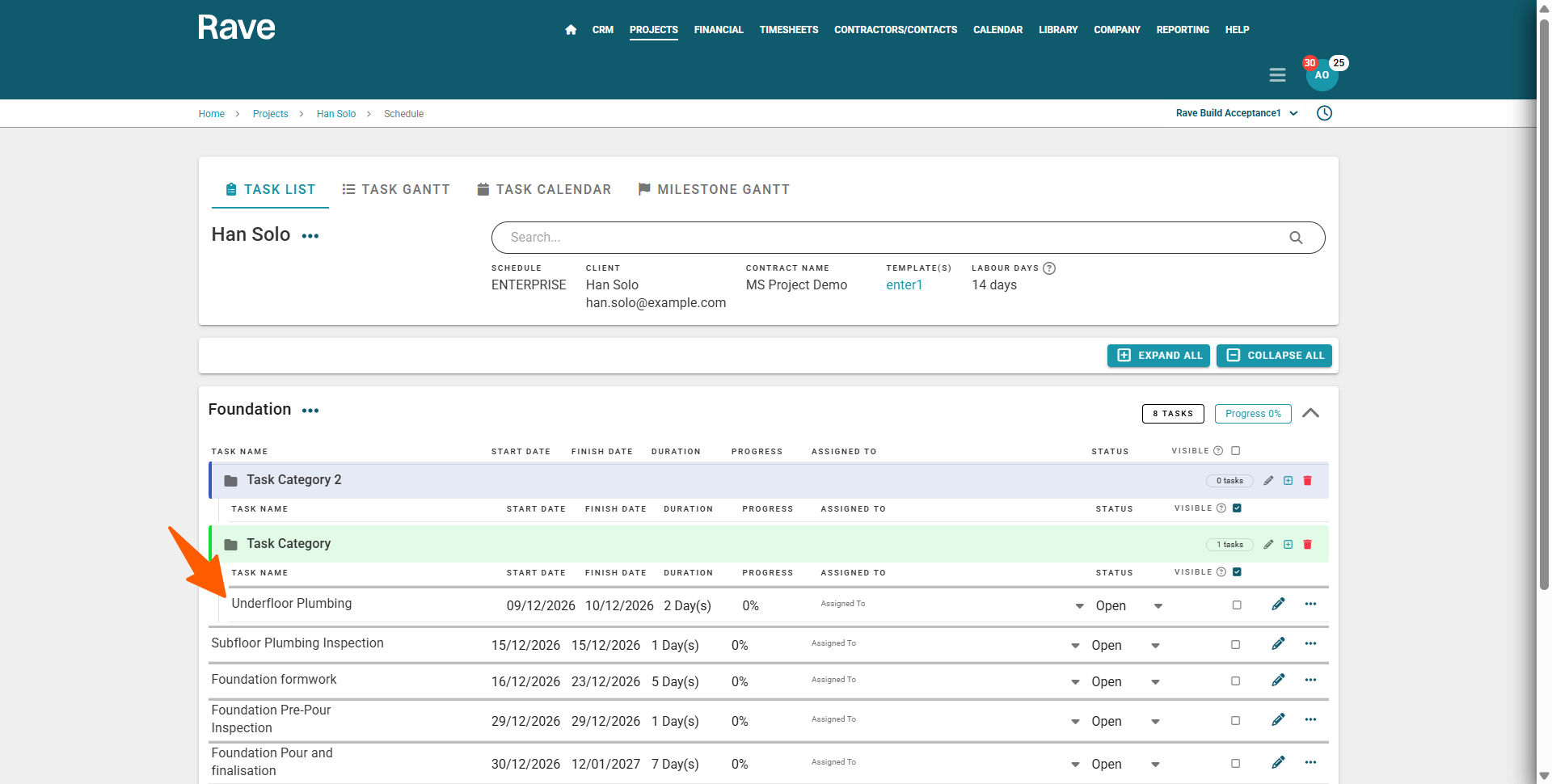
Using Task Categories - Task List View
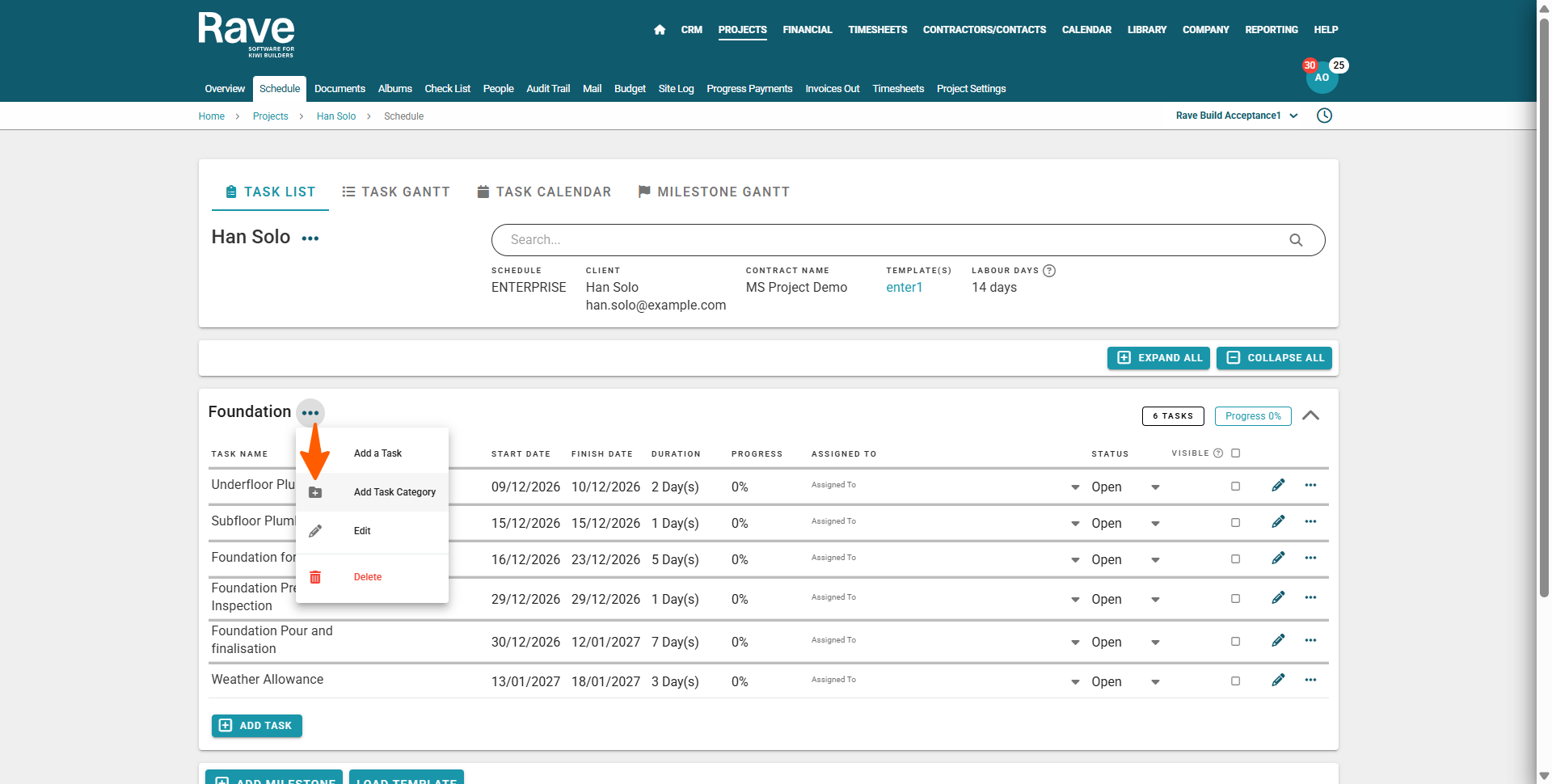
You can add a Task Category to an existing Milestone by:
- Clicking on the Milestone's three-dot action drop-down
- And the Add Task Category Selection
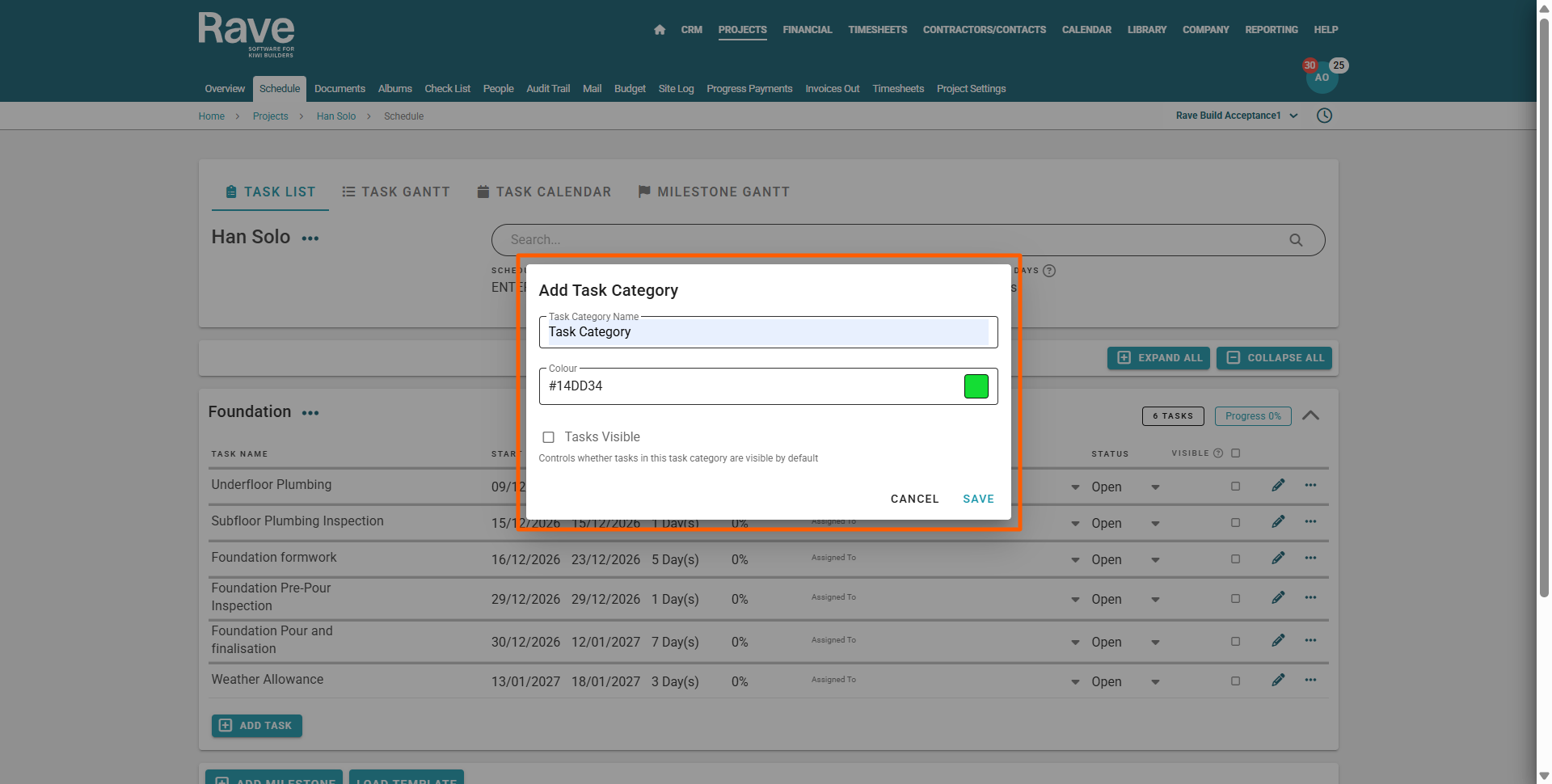
Then, via the Add Task Category pop-up
- Adding the Task Category name, colour, and task visibility
- Clicking Save to confirm
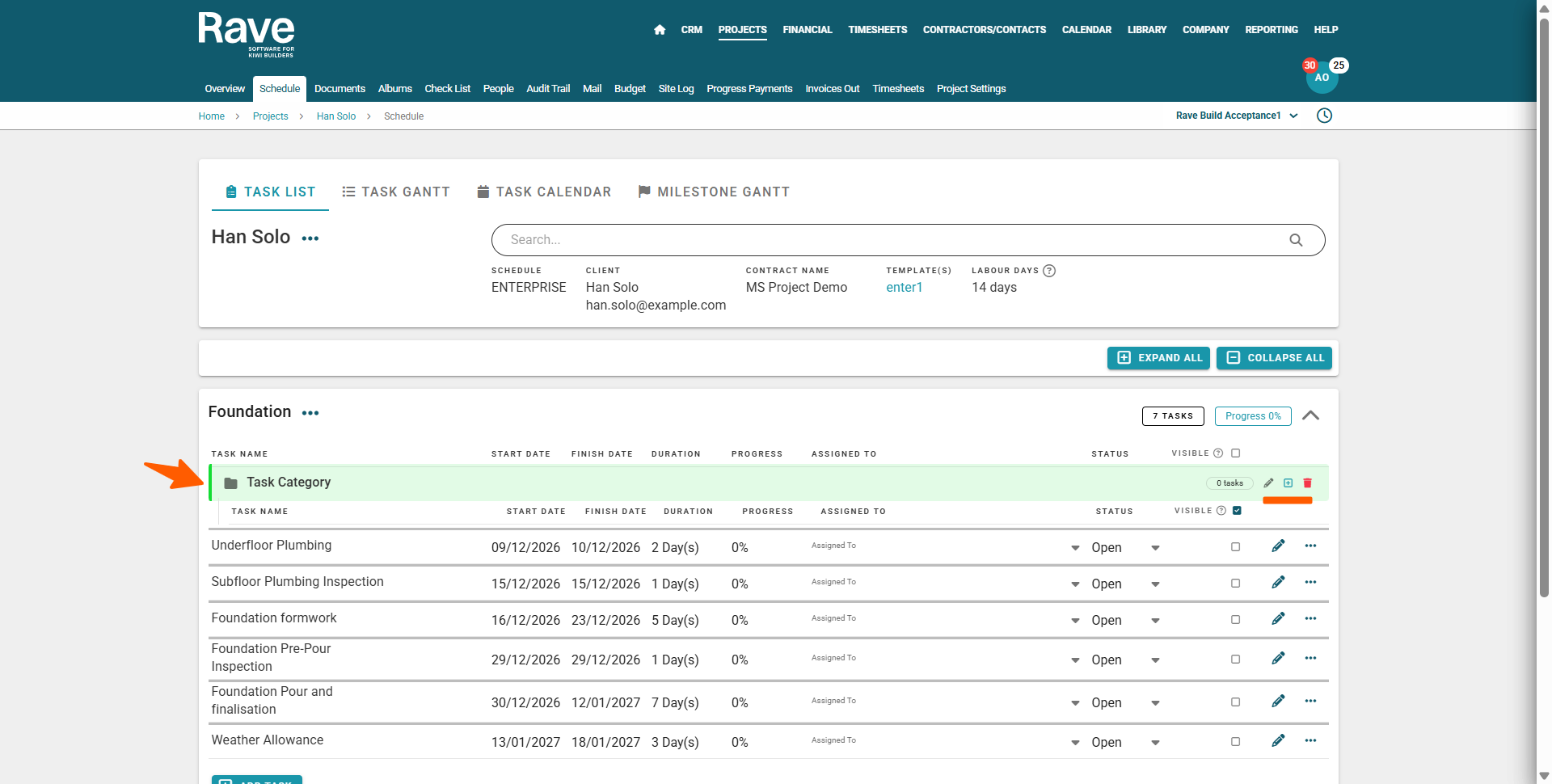
This will add the Task Category. To the right of the Task Category header are 3 action icons
- The pencil edit icon - allows you to change the task category's name, colour, and task visibility
- The + icon - allows you to add a task to that task category
- The red trash can - allows you to delete that Task Category
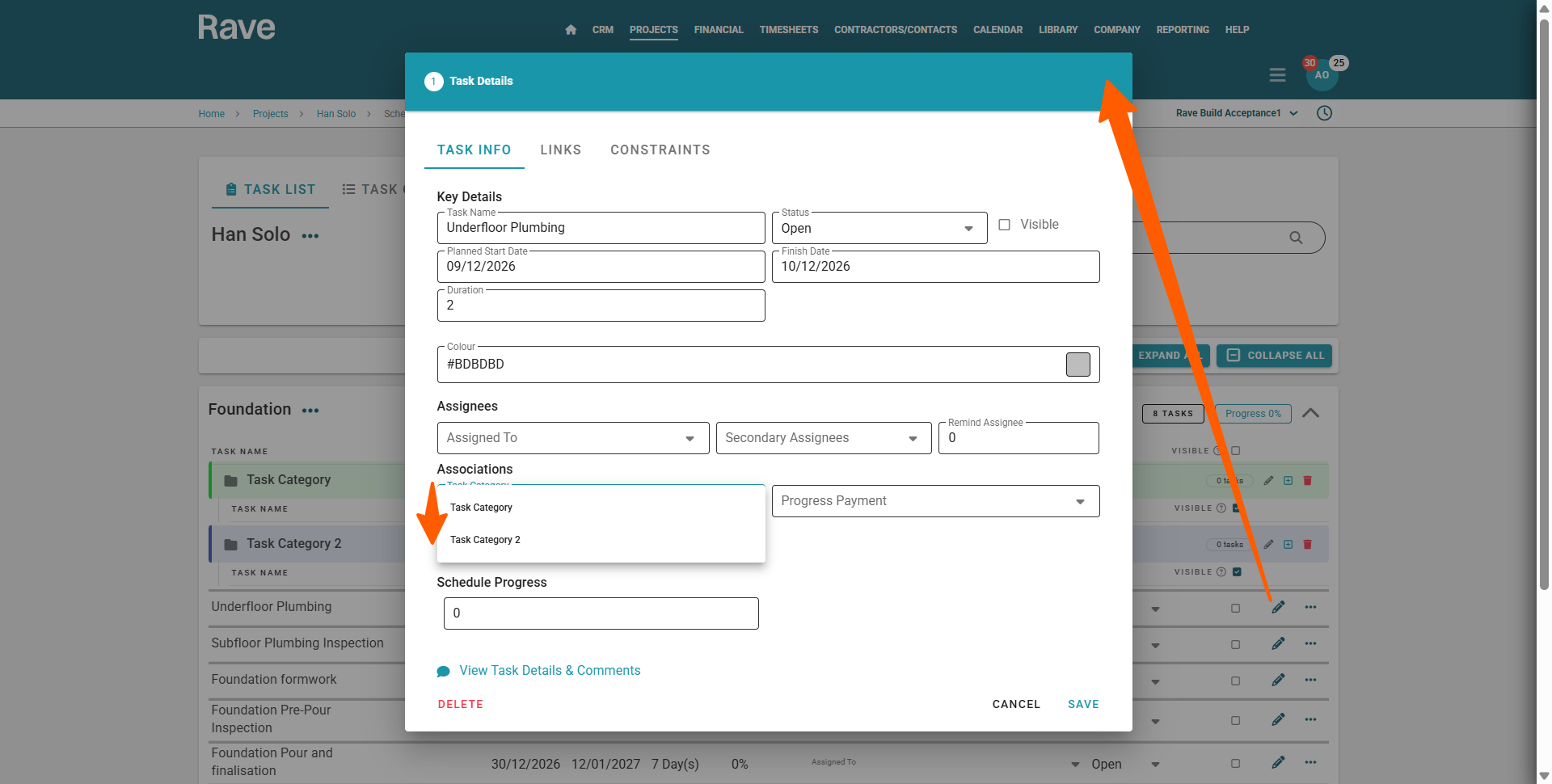
Once a task category has been added, you can add an existing task to it by:
- Clicking on an existing task's pencil edit icon to open the Task Details modal
- Then, the Associations / Task Category dropdown, to select a Task Category
This will move this task under Task Category - sorting it in start date order.
Task List View Notes:
- Just like milestones, task categories are sorted in start date order, of the first task in that task category.
- Task categories are prioritised above tasks (outside of the task category) that share the same start date as the first task of that category.
Using Task Categories - Task Gantt View
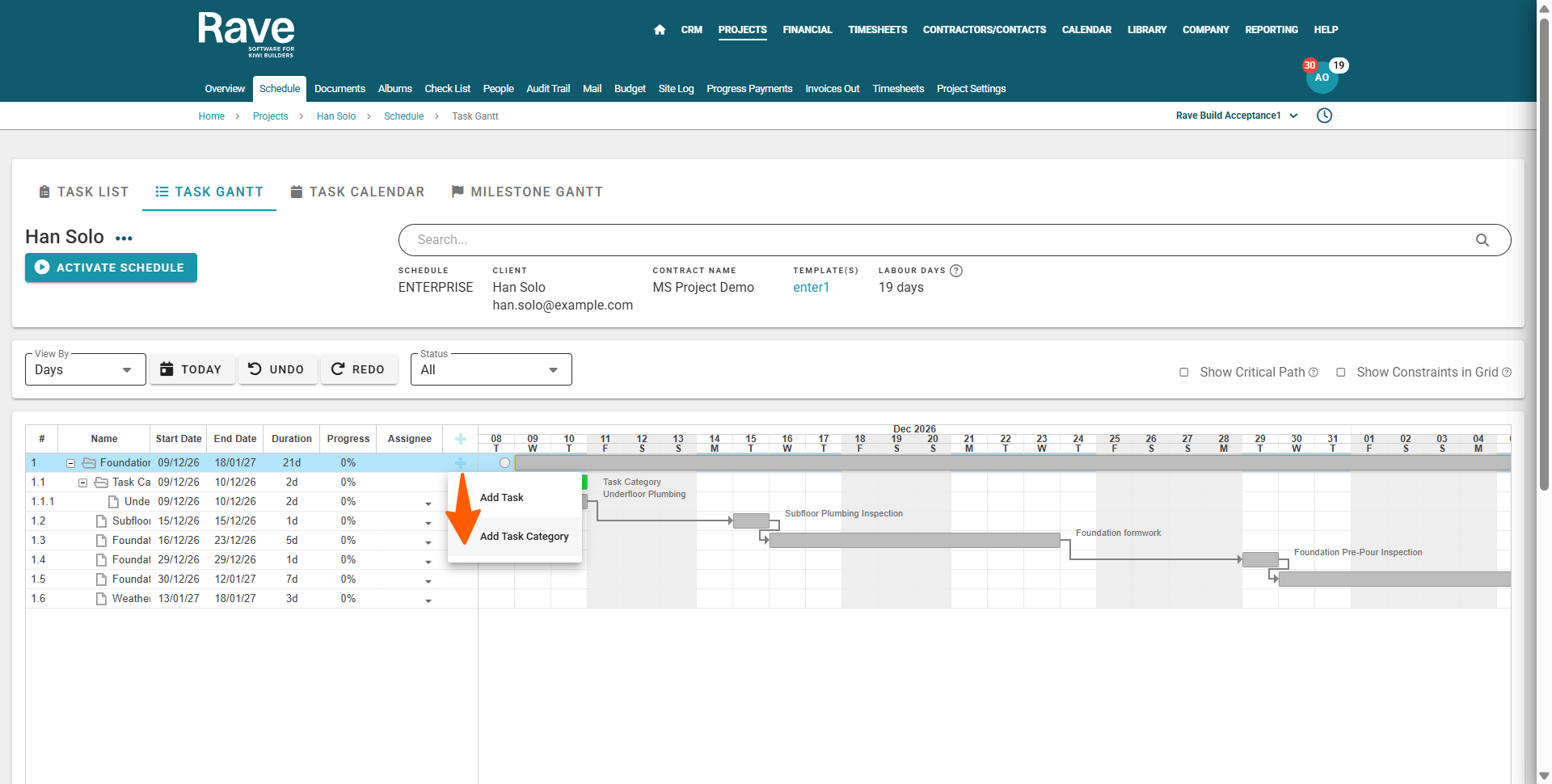
You can add a Task Category to an existing Milestone by:
- Clicking on the Milestone's + icon, to the right of the milestone's description
- And the Add Task Category Selection
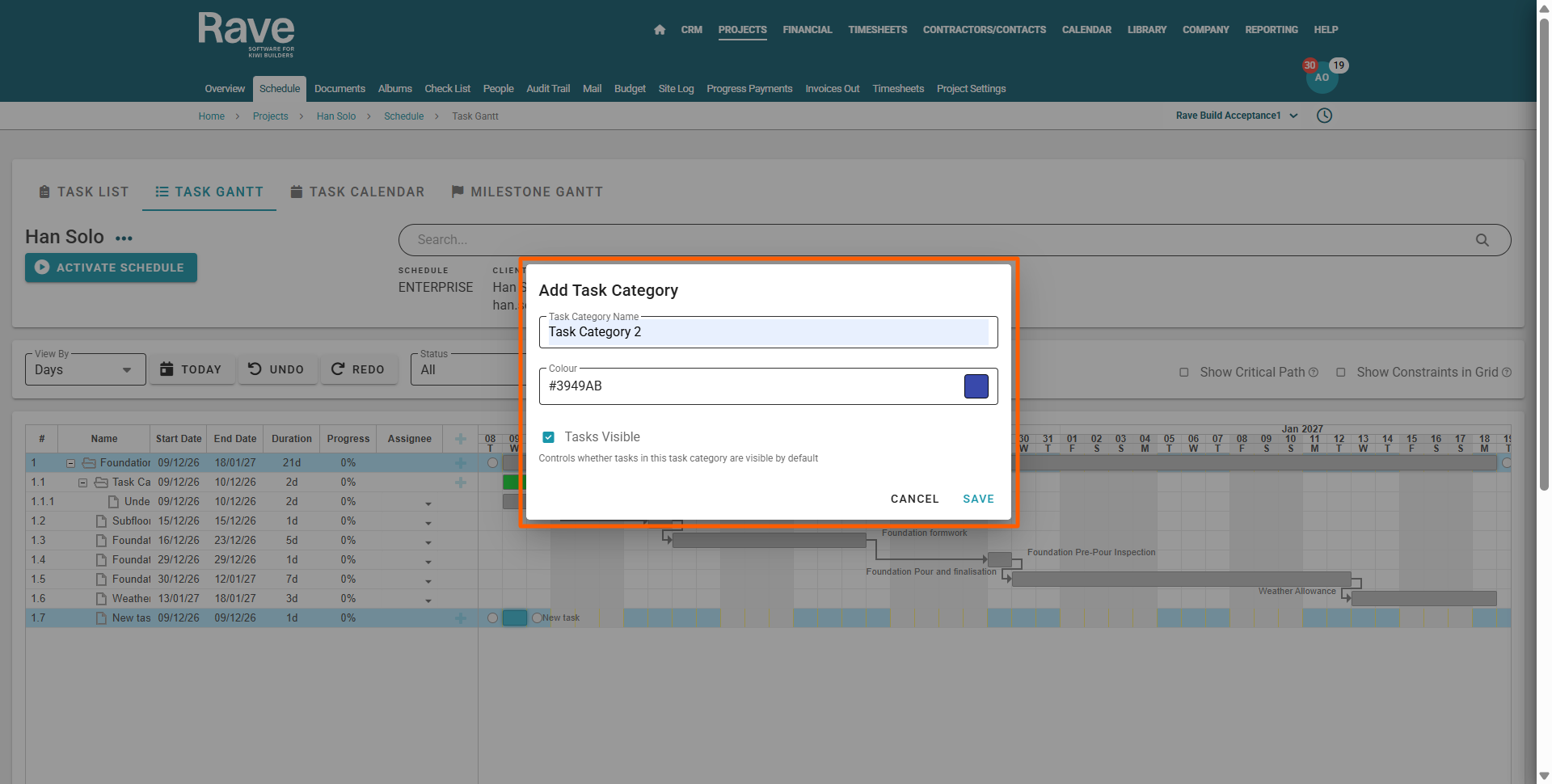
Then, via the Add Task Category pop-up
- Adding the Task Category Name, colour, and task visibility
- Clicking Save to confirm
Double-clicking on the Task Category Name or gantt task category block, will open the task category modal, allowing you to change the task category's name, colour, and task visibility
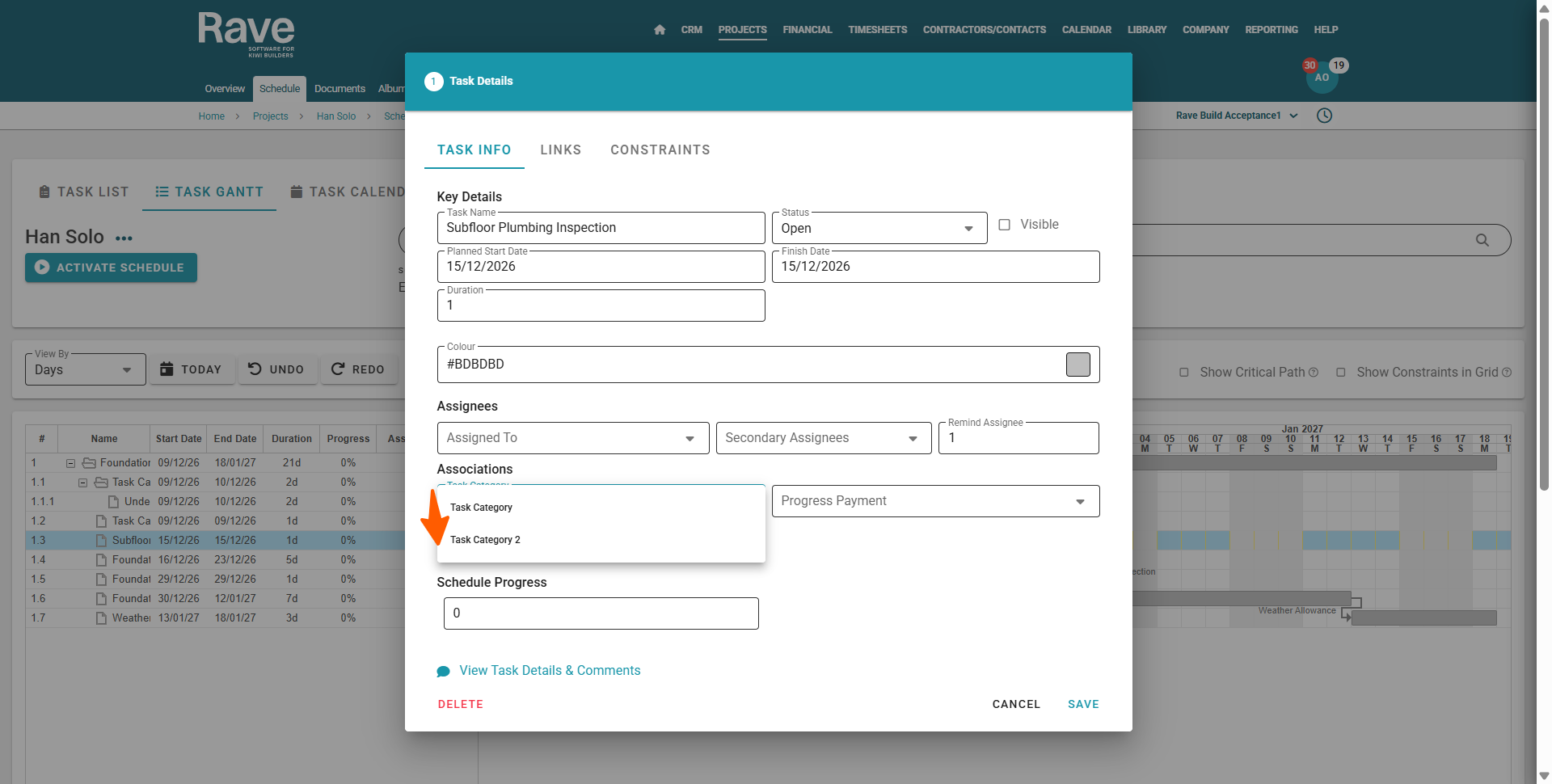
Once a task category has been added, you can add an existing task to it by:
- Double-clicking on the task's description, or gantt task block, to open the Task Details modal
- Then, the Associations / Task Category dropdown, to select the Task Category
This will move the task under the selected task category.
Task Gantt View Notes:
- You can not click and drag a Task Category to move it. Task categories encase its tasks, just like a Milestone. Clicking and dragging a task to an earlier start/later finish than the current Task Category duration will move the start/finish date of the Task Category.
- To delete a Task Category you must do so via the Task List View.
- Just like milestones, task categories are sorted in start date order, of the first task in that task category.
- Task categories are prioritised above tasks (outside of the task category) that shares the same start date as the first task of that category.
Was this article helpful?
That’s Great!
Thank you for your feedback
Sorry! We couldn't be helpful
Thank you for your feedback
Feedback sent
We appreciate your effort and will try to fix the article