What it’s used for
- Tracking invoicing progress
See how much of the contract (including variations) has been invoiced to date. - Cashflow management
Understand invoiced amounts versus remaining value still to be claimed. - Project financial control
Compare approved quotes and variations against invoices issued to identify under or over-billing early. (An alternative to our Budget vs Actual report here) - Client and internal reviews
Support progress claim discussions with clear, summarised figures. Reporting to management/Financial Institutions aka Banks – quick snapshot without line-by-line detail.
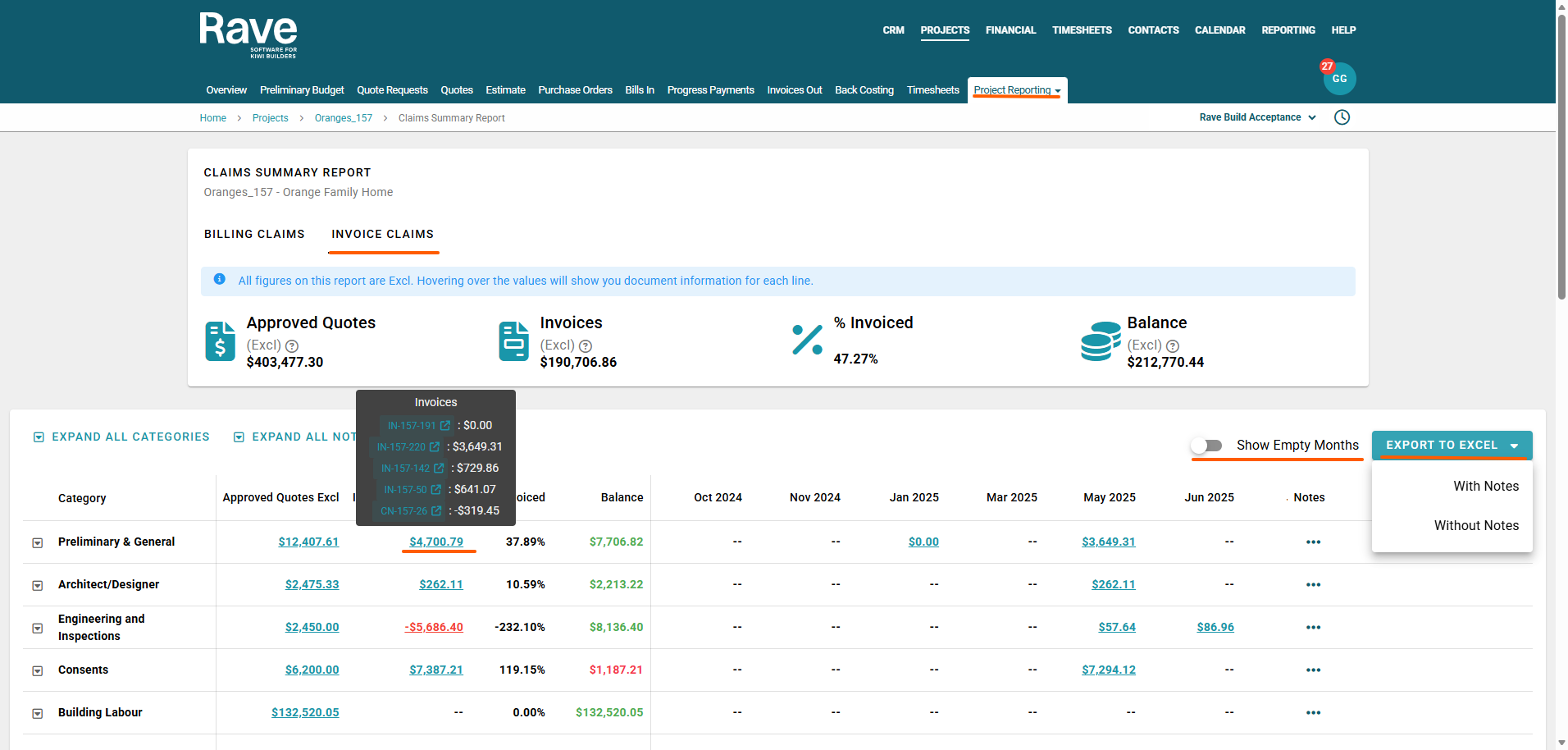
The top of the page displays a summary of the project’s financial position, including the total value of all approved quotes and approved variation quotes, the total value of all approved Client Invoices and credit notes, the overall percentage of the project value that has been Invoiced, and the remaining balance between approved quotes and invoiced amounts.
Information is grouped by category (and sub-category if used) and shown by month. Blue values are clickable. Hover over them to see the document name and amount, then click to view the full document.
The 3-dot ellipsis beside each row allows you to enter notes about the category and/or subcategory. To explain overspends or credits or other information that might be helpful.
Use the toggle in the top-right corner 'Show Empty Months' to control month visibility. By default, its slid it off to show only months with data. You can slide it on to display empty months as well.
Alongside this toggle is the export to excel. You can choose to export with or without notes.
Was this article helpful?
That’s Great!
Thank you for your feedback
Sorry! We couldn't be helpful
Thank you for your feedback
Feedback sent
We appreciate your effort and will try to fix the article