Rave allows you to add a task comment when adding a task.
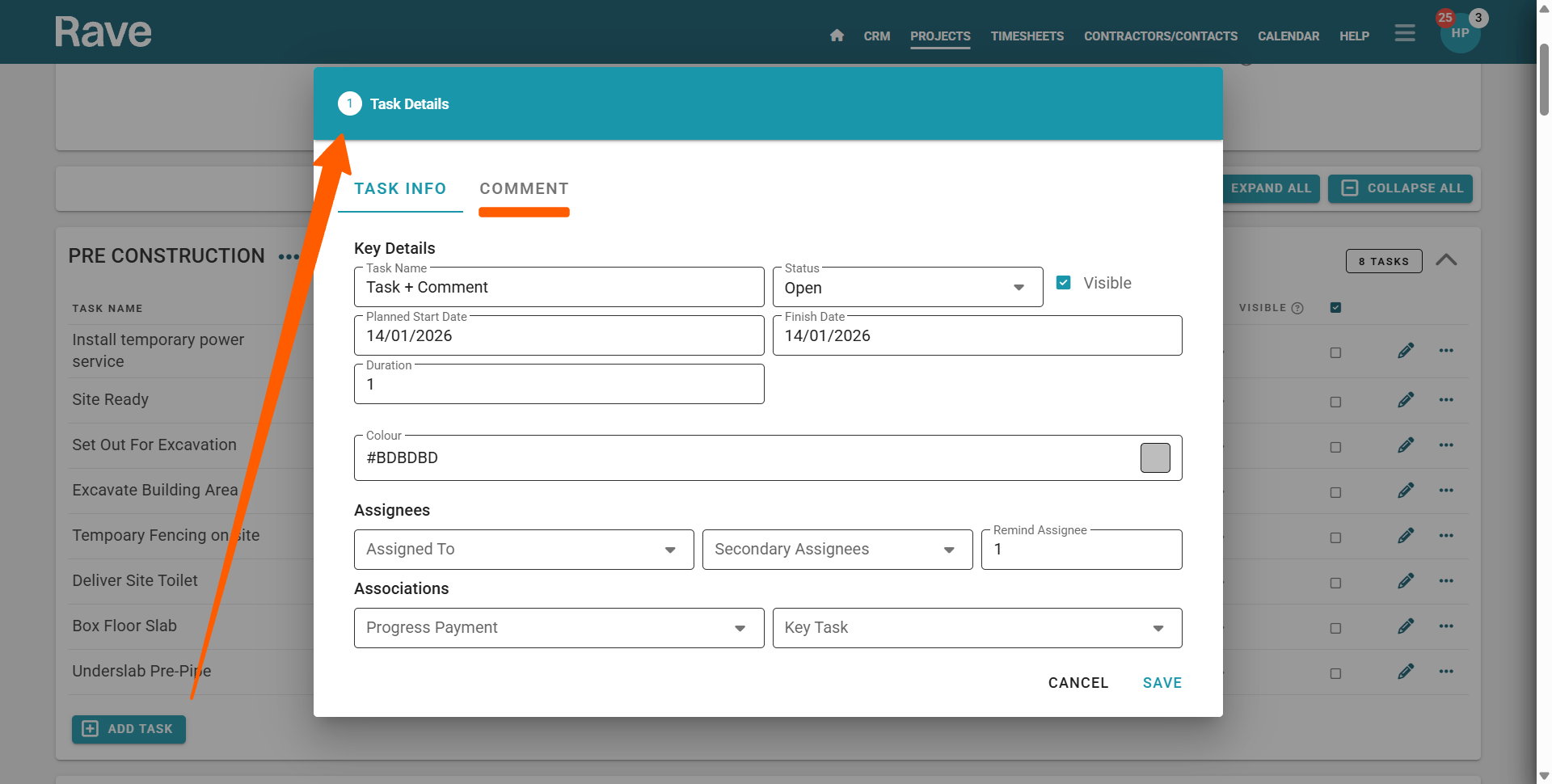
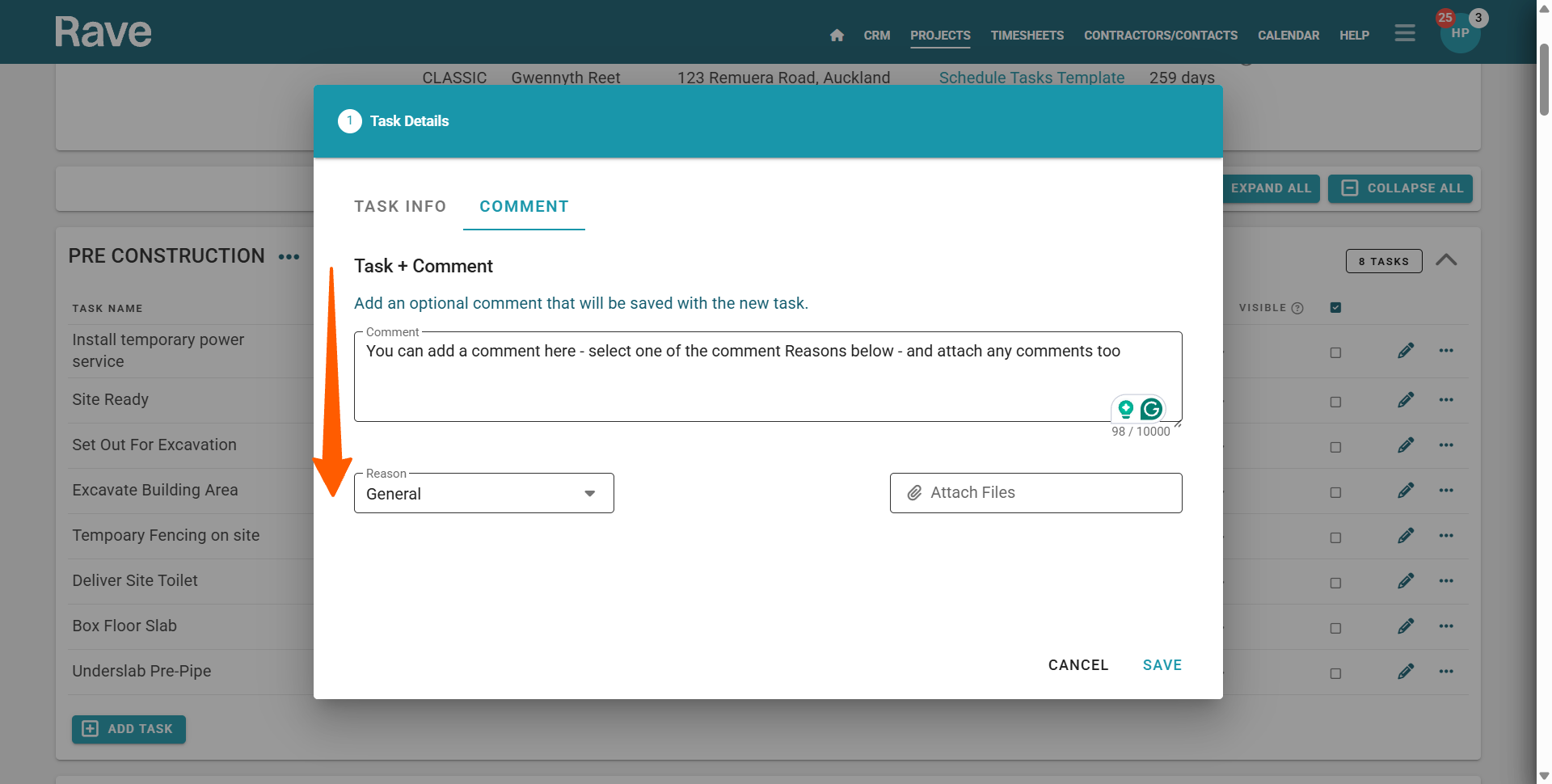
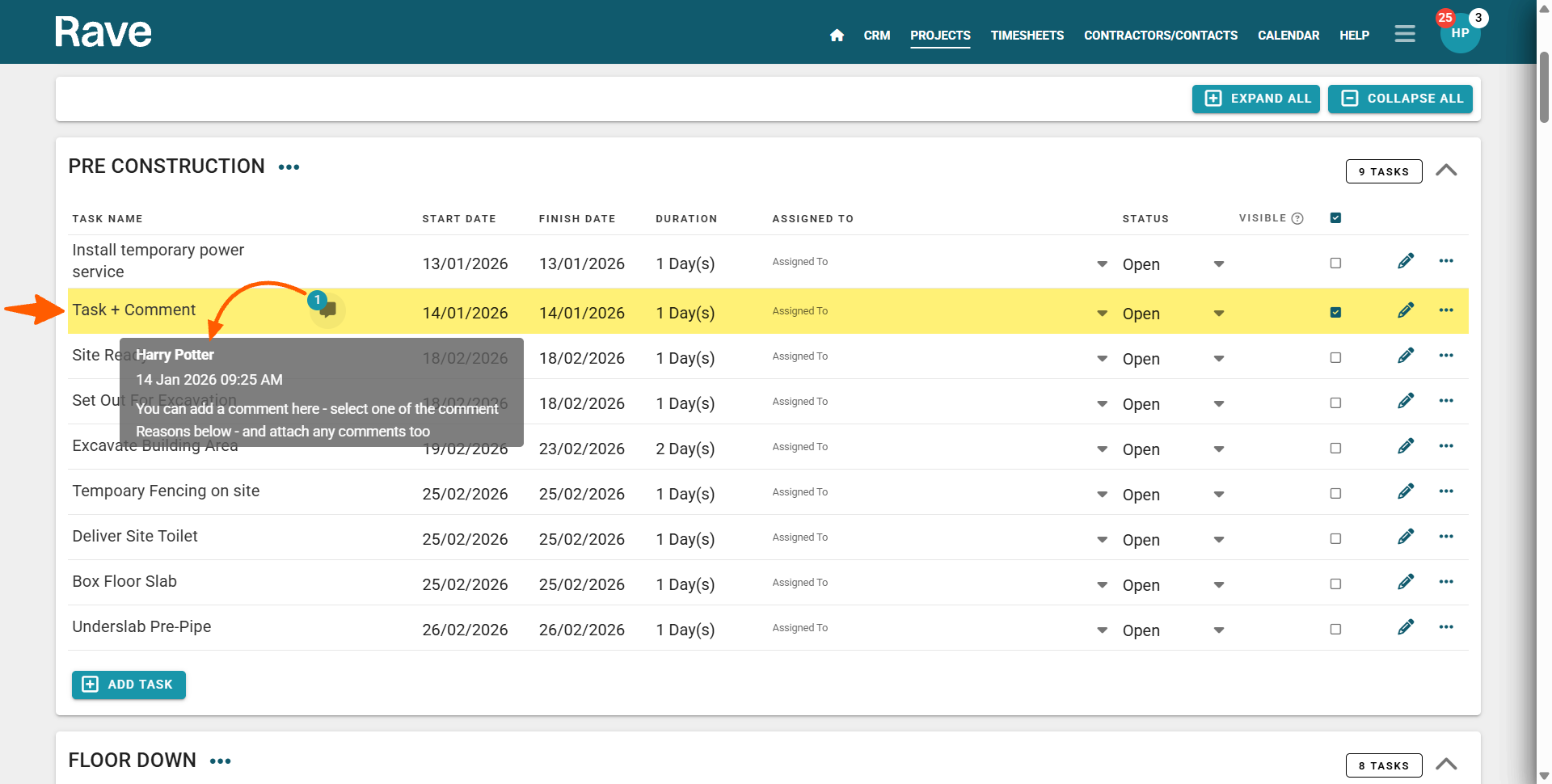
From the schedule task list view, click on the Add Task button, to open the Task Details pop-up. From here, you can select the Task Details comment tab, and add your comment in the comment field. You can select a comment Reason* - either General, Other, a customised reason, or one the delay tags*. You can also attach a file i.e. document, or photo, etc. Clicking the Save button, adds the task to your schedule, with the task comment icon displayed. Hovering over the task comment icon previews the latest comment.
*Comment reasons are now customisable via your profile dropdown's Schedule/Schedule/General sub-tab
Was this article helpful?
That’s Great!
Thank you for your feedback
Sorry! We couldn't be helpful
Thank you for your feedback
Feedback sent
We appreciate your effort and will try to fix the article