Updating the Schedule - Moving Tasks in 'Classic' Mode - Task List View
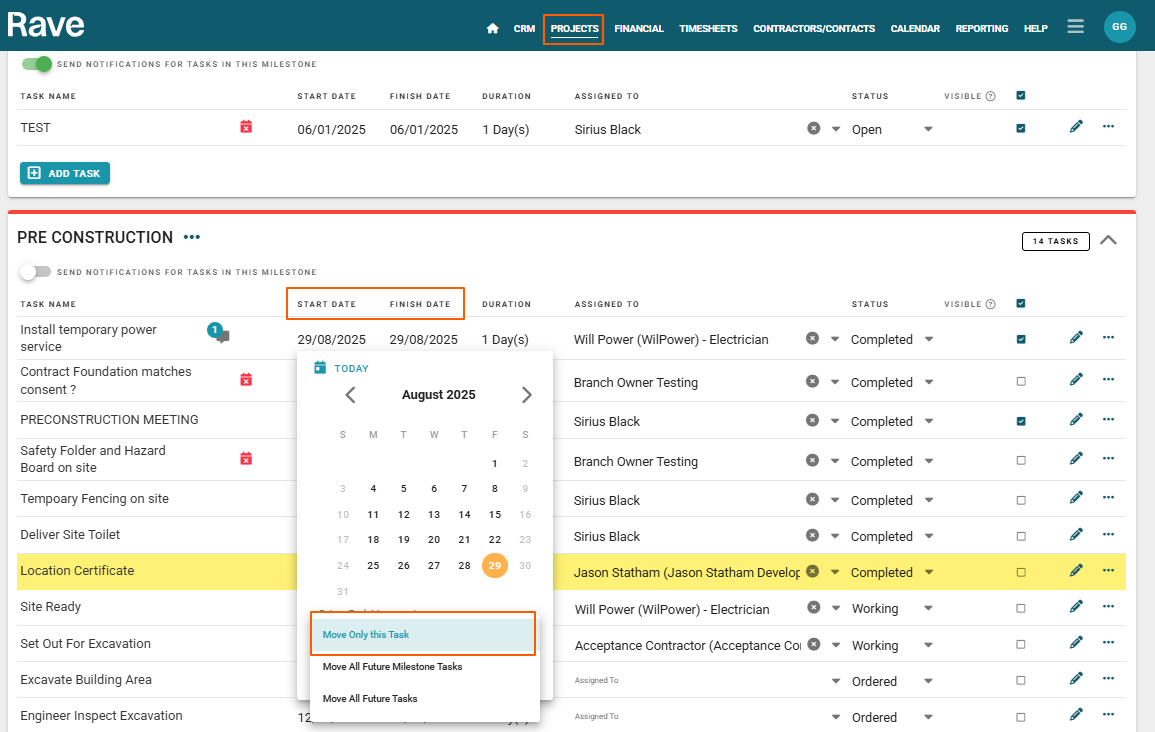
We can update the schedule (move a task or tasks) via the task list view in 'Classic' scheduling mode, simply by:
- Clicking on a task's 'Start Date'
This will open a calendar pop-up - Clicking on the date you want to move this task's start date to
- Selecting one of three 'Future Task Movement' options:
- Move Only this Task - will leave the rest of the schedule where it is and just move this particular task to its new start date
- Move All Future Milestone Tasks - will move all of the tasks due to start today* and onwards (for this milestone only) and move those remaining milestone tasks forward/back that number of working days
- Move All Future Tasks - will move all of the tasks due to start today* and onwards (for the rest of the schedule) and move those tasks back a week. will take all of the tasks in the schedule from this date onwards and move those remaining scheduled tasks forward/back that number of working days
IMPORTANT NOTE: Rave does not consider the time of day when selecting 'All Future Tasks' - this means that ALL other tasks starting on this day (even tasks earlier in the Milestone, or in previous milestones) will also move.
- And finally, click the 'OK' button to confirm
If moving future milestone/scheduled tasks, you'll typically see the first task move, then any subsequent future tasks a few seconds afterward.
Updating the Schedule - Moving Tasks in 'Classic' Mode via the pencil icon - Task List View
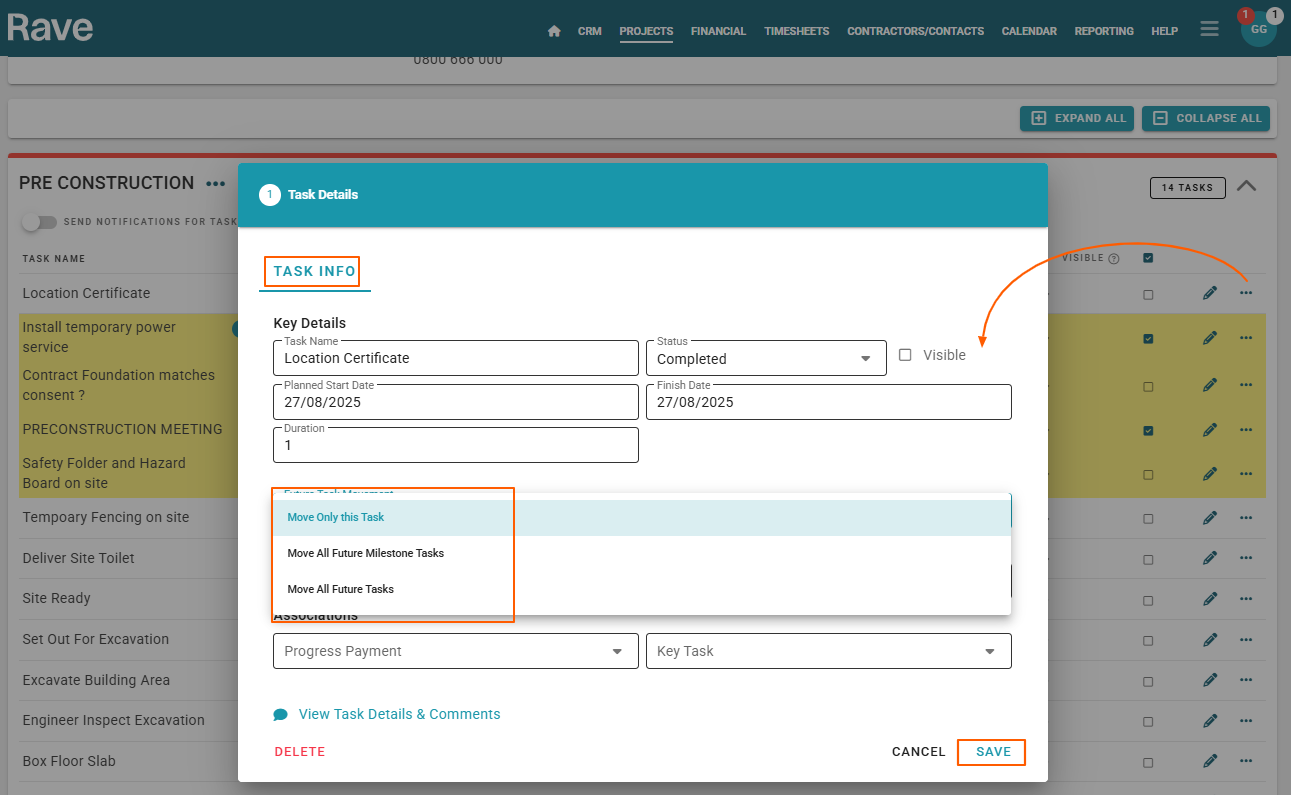
We can also update the schedule via the edit task pop-up (pencil icon) of the task list view, by:
- Clicking on the edit task/pencil icon
This will open a Task Details pop-up - Clicking on a task's 'Planned Start Date' field
This will open a calendar drop-down - Clicking on the date you want to move this task's start date to
- OR selecting the 'TODAY calendar icon' which will automatically select the start date as today
- Selecting one of three 'Future Task Movement' options:
- Move Only this Task
- Move All Future* Milestone Tasks
- Move All Future* Tasks
IMPORTANT NOTE: Rave does not consider the time of day when selecting 'All Future Tasks' - this means that ALL other tasks starting on this day (even tasks earlier in the Milestone, or in previous milestones) will also move.
- And finally, click the 'NEXT' button, and 'SAVE' on the next screen to confirm
Again, if moving future milestone/scheduled tasks, you'll typically see the first task move, then any subsequent future tasks a few seconds afterward.
Was this article helpful?
That’s Great!
Thank you for your feedback
Sorry! We couldn't be helpful
Thank you for your feedback
Feedback sent
We appreciate your effort and will try to fix the article