CRM Activities
Rave’s CRM Activities page helps you stay on top of client communication and follow-ups, so you don’t miss a potential sale simply because an enquiry was forgotten.
There are two Activity sub-tabs:
Activities
All Enquiries without Future Activities
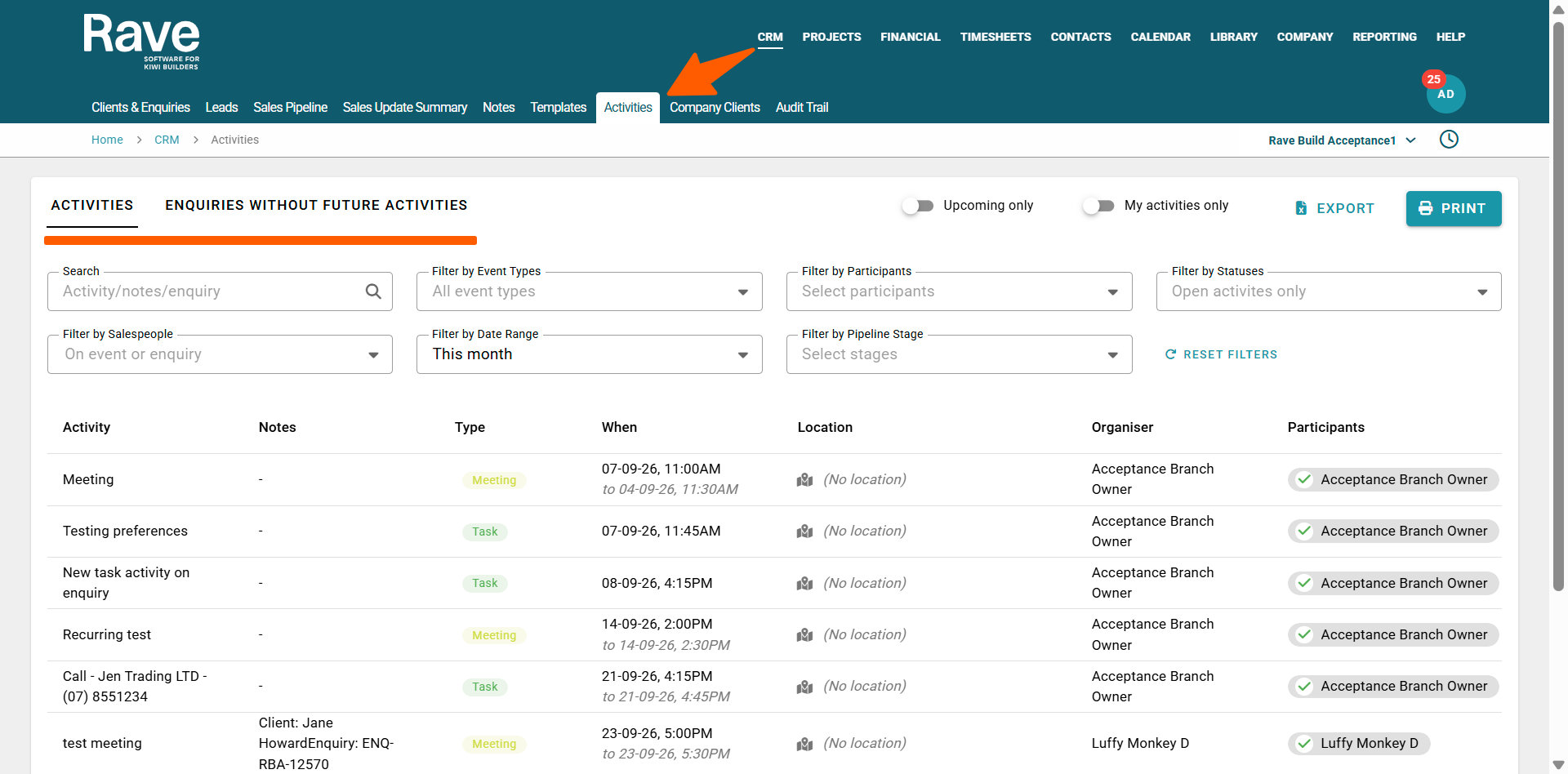
Continuous Scroll
If you have a large volume of data, the column headings will remain fixed at the top of the page as you scroll.
This means you can continue to see and use your filters and column headings without needing to scroll back to the top.
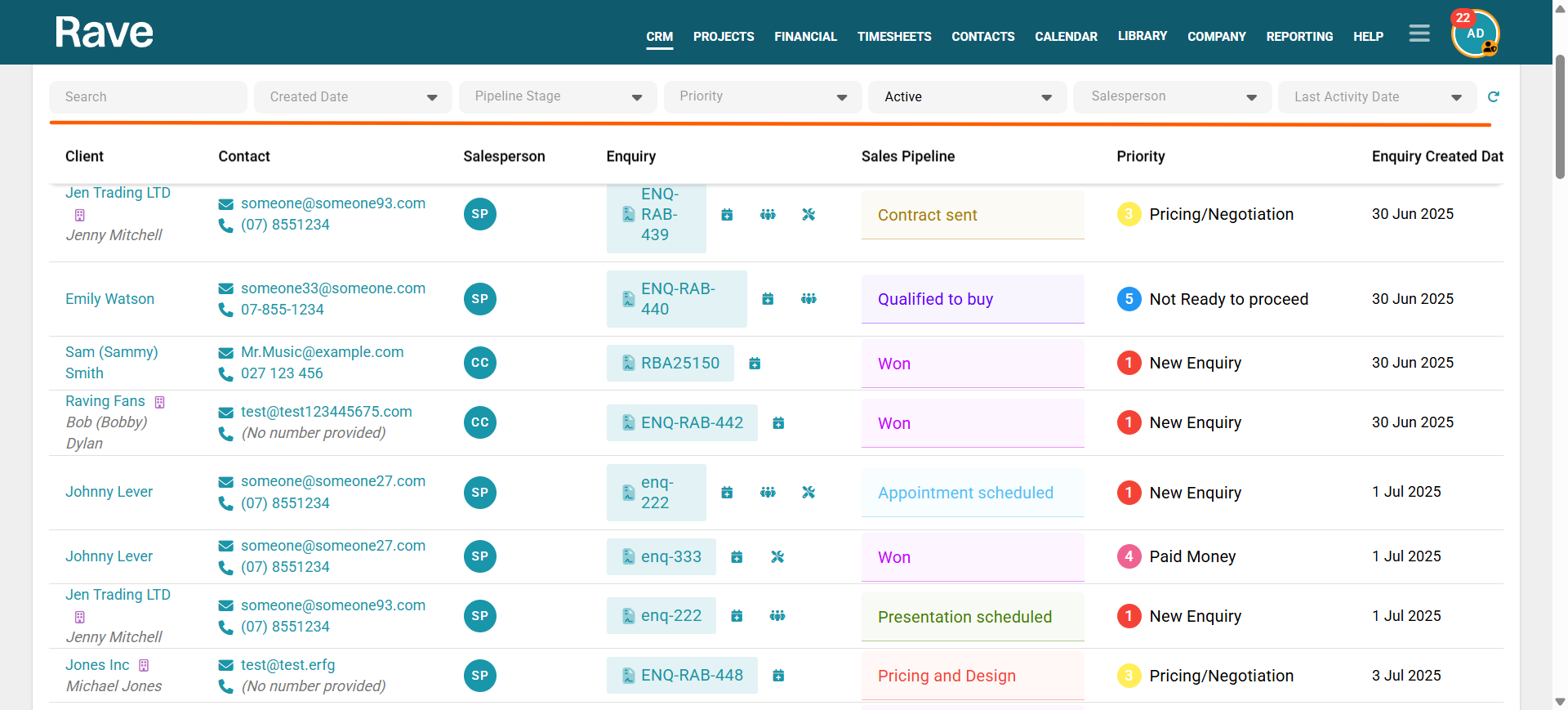
The Activities Report
The CRM Activities | Activities report gives you an overview of the activities created against your branch enquiries.
It is useful for quickly reviewing your upcoming client communication and checking whether your planned follow-ups still make sense.
For example, if a client expects to arrange finance in six months, you might decide that waiting six months to follow up is too long. Moving the follow-up call forward to four months could help keep your business front of mind.
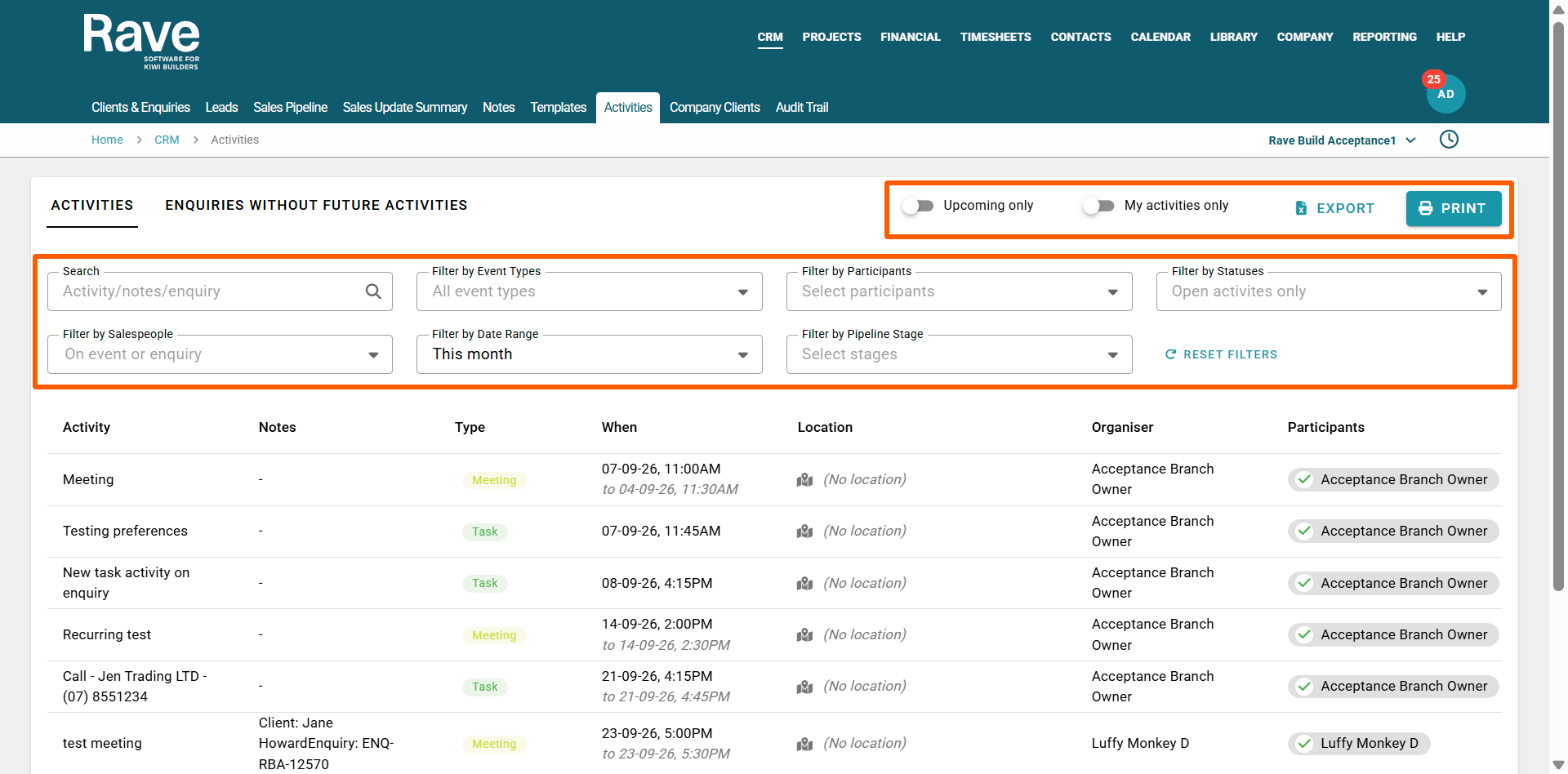
Filtering Your Activities
From the Activities report, you can use the available toggles and filters to refine what is displayed.
You can:
Turn on Upcoming to hide past activities.
Turn on My Activities Only to display only activities assigned to you.
Export or print the displayed activities.
Search by keyword, including activity descriptions, notes and enquiry descriptions.
Filter by:
Activity/Event Type
Participants
Status
Salesperson
Date Range
Pipeline Stage
Activities are displayed with the next upcoming activity first, followed by activities scheduled further into the future.
This helps ensure the activities requiring your attention now remain at the top of the list.
You can also open an activity directly from this page to update it or mark it as complete.
Information Displayed
The Activities report displays:
Activity description and Notes.
Activity Type, such as Meeting or Task.
Date and time of the activity.
Location, where applicable.
Organiser and Participants.
Primary Client.
Enquiry reference.
Salesperson.
Sales Pipeline stage.
Activity Status - to mark an activity as complete
An option to open and edit the activity
Locations and Meeting Links
If an address has been added to the activity, the address will display as a clickable link that opens the location in Google Maps.
If you add an online meeting link, such as a Google Meet link, it will also display as a clickable link.
Participant Acceptance Status
Where available, participant responses are displayed using the following icons:
Green tick – Accepted
Orange question mark – Maybe
Black hourglass – Awaiting confirmation
Red cross – Declined
Client and Enquiry Links
The Primary Client is displayed as a clickable link, allowing you to open the client’s CRM profile.
The Enquiry Reference is also clickable and will take you directly to the enquiry, where you can view or manage its activities.
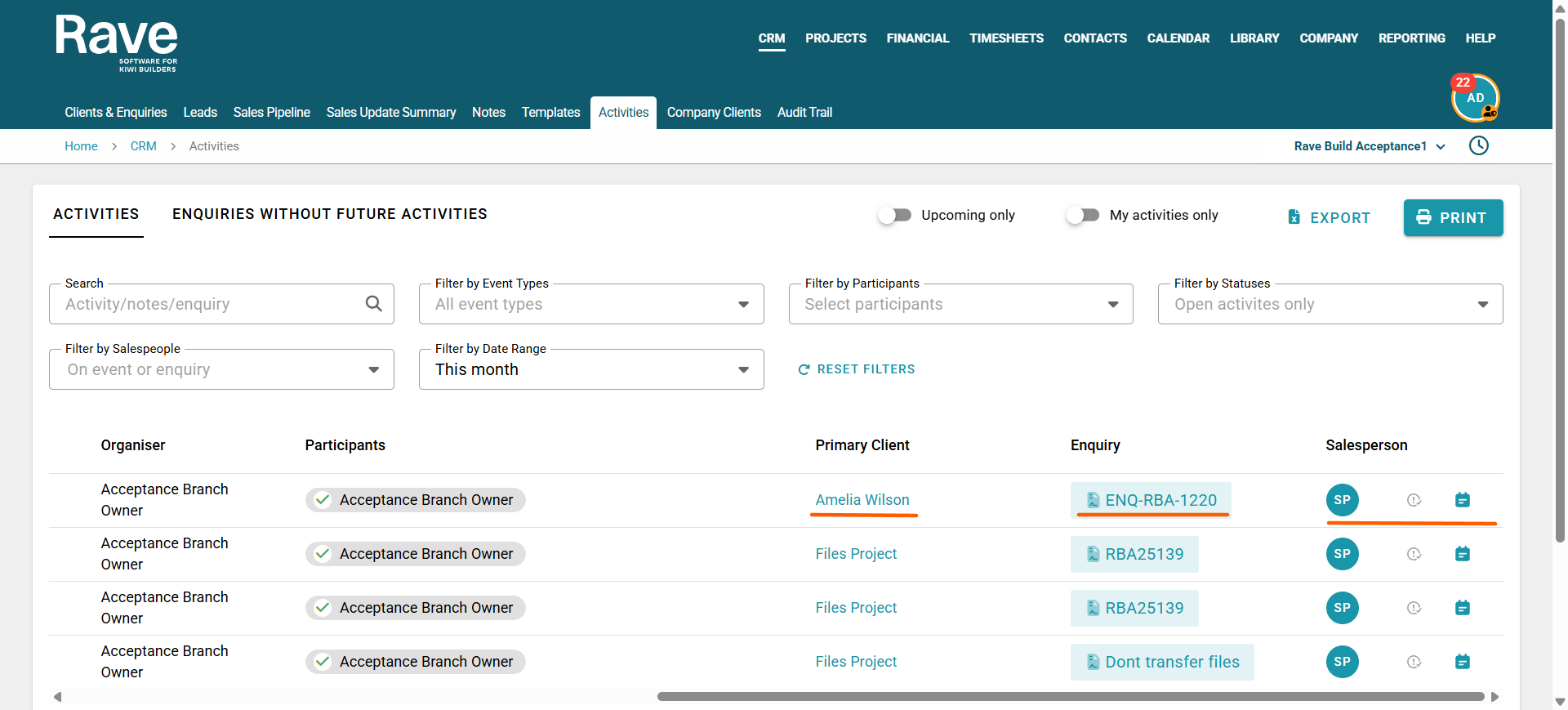
Salesperson
The salesperson is displayed using their initials.
Hover over the initials to display the salesperson’s full name.
Open Activities
A grey circle with an exclamation mark indicates that the activity is still open.
You can use this option to mark the activity as complete.
Editing an Activity
Select the Calendar icon to open the activity and make changes.
Enquiries without Future Activities
One of the most important sales reports available within Rave is the Enquiries without Future Activities report.
This report identifies enquiries that currently have no future follow-up activity scheduled.
It is designed to help answer a simple but important question:
Are you at risk of losing a sale because nobody has scheduled the next follow-up?
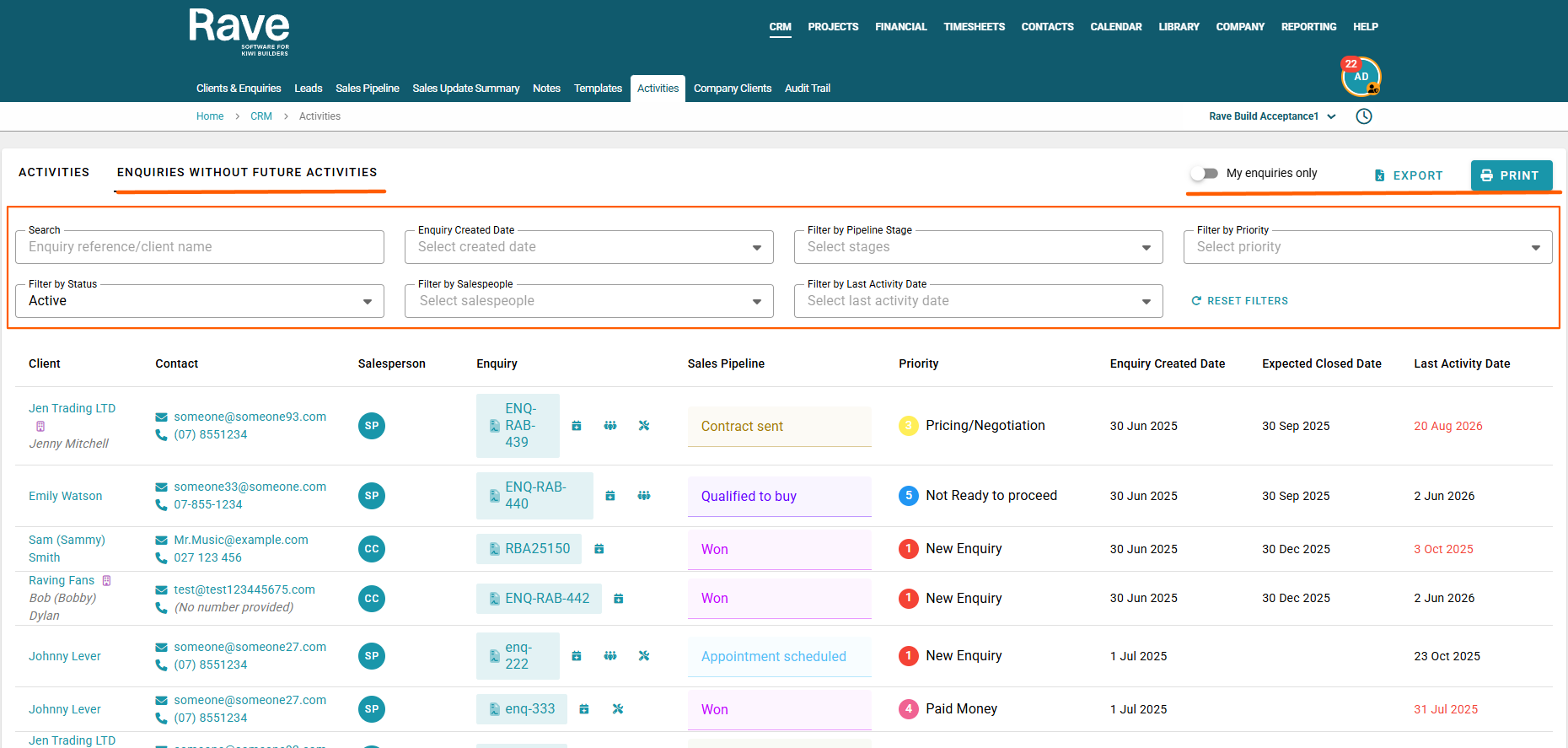
Quickly Add an Activity
Select the Calendar icon beside the Enquiry Reference to immediately add a new activity against that enquiry.
Overdue Activities
If an activity is in the past but has not been marked as complete, the Last Activity Date will display in red. This makes it easier to identify activities that may still need to be completed or updated.
Filtering the Report
You can:
Export or print the displayed list.
Search by keyword, including enquiry or client name.
Filter by:
Enquiry Created Date
Pipeline Stage
Priority
Status
Salesperson
Last Activity Date
The Enquiry Created Date and Last Activity Date filters allow you to customise the date range you want to review.
Information Displayed
The resulting list displays:
Client Name
Email Address & Phone Number
Salesperson initials
Enquiry Reference
Calendar icon
Secondary Client indicator
Pipeline Stage
Priority
Enquiry Created Date
Expected Close Date, where entered
Last Activity Date
The client’s contact details are clickable.
The Enquiry Reference can be selected to open the enquiry.
The Calendar icon allows you to quickly create a new activity.
A three-person icon will display where secondary clients are loaded against the enquiry.
Hover over the salesperson’s initials to display their full name.
Using the Report to Find Sales Opportunities
For example, you might filter your Pipeline Stage to:
Presentation Scheduled
Qualified to Buy
Decision Maker Brought In
You could then filter the Priority to:
Pricing/Negotiation
Actively Engaged
If enquiries at these stages appear in the All Enquiries without Future Activities report, it is worth reviewing why they do not currently have a follow-up scheduled.
These are active sales opportunities, so you would generally expect the next activity to already be planned.
Likewise, where your team uses the Expected Close Date, you would normally expect this information to be entered for active enquiries.
The CRM Activities | All Enquiries without Future Activities report provides an important overview to help make sure no enquiry is accidentally missed.
Salesperson Access
Salespeople/New Home Consultants will see My Enquiries Only.
Was this article helpful?
That’s Great!
Thank you for your feedback
Sorry! We couldn't be helpful
Thank you for your feedback
Feedback sent
We appreciate your effort and will try to fix the article