The following is the recorded version of the help article outlined below.
Viewing Your Profile
Log in to Rave.
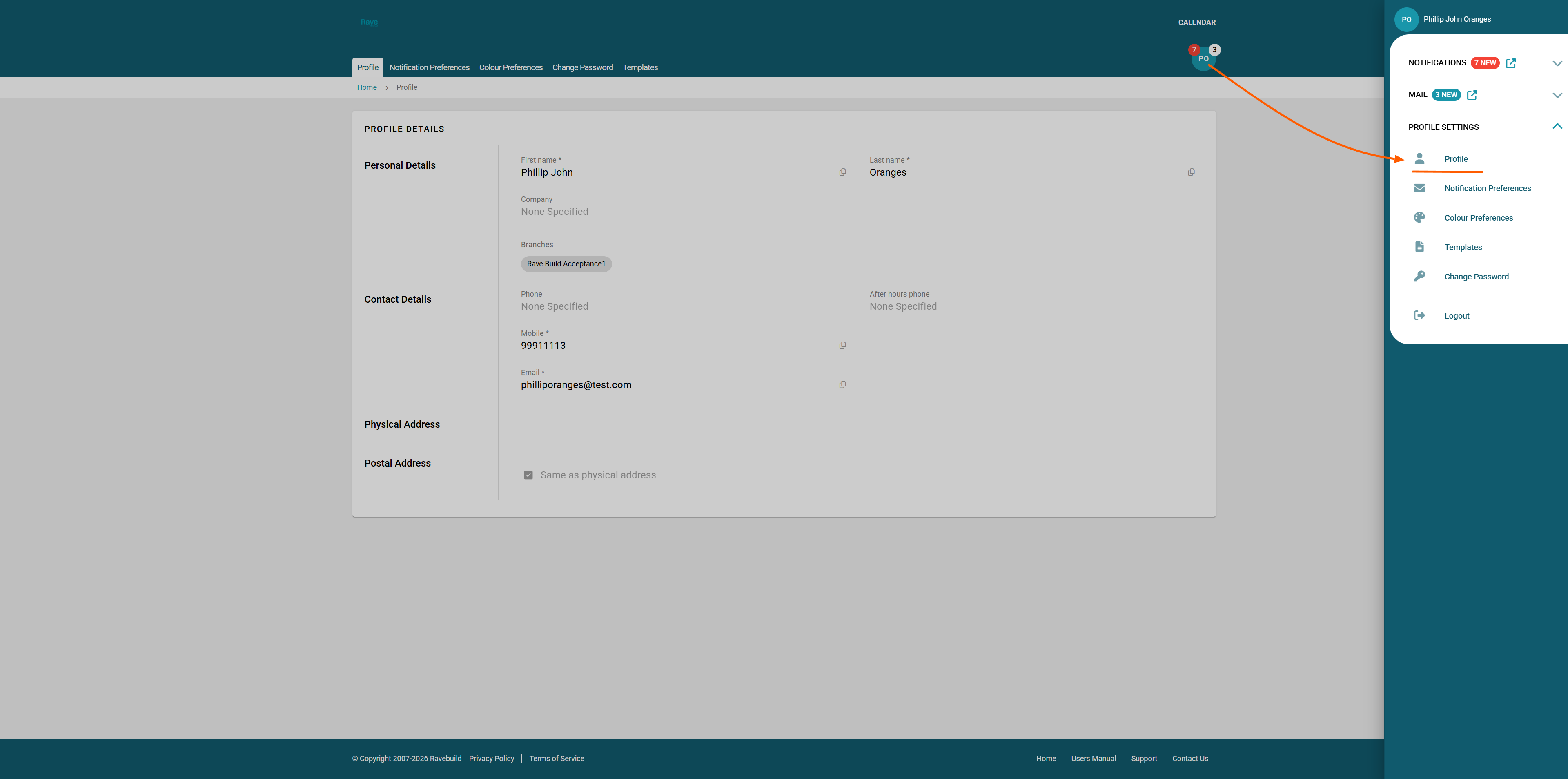
Click on your initials (top right corner of the screen - teal circle)
Select Profile from the dropdown menu.
Here you can view your personal details, contact information, and account settings.If you need anything updated you can give your Project Manager or Sales Person a call and they can do this for you from their log in.
Updating Notification Preferences
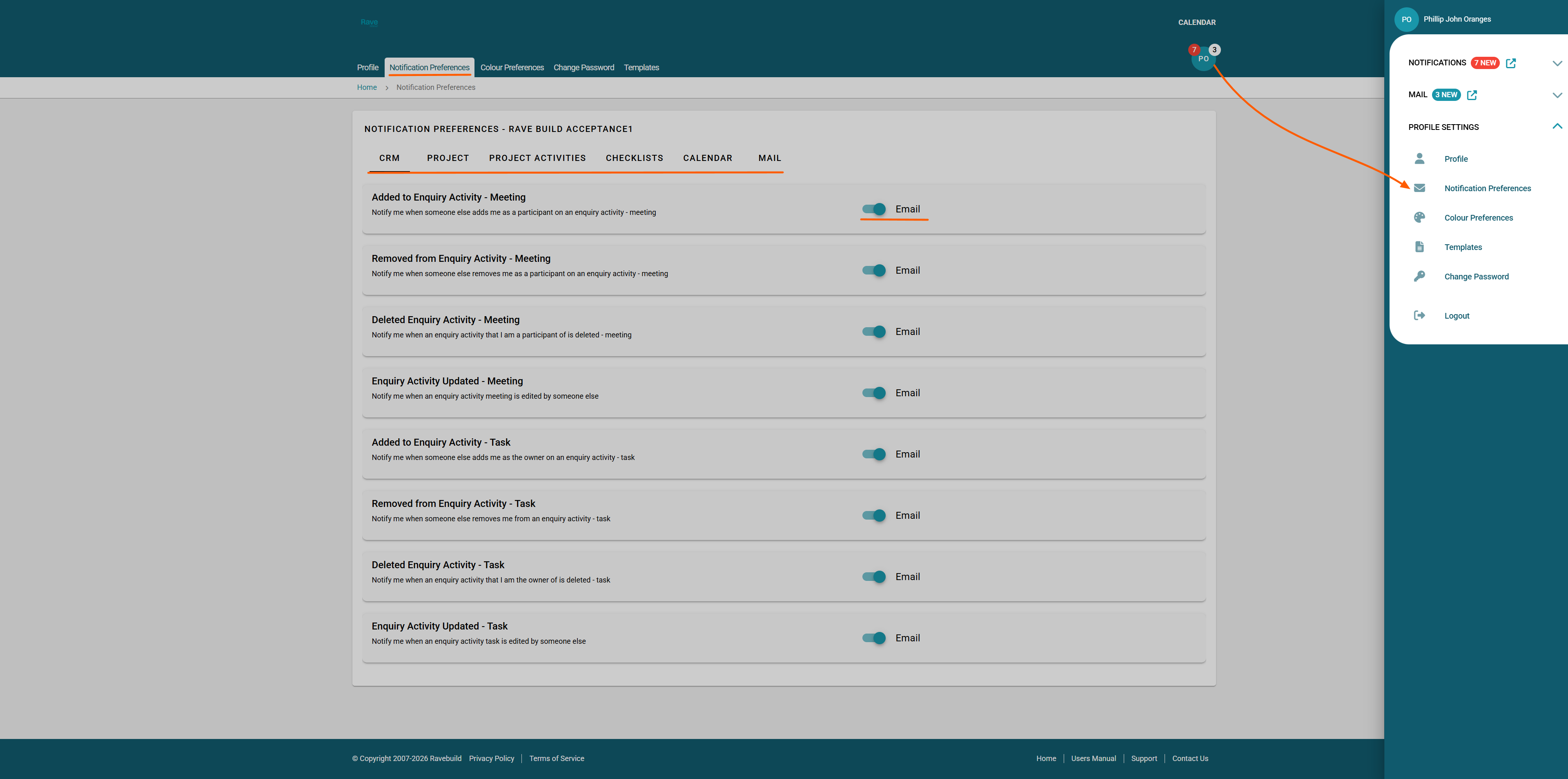
In your Profile, scroll down to the Notification Preferences section.
You will now see several tabs to view your notification options.
CRM, Project, Project Activities, Checklists, Calendar and Mail
Choose how you’d like to be notified, via email, internal notification or both. Not all options have an internal notification option.
Slide the toggle green to be on, or grey to be off.
Colour Preferences
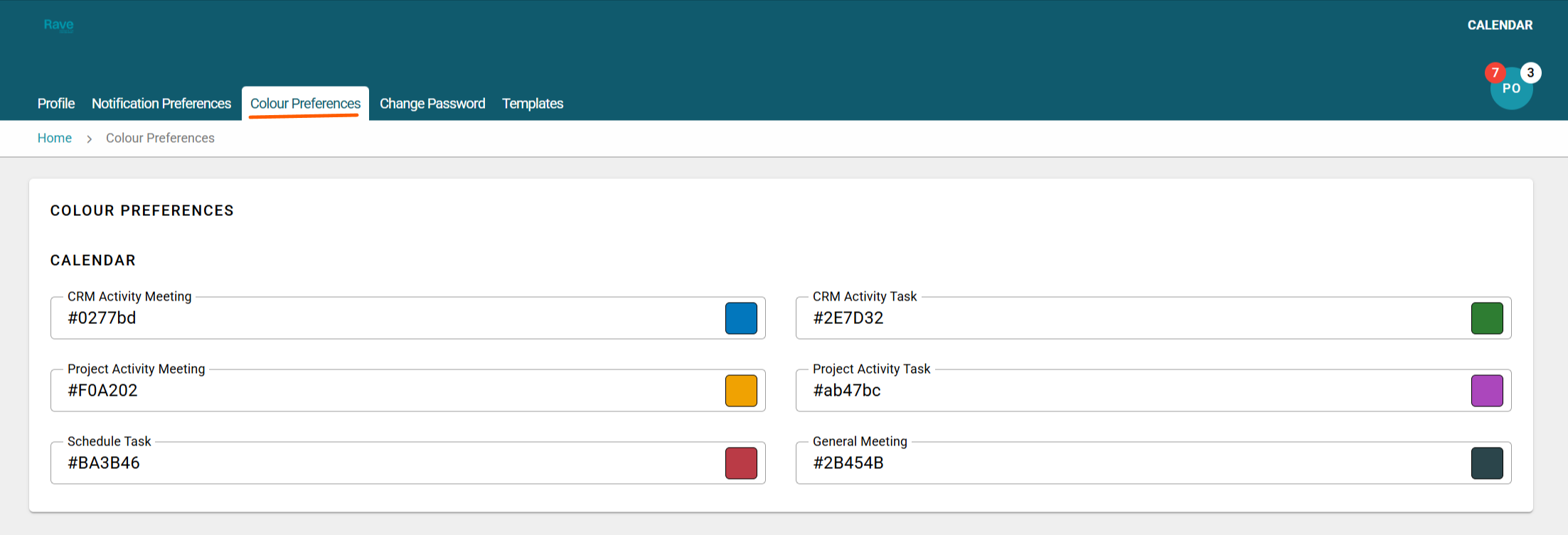
You can choose which colour we display the different activity types in our Rave Calendar.
Pick the colour you would like each activity to display as by selecting the coloured box.
Templates
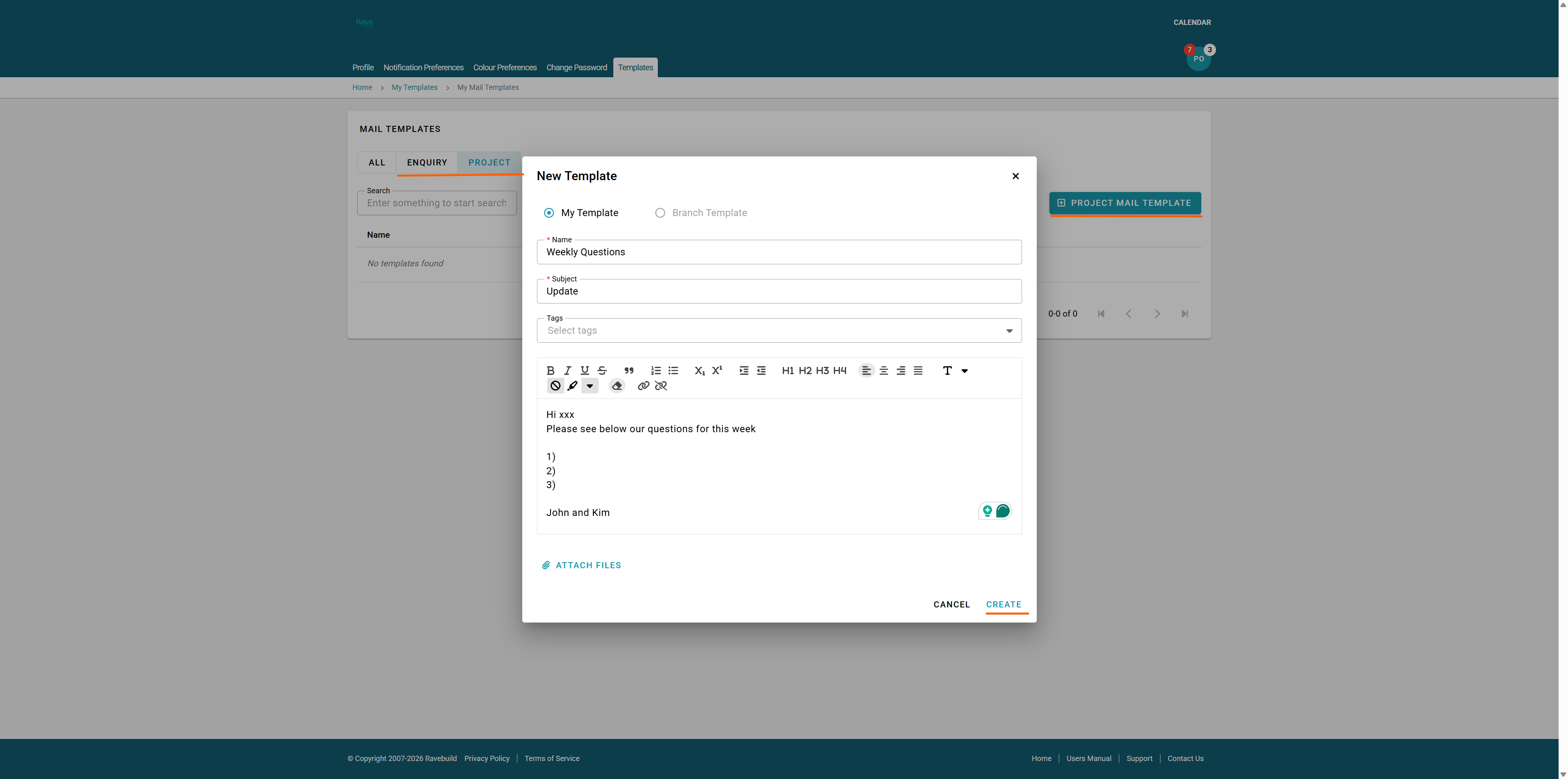
As part of the Rave mail feature, you have the ability to create templates for both CRM (Enquiry) Mail and Project Mail.
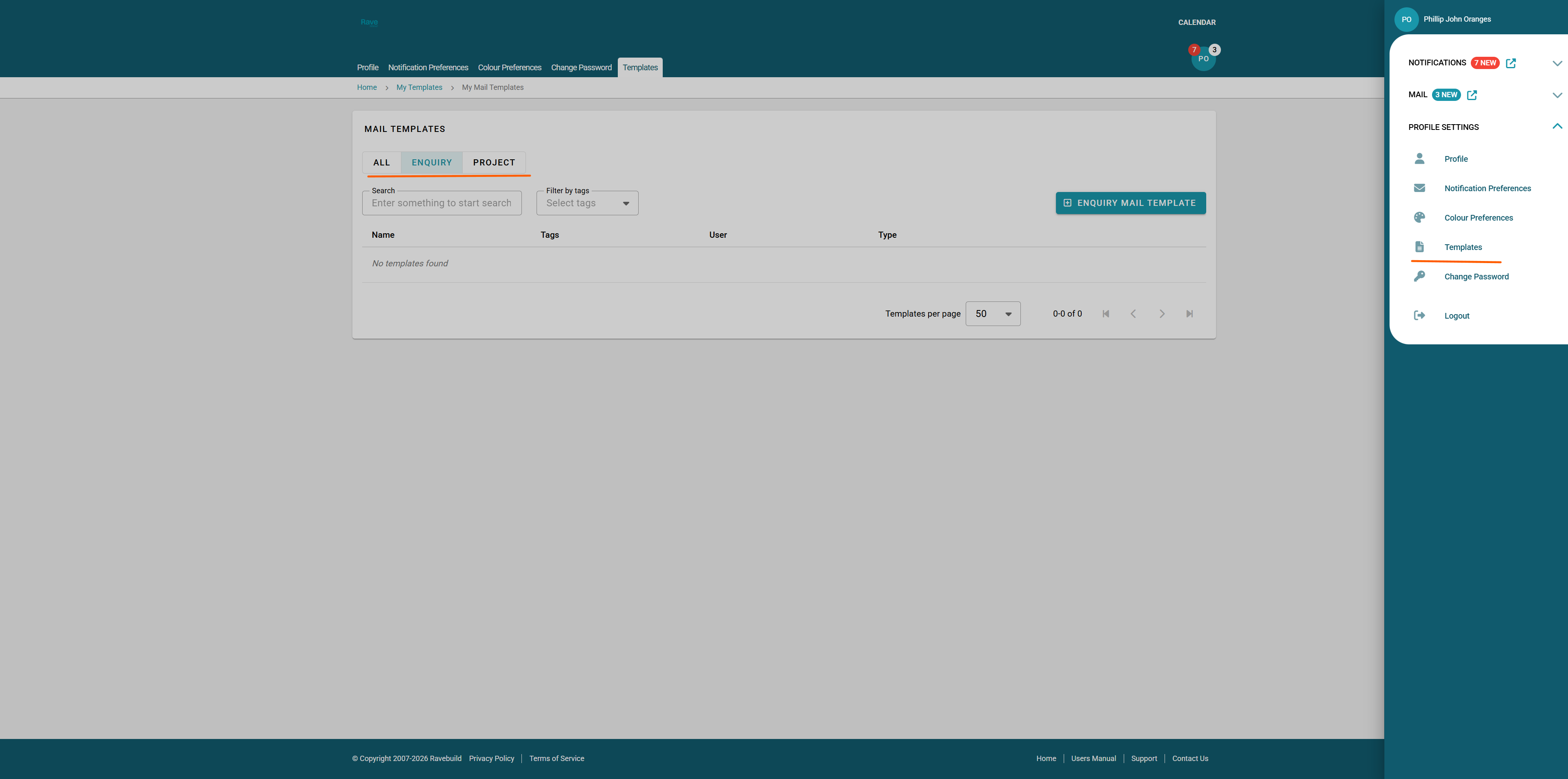
Click on the type of template you wish to create at the top left and then the + Mail Template button.
You can then follow the prompts to create your own email template to use when you are sending mail from Rave. Once you have completed the mandatory steps press Create.
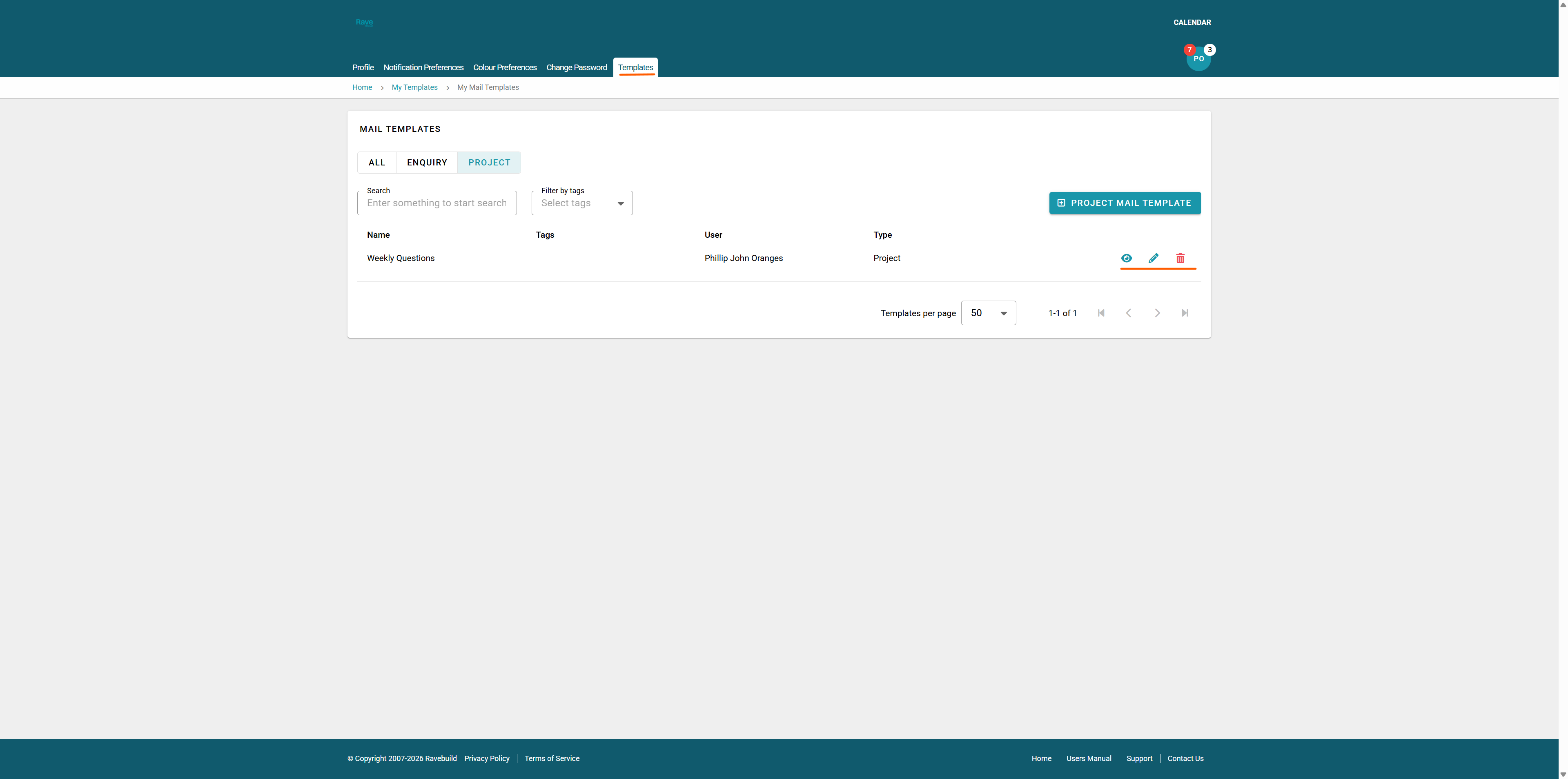
Your templates will sit under the table on the template menu. You can click the eyeball icon to view the template, click the pencil to edit, or the trash can to delete. Deleting a template will not remove any that have been used; it only prevents them from being selected again.
Changing Your Password
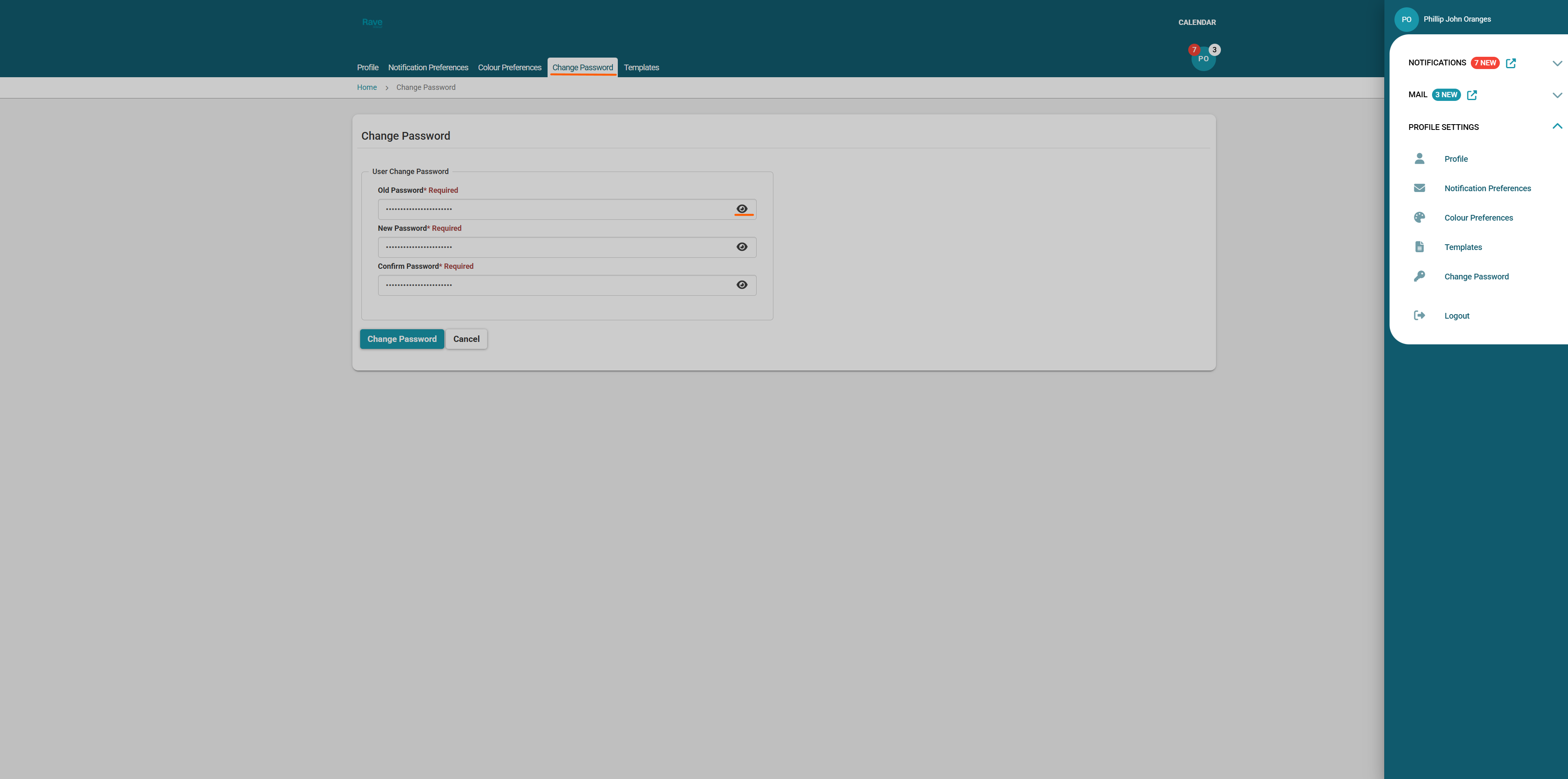
Click Change Password.
Enter your current password, then your new password.
Tip: Use a strong password with letters, numbers, and symbols.
Click Change Password
The eyeball icon will let you view the characters you have typed in to ensure they match
Note: If you have forgotten your password and cant log in use the forgot password button on the Rave Log in page to send yourself a link to reset your password using your log in email address.
Was this article helpful?
That’s Great!
Thank you for your feedback
Sorry! We couldn't be helpful
Thank you for your feedback
Feedback sent
We appreciate your effort and will try to fix the article