The following is the recorded version of the help article outlined below.
Viewing Your Profile
Log in to Rave.
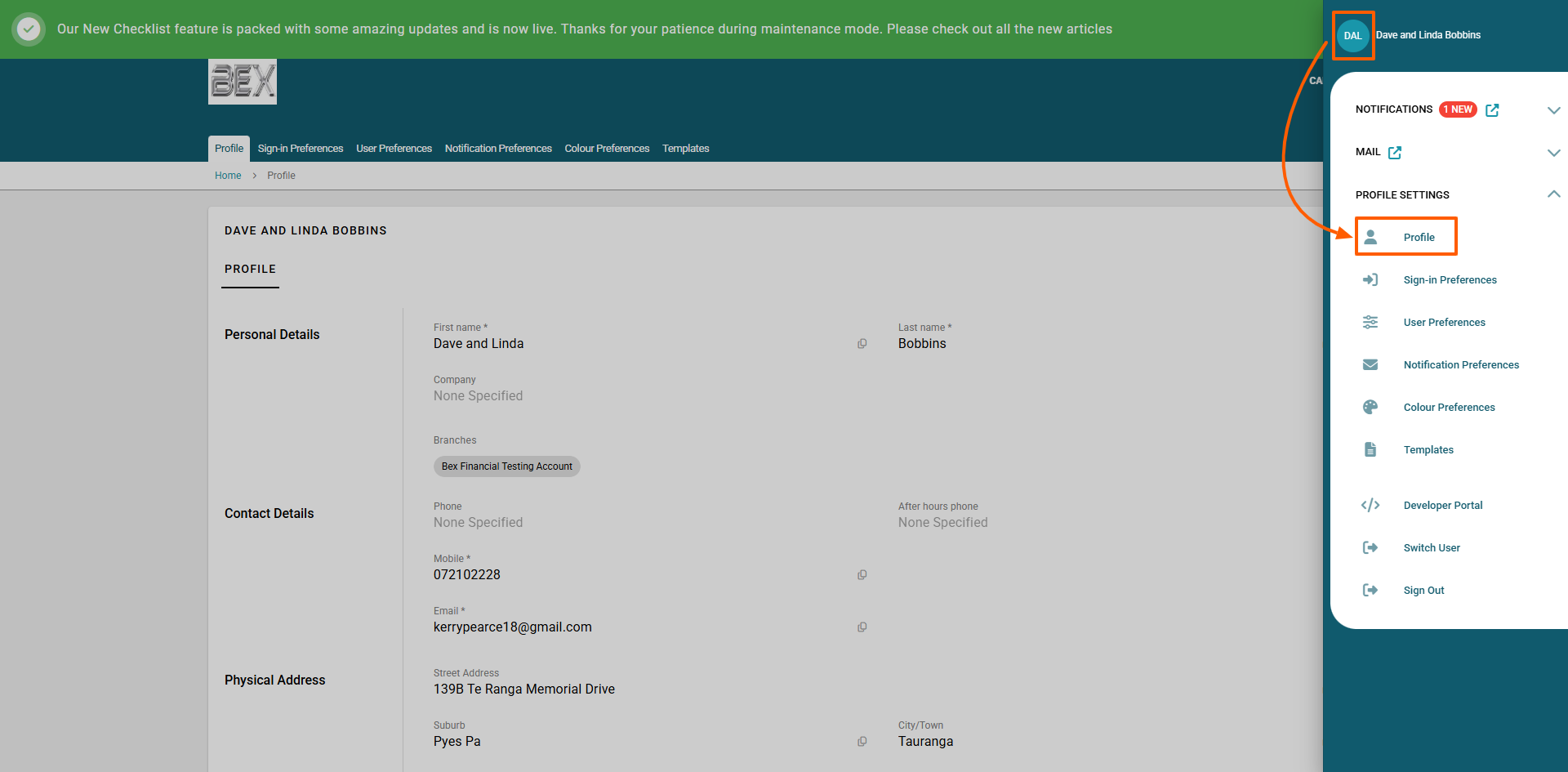
Click on your initials (top right corner of the screen - teal circle)
Select Profile from the dropdown menu.
Here you can view your personal details, contact information, user preferences, notification preferences, colour preferences and creating and updating mail and email templates.If you need any of your profile information updated you can give your Project Manager or Sales Person a call and they can do this for you from their log in.
Sign-in Preferences
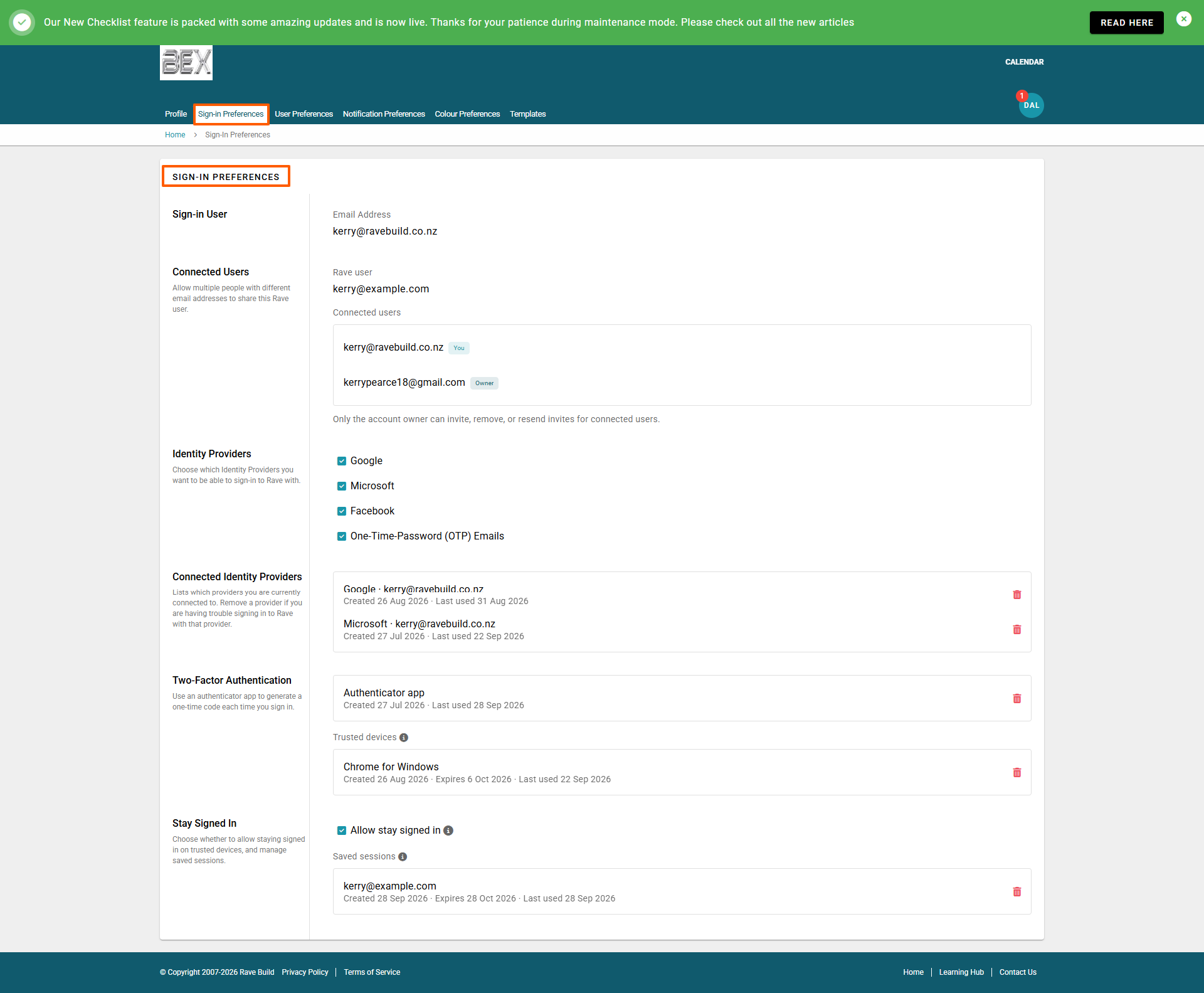
Your Sign-in Preferences allow you to choose how you sign in to Rave.
- SSO (Single Sign-On): If your organization uses SSO, you can select this option to sign in using your organization's login.
- Username and Password: If available for your account, you can sign in using your Rave username and password.
- Select your preferred sign-in method and follow the prompts to save your preference.
Note: The sign-in options available to you may depend on your organization's Rave settings.
Updating User Preferences
In your Profile, scroll down to the User Preferences section.
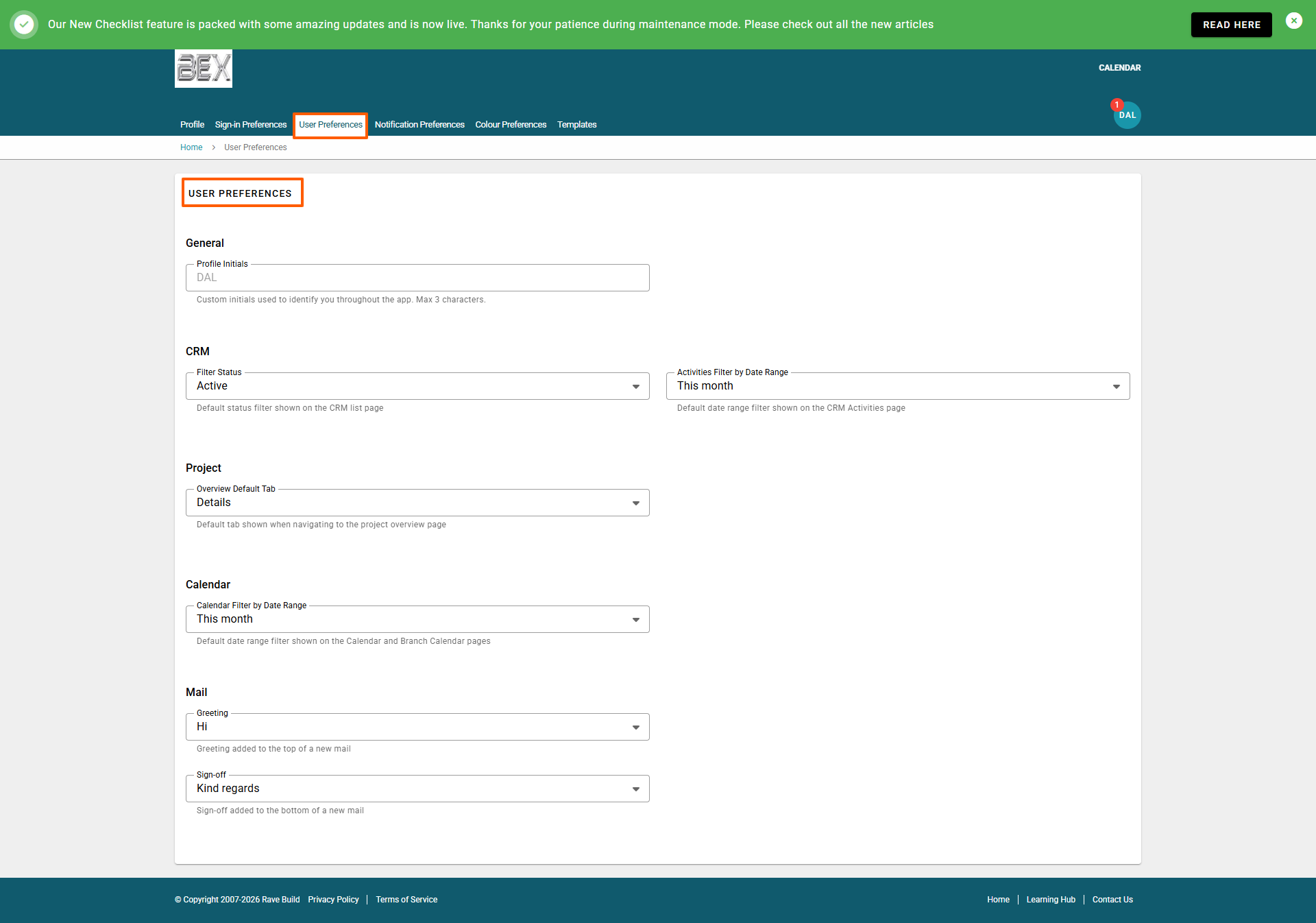
You will now see several options to customize your preferences.
General
- You can add your Profile Initials, which are custom initials used to identify you throughout the app. You can enter up to 3 characters.
CRM
- Choose what status you want to see by default on the CRM list page. Active would be your main choice, however you can select other statuses if required.
- You can also choose a default date range for activities shown on the CRM Activities page.
Project
- Your project overview default also has different options you can choose from when logging in and selecting a project.
Calendar
- You can choose the default date range shown on the Calendar and Branch Calendar pages.
- You can choose a default Greeting to be added to the top of a new email.
- You can also choose a default Sign-off to be added to the bottom of a new email.
Updating Notification Preferences
In your Profile, scroll down to the Notification Preferences section.
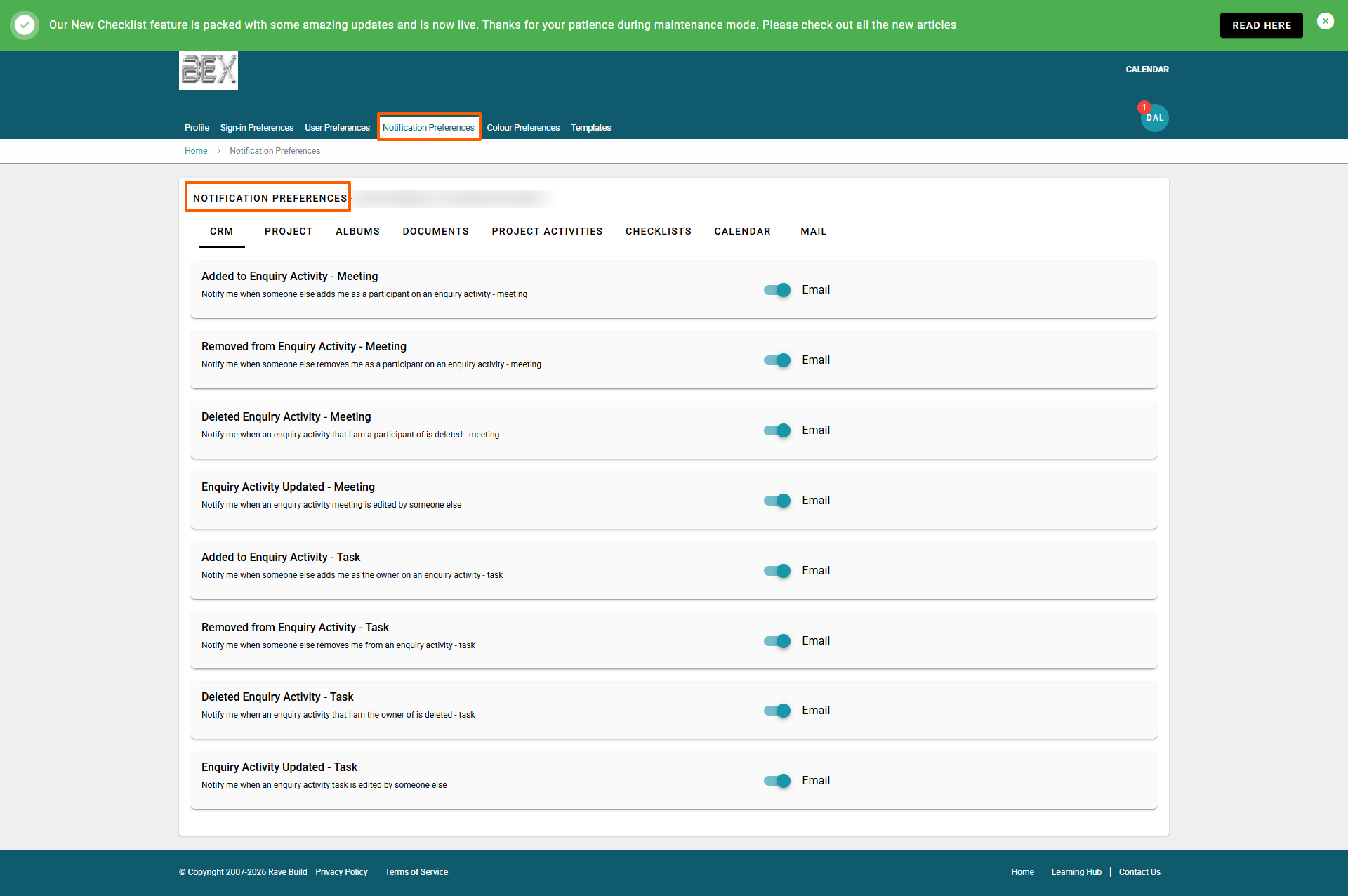
- You will now see several tabs to view your notification options.
- CRM, Project, Albums, Documents, Project Activities, Checklists, Calendar and Mail
- Choose the notification options you would like to receive. Depending on the notification, you may be able to choose Email or another available notification method.
- Slide the toggle on to enable a notification, or off to disable it.
- This keeps the same style and wording format as your existing article, while updating it for what is actually on the new screen.
Colour Preferences
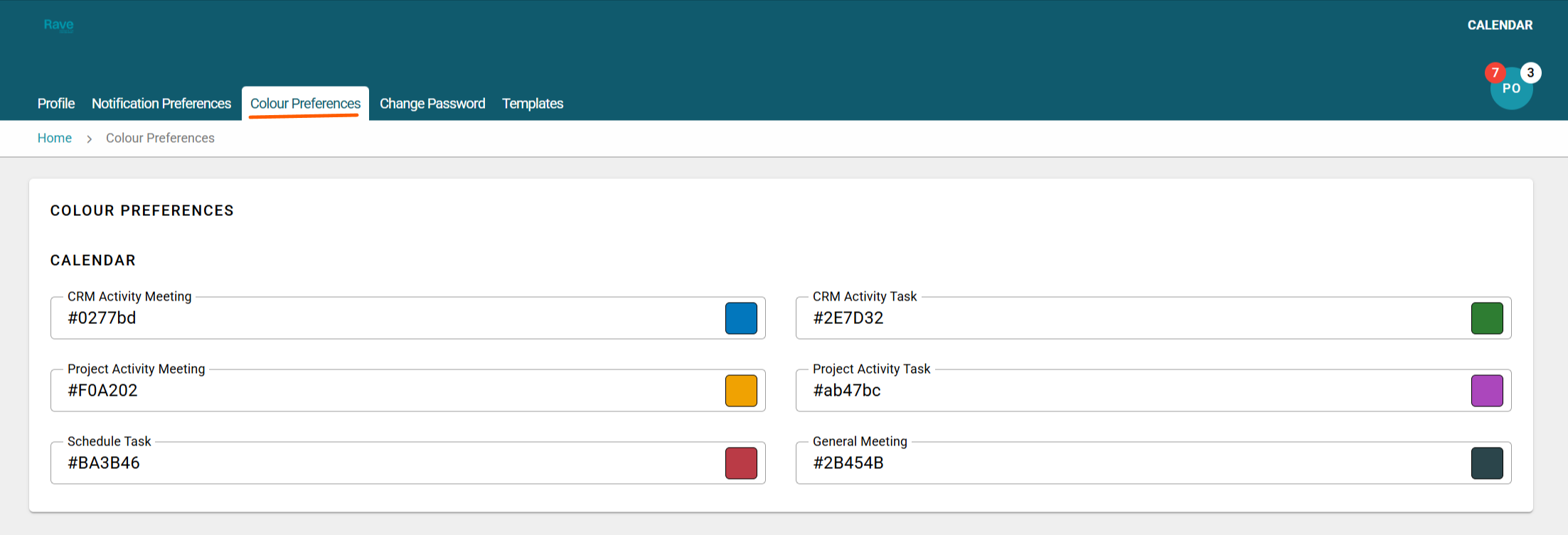
You can choose which colour we display the different activity types in our Rave Calendar.
Pick the colour you would like each activity to display as by selecting the coloured box.
Templates
- As part of the Rave Mail feature, you have the ability to create templates for Enquiry Mail and Project Mail.
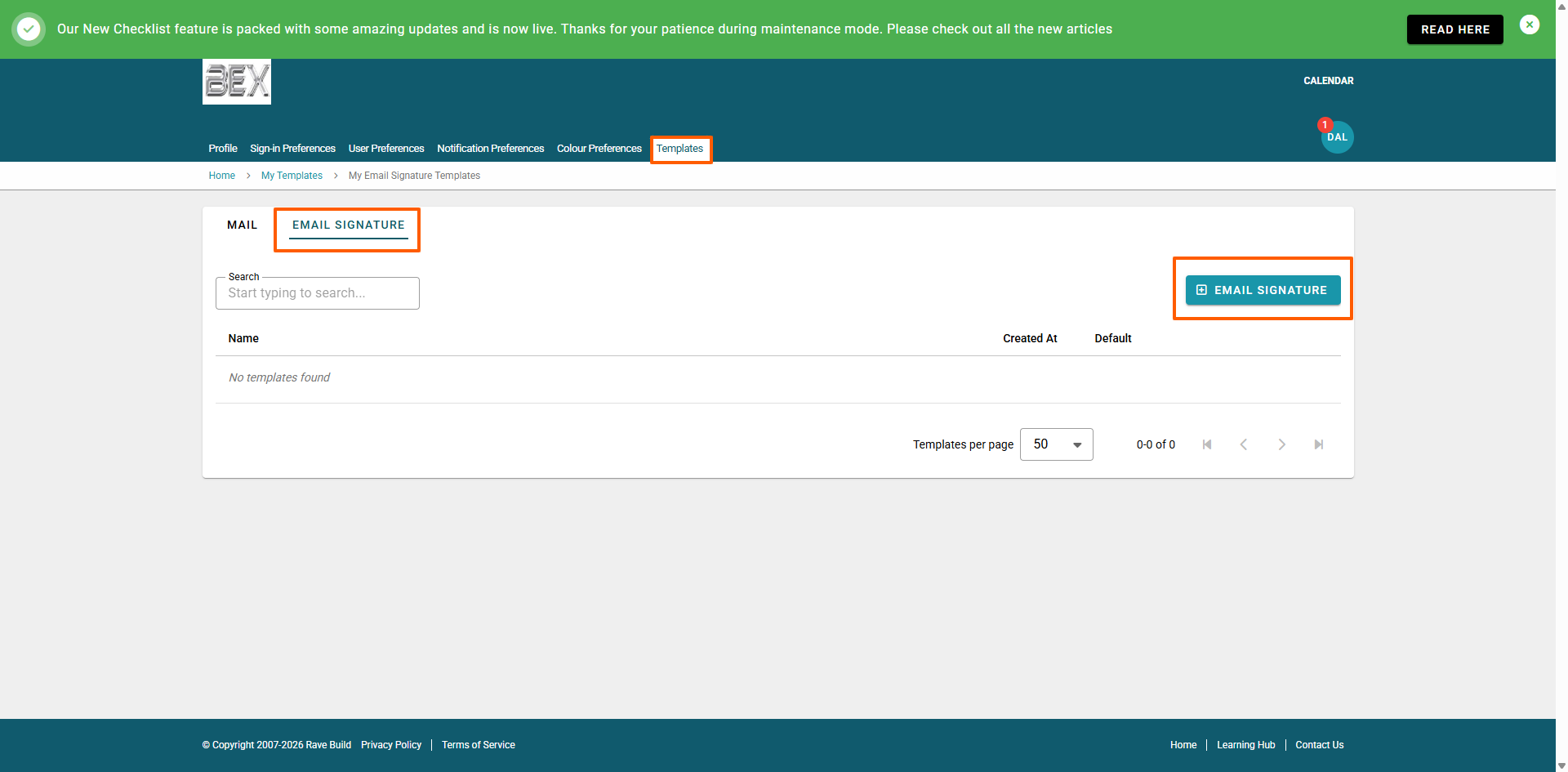
- You can also create and manage your Email Signature from the Templates section.
- Your mail templates can be viewed under All, Enquiry or Project, and you can use the Search and Tags options to find specific templates.
- This keeps the original wording and just adds what is now actually shown on the screen
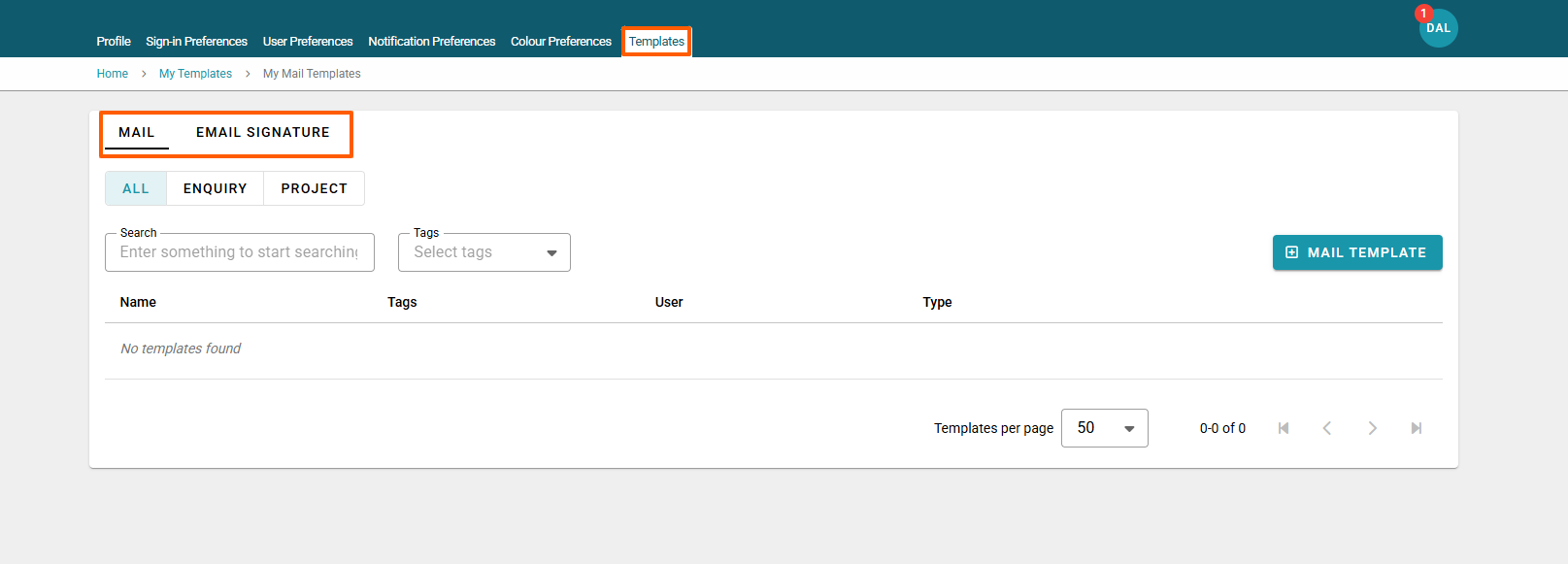
Click on the type of template you wish to create at the top left and then the + Mail Template button.
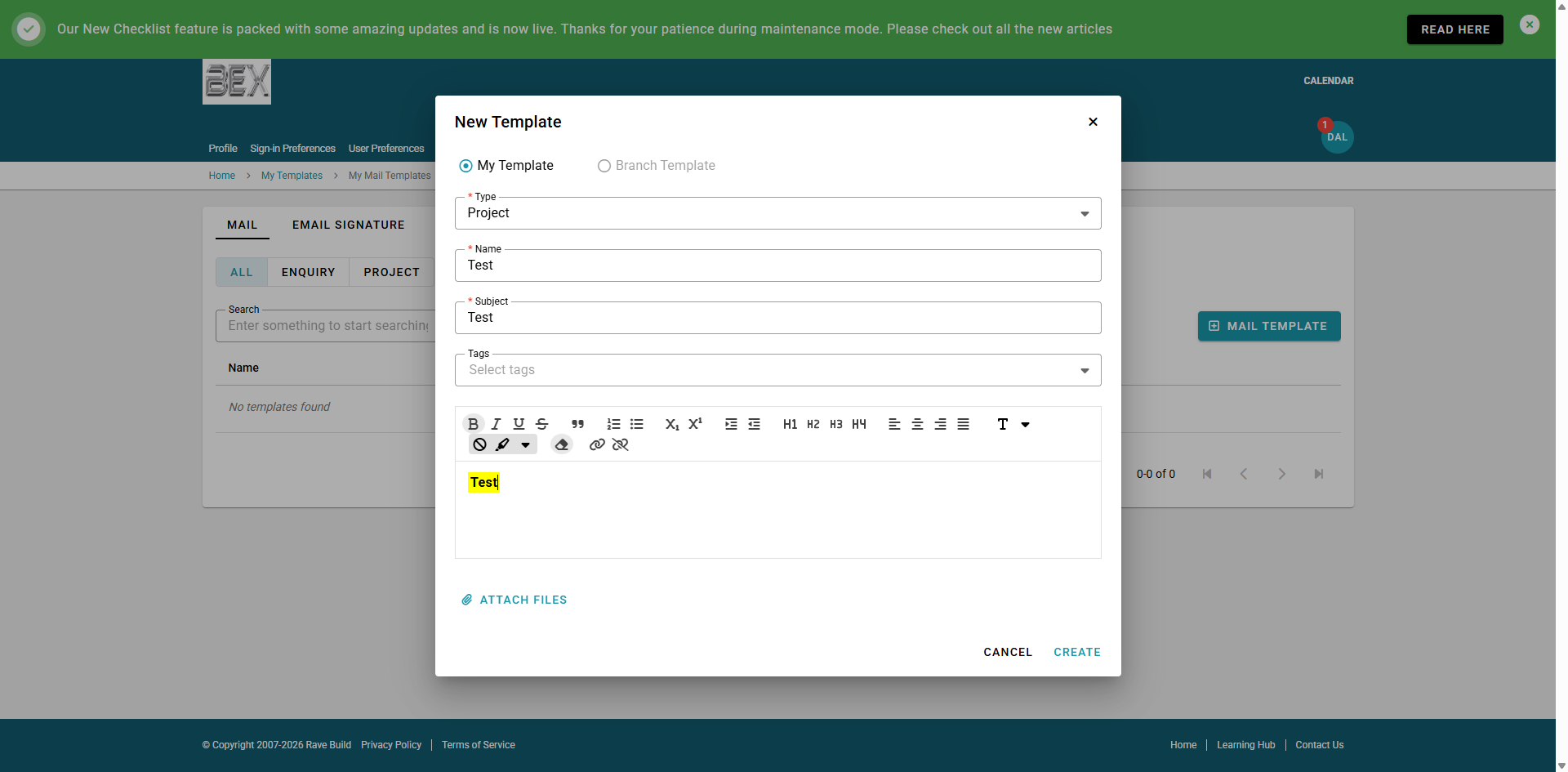
You can then follow the prompts to create your own email template to use when you are sending mail from Rave. Once you have completed the mandatory steps press Create.
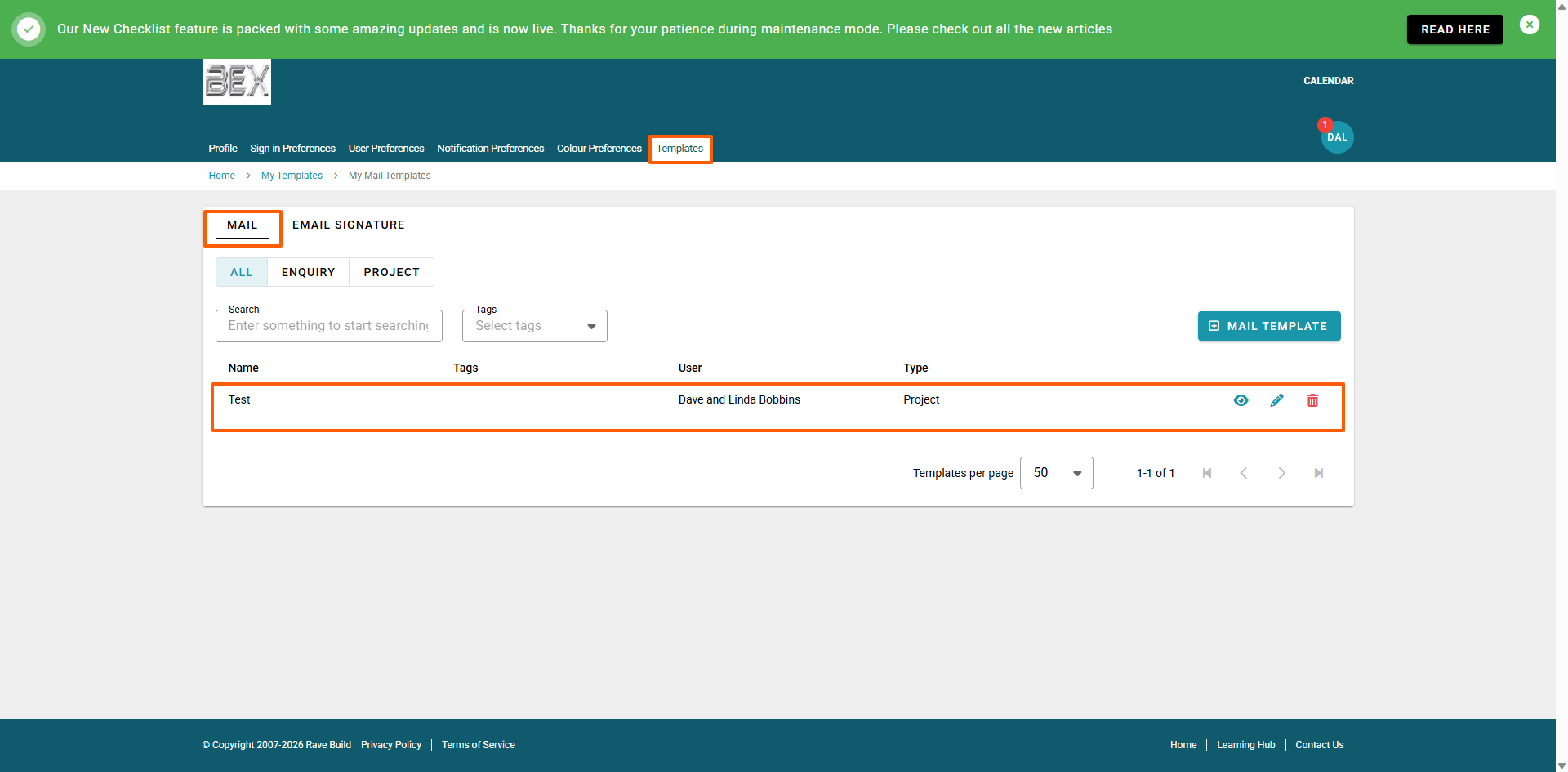
Your templates will sit under the table on the template menu. You can click the eyeball icon to view the template, click the pencil to edit, or the trash can to delete. Deleting a template will not remove any that have been used; it only prevents them from being selected again.
Was this article helpful?
That’s Great!
Thank you for your feedback
Sorry! We couldn't be helpful
Thank you for your feedback
Feedback sent
We appreciate your effort and will try to fix the article