The following is the recorded version of the help article outlined below.
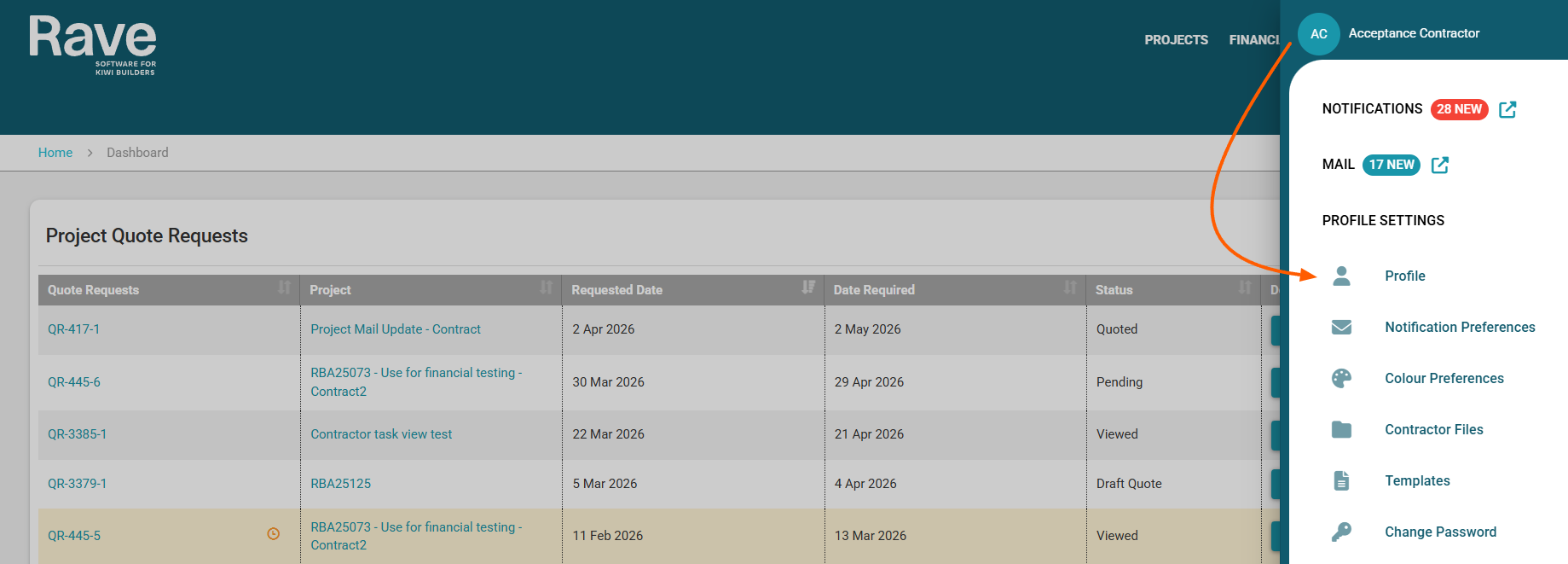
Once logged into Rave, you will see a Circle icon in the top right with your initials.
Select this and find Profile Settings
Then click Profile
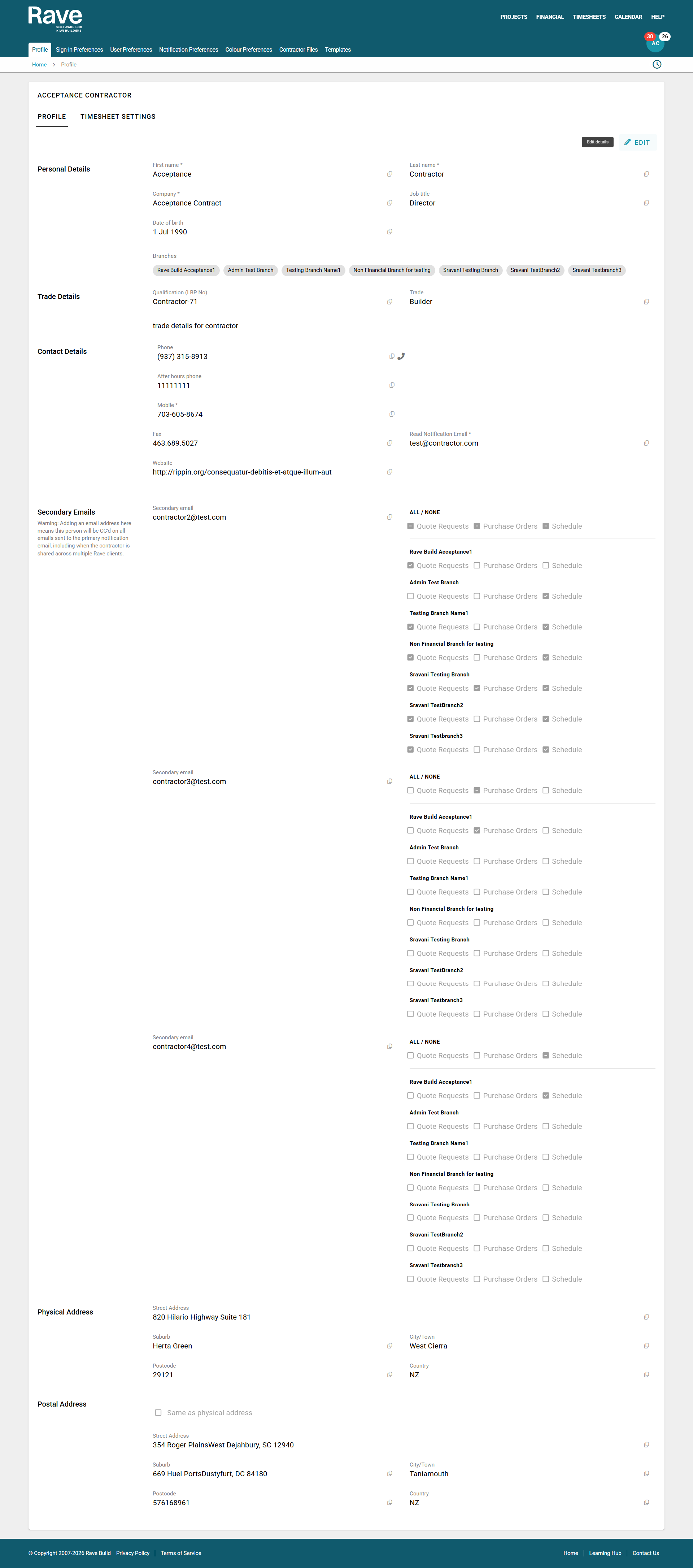
You can then select the pencil edit icon to edit your profile information.
The first time you, as a new contractor, access RAVE, you will be taken to this page to review your profile information and, if necessary, update your profile and contact details. You’ll note a number of required fields to be completed/checked, including your company name and your first and last names. It is helpful to check/select your trade type also.
Secondary Emails
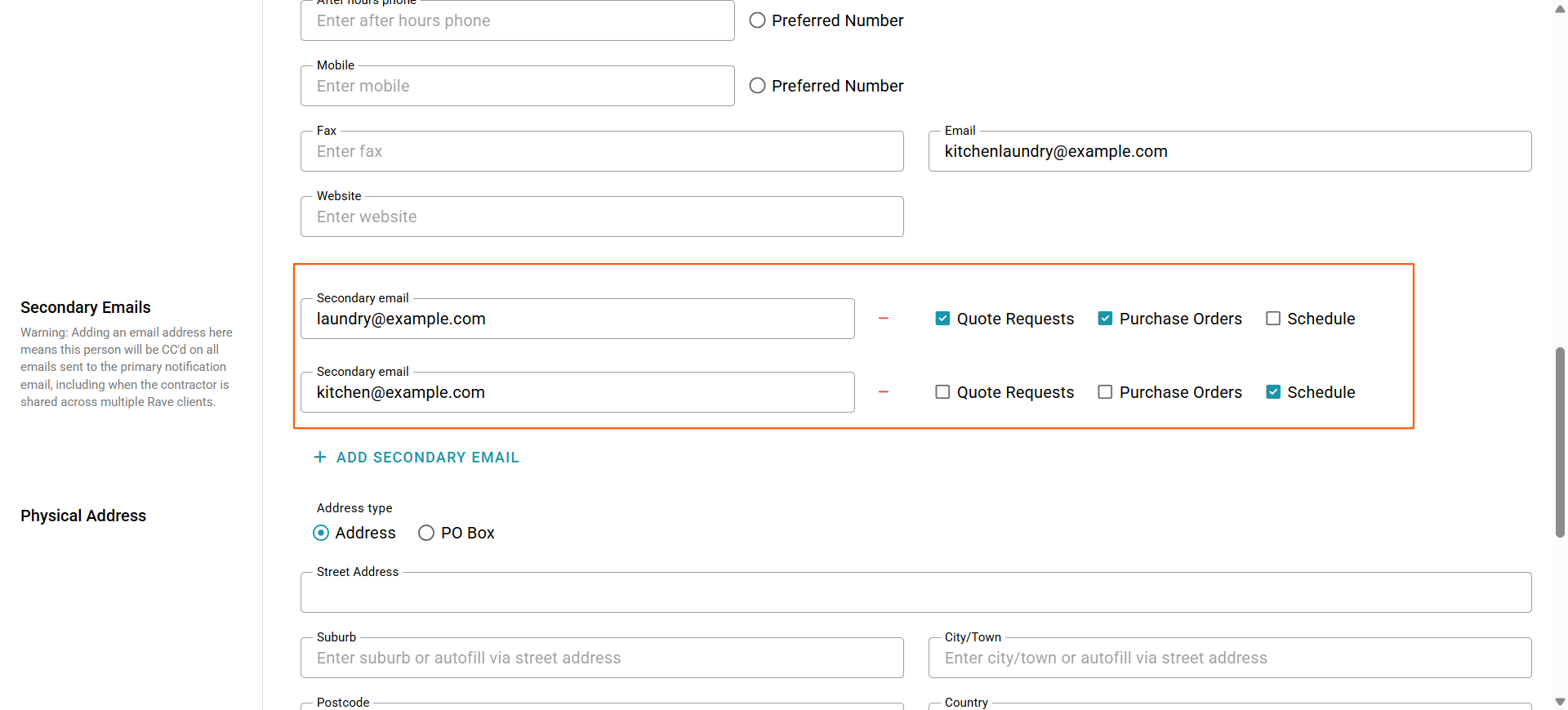
Contractors can now add multiple email addresses to their profile and choose which email addresses receive specific notifications.
The contractor’s primary email address will continue to receive all notifications, including:
Schedule updates
Purchase orders
Quote requests
Contractors can then add as many additional email addresses as required and select which types of the three notifications below each email address should receive.
This makes it easy to direct different communications to the right people, for example, sending purchase orders and quote requests to an accounts or estimating email address while schedule updates go directly to the relevant project contact.
Timesheet Settings
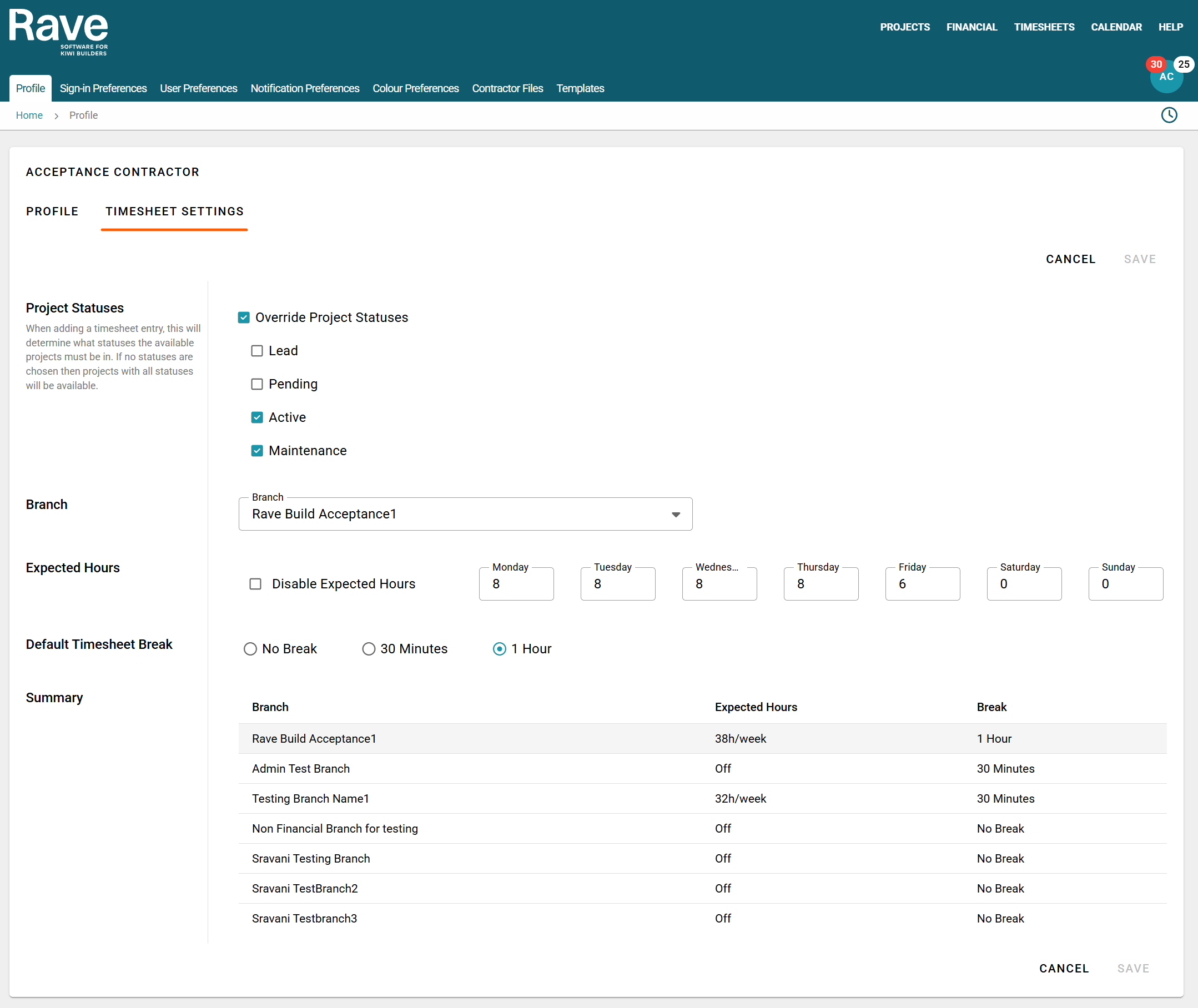
You can customise your project status views, and at the branch level, configure your default expected working hours and break settings.
If you are Office Staff, Timesheet or Site Manager/Site Staff, your Profile overview can be found here.
Was this article helpful?
That’s Great!
Thank you for your feedback
Sorry! We couldn't be helpful
Thank you for your feedback
Feedback sent
We appreciate your effort and will try to fix the article