Rave Contractor App – Getting Started
This Help Article explains how contractors download the Rave app, accept an invitation from a builder, log in for the first time, and navigate the key areas used day to day.
The following Rave App tutorial is optimized access our desk-top, or tablet, web browser user quick-start guide.
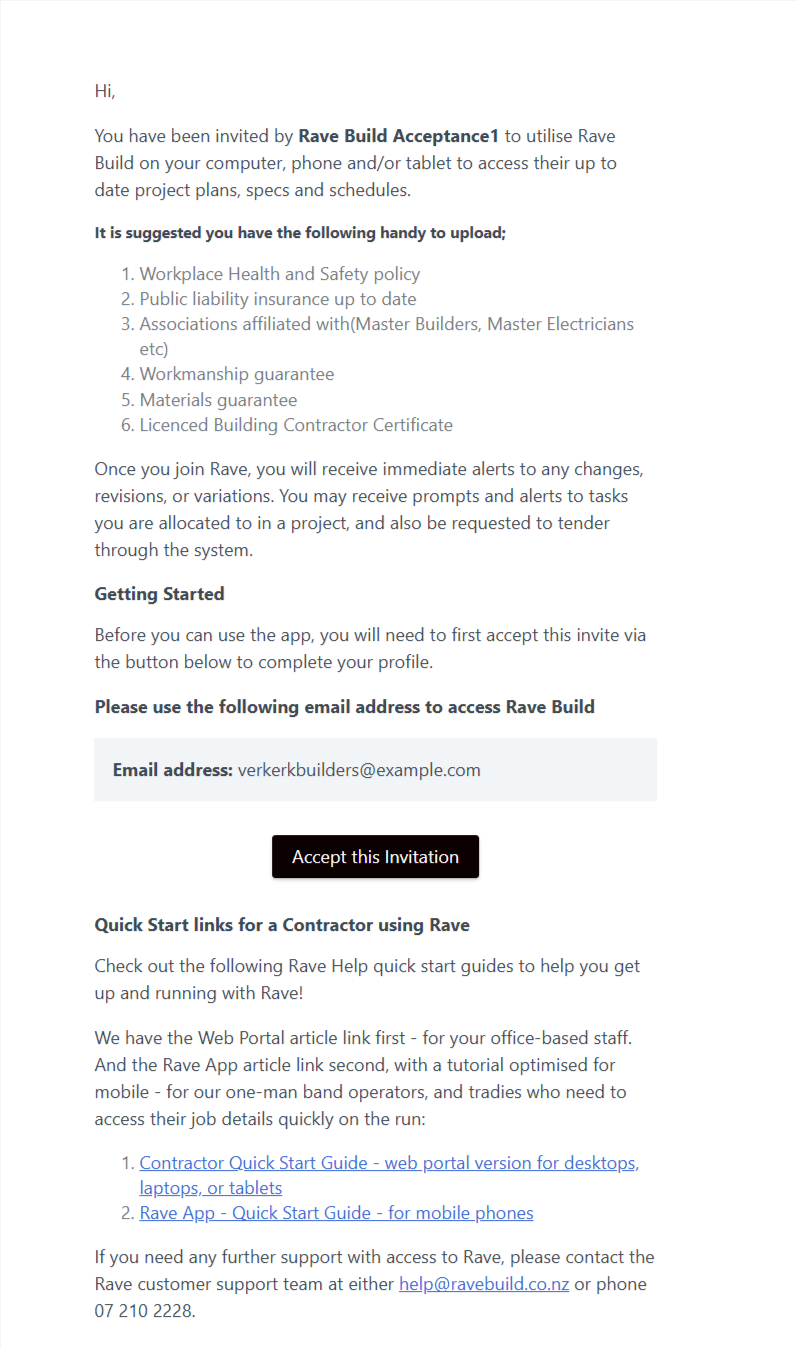
Accept Your Rave Invitation
You’ll receive a welcome email from your builder inviting you to join Rave.
Tap Accept this Invitation in the email to get started.
If you haven’t received your invitation, contact your builder and ask them to resend it.
Sign in to Rave
Download the Rave App
Choose your sign-in method: Microsoft, Google, or Email (Facebook may also be available).
Use the same email address linked to your Rave account.
If you choose Email, select Email me a sign-in code, then enter the six-digit code sent to your inbox.
Follow the prompts to finish signing in. On the mobile app, you’ll then be able to set up a four-digit PIN and Face ID if your device supports it.
Already using Rave? If you’ve been invited to another building company, you may be able to access it using your existing Rave login. If the email address in your invitation differs from your current Rave login, ask your builder to add you using your existing login.
If you have trouble signing in, check your junk or spam folder and make sure you’re using the email address associated with your Rave account.
Your Home Screen shows:
Quote Requests from builders using Rave.
Scheduled Tasks assigned to you on builder schedules.
Use the available filters to find tasks by Project Manager or Site Manager, and use keyword search to locate specific items.
Select a task link to view its details, add comments, upload photos or PDFs, or request sign-off where available.
Notifications & Messages
Select your profile icon to access:
Notifications – updates from builders about projects and tasks.
Messages – read and reply to project messages.
Contractor Profile & Branch Settings
Under Branch Settings, you can manage your business details and, where available, upload your company logo and product inventory.
Adding products in advance can make responding to quote requests quicker.
Profile Settings
Under Profile Settings, you can update your profile details and manage available preferences, including notifications and calendar colours. You may also be able to upload your Public Liability Insurance certificate.
Navigation Bar
The navigation bar provides access to:
Projects – view projects you’ve been invited to.
Financial – access quote requests, quotes and purchase orders.
Calendar – view tasks and appointments.
Help – access the Rave Help Portal.
Projects
Select Projects, then choose a project to open it.
Depending on your access, you can view project information, notes and schedules, as well as access:
Documents – view documents shared with you.
Albums – view project photos.
Checklists – access available checklists.
Project Messages – read and reply to project messages.
Financial: Quotes & Purchase Orders
Under Financial, you can access the financial information available to you:
Quote Requests – review requests and submit quotes.
Quotes – view quotes you’ve created and submitted.
Purchase Orders – view orders issued to you by builders.
Need Help?
Visit the Rave Help Portal for step-by-step guides and videos.
You can also contact RaveBuild Support at help@ravebuild.co.nz or 07 210 2228.
Already using Rave? If a new building company invites you to join, use your existing Rave login. If the email address in the invitation differs from your current login, ask the builder to add you using your existing account.
Was this article helpful?
That’s Great!
Thank you for your feedback
Sorry! We couldn't be helpful
Thank you for your feedback
Feedback sent
We appreciate your effort and will try to fix the article