To manage your users (permission-dependent), click your profile dropdown at the top right of the screen, then expand Branch Settings and click Manager Users.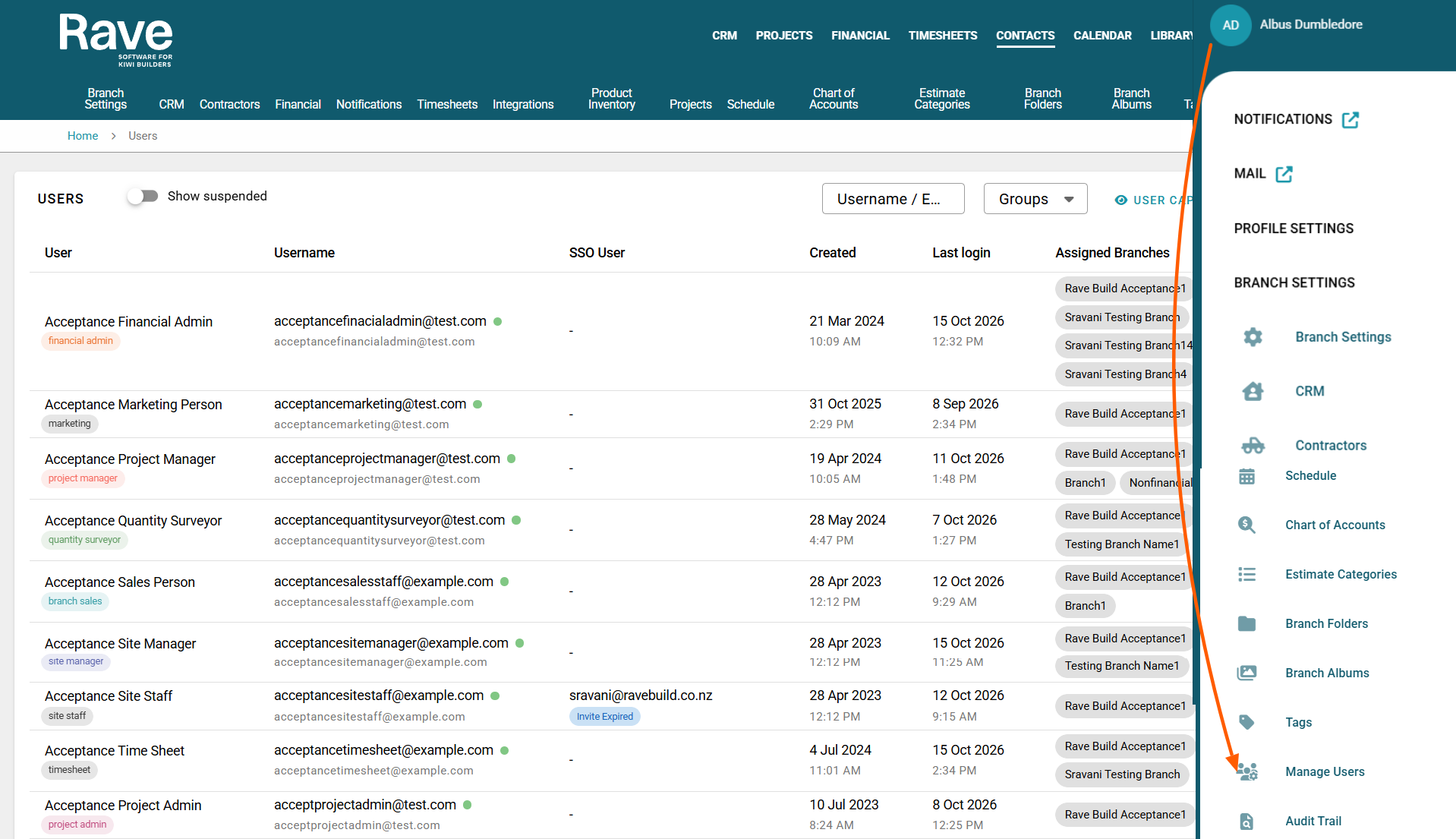
From here, you will see a list of your users, their username, email address, the date their login was created, their last login date and their assigned branches.
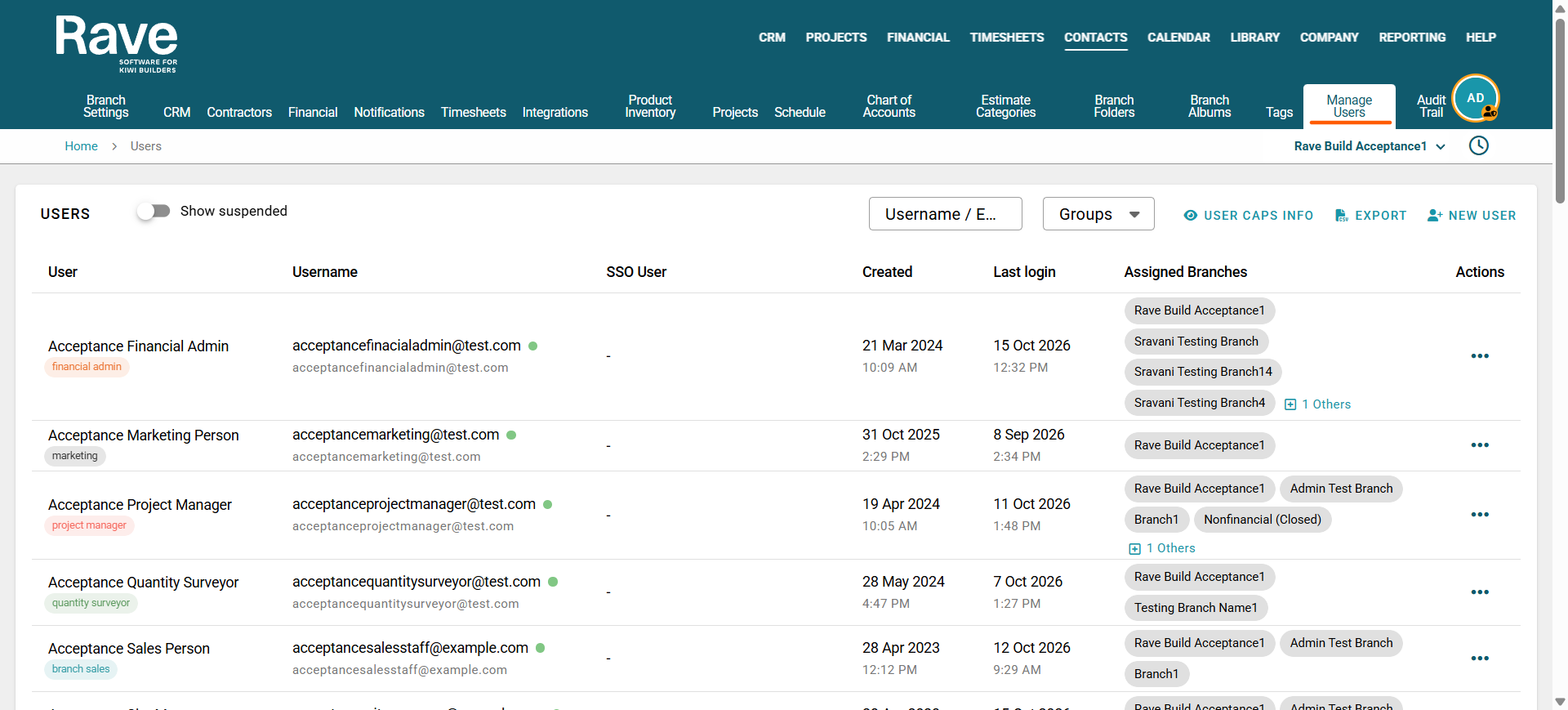
At the top left, a switch lets you turn on/off viewing suspended users. To the right, you can search for usernames by keyword or filter by groups, plus an Export button and a New User Button.
You can view your User Cap Info (which we'll cover in more detail shortly), export your users to a CSV, and create a New User. At the bottom of the page, you can change the default items per page from 50 to 100 or 150.

Understanding Your User Cap and User Tiers
Note: For instructions on adding new users or updating their permissions, please refer to our help article here. How to Create a New User + Edit User Permissions.
User Cap Information
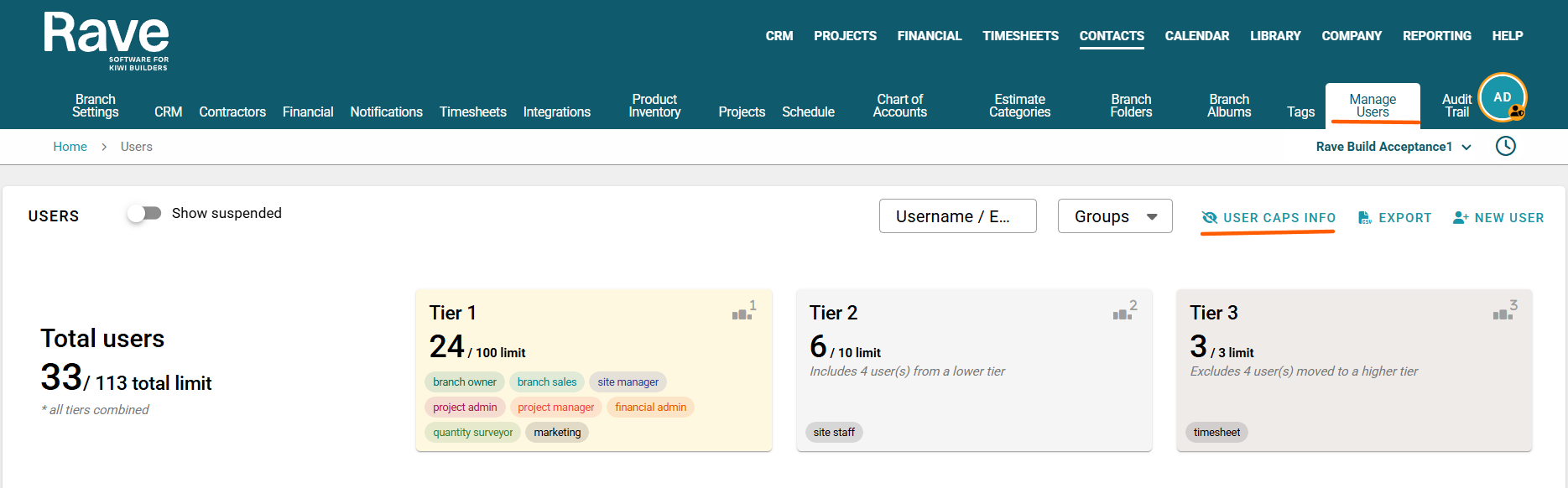
The User Cap section provides an overview of paid active users in your branch compared to your allocated user limits.
This information is broken down into three user tiers, so you can see how many users are currently active in each tier and how many user spaces are available.
You can also view your Total Users, which combines all three tiers to show your overall active user count against your branch's total user cap.
Understanding the User Tiers
RAVE users are grouped into three tiers based on their assigned user role.
Tier 1 – Management & Administration
Includes users assigned to the following roles:
Branch Owner
Branch Sales
Site Manager
Project Admin
Project Manager
Financial Admin
Quantity Surveyor
Marketing
Tier 2 – Site Staff
Includes users assigned to the Site Staff role.
Tier 3 – Timesheet Users
Includes users assigned to the Timesheet User role.
Total Users
The Total Users count combines all active users across Tiers 1, 2 and 3.
This provides a quick overview of:
Your total number of active branch users.
Your branch's overall user cap.
How many additional users can be added before reaching your allocated limit.
Note: Each tier has its own user cap, so it's important to check both the individual tier limits and your overall branch user cap when managing users.
Was this article helpful?
That’s Great!
Thank you for your feedback
Sorry! We couldn't be helpful
Thank you for your feedback
Feedback sent
We appreciate your effort and will try to fix the article