RAVE lets you add Internal Notes to financial documents, making it easy to record key information, add context, or communicate with other branch staff.
Why Use Internal Notes?
Internal Notes let you keep important information directly on your financial documents without making it visible to clients or contractors.
You can use them to:
Record reasons for changes or adjustments to financial documents.
Leave reminders or instructions for other branch staff.
Track internal discussions or decisions relating to a document.
Add context to supplier bills, purchase orders, or client invoices.
By keeping your notes in the relevant document, your team can easily access what they need without searching through emails or separate records.
Internal Notes can be added to the following document types:
Quotes
Purchase Orders
Bills
Invoices
Credit Notes
Client Estimates
Variations
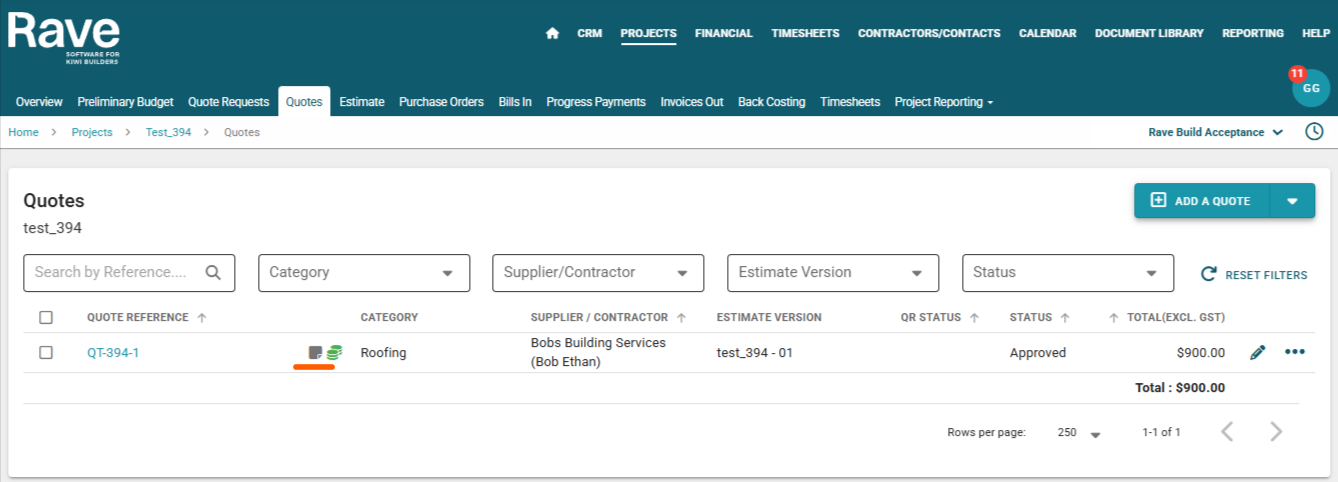
When a document contains one or more Internal Notes, an Internal Note icon appears beside the document's reference number, making it easy to identify documents with notes.
Important: Internal Notes are only visible to Branch Staff. Clients and contractors cannot see them.
How to Add an Internal Note
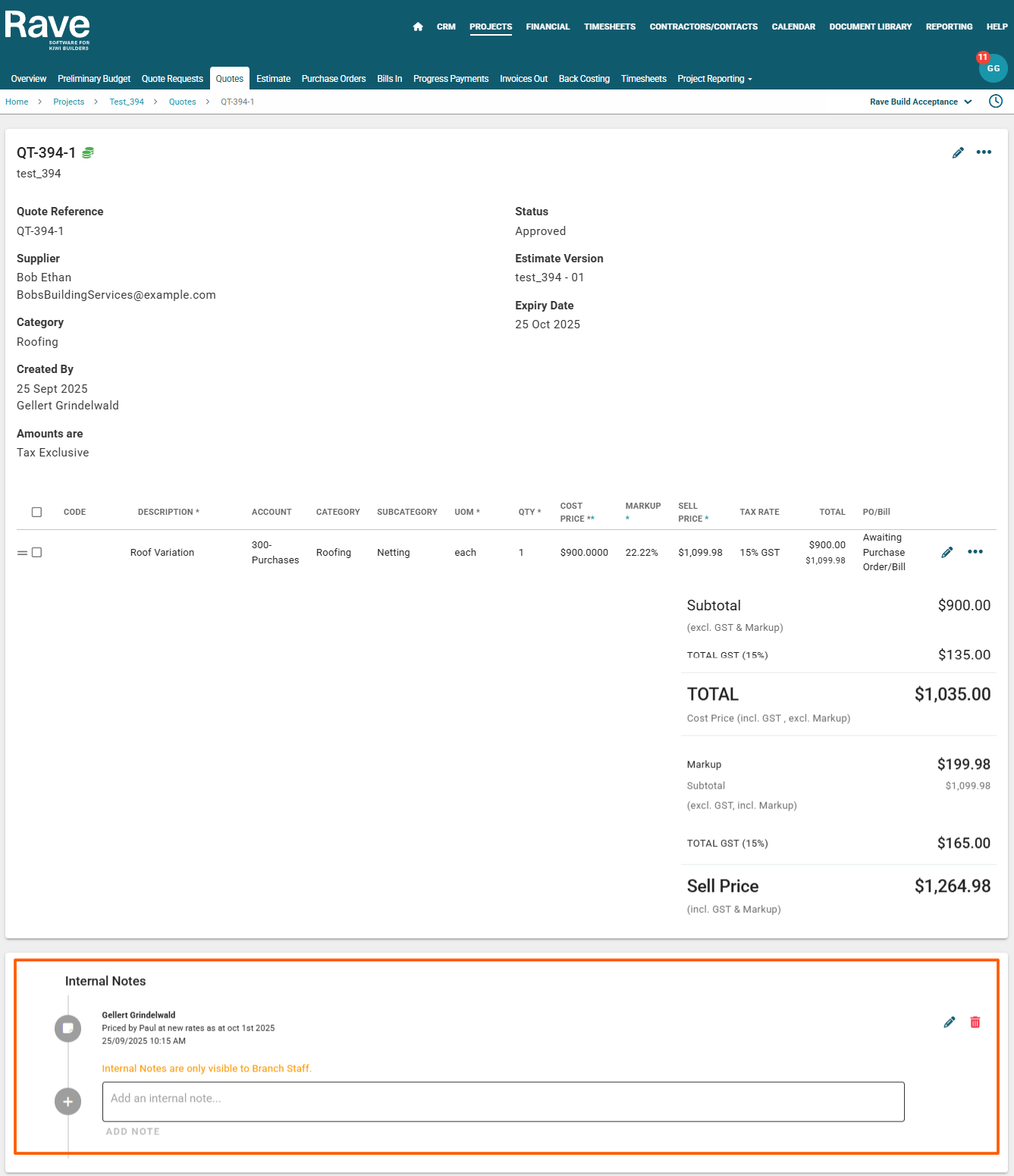
The process for adding Internal Notes is the same across all supported financial documents.
Open the document by clicking on its reference number or link.
Scroll to the bottom of the document to find the Internal Notes section.
Enter your note in the text field provided.
Click Add Note to save your note.
Once saved, your note will appear in the Internal Notes section, and a new text field will be available if you need to add another note.
Note: File attachments cannot be added to Internal Notes.
How to Edit an Internal Note
If you need to update an existing note:
Open the relevant financial document by clicking its reference number.
Scroll to the Internal Notes section at the bottom of the page.
Locate the note you want to update.
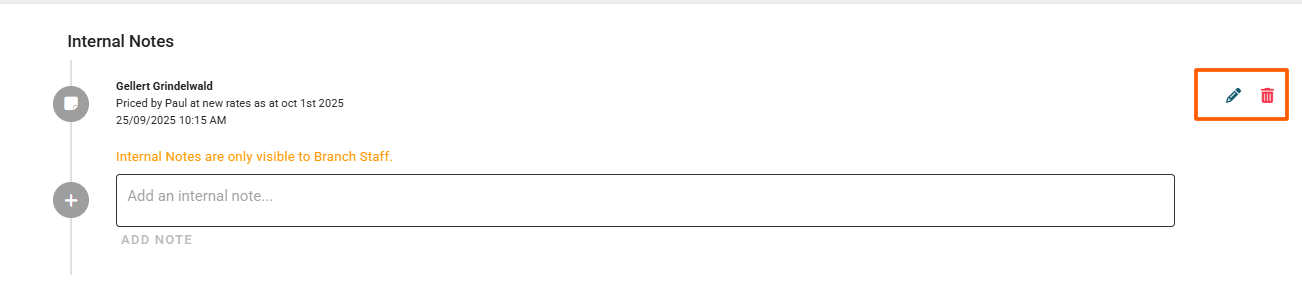
Click the Edit (pencil) icon beside the note.
Make your changes and click Save.
Your updated note will then be saved against the document.
How to Delete an Internal Note
To remove an Internal Note that is no longer required:
Open the relevant financial document.
Scroll to the Internal Notes section.
Find the note you want to remove.
Click the Delete (trash can) icon beside the note.
A Delete Comment confirmation window will appear.
Click Delete to permanently remove the note.
Important: Deleting an Internal Note is permanent and cannot be undone. Make sure you have selected the correct note before confirming the deletion.
Was this article helpful?
That’s Great!
Thank you for your feedback
Sorry! We couldn't be helpful
Thank you for your feedback
Feedback sent
We appreciate your effort and will try to fix the article