RAVE’s financial management system is designed to help you manage all the financial aspects of your projects, including budgeting, bills, and invoices, with ease.
The Bills In sub-tab is where you add and manage all your project supplier/contractor invoices, which RAVE refers to as Bills. As with our Purchase Order page, there are multiple options to add a supplier bill to a project. The most common way is via the Purchase Orders Ready to Convert option.
To learn about the Bills List page, click here.
To learn how to create a Bill by converting a Purchase order or orders to a Bill, click here.
To learn how to create a Bill/Credit Note manually, click here.
You can access your Project’s financial workflows from either the Financial button or the Project button's Project list, clicking on the project’s reference number, and finally selecting the Budget sub-tab, then Bills.
You can load your Supplier and Contractor bills in to RAVE via a CSV file i.e. you are just getting started with RAVE's FMS and/or need to move this information from another financial system to RAVE's FMS.
CSV Import
The CSV import allows you to bulk-import Branch bills from a CSV file.
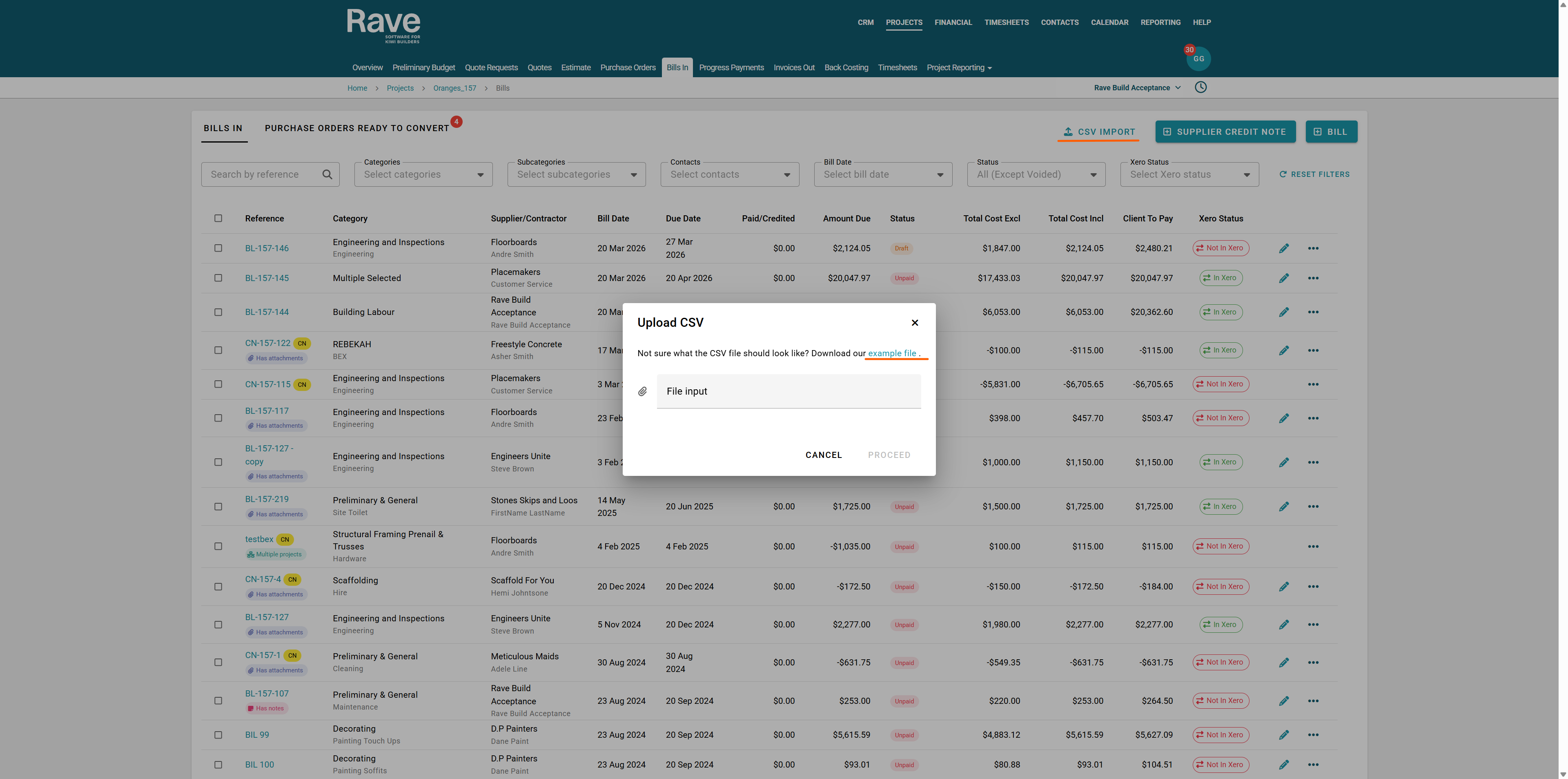
By clicking CSV Import, you can download the sample file in the correct format.
The sample File will look exactly as shown in the Excel screenshot below.

You can then fill in the CSV file with all the required information. If you are copying and pasting the data into the CSV fields, ensure there are no special characters, as this will break the import.
Once you are done, you can click File Input, choose your CSV file, and Press Proceed.
Note: You must have the supplier company name (company_name) and Category/subcategory entered as it is displayed in RAVE
NOTE: If the bill upload is not successful, we will show you alerts (in RED) indicating any issues. Hovering over an item's red caution sign tells you what the issue is - if there is more than one issue, we list them all by document.
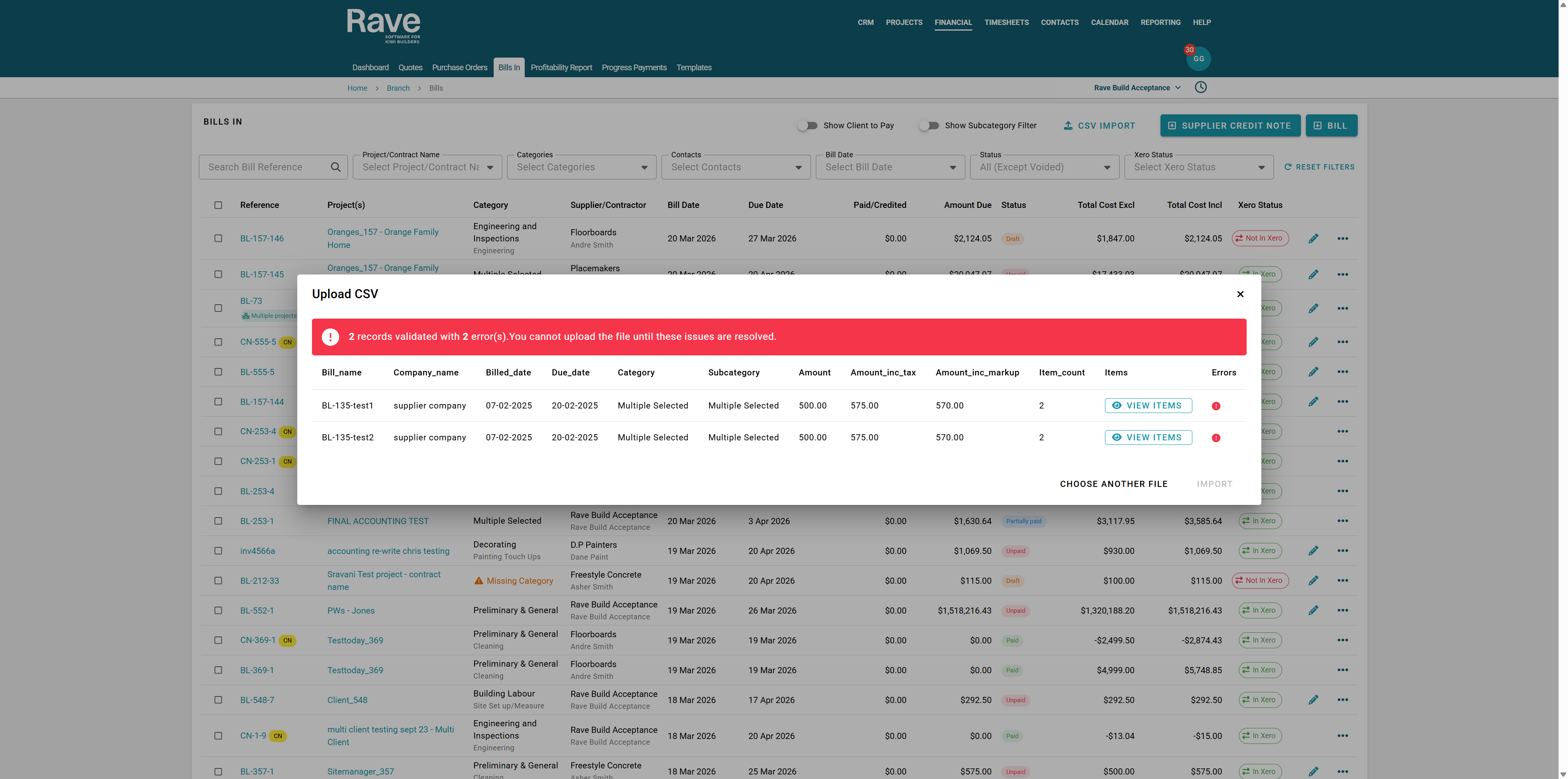
Once you have corrected any errors preventing an upload, you must re-upload the corrected version by clicking the pop-up's 'Change File' button (at the bottom right of the pop-up), or by repeating the steps.
Examples of common errors:
Company name does not exist - the supplier company name must match a company name already stored in RAVE (found under your branches, contractors/contacts button)
Account Code name invalid/does not exist - indicates a missing or incorrect chart of account code (found under your branches' Chart of Accounts drop-down)
Category or Subcategory name invalid/does not exist
Bill reference number has already been used i.e this bill already exists in RAVE from this supplier
There is no pricing, or the pricing is invalid
A successful upload will display an Import Bills button to the bottom right of the pop-up - clicking on this will complete the import process.
This process may take some time (generally up to a minute), depending on the number of lines you are importing.
Once completed, RAVE will take you back to the project's Bills List page, where your new bill(s) will be displayed.
Once completed, RAVE will take you back to the List page, where your new bill(s) will be displayed.
Marking a bill as Non-Chargable
Under Branch Settings - Financial there is a slider to allow you to mark Supplier Bills as non chargable. This means they will be hidden from the Bills ready to convert table on the invoice out page and selecting them the Create Client invoice button will be disabeled.
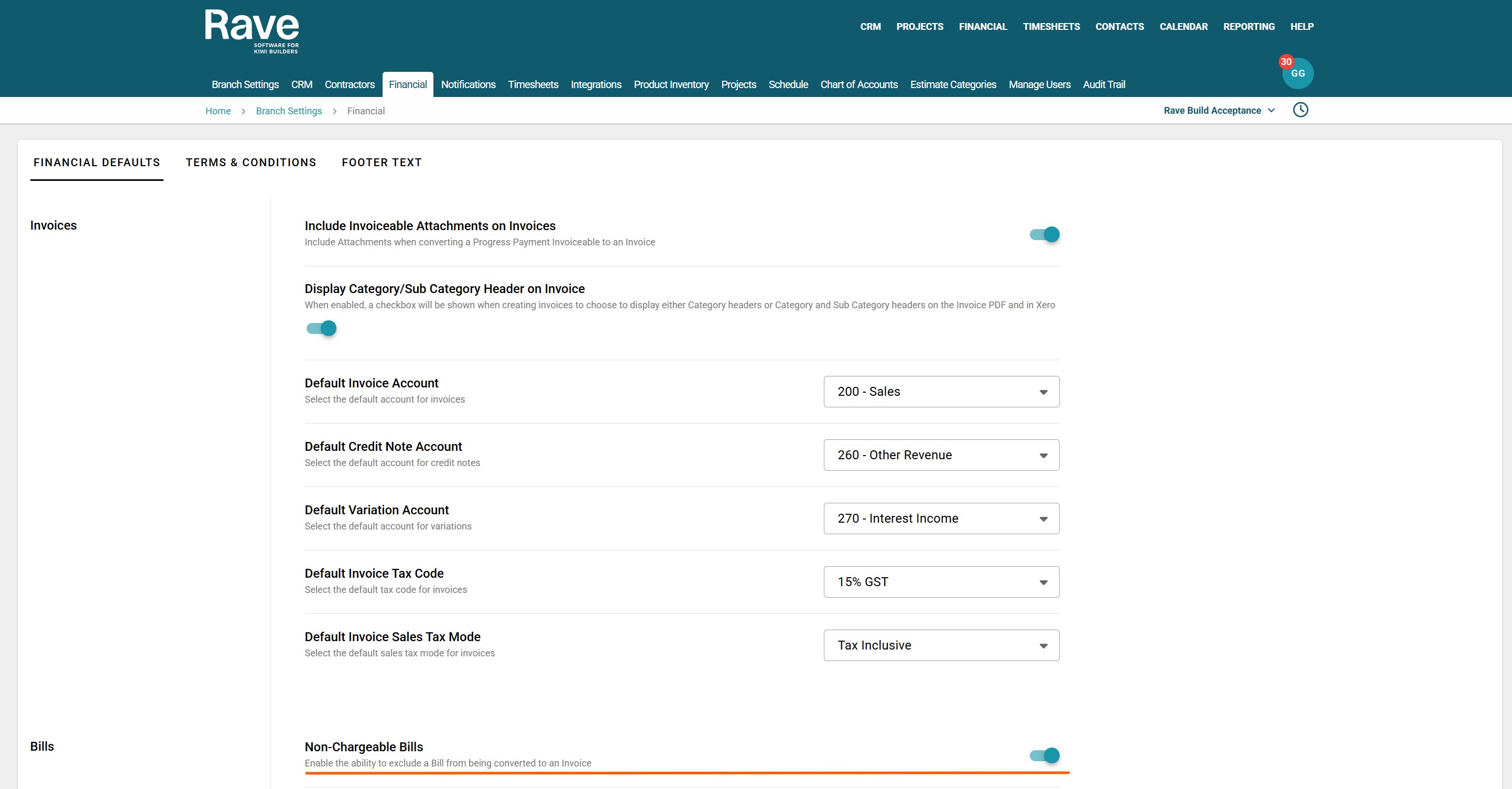
When this slider is enabled a check box appears on the bill which you can select.
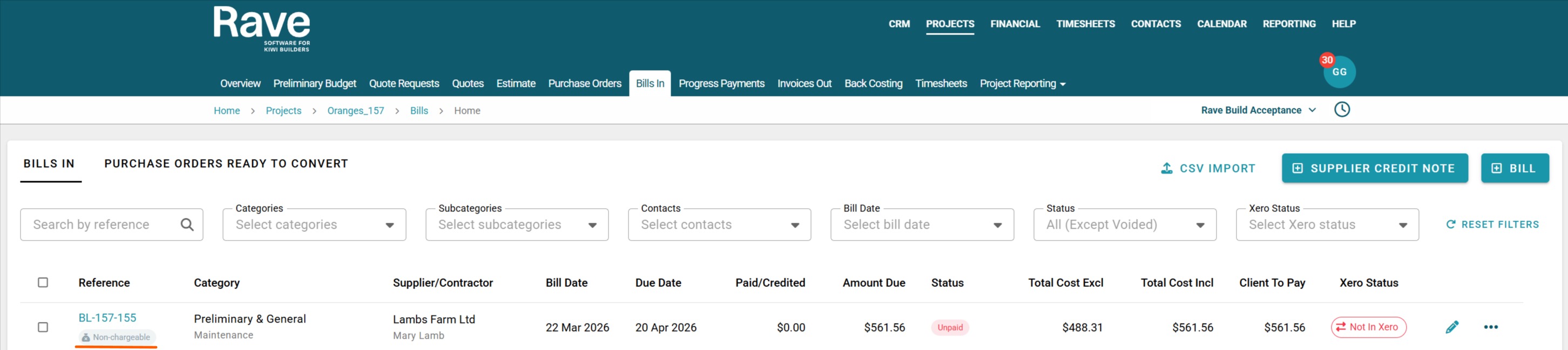
Once the bill is created it will have an icon with the words Non-Charfeable under the bill refefence.
If you select one of these bills the ability to create a client invoice is disabeled until you uncheck it.
Note: To void a bill or credit note, you need to select void, type in void in the pop-up, and then press Void. This is to ensure that you are intentionally voiding the document and not 'accidentally' doing it. There is no option to bulk void as this is very risky and affects both Rave and Xero financials.
Was this article helpful?
That’s Great!
Thank you for your feedback
Sorry! We couldn't be helpful
Thank you for your feedback
Feedback sent
We appreciate your effort and will try to fix the article