Giving your client access to their Enquiries or Projects via RAVE is a great way to boost engagement and involvement throughout their build journey.
It’s also a powerful tool to promote your brand and encourage organic word-of-mouth referrals.
We recommend reading our article Inviting a Client to RAVE and Setting Permissions, which guides you through how to give your client access to their Enquiry and/or Project, including how to control and limit what they can see and do.
Finding your customised RAVE login portal link (URL) is quick and easy.
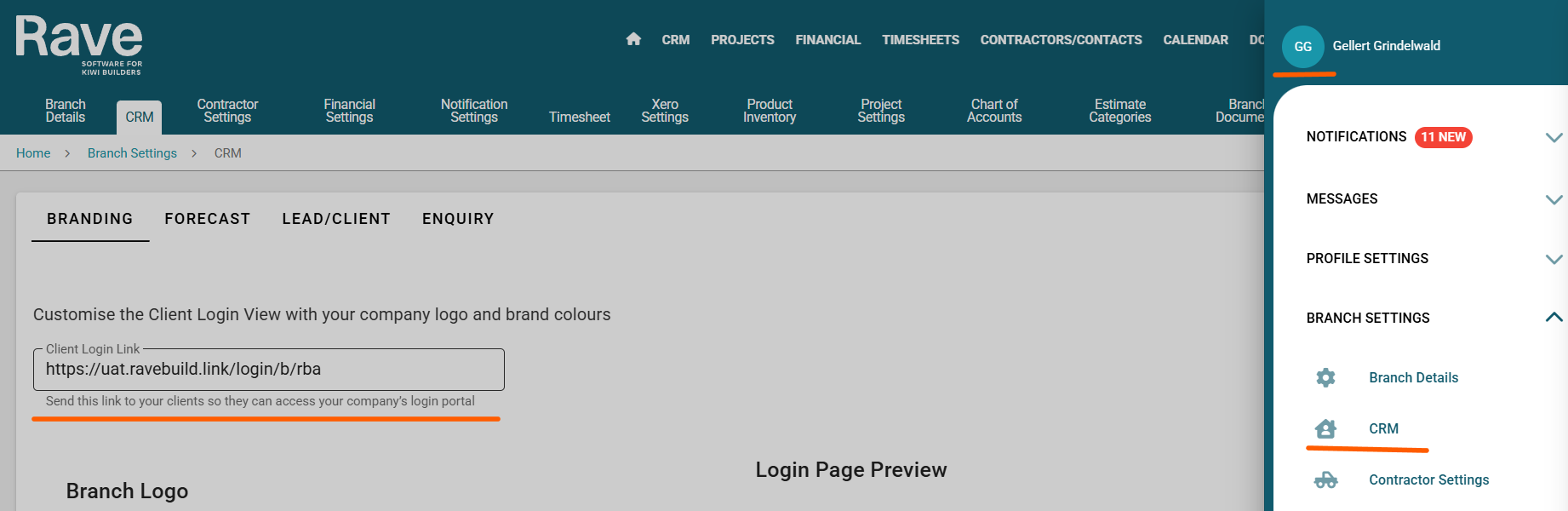
Start by clicking on your profile dropdown—your name in the circle at the top right of RAVE.
Then, select the Branch Settings CRM option.
This will open the CRM Branch Settings page, where you'll see your branch's Client (portal) Login Link URL displayed.
You can also save this URL as a desktop shortcut or bookmark it in your web browser for easy future access.
If you're using Google Chrome, simply click the star icon at the top right of the search bar to save it as a favorite. Other browsers have different ways to create bookmarks.
Note: The Branch Settings option is only available to users with the appropriate CRM permissions. If you don’t have access, please ask your branch owner to copy and send you the login link, or contact RAVE Support at 072102228 or help@ravebuild.co.nz with your branch details.
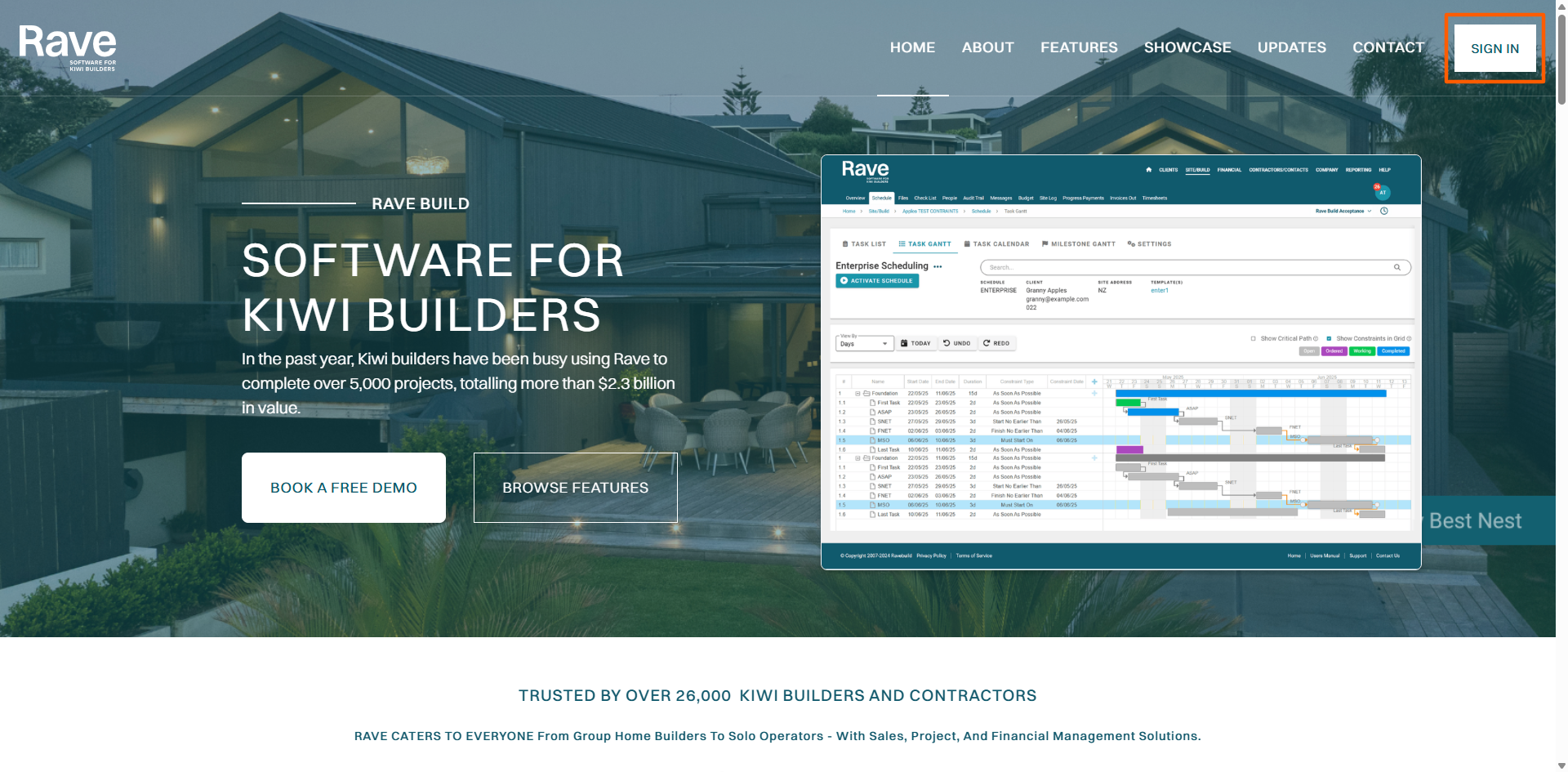
Copy your customised RAVE login portal URL and send it to your web developer, asking them to add a client login link to your company’s homepage—similar to the ‘Sign In’ button on the RAVE website. This makes it easier for your clients to access their project portal directly from your website.
Was this article helpful?
That’s Great!
Thank you for your feedback
Sorry! We couldn't be helpful
Thank you for your feedback
Feedback sent
We appreciate your effort and will try to fix the article