Setting Up Document Scanning Auto-forwarding - OUTLOOK. Click here to view.
Setting Up Document Scanning Auto-forwarding - GMAIL. Click here to view.
Branch Settings - OCR Scanning - Quotes. Click here to view.
Rave’s Contractor/Supplier Quote Scanner reads supplier and contractor quote PDFs or Word documents, helping you create quotes without manually entering every detail. You can upload documents directly or email them to your branch’s dedicated quote-scanning address.
To access this feature, click Financial, then select Scanned Quotes. Quote scanning must be enabled for your branch. Enabling bill scanning does not automatically grant quote scanning access. Because this is a paid feature, contact Rave Support to enable it.
Quote scanning permissions are under Manage Users - Finance - Scanned Quotes view or edit and OCR Quote Supplier Instructions. You need both in order to use the scanning system and set instructions. 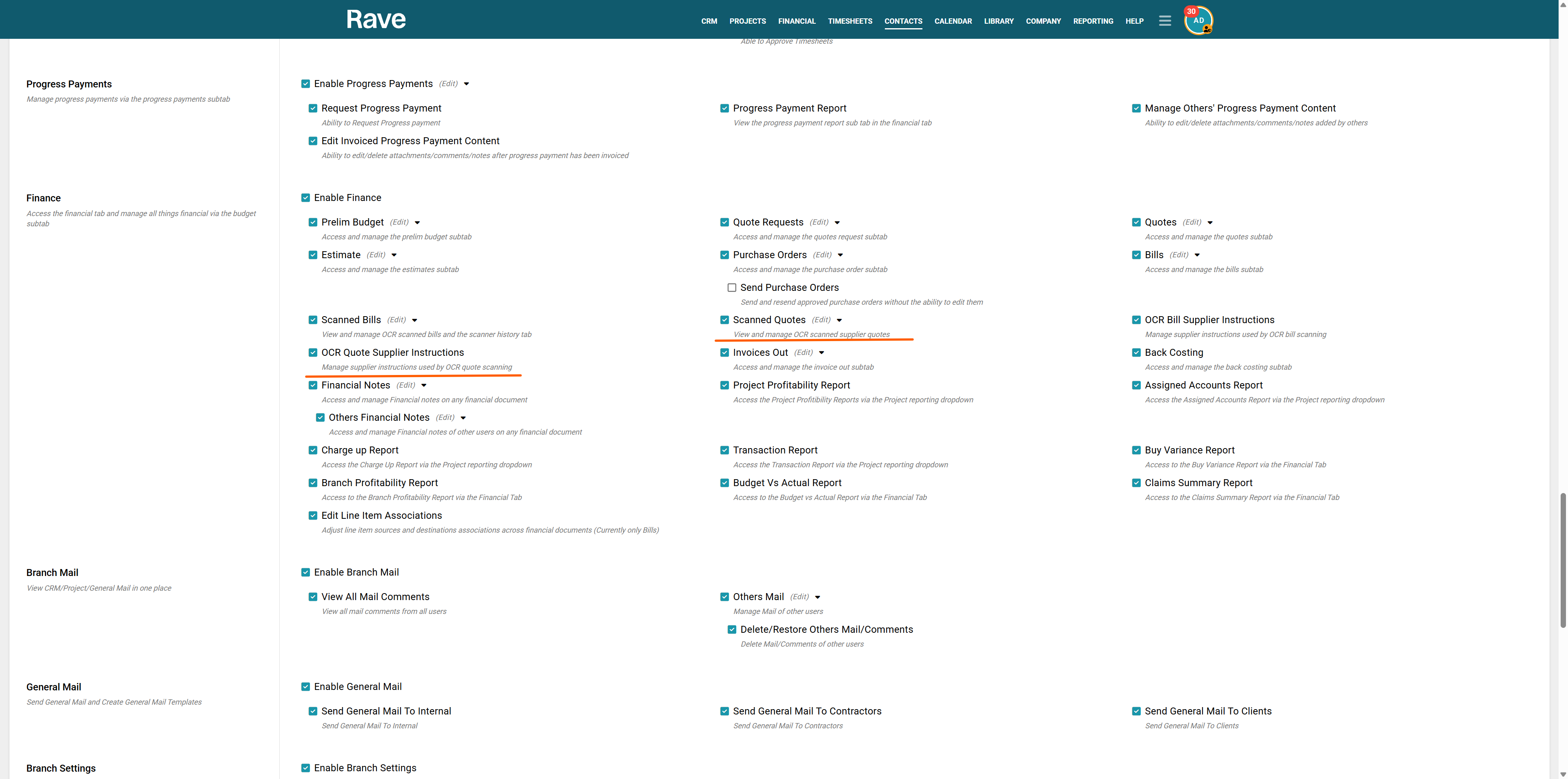
To access the quote scanning settings, open Settings > Integrations, find Quotes OCR Scanning, then click Manage. This displays your custom quote-scanning email address and lets you set an allowed senders list if you want only certain people to be able to send quotes to this email address.
Uploading or Emailing a Quote
From Financial - Scanned Quotes, click Upload a Quote and select your supplier’s quote.
Alternatively, copy the address displayed under Forward/Email Quotes and send the quote to that address. Use the quote-scanning address shown for your branch.
Once processed, the quote appears in the Scanned Quotes list. If a scan contains more than one quote, the scanner can separate these into individual rows for review.
The Scanned Quotes Tab
The list displays the scanned document, reference, supplier, quote date, quote request, project, amount, status and received date.
Use the filters to find a quote by:
- Search – Search by quote request number or reference.
- Suppliers – Display quotes for selected suppliers.
- Projects – Display quotes matched to selected projects.
- Received – Filter by received date.
- Status – Filter quotes by their current status.
Click Reset Filters to clear your selections. To view the original PDF, click the document icon beside the quote.
Scanned Quotes Page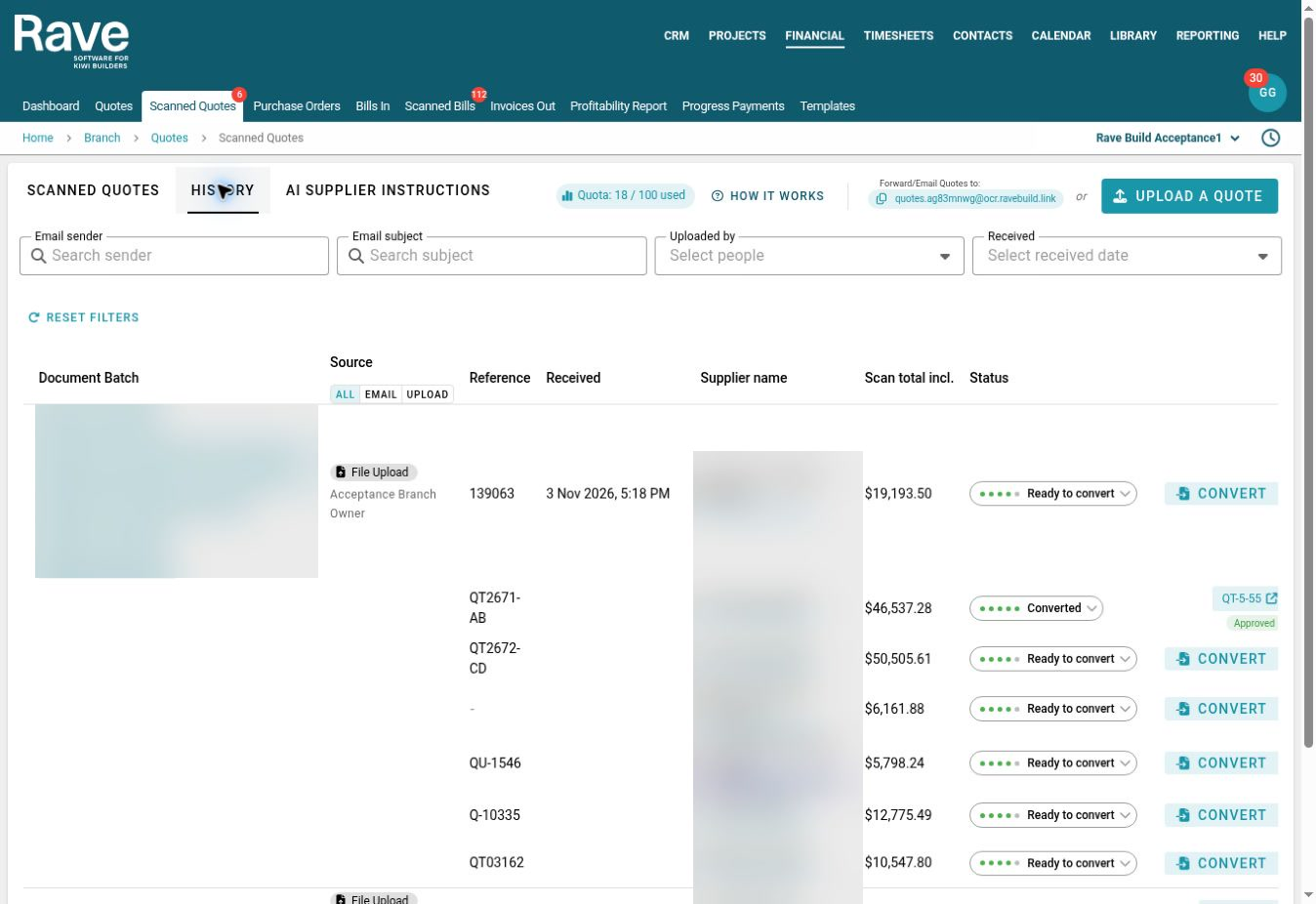
Reviewing a Scanned Quote
Click Convert beside a scanned quote to open the Add Quote from Scanned Document tab. Compare the extracted details with the supplier’s original document, displayed beside the quote fields. Check the supplier and project matches, references, dates, and pricing before converting.
Review the line items, including:
- Description, unit of measure and quantity.
- Project, account, category and subcategory.
- Cost price, markup and sell price.
- Tax rate and totals.
Also check the Scope of Works and Inclusions and Exclusions against the original quote, adding or correcting wording where needed.
If the scanner has not matched a project, select the correct project before saving. Check any quote request match before continuing.
Note: Always review scanned information before approving a quote, particularly quantities, GST, markup and totals.
Convert Scanned Quote Page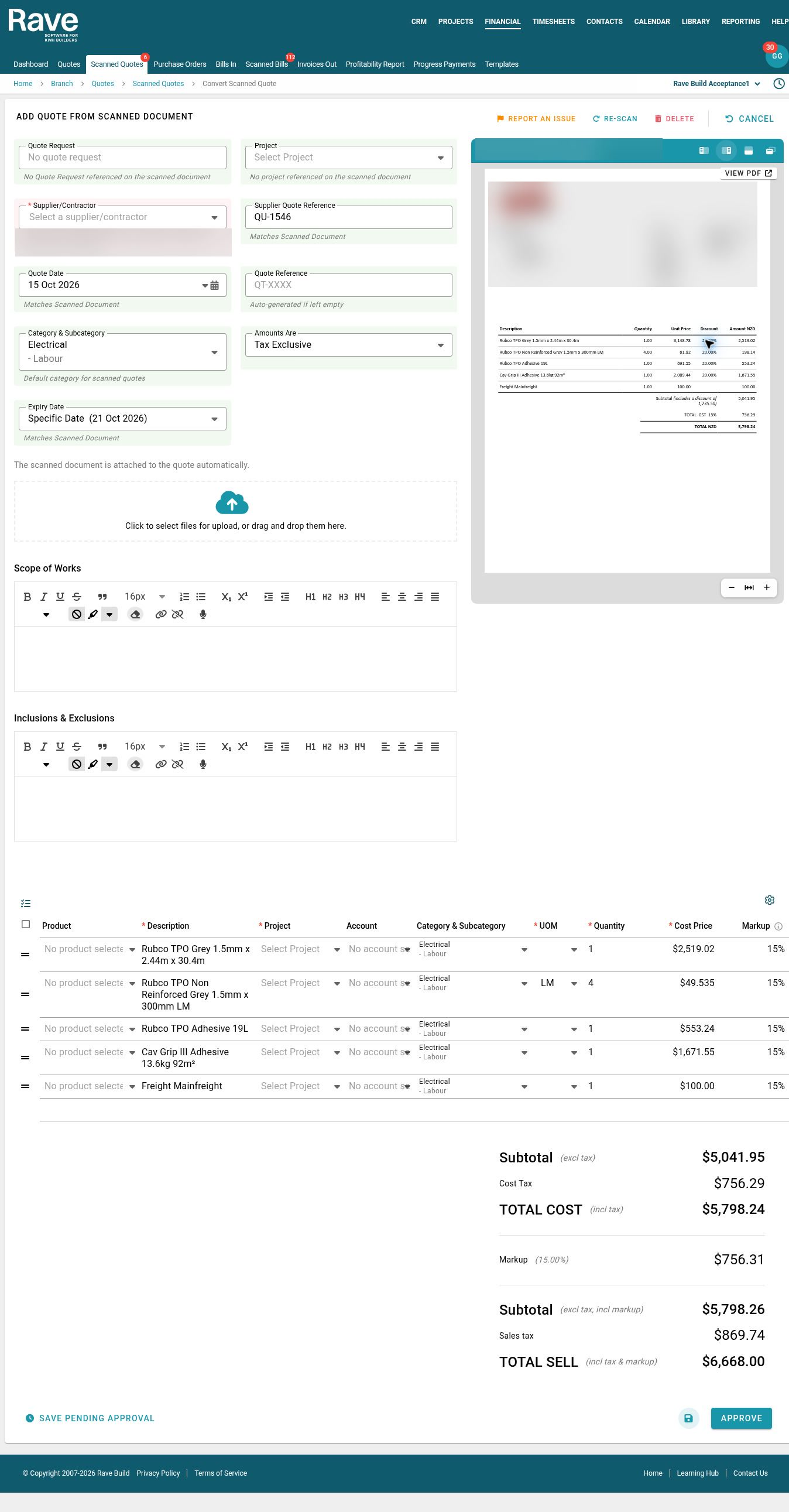
Bulk Select
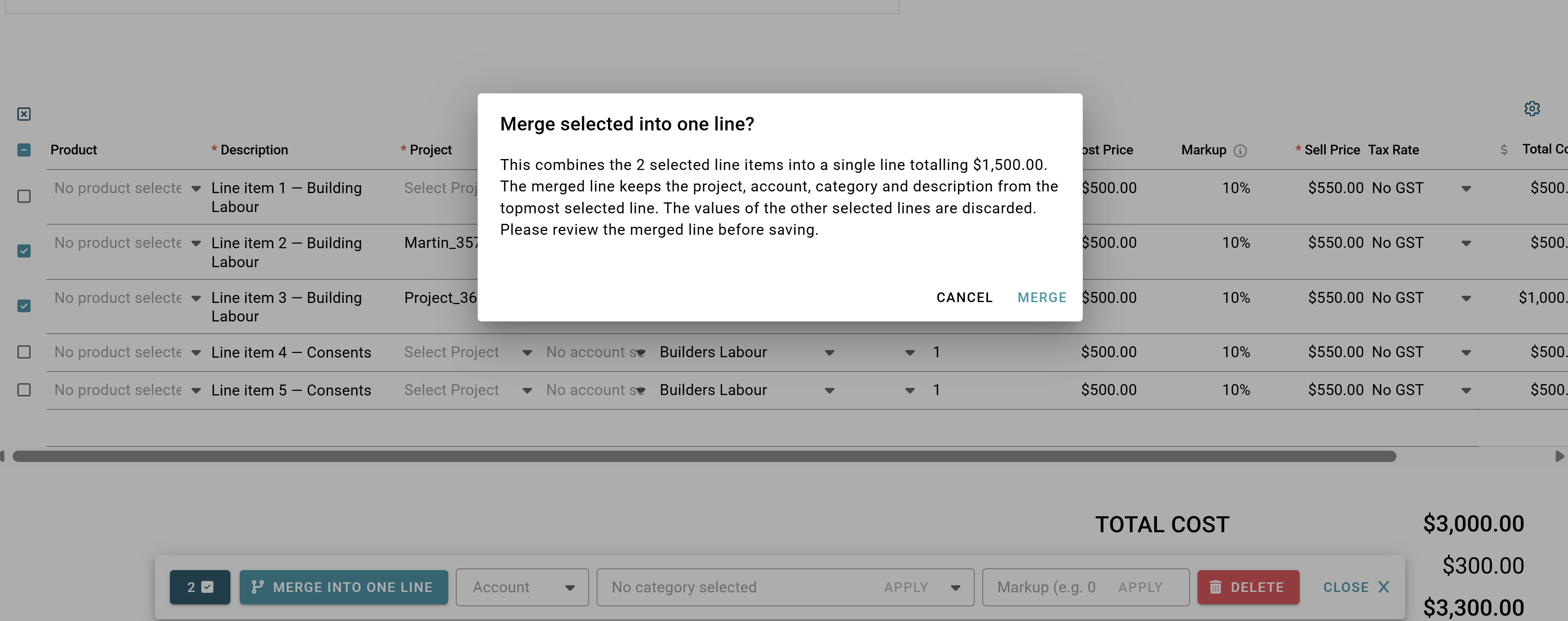
Using the bulk select icon to the top left of the first row, you can bulk select items to add/update an account code, category/subcategory and markup. You can also merge the scanned items into one single line item for consolidation purposes.
Converting a Quote
After you check and correct the details, select Save Pending Approval to create the quote for approval. If you have the appropriate access and the quote is ready, you can select Approve.
After conversion, the scanned quote displays a Converted status and a link to the created quote. Click the quote reference to open it.
Note: The Project column on the scanned quotes list shows the project the scanner originally matched. If there was no match, this column can remain blank, and you will be required to pick a project, as this is a mandatory field in Rave.
Converting Multiple Quotes
To process several quotes together, select their checkboxes in the Scanned Quotes list and use the bulk conversion option. Check that the selected quotes have the correct supplier, project and financial details before completing the conversion.
Rescanning and Reporting an Issue
If the system didn't read the information correctly, use the Report an issue icon to tell us what didn't go right so we can fix it. This button will automatically submit a help ticket on your behalf to the Rave team. You can also complete the rescan option to process the document again.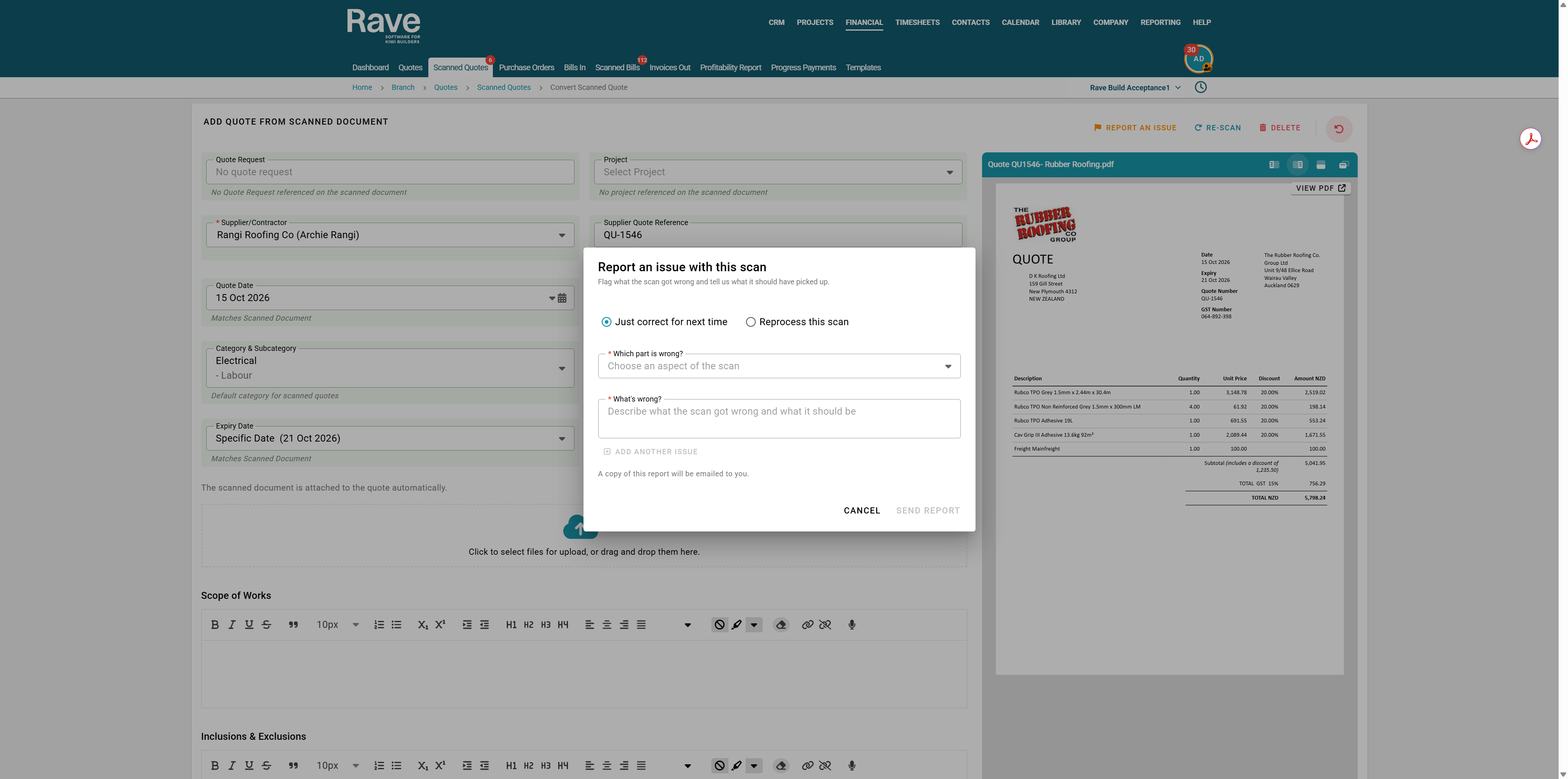
Scanner History
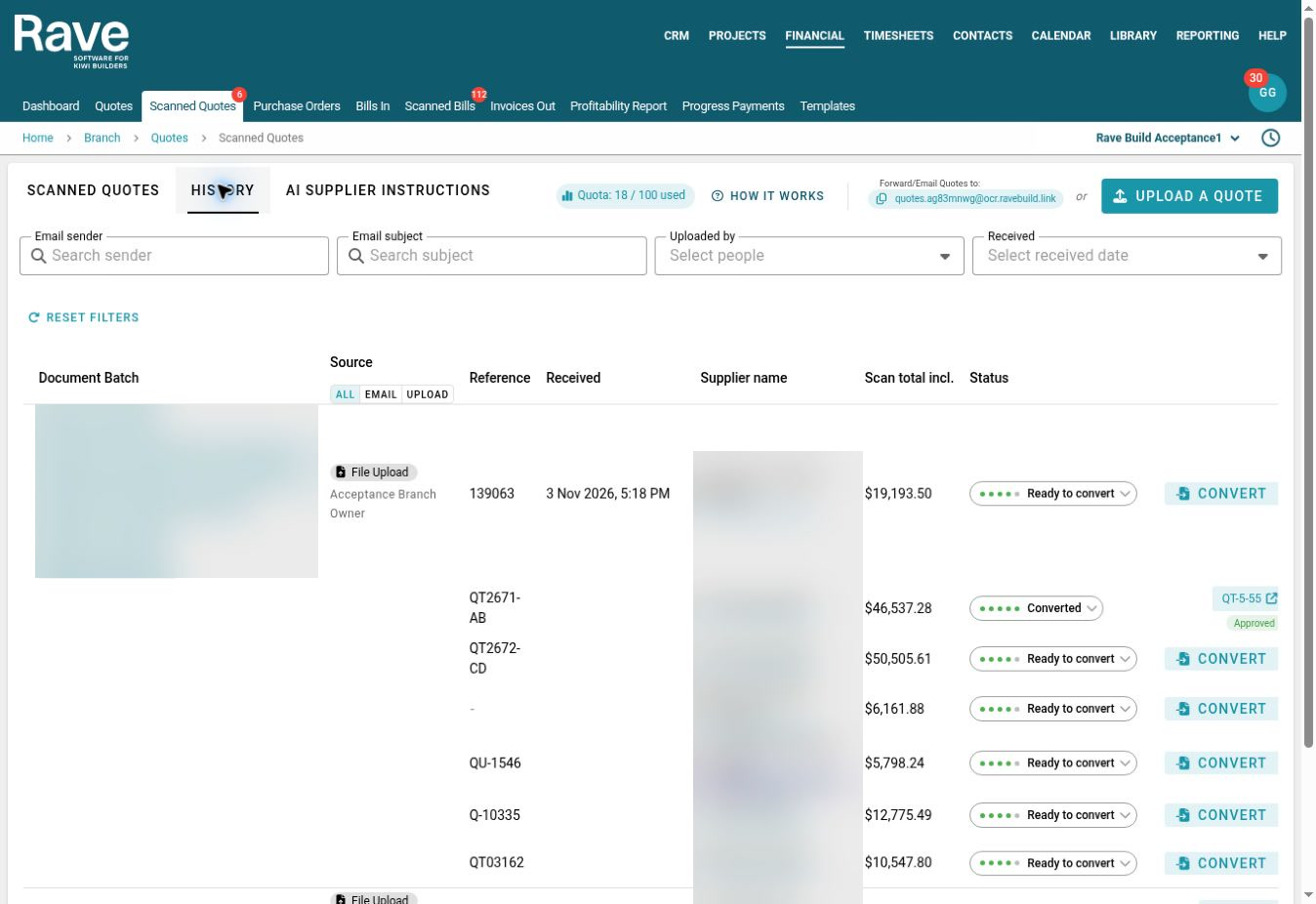
Open the History tab to review document batches, their upload or email source, received date, supplier, scan total and processing status. Filter by Email sender, Email subject, Uploaded by or Received to find a scan. Quotes ready for review have a Convert action, while converted quotes display a link to the created quote.
If you delete a converted quote, its scanned quote becomes available for conversion again. Check whether you need to recreate it before converting it a second time.
Quota Limit
Bill scanning and quote scanning share a quota limit; hovering over the quota shows which number applies to bill scans and which applies to quote scans.

AI Supplier Instructions
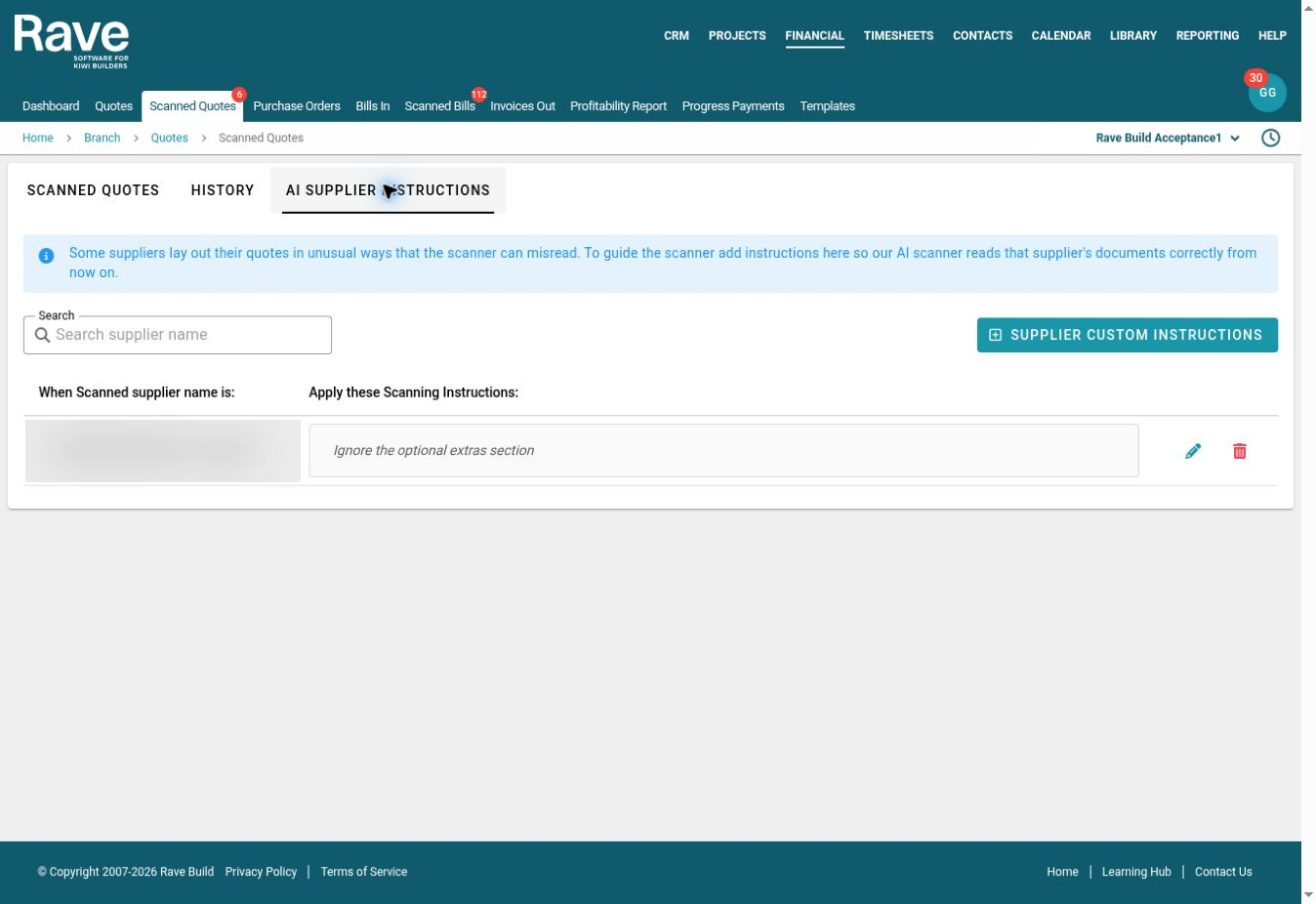
Open the AI Supplier Instructions tab to add guidance for suppliers whose quote layouts need specific scanning instructions.
Click Supplier Custom Instructions to add instructions for a supplier. Use clear wording describing how the scanner should read that supplier’s documents. For example: “Ignore the optional extras section”.
The list shows the scanned supplier name and the instructions to apply. Use Search to find a supplier, the pencil icon to edit an instruction, or the bin icon to delete it.
These instructions guide future scans for that supplier. Keep checking the extracted details before converting a quote.
Document Scanning Pricing
As document scanning is shared between Bill Scanning and Quote scanning you only need to sign up to a single tier and split the usage across both or use the entire usage for Just quotes or just Bill Scanning.
| Plan | Monthly Scans | Monthly Price |
|---|---|---|
| Free | Up to 10 scans | $0 + gst |
| Starter | Up to 70 scans | $25 + GST |
| Starter + | Up to 130 Scans | $46 + GST |
| Bronze | Up to 200 scans | $70 + GST |
| Silver | Up to 500 scans | $175 + GST |
| Gold | Up to 1,000 scans | $200+ GST |
| Gold Plus | Up to 1,500 scans | $300 + GST |
Was this article helpful?
That’s Great!
Thank you for your feedback
Sorry! We couldn't be helpful
Thank you for your feedback
Feedback sent
We appreciate your effort and will try to fix the article