There are several ways to set cost and sell rates for timesheets in Rave.
User Profile Rates
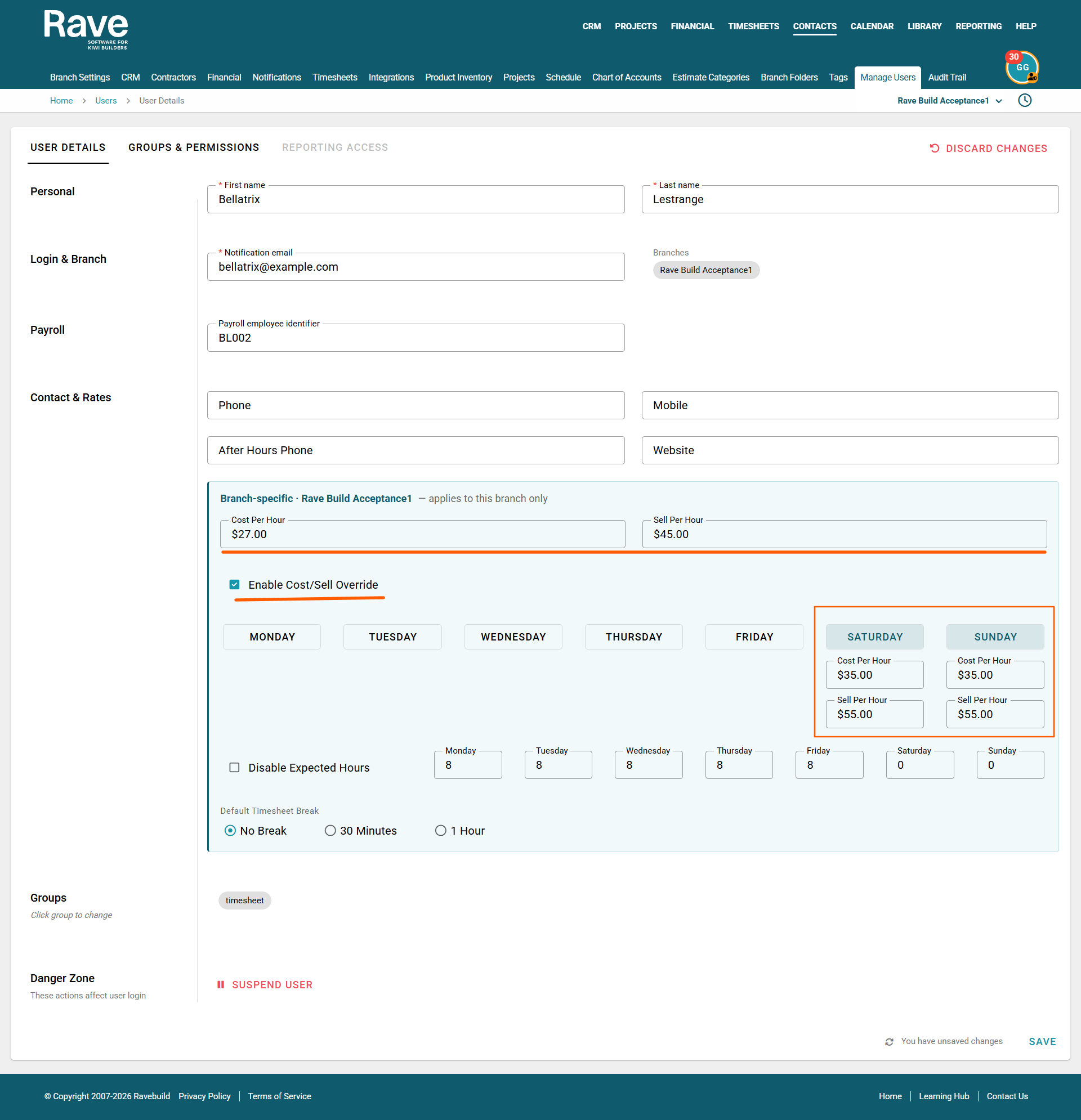
Each user can have their own default Cost Rate and Sell Rate.
To manage these rates:
Profile Dropdown → Manage Users → Select the User → Edit user details
From the user’s profile, enter their standard rates in the Cost Per Hour and Sell Per Hour fields.
You can also tick Enable Cost/Sell Override to set specific sell rates for different days of the week.
For example, you may want to apply a different sell rate for:
- Saturday work/Sunday work
- Non-standard shifts if their work week is split
These override rates allow you to apply different sell rates depending on the day the timesheet entry is recorded.
Project-Specific Rates
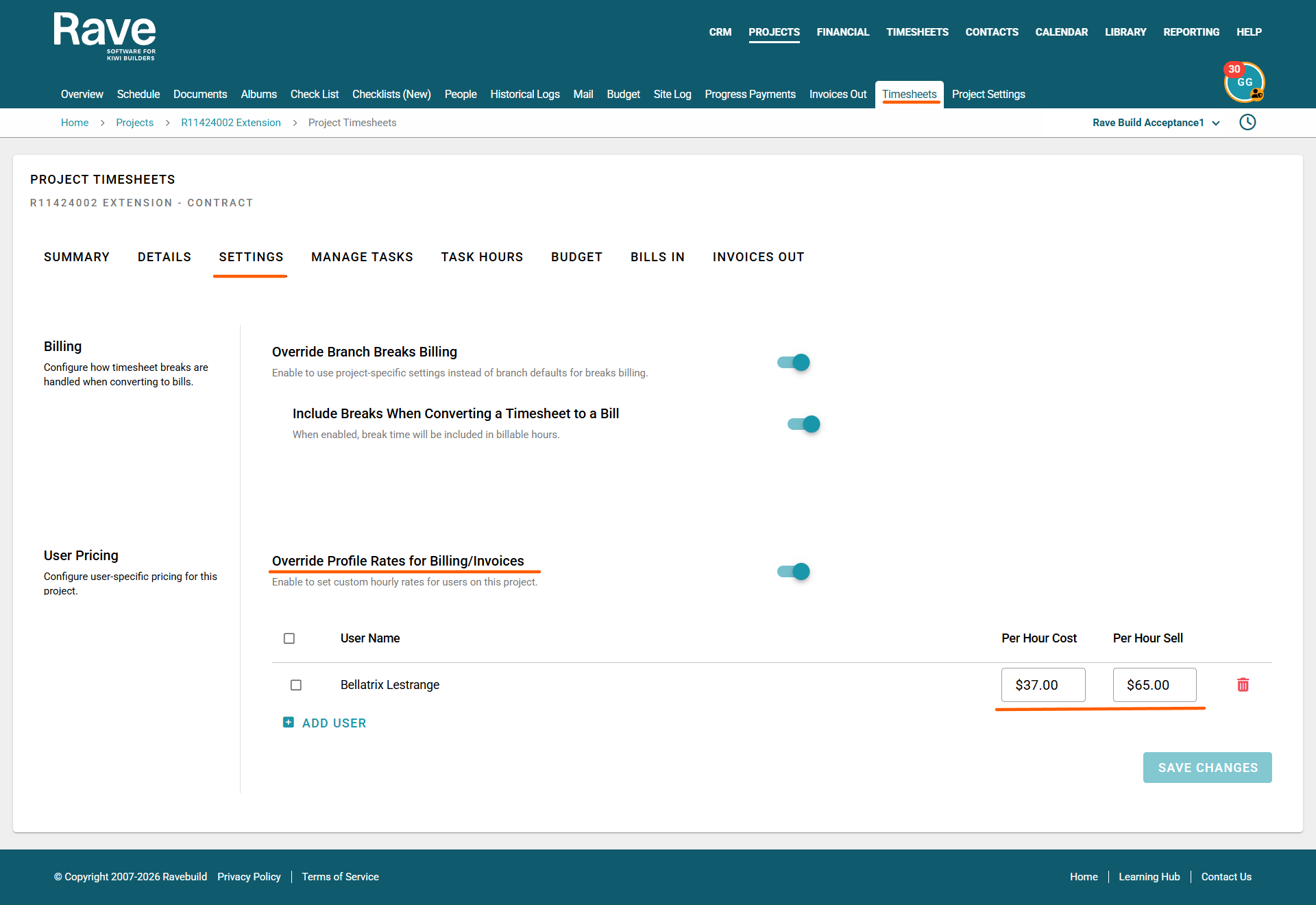
You can also set different Cost Rates and Sell Rates for a user on a specific project.
These can be managed from:
Project → Timesheets → Project Settings
Project-specific rates allow you to override the user’s standard profile rates where a different rate applies for that particular project.
Slide on Override Profile Rates for Billing/Invoices.
Click add user and then enter the cost and sell rate for this job which will override whatever is set on their profile
How Timesheet Rates Are Applied
Once you have set the user’s profile rates and/or any project-specific override rates, Rave will automatically apply the relevant rates when the timesheets are converted.
When selected timesheets are converted into a Bill, Rave will use the applicable Cost Rate to calculate the cost to your business.
When that Bill is then converted into a Client Invoice, Rave will automatically use the applicable Sell Rate.
This means you do not need to manually enter the cost and sell rates each time, provided the appropriate rates have already been set against the user or project.
Was this article helpful?
That’s Great!
Thank you for your feedback
Sorry! We couldn't be helpful
Thank you for your feedback
Feedback sent
We appreciate your effort and will try to fix the article