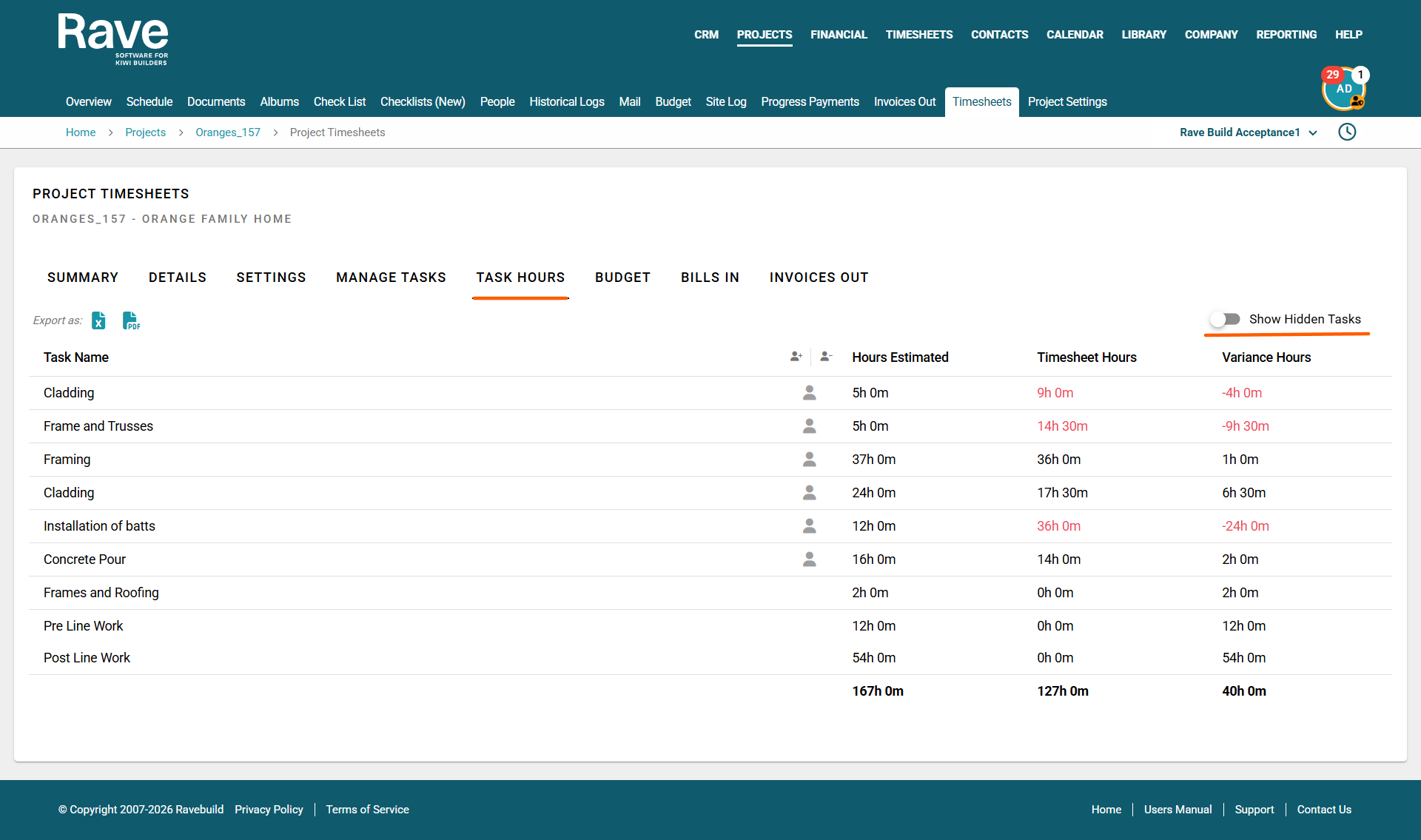
The Task Hours Report is a condensed version of the Budget Report in Rave’s Timesheets Advanced module.
With permission, it gives users specifically Site Managers, Site Staff, and Timesheet users a quick way to compare the estimated labour hours for each task against the actual timesheet hours entered to date.
Rave then calculates the variance, making it easy to identify tasks that are tracking over- or under-budget.
How to access the Task Hours Report
To view the report:
Sign in as a Site Manager, Site Staff member, or Timesheet user
Navigate to the relevant project
Select the Timesheets sub-tab
Open the Task Hours page
Understanding the Task Hours Report
The report displays the following information:
Task Name – The task name as set in the Labour Budget
Total Estimated Hours – The number of hours allowed for the task in the Labour Budget
Timesheet Hours – The total actual timesheet hours entered against the task to date
Variance Hours – The difference between the estimated and actual hours, displayed as a +, -, or = figure
If the actual Timesheet Hours exceed the Estimated Hours, both the Timesheet Hours and the Variance Hours will display in red, making labour overruns easy to identify.
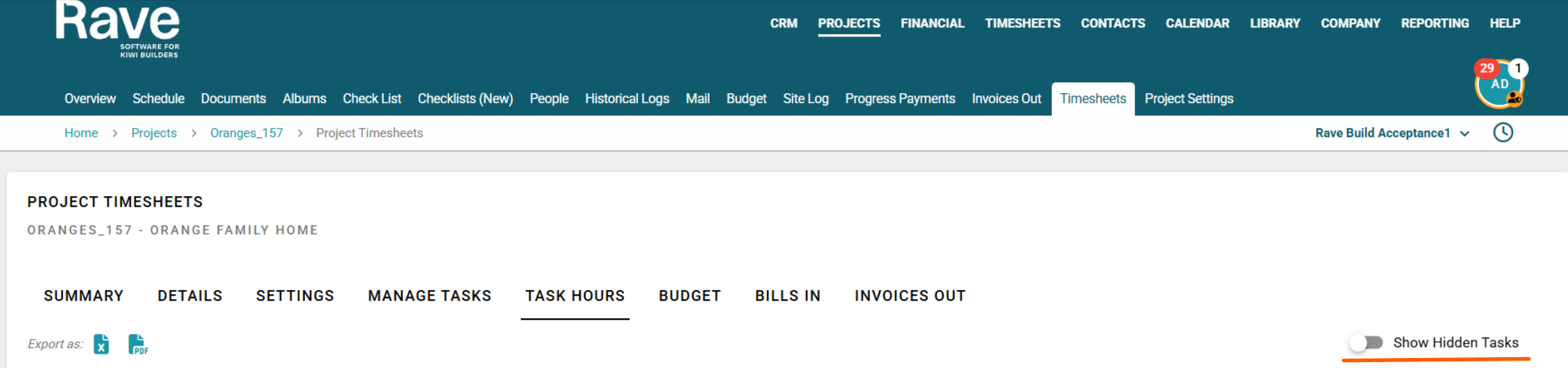
The Show Hidden Tasks Icon allows users to view tasks which have been marked as hidden from being able to sign in against.
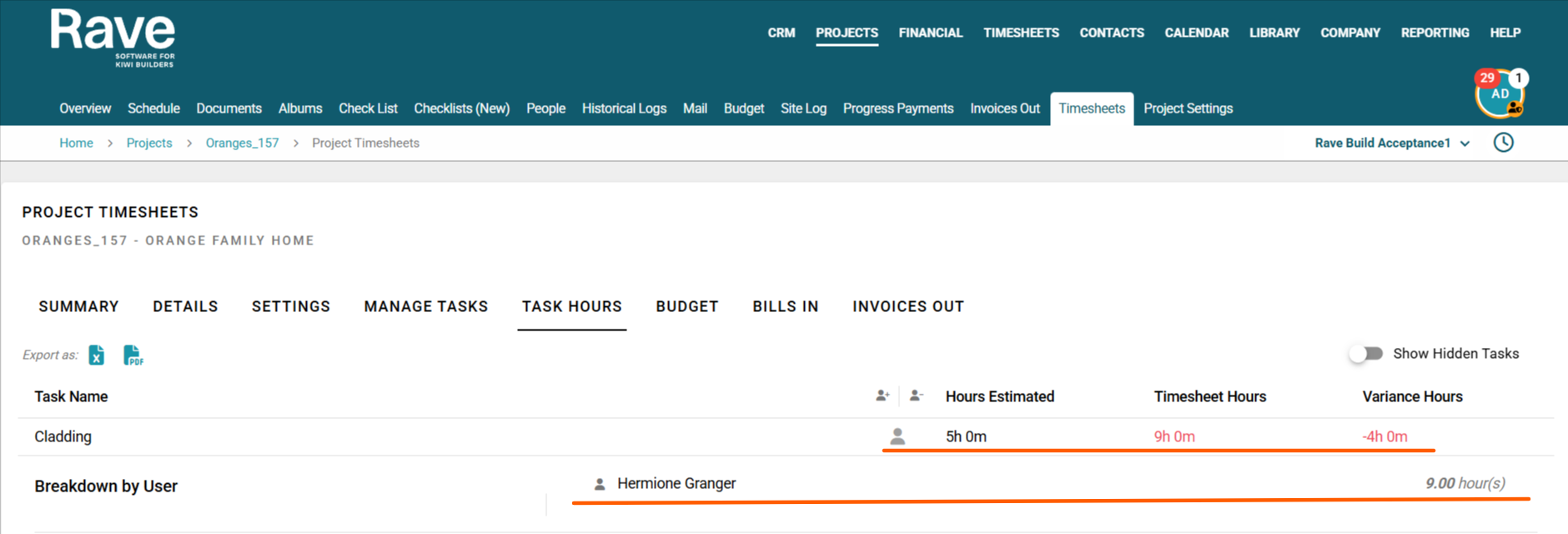
Users can click the person icon or person +/- icons beside a task to expand the report.
This shows:
Which staff members entered time against the task
How many hours each person recorded
How those individual hours make up the total Timesheet Hours
For example, if a task was estimated at 5 hours but the team recorded 9 hours, the report will show that the task is 4 hours over the estimate.
By expanding the person icon, you can see exactly which team members contributed to those 36 hours and how many hours each person entered. This makes it much easier to understand where a labour-budget overrun has occurred.
Exporting the Task Hours Report
The Task Hours page can also be exported using the icons located at the top of the page, underneath the TASK HOURS button.
You can export the report as:
PDF – Includes the expanded staff information, showing the users and their individual hours
CSV – Includes the task information displayed on the main report only and does not include the expanded user information
Want to learn more about Timesheets Advanced?
To return to the overview of all Rave Timesheets Advanced features, click here.
Ready to use Rave’s Advanced Timesheets?
If you would like to add the Advanced Timesheets module to your Rave setup, please contact us at help@ravebuild.co.nz.
Was this article helpful?
That’s Great!
Thank you for your feedback
Sorry! We couldn't be helpful
Thank you for your feedback
Feedback sent
We appreciate your effort and will try to fix the article