Rave's Advanced Timesheets provides a significant number of enhancements to Rave's standard timesheet workflows, including additional User Profile settings, cost and sell rates, payroll options and permissions.
Note: Permissions can only be enabled by someone with Manage Users access.
If you cannot see the Manage Users option, you will need to request assistance from your Branch Owner or submit a Rave Help support ticket.
How to Manage or Update a Rave User Profile
To update a Rave user's profile, you must have the Manage Users permission enabled.
Click the profile circle in the top-right corner of your Rave screen to open your profile menu.
Select Branch Settings → Manage Users.
From the Users screen, click on the relevant user's profile.
From the User Details screen, click the Edit pencil icon in the top-right corner.
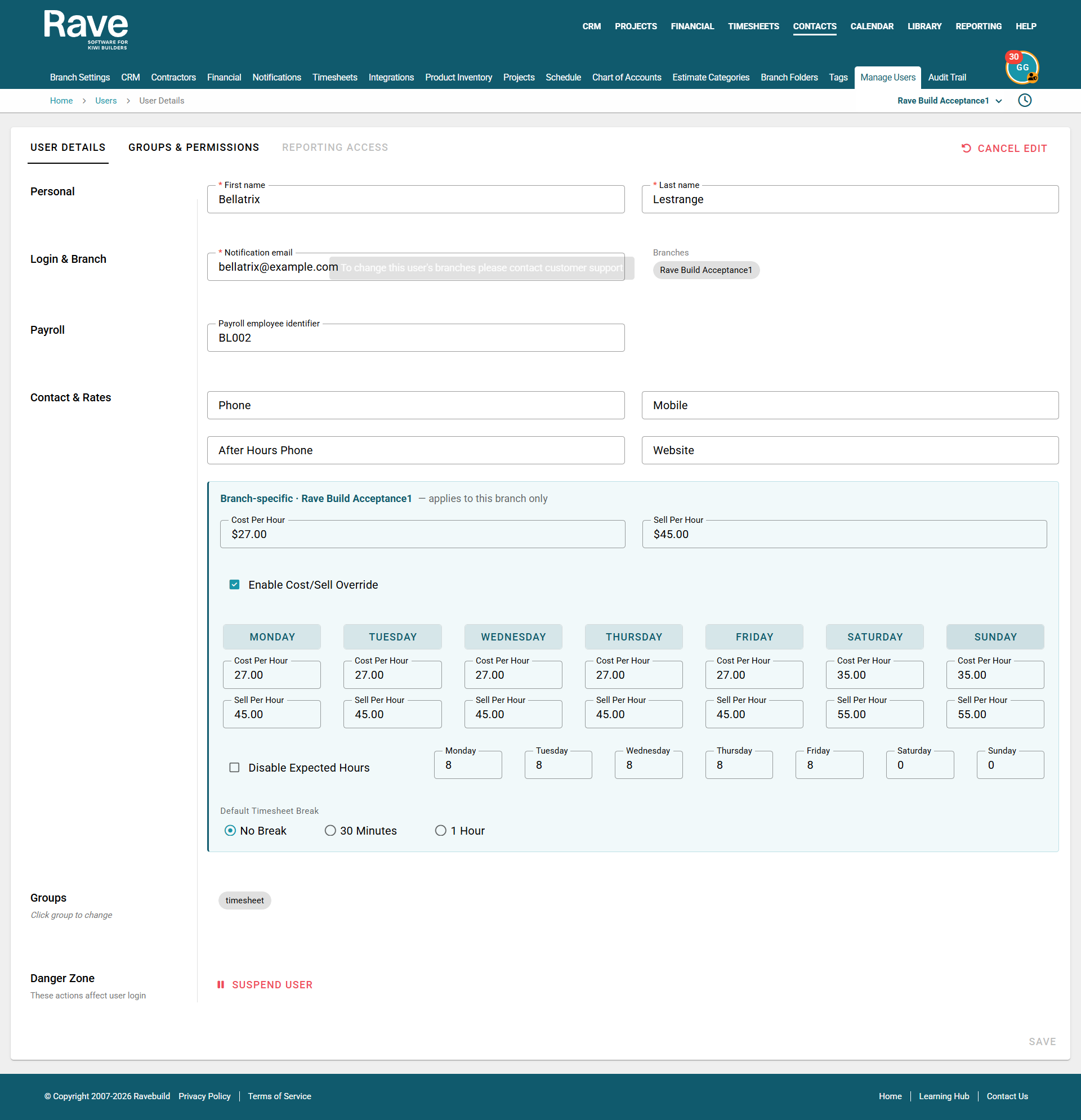
Enter the user's Payroll Employee Identifier Number/Reference, if required.
Enter their standard Cost Per Hour and Sell Per Hour rates.
Set the expected hours and days of the week you expect the user to clock in and out.
Select their default break type.
Update any other required profile information, such as their phone number.
Each user can have their own default Cost Rate and Sell Rate.
These are entered in the Cost Per Hour and Sell Per Hour fields within the user's profile.
You can also enable Cost/Sell Override to apply different rates on specific days of the week.
For example, you may want to use a different rate for:
Saturday work
Sunday work
Overtime
Non-standard shifts
You can also set project-specific Cost and Sell Rates from the project's Timesheets → Project Settings tab. The article for this feature is here.
How These Rates Are Used
Once profile rates and/or project-specific override rates have been set, Rave will automatically apply the appropriate rates when timesheets are converted.
When selected timesheets are converted into a Bill, Rave uses the applicable Cost Rate to calculate the cost to your business.
When that Bill is then converted into a Client Invoice, Rave automatically uses the applicable Sell Rate.
This means the rates do not need to be manually entered each time, provided they have already been configured against the user or project.
How to Manage Advanced Timesheets Permissions
To update a user's Advanced Timesheets permissions:
Open the user's profile from Manage Users.
Click the Edit icon in the top-right corner.
Select the Groups & Permissions tab.
Scroll down to the Timesheets section.
In addition to making Timesheets available to the user using the Enable Timesheets checkbox, there are five additional permissions available:
Branch Timesheets
Allows the user to view the Branch Timesheets sub-tab. (Site Manager and up only)
If the relevant Edit permissions are also enabled, this can allow the user to edit other people's timesheet entries.
Task Hours Report*
Allows the user to view the project's Task Hours Report.
Timesheet to Tasks*
Allows the user to create and edit Timesheet Tasks / Labour Budget Tags.
Timesheet Budget*
Allows the user to view the Labour Budget Reports.
Timesheet Approval*
Allows the user to approve and unapprove timesheet entries.
*These permissions are available with Advanced Timesheets only and a re user group permissions so not all users can see these.

Advanced Timesheets Overview
To return to the overview of all Advanced Timesheets features, click here.
Ready to Use Advanced Timesheets?
If you would like to add the Advanced Timesheets module to your Rave setup, contact the Rave team at help@ravebuild.co.nz.
Was this article helpful?
That’s Great!
Thank you for your feedback
Sorry! We couldn't be helpful
Thank you for your feedback
Feedback sent
We appreciate your effort and will try to fix the article