Accessing Documents
Open the relevant Project.
Select the Documents tab.
Click either Project Files, Contractor Documents or Task Files.
You will only be able to see document folders and documents that have been made available to you.
Searching for Documents in folders
Use the Search field to quickly find a folder or filename.
You can also use Search Documents at the top of the page to locate documents available to you within the project.
Exporting Documents
Where available, select Export to .ZIP to download your accessible documents together as a ZIP file.
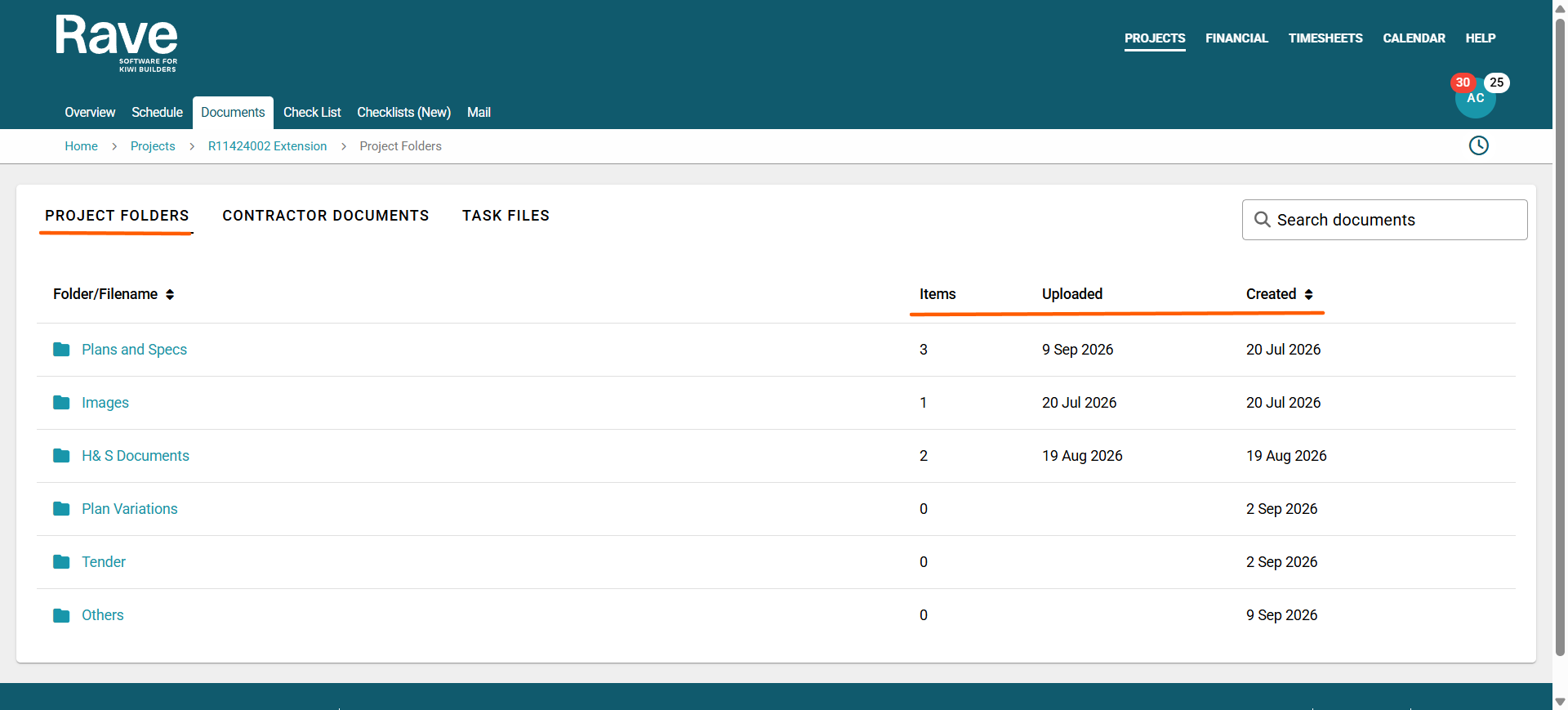
Project Folders
This is where your building partner stores important project information.
Depending on their setup, they may name the folders differently and set different permissions.
The number of items inside the folder is on the right-hand side, letting you know which folders to view/open. We also show the last upload date so you can see when a new document was added, as well as when the folder was created.
If you receive a quote request to price via Rave, the First folder contains the plans and information for pricing.
Contractor Documents
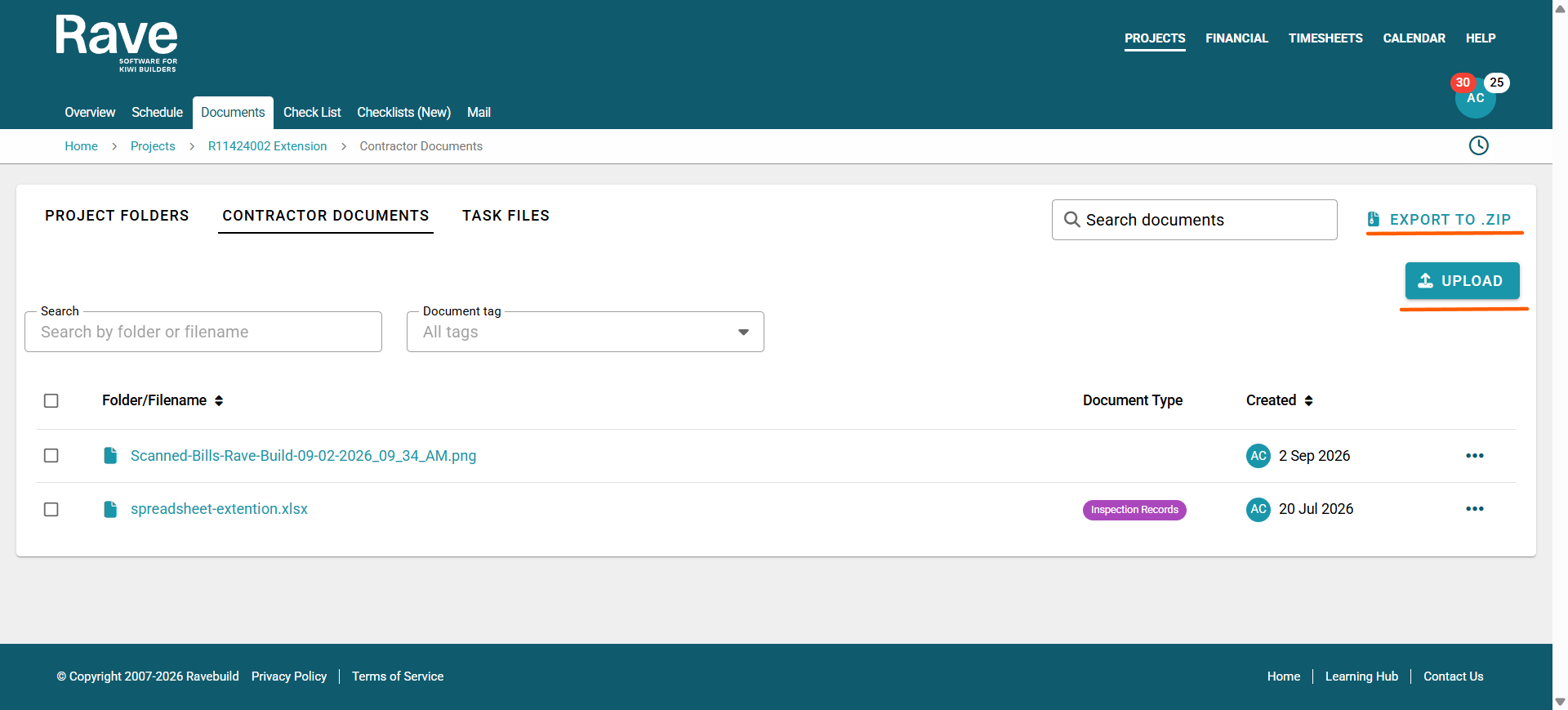
Open your Contractor Documents folder.
Click Upload.
Select the file or files you would like to add via the upload files button or drag and drop them to upload
Choose to add a document tag and also, if you wish, notify the Building Partner that you have loaded new file(s).
Complete the upload.
This is useful for adding documents such as certificates, plans, reports, warranties, photos or other project information requested by your building partner.
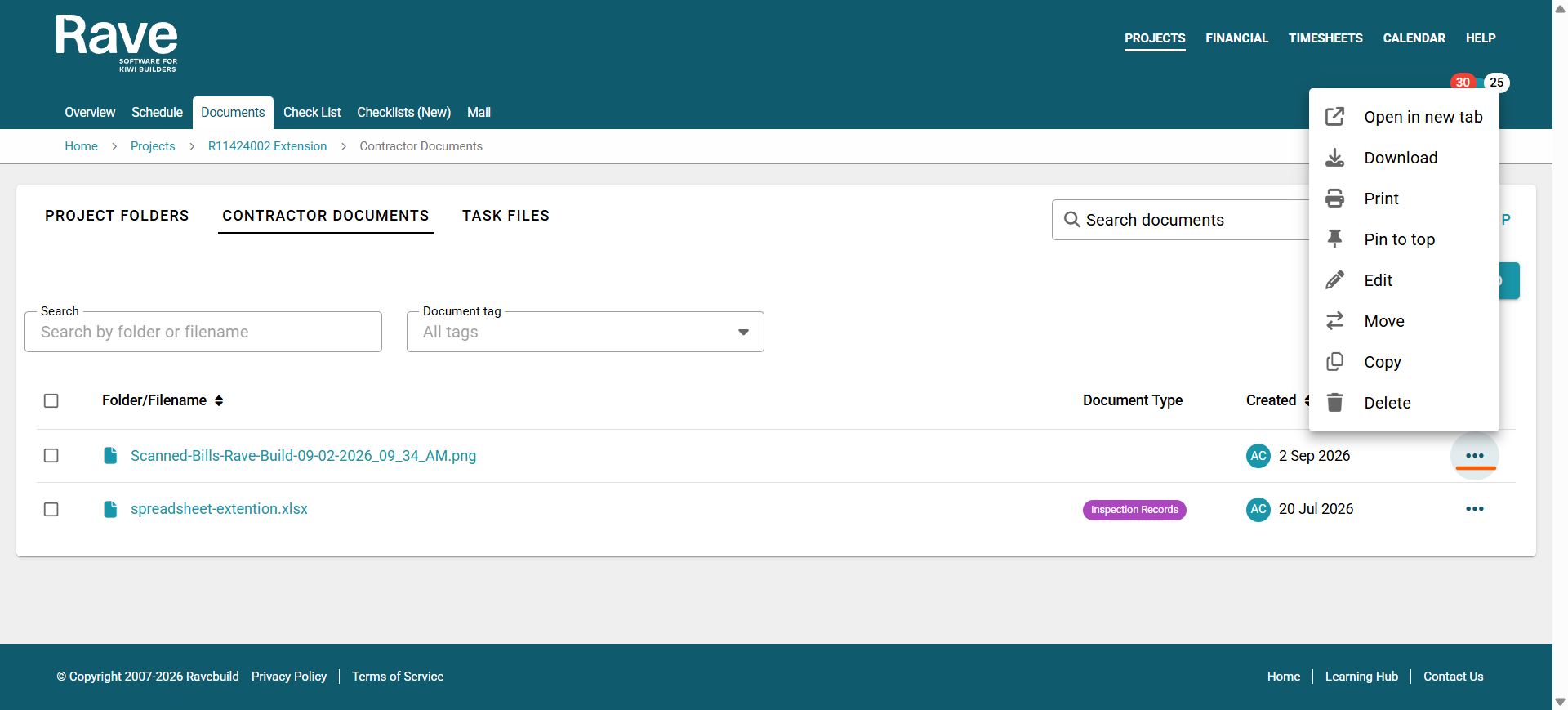
Clicking on the 3 dots to the right of a document, you can, with permission
- Open in a new tab
- download
- print
- Pin to the top of the folder
- Edit the name
- Move to a different folder
- copy
- Delete
Document Access
Contractor Documents are private to the relevant contractor and the builder's authorised Rave users. You cannot view documents stored in another contractor's folder.
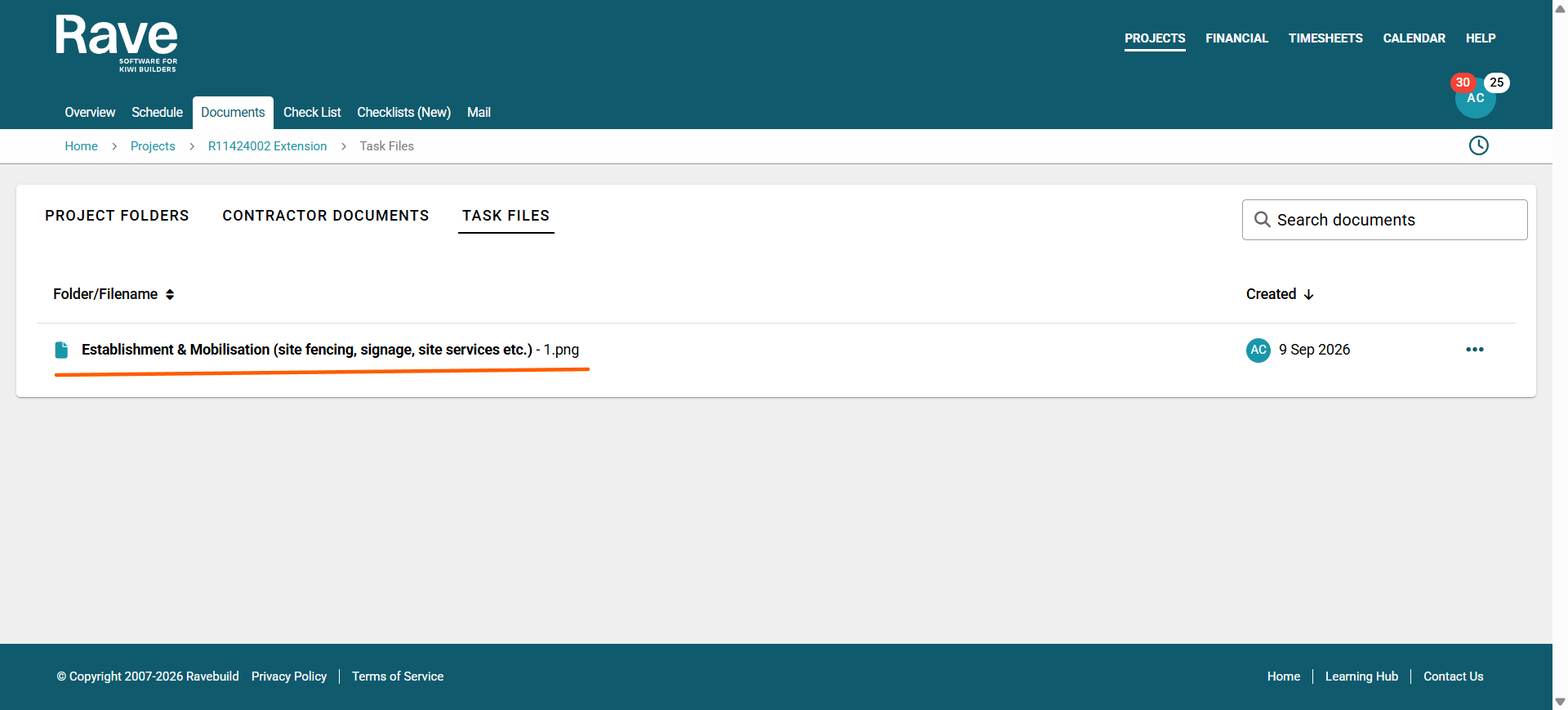
Task Files
These are photos or files you have loaded, or your building partner has loaded against your schedule tasks in this project. You can click on the 3 dots to download the file to your device.
Was this article helpful?
That’s Great!
Thank you for your feedback
Sorry! We couldn't be helpful
Thank you for your feedback
Feedback sent
We appreciate your effort and will try to fix the article