If you are looking for the help article on Branch Folders and Trash, click here to read it.
If you are looking for the help article on Branch Folders, Tags, & Notifications, click here to read it.
If you are looking for the help article on Project Documents, click here to read it.
If you are looking for the help article on Document Permissions, click here to read it.
If you are looking for the help article on Document Notifications, click here to read it.
If you are looking for the Contractor help article, click here to read it.
Along the top navigation bar, you will see Library. This is where you can create folders and store documents that are not specific to a particular enquiry or project.
Similar to a traditional document library, you can:
- View stored documents
- Upload and add new documents
- Remove documents when they are no longer needed
- Create links between the library documents and specific projects
- Copy documents from the Library directly into a project
The Library provides a central location for managing company-wide resources, templates, policies, and other documents used across multiple projects.
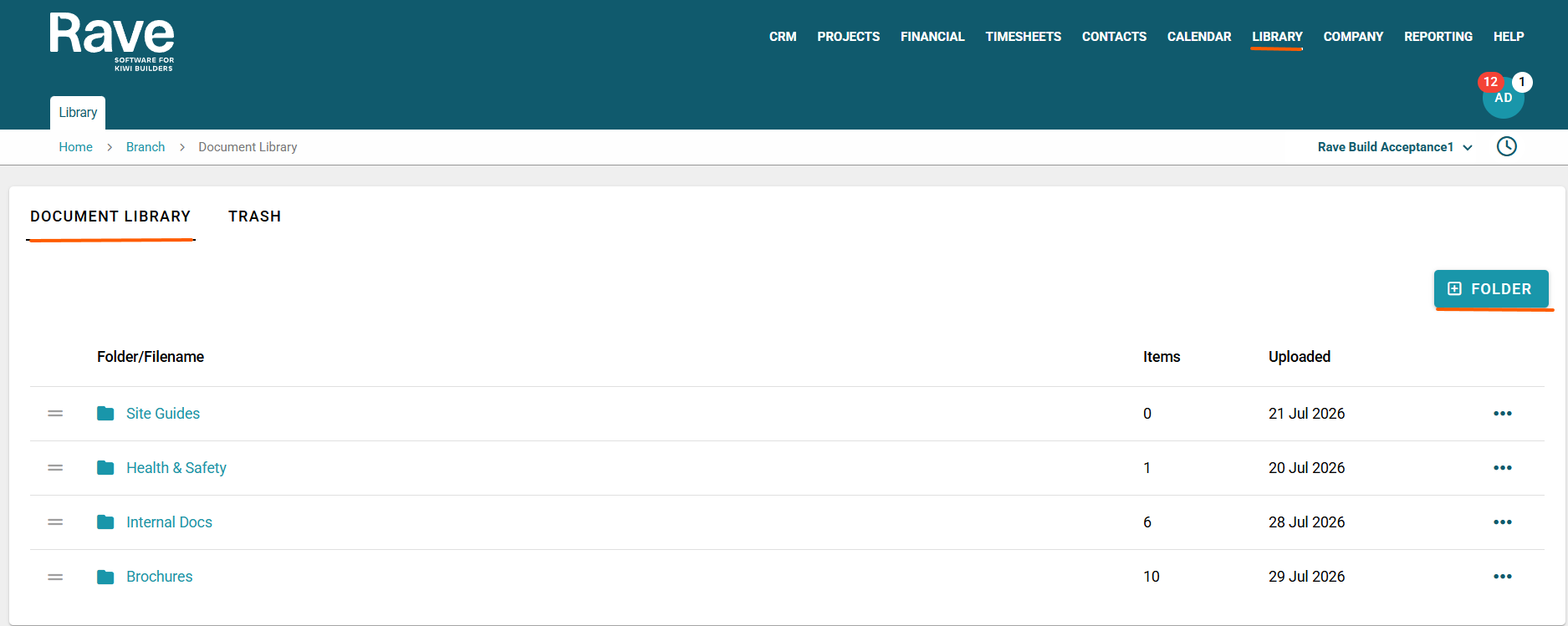
From the main Library screen, you will see all folders that have been created within the Library.
For each folder, you can:
Reorder folders list - Using the = icon, you can drag to reorder folders
View the Folder or File Name
Item Count – Displays the number of documents stored within the folder.
Last Upload Date – Shows when the folder was created.
Options Menu (Three-Dot Ellipsis) – Provides additional folder management options.
Add a new Folder - Click the + Folder button to add a new folder
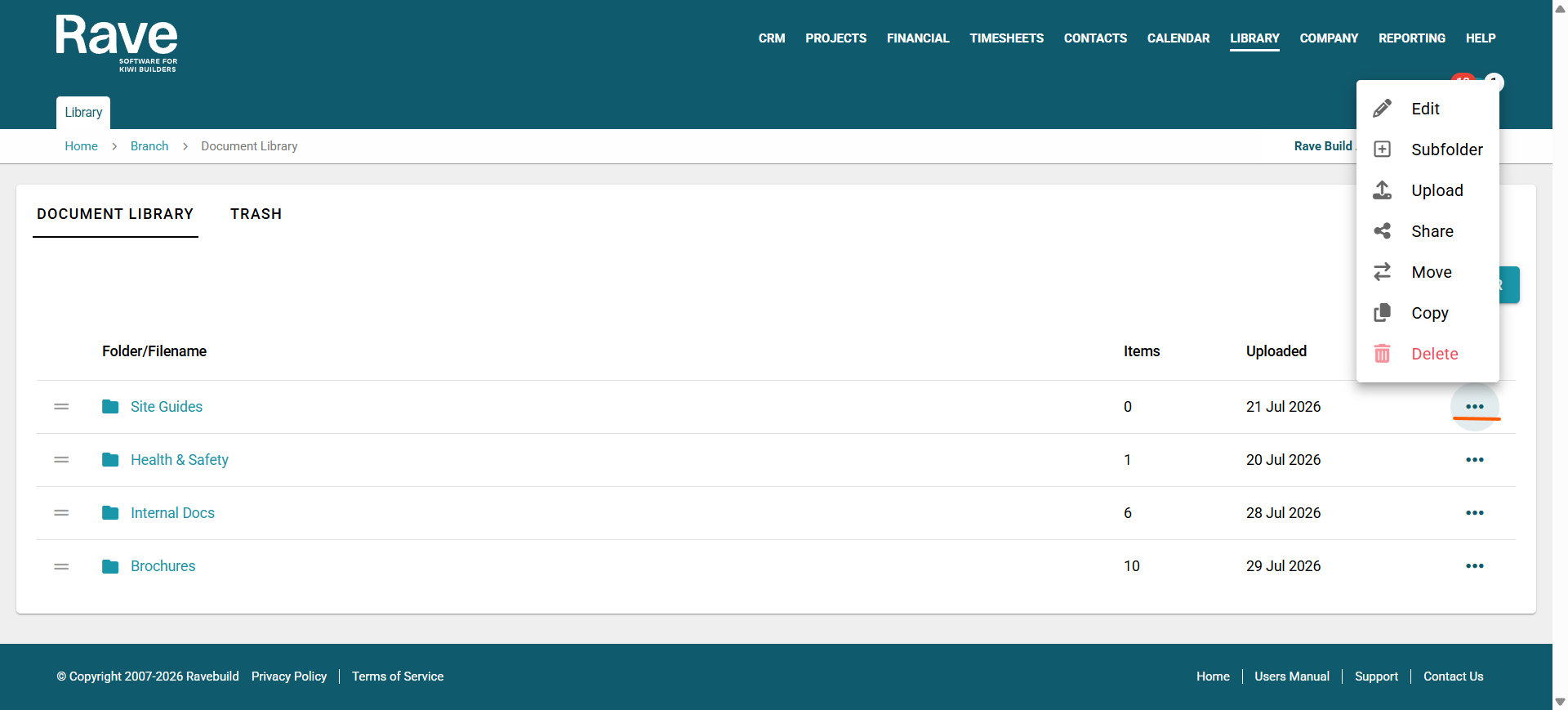
Clicking the three-dot ellipsis beside a folder will display the following actions:
Edit – Change the folder name.
Create Subfolder – Create a new folder within the selected folder.
Upload – Add new documents to the folder.
Share – Share the folder with one or more projects.
Move - Move the folder to another folder or subfolder
Copy - Copy the entire folder
Delete – Remove the folder and its contents.
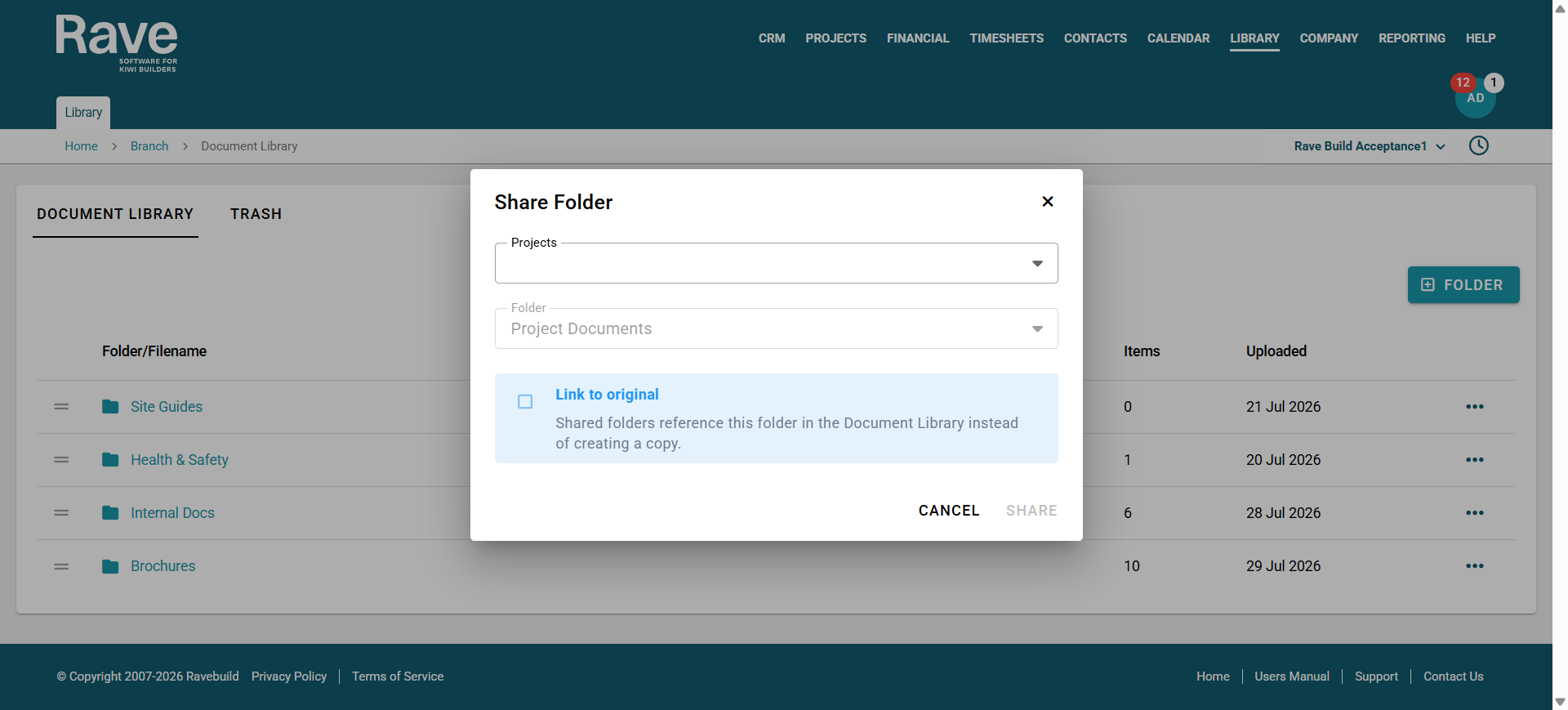
Sharing a Folder
When you select Share, a window will appear prompting you to choose the project or projects you would like to share the folder with. Note: You cannot share to a closed Project.
You will also have the option to select Keep File Linked to Source.
Keep File Linked to Original Source (Ticked) – The shared folder remains linked to the original Library folder. Any changes made to the source folder will automatically stay in sync with the shared project folder.
Keep File Linked to Original Source (Unticked) – A copy of the folder is created within the selected project(s). The copied folder becomes independent of the original, allowing project-specific changes and edits without affecting the source folder in the Library.
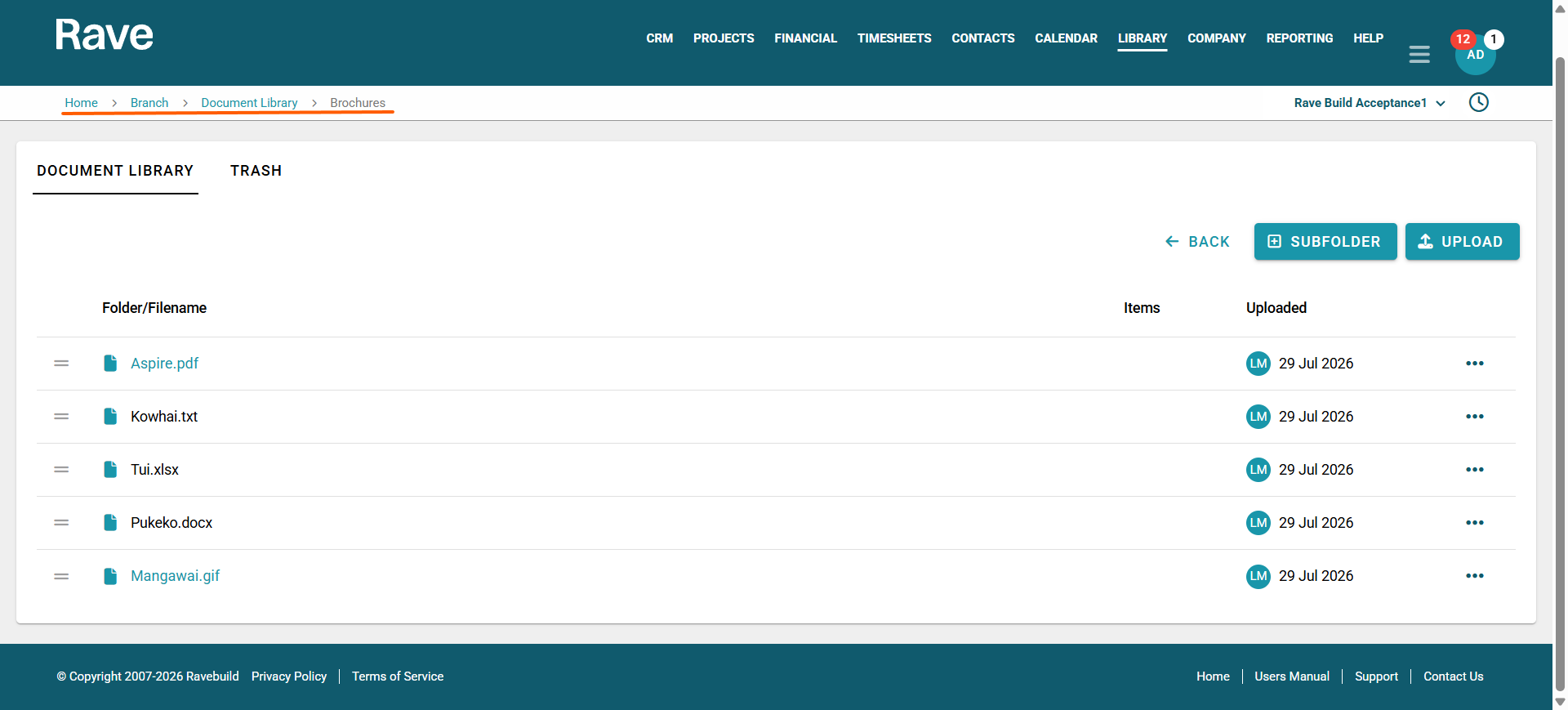
Managing Documents Within a Folder
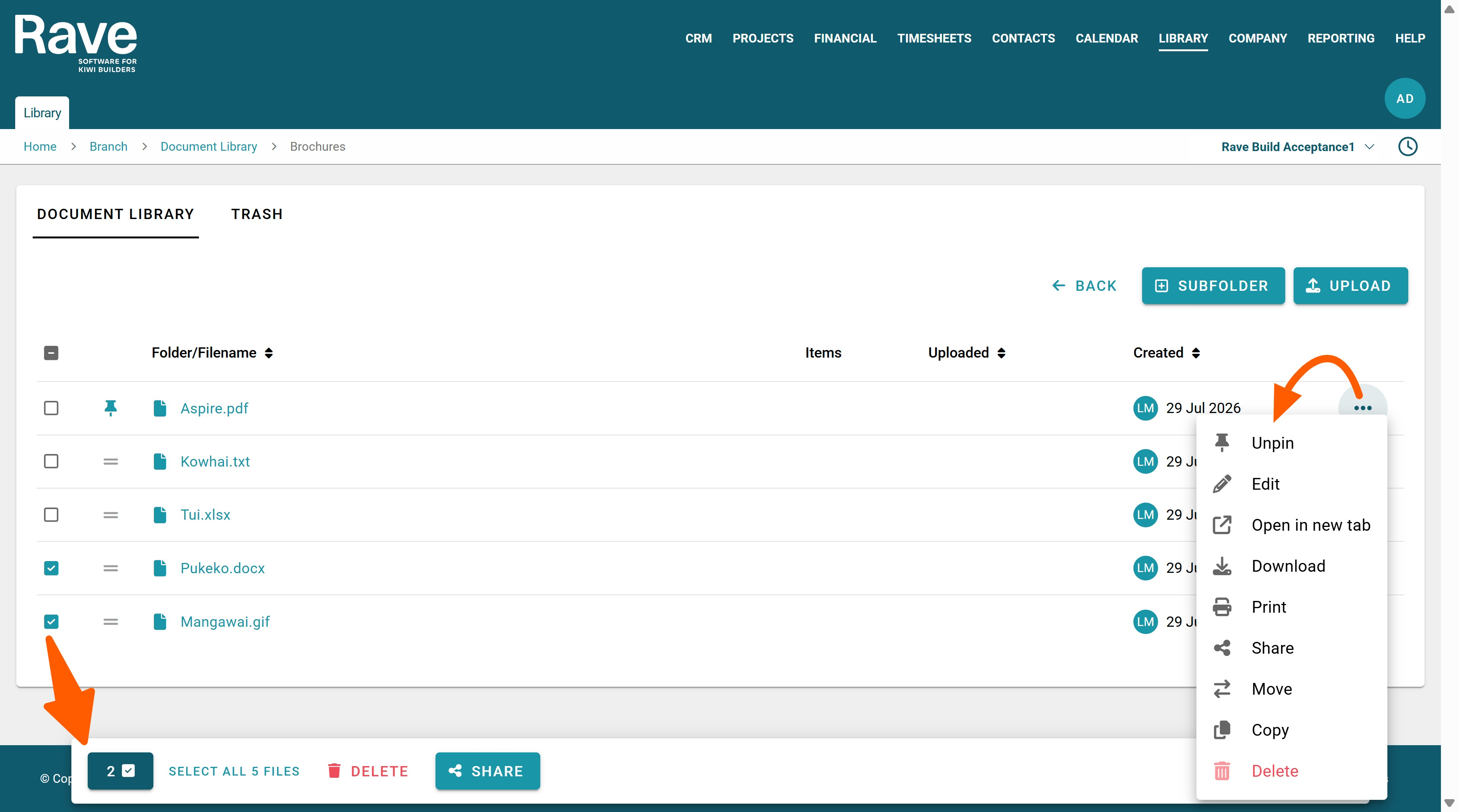
When you click into a folder, you will see a list of all documents stored within that folder.
For each document, you can:
- Reorder folders list - Using the = icon, you can drag to reorder folders
- Document Name under the Folder/Filename header
- The number of items inside the subfolder if there is a subfolder
- Upload Date
- Uploaded By – Displays the user who uploaded the document
- Create a Subfolder - Click +Subfolder to add a subfolder
Each document also has a three-dot ellipsis menu that provides additional options.
Clicking the three-dot ellipsis beside a document allows you to:
- Pin/Unpin – Pin the document to the top of the folder for quick and easy access.
- Edit – Change the document name.
- Open the document in a new browser tab.
- Download – Download the document to your device.
- Share – Share the document with one or more projects.
- Move - Move the document to another folder or subfolder
- Copy - Copy the document (creating a duplicate)
- Delete – Remove the document from the folder.
Pinned documents will remain at the top of the folder, making frequently used files easier to find without searching the entire document list.
Checking a file or files, allows you to select these to perform a multiple delete, or a multiple share to one or more projects.
Was this article helpful?
That’s Great!
Thank you for your feedback
Sorry! We couldn't be helpful
Thank you for your feedback
Feedback sent
We appreciate your effort and will try to fix the article