After you send a Quote Request to a contractor, you can approve or decline the quotes they submit, choose whether to notify them, and share quotes created on a contractor’s behalf. These options are available whether or not the quote is linked to a Quote Request (QR).
A handy User Notification to have turned on is under Profile Notification Preferences - Contractors - Contractor Quote Submitted (all). This will email you externally when contractors submit a quote to Rave. You can turn this on only for certain projects or all projects.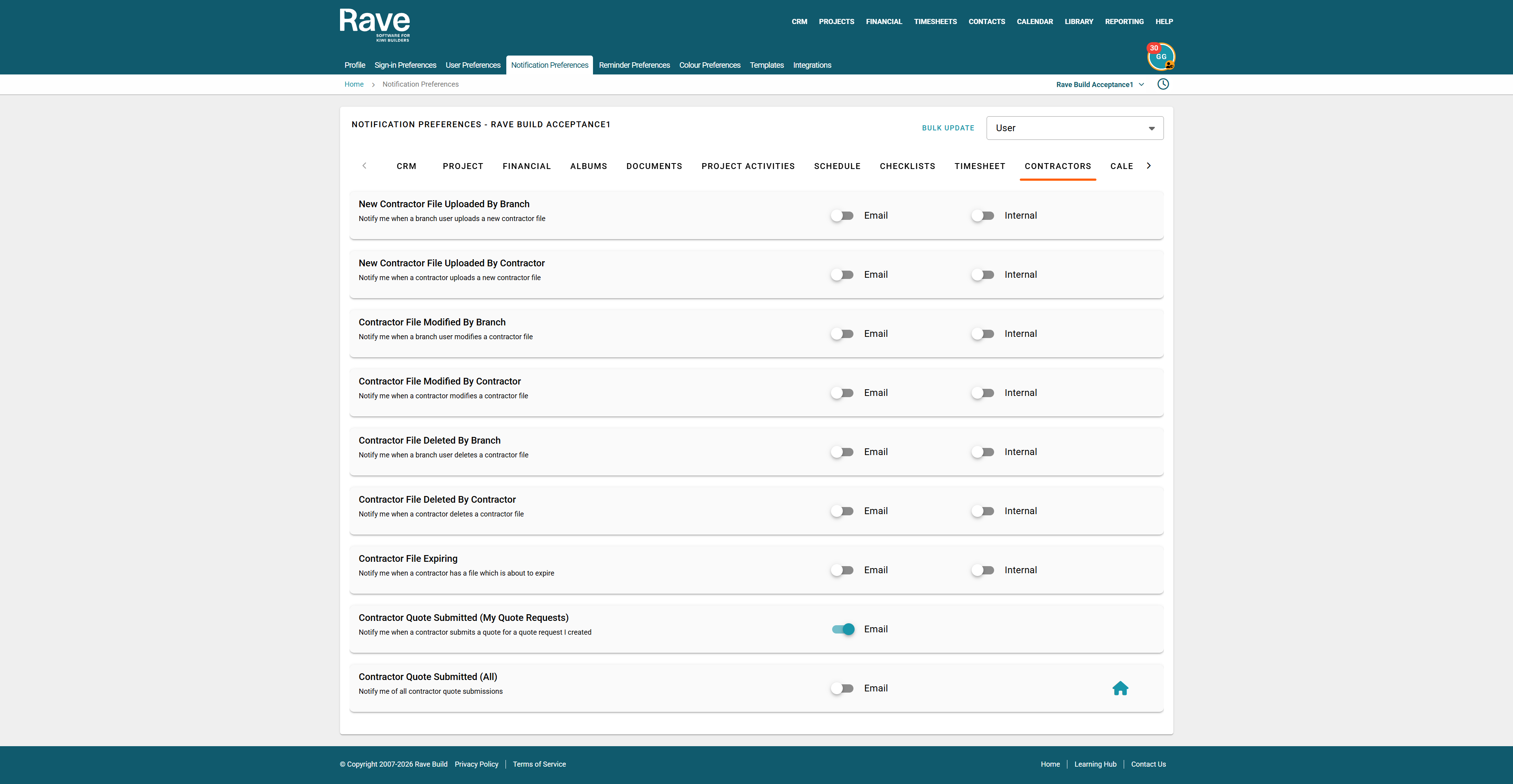
To manage a quote, open the relevant project, select Quotes, then open the quote you wish to review.
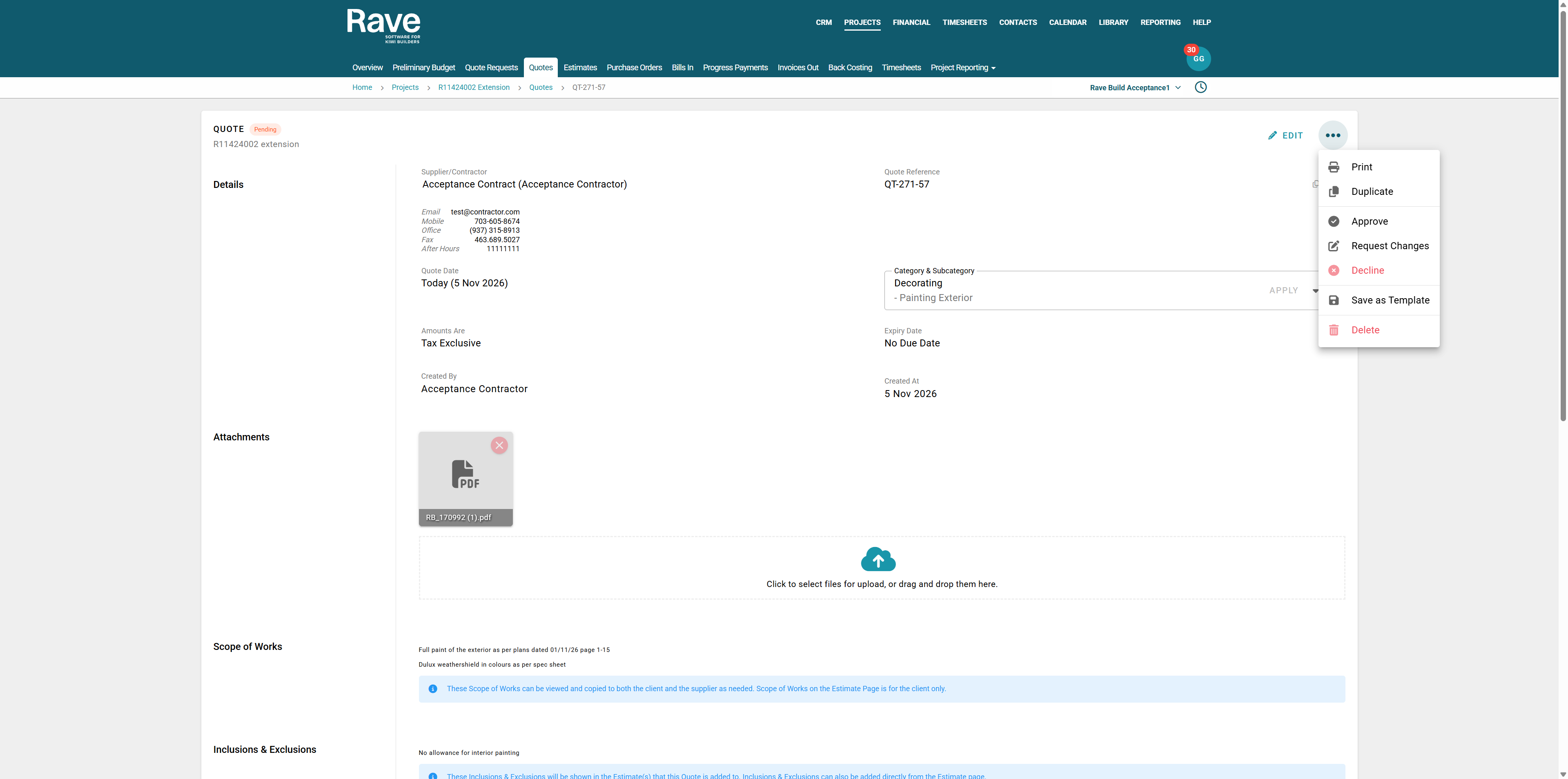
Approving a Quote
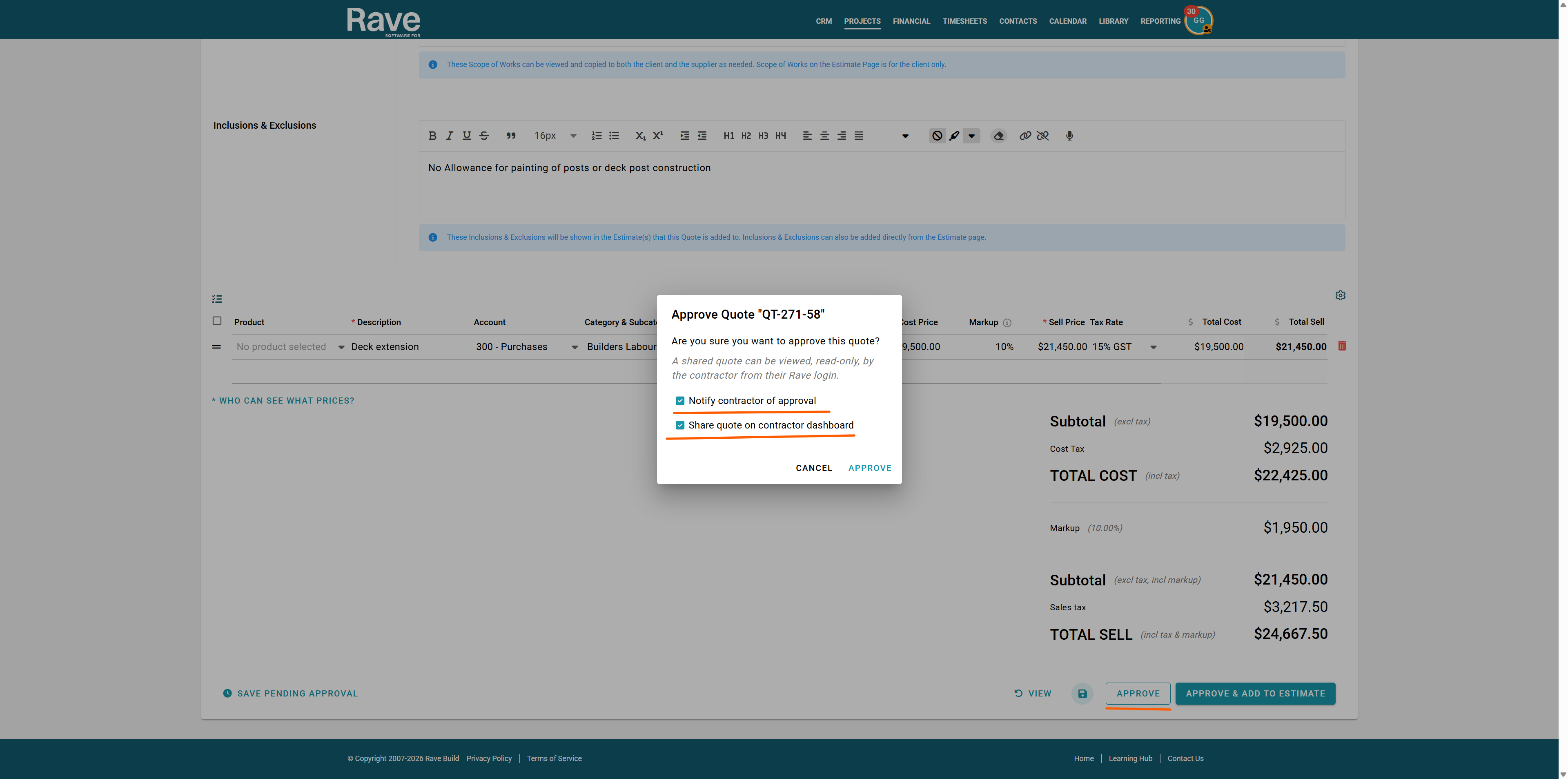
When approving a quote, choose whether to notify the contractor or supplier of the approval, then confirm your selection.
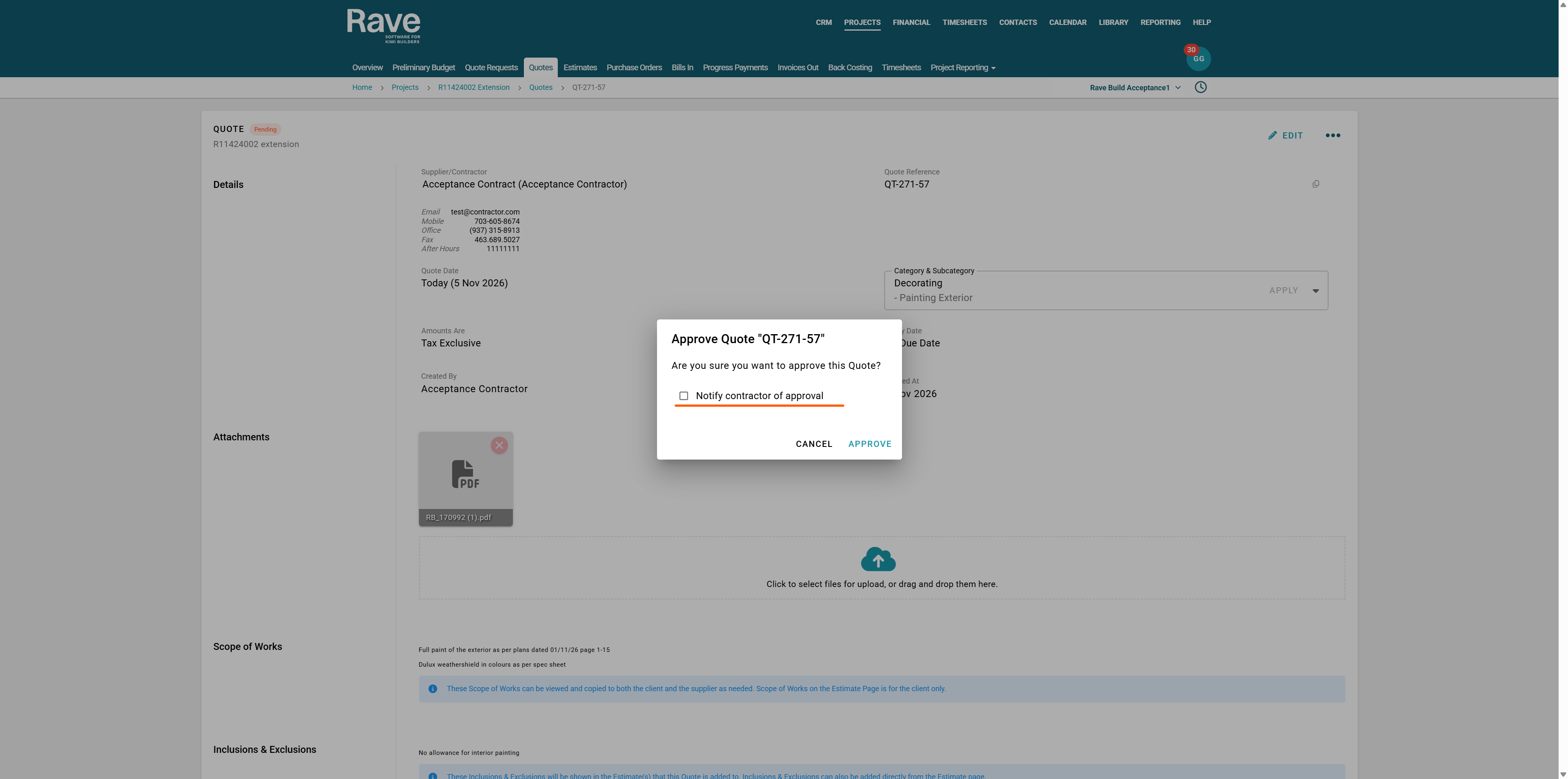
Requesting Changes to a Contractor’s Quote
Once a contractor submits a quote for approval, they can no longer edit it while it is being reviewed.
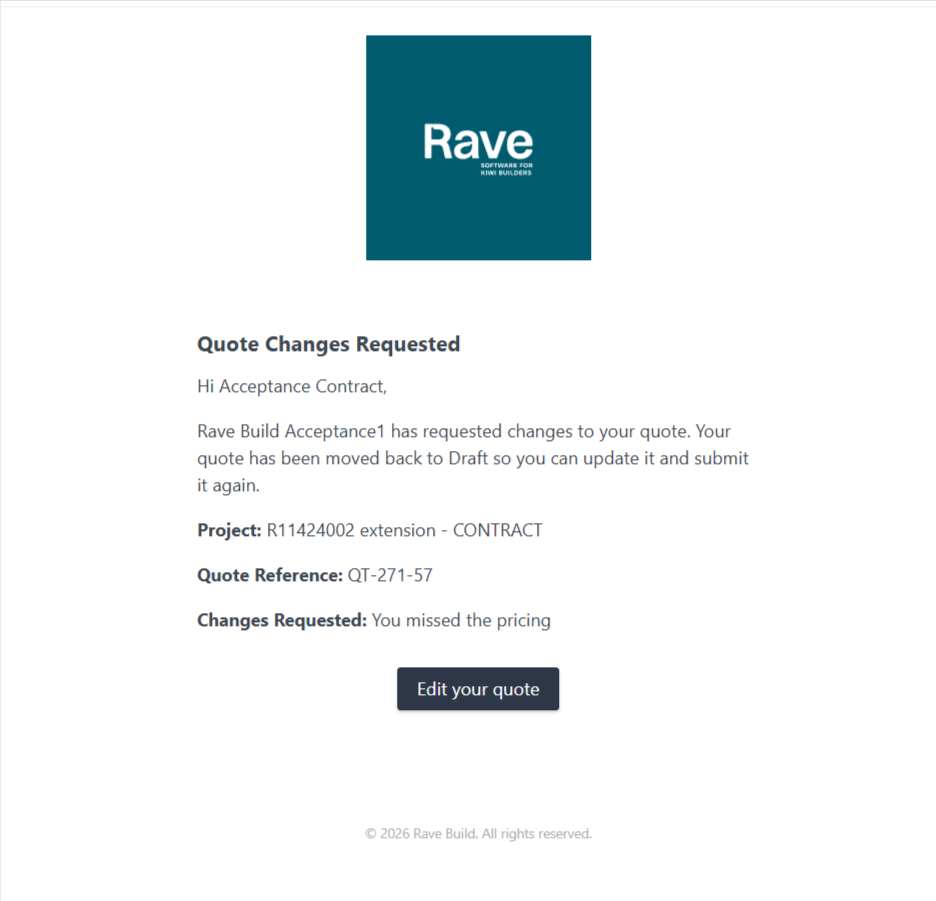
If the quote needs updating, select the 3-dot ellipsis, click Request Changes, enter a message explaining what needs to change, then confirm the request. The contractor receives a notification with your message, and the quote returns to Draft so they can edit it and resubmit it for approval.
Declining a Quote
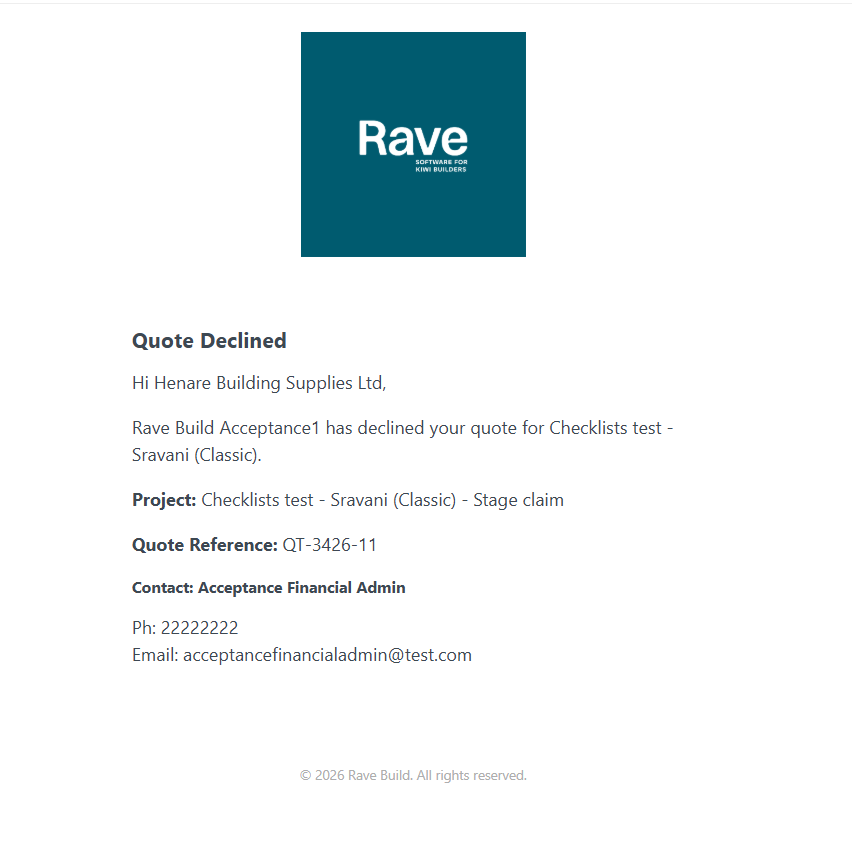
To decline a quote, select Decline Quote from the 3-dot ellipsis. You can enter an optional message explaining your decision and choose whether to notify the contractor before confirming.
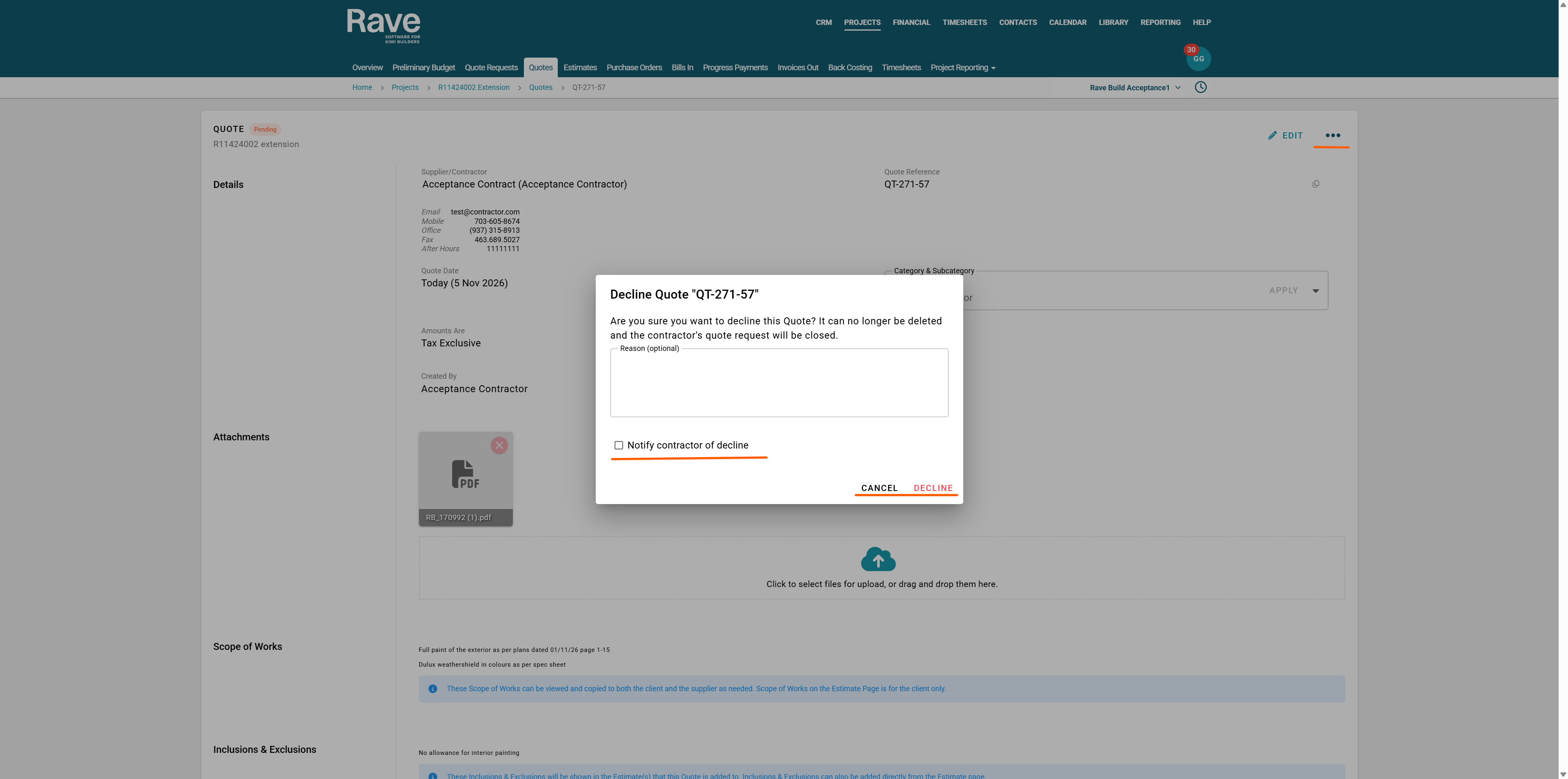 You can decline a quote submitted by a contractor or one your branch created.
- Declined quotes are hidden by default in the branch’s project Quotes listing. Use the status filter to include them.
- Contractors see declined quotes by default and can filter them out.
- If the quote has a linked Quote Request, declining it closes that request for the contractor. They need a new Quote Request to submit a new quote.
Note: Declined quotes cannot be deleted. You can't decline a quote once it's been added to the estimate, regardless of its current status. You must remove the quote from the estimate and mark the quote as pending using the Revert to Pending Approval option.
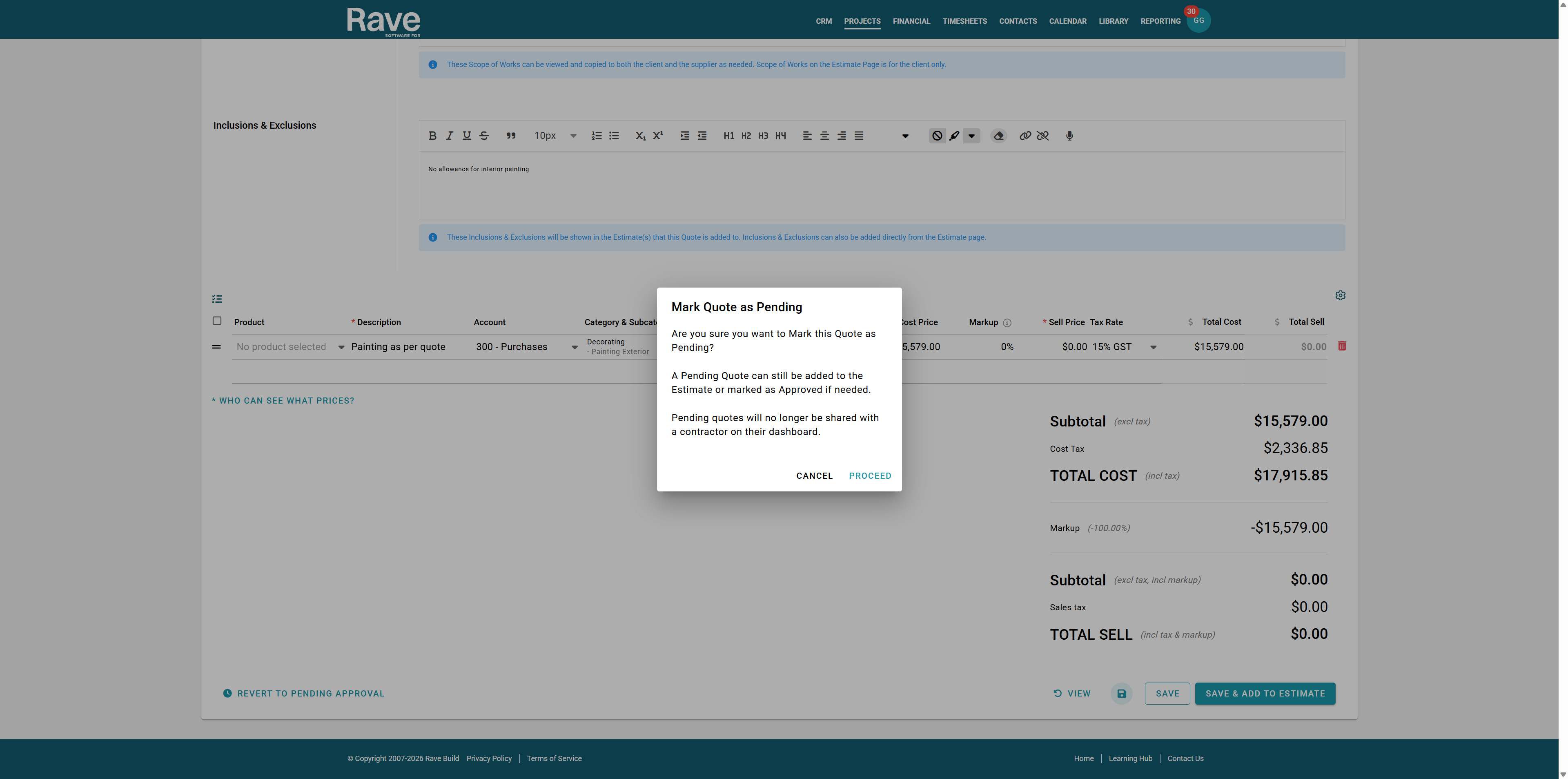
If you want the contractor to update and resubmit the existing quote, use Request Changes.
Setting Your Branch and Project Defaults
From your Branch Settings - Financial tab you can choose default notification options for Quote approval and decline as well as sharing information with Contractors. Use these options to set branch defaults, or project financial preferences to set defaults for an individual project.
These options are off by default. Check the selected options when approving or declining each quote.
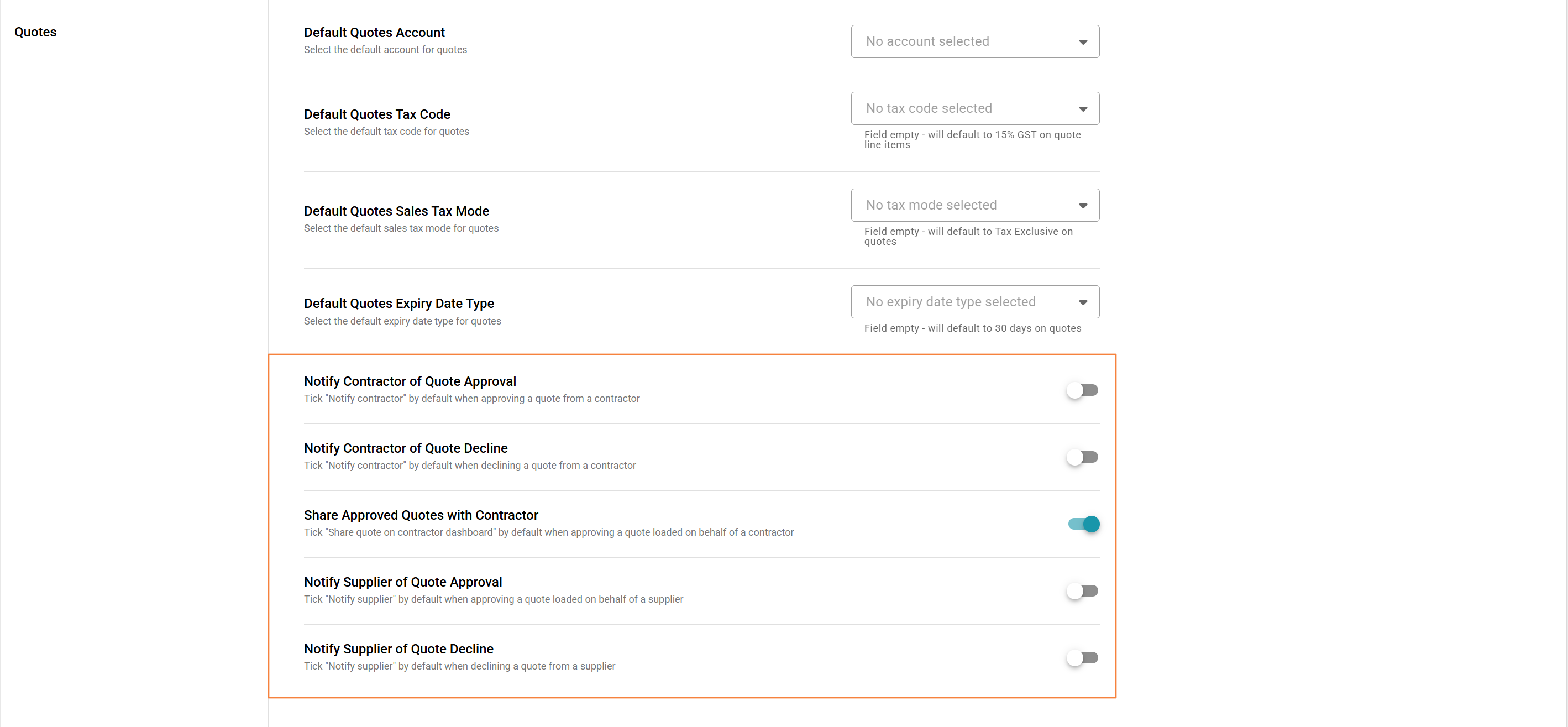 Suppliers - Since suppliers can't load a quote into Rave, you can only notify them that quotes you create on their behalf have been approved or declined.
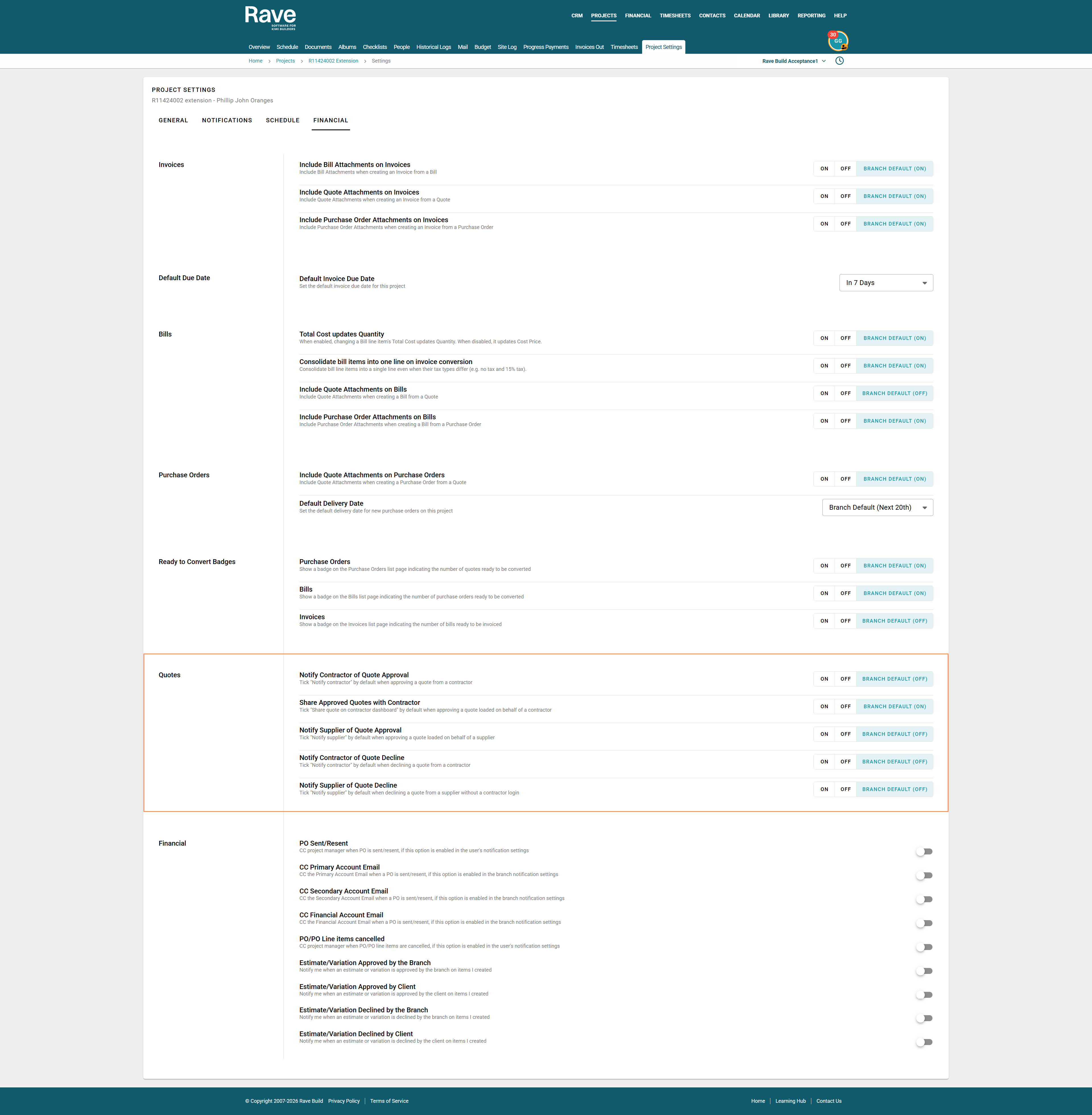
Project-level overrides can be found by selecting the project, then clicking Project settings, then Finanical and scrolling down to Quotes.
Audit History
Quote approval, decline and change request actions are recorded in the project financial audit and branch audit logs.
Branch loaded Quotes on Behalf of the Contractor
If your contractor emails you their quote or loads a copy into Rave documents, you can create a quote on their behalf using Rave Financial. You can then choose whether to share the quote with them using Share with Contractor, as well as choosing whether you want to notify them that the quote has been approved. This box will only pop up if you have slid on the above branch settings. It doesn't automatically notify them; you still need to leave the boxes checked and press Approve.
Sharing a Quote Created on Behalf of a Contractor
To make a quote you created visible to the contractor, select Share with Contractor when approving it. This allows the contractor to view the quote in their Rave login.
Note: A linked Quote Request does not automatically share a quote created on the contractor’s behalf. You must select Share with Contractor for the quote to appear in their Quote Request or Quotes listing.
Sharing and notifying are separate options. Sending an approval notification does not automatically give the contractor access to view the quote in Rave
Sample Emails
Changes requested to submitted Quote by Contractor
Approved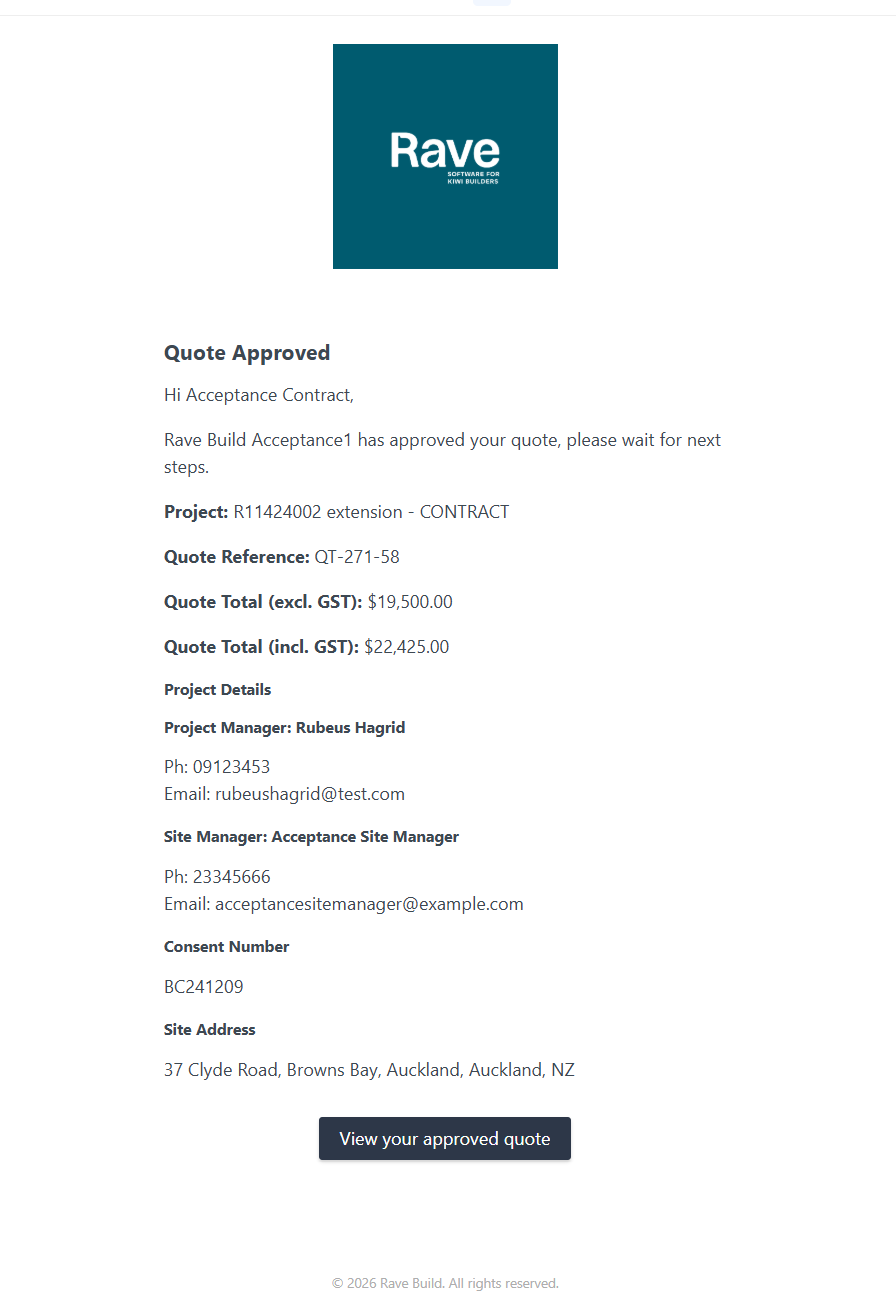 Declined
Was this article helpful?
That’s Great!
Thank you for your feedback
Sorry! We couldn't be helpful
Thank you for your feedback
Feedback sent
We appreciate your effort and will try to fix the article