Rave makes adding contractors to your schedule tasks super easy, even contractors not already added to the project via the project's People sub-tab, via the task list and task gantt view of your schedule.
Handy Tip: If you know the contractor name or company you want to assign a task to, you can just start typing it in rather than scrolling down. Rave will refine the contractor list for you to select, including those not already added to the project via the project's People sub-tab.
How to Add Contractors to your Schedule Tasks
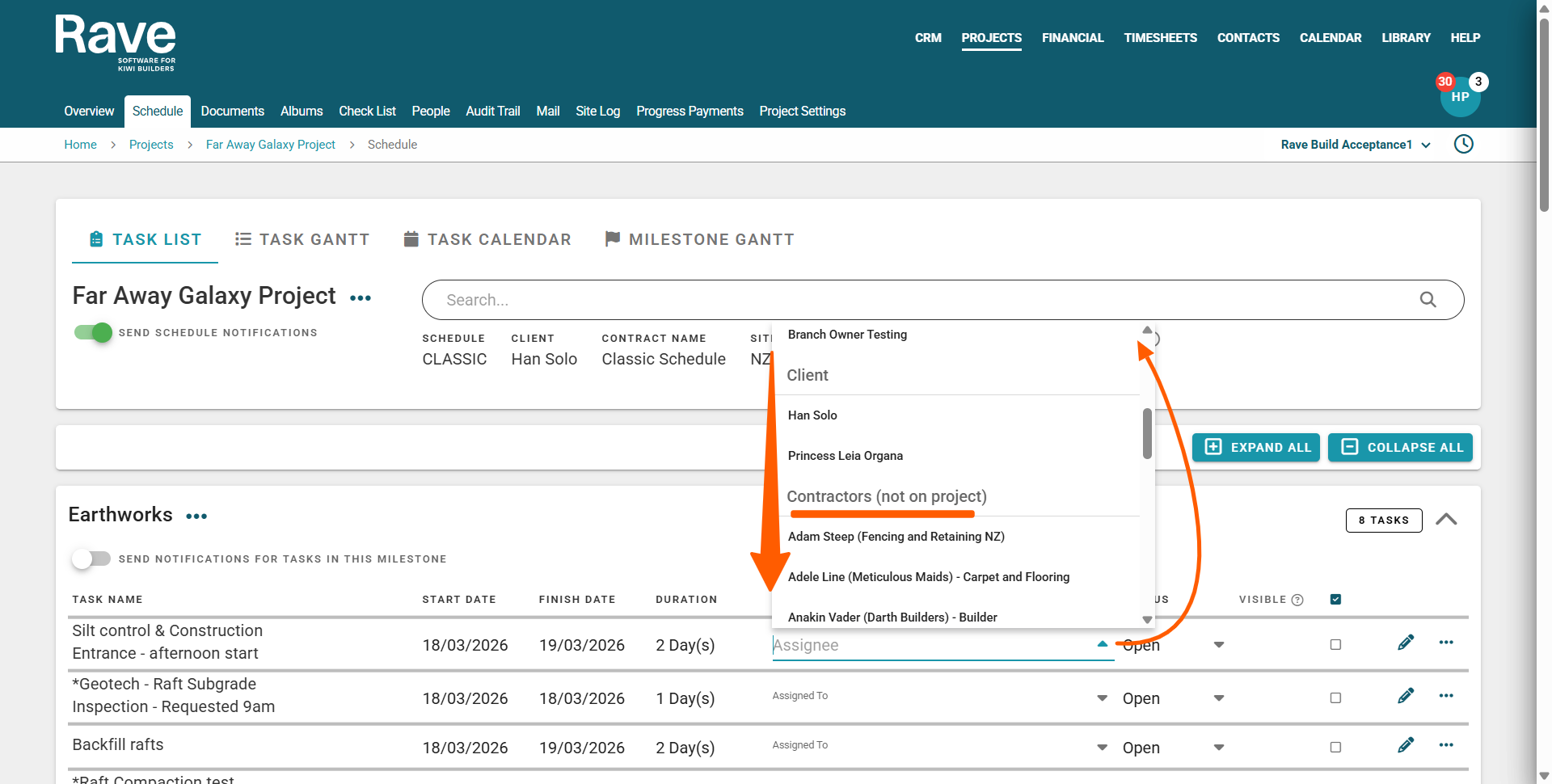
Once a schedule has been loaded to your project, you can add an assignee (i.e. contractor) to a task by clicking on the primary or secondary 'Assigned to' select a contractor dropdown, and selecting the assignee(s) by clicking on the checkbox to the left of their name and clicking save.
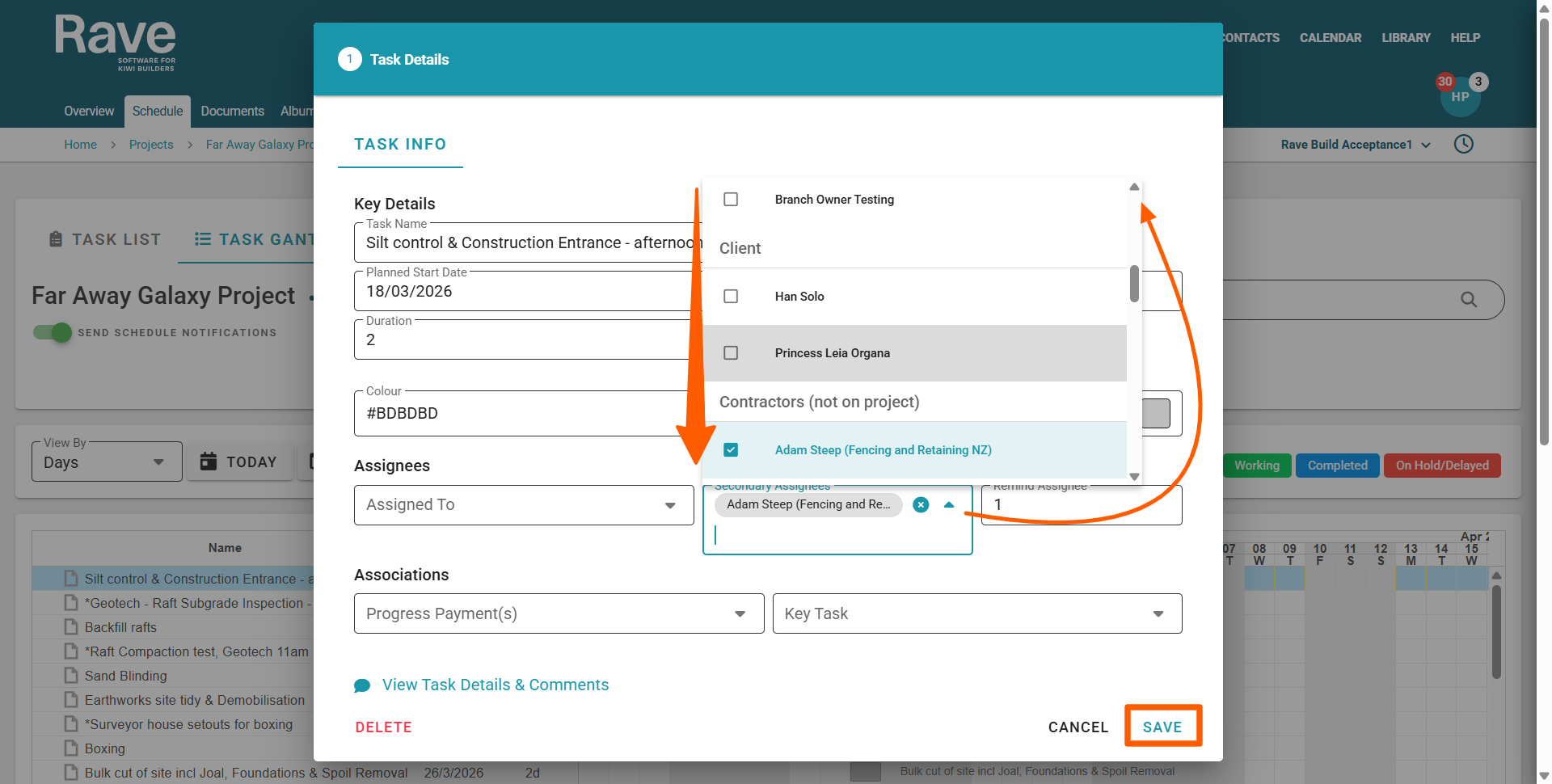
The secondary assignee(s) dropdown, accessible by clicking on the tasks pencil 'edit' icon to the far right of the task via the Task List view, or by double clicking on the task description or task block on the Task Gantt view, allows you to select as many secondary task assignees as you require.
The 'assigned to' dropdown lists are sorted by the following user groups:
- Contractors - already added to the project
- Project Manager
- Site Manager
- Office
- Client
- Contractors - not already added to the project
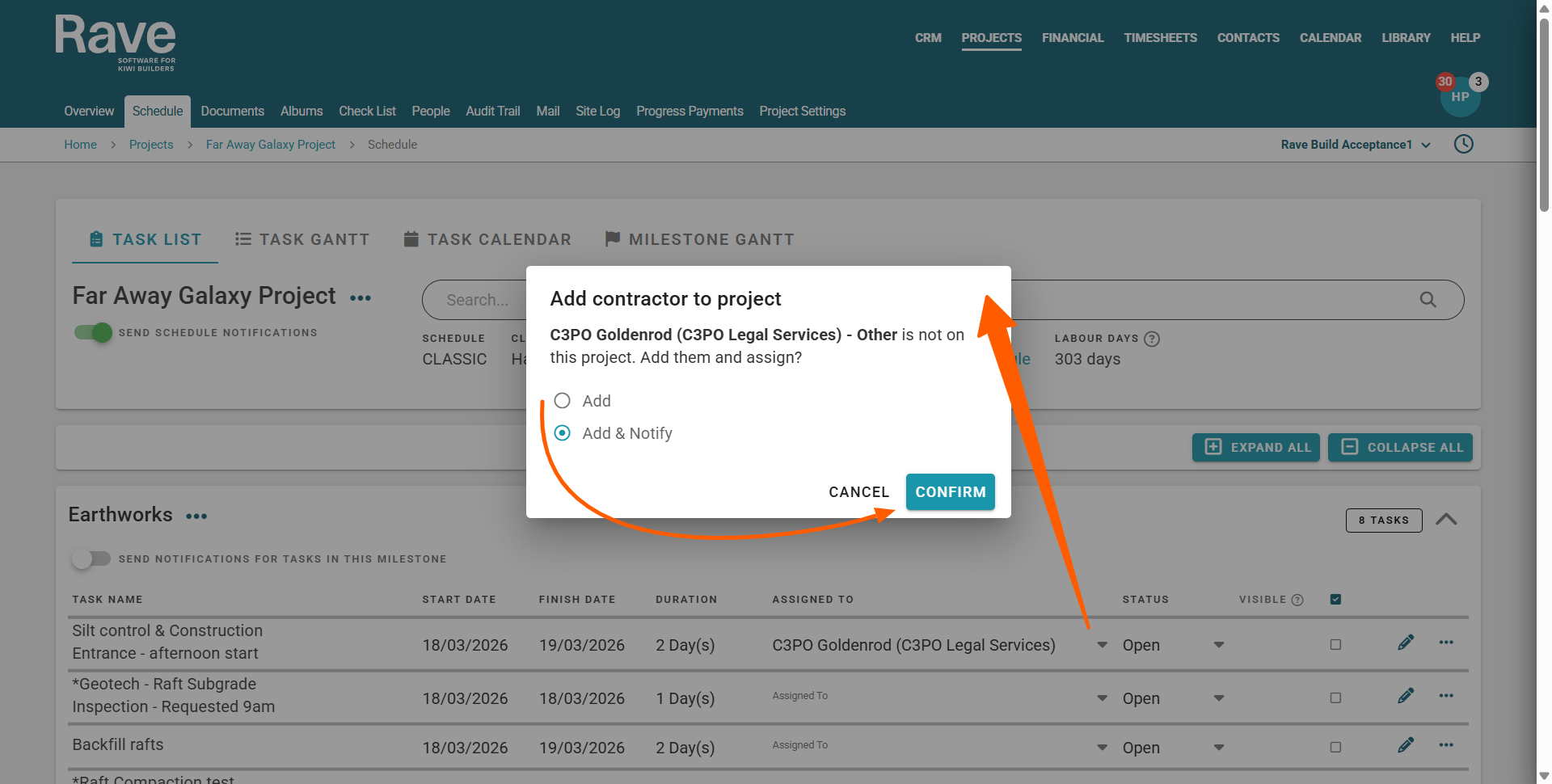
The Option to 'Add' or 'Add & Notify' a Contractor - not already added to the project
If adding a contractor not already added to the project, when the project is in an active or maintenance project state, and the schedule has been activated, you will be asked whether you want to just add them, or add and notify them that they have been added to the project. Notifying a contractor that they have been added to the project will trigger an email to be sent to them.
Was this article helpful?
That’s Great!
Thank you for your feedback
Sorry! We couldn't be helpful
Thank you for your feedback
Feedback sent
We appreciate your effort and will try to fix the article