Managing Variation Approvals in RAVE
Overview
RAVE provides three simple ways to manage the approval of pending variations via the Progress Payments sub-tab.
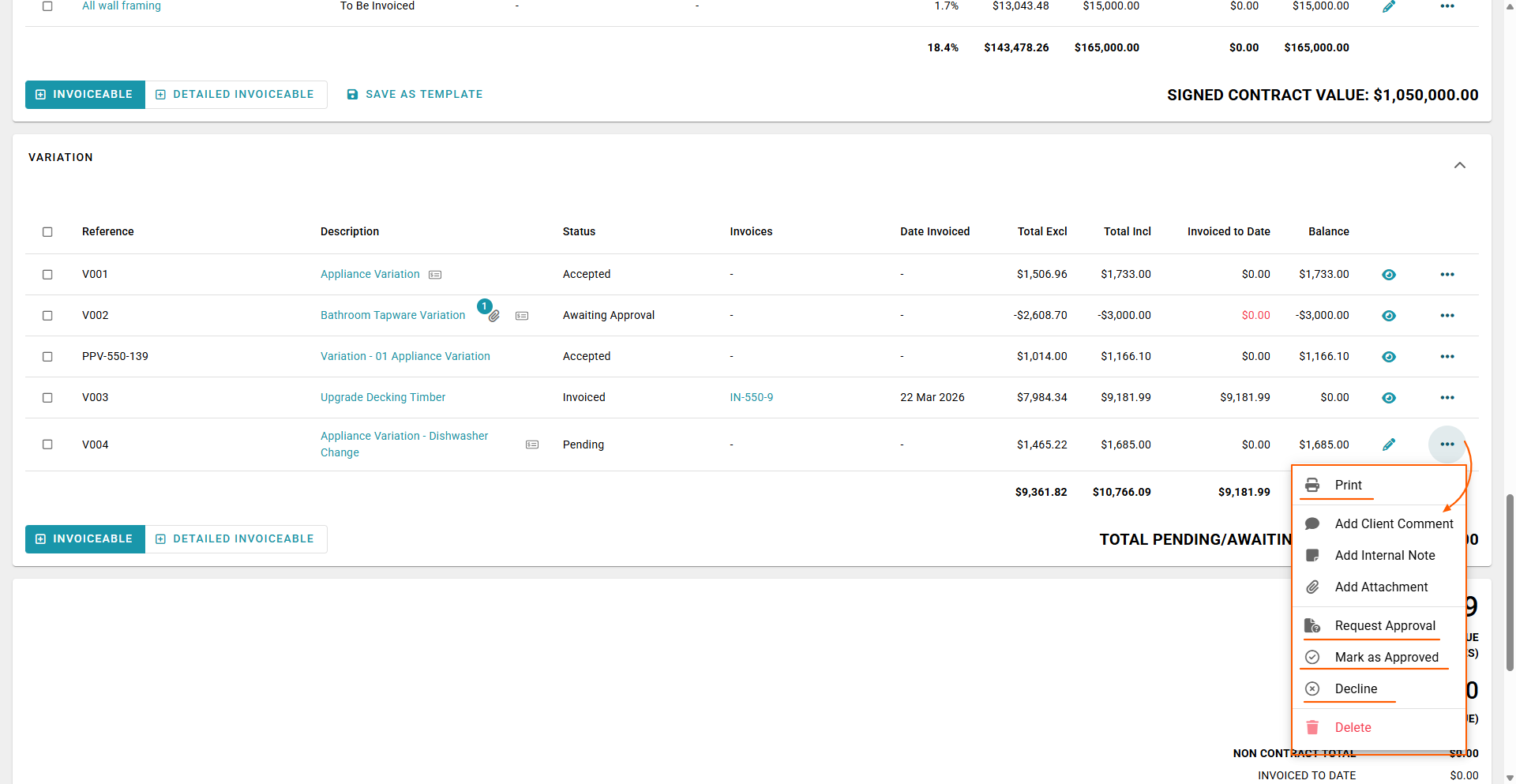
All approval options are available from the ellipsis next to the relevant Invoiceable/Invoice.
Accessing Pending Variations
- Navigate to your project
- Open the Progress Payments sub-tab
- Locate the Pending Variation
- Click the ellipsis next to the invoiceable/invoice
1. Mark as Approved (Manual Approval)
Use this option when you have already received client approval outside of RAVE (e.g. signed document or email).
Steps:
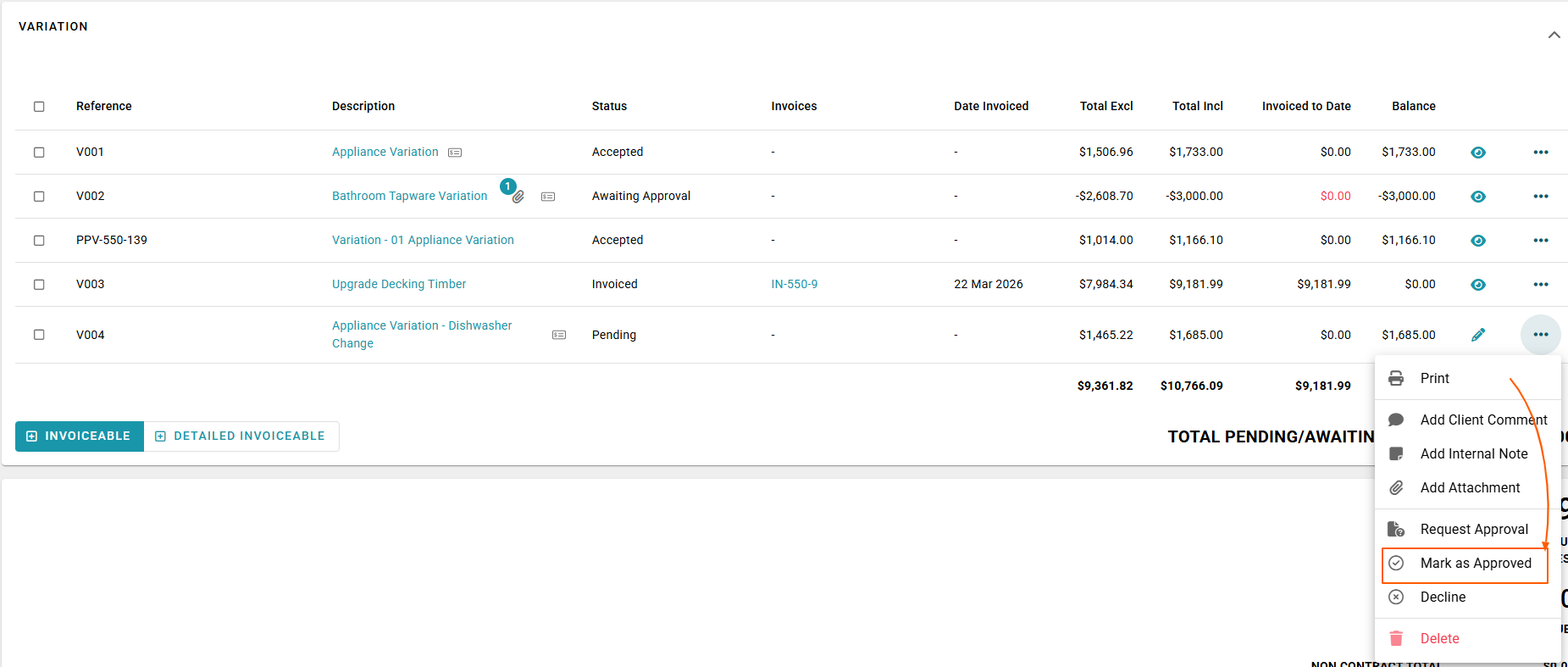
- Click the ellipsis next to the Pending Variation
- Select Mark as Approved
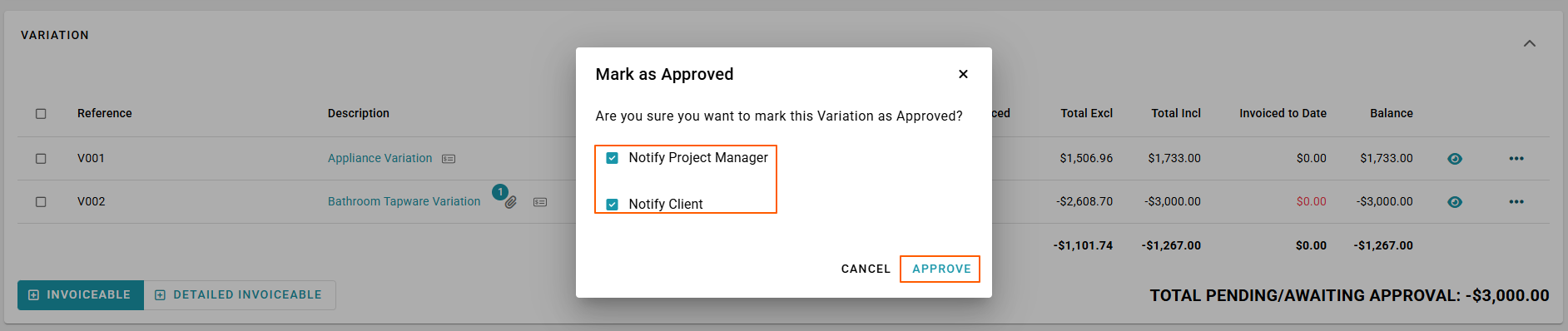
- The Mark as Approved pop-up will appear
- Choose whether to:
- Notify the Project Manager
- Notify the Client
- Click Approve to confirm
What Happens Next:
- Variation status updates to Accepted
- Pending/awaiting approval totals are updated
- Notifications are sent (if selected)
Best Practice
If approval was received externally:
- Attach the signed document or email confirmation to the variation
- You can add this as:
- An Attachment
- A Client Comment
- An Internal Note
This ensures a clear audit trail for future reference.

2. Manual Approval via Signed Document
If you send a variation for review externally:
- The client can:
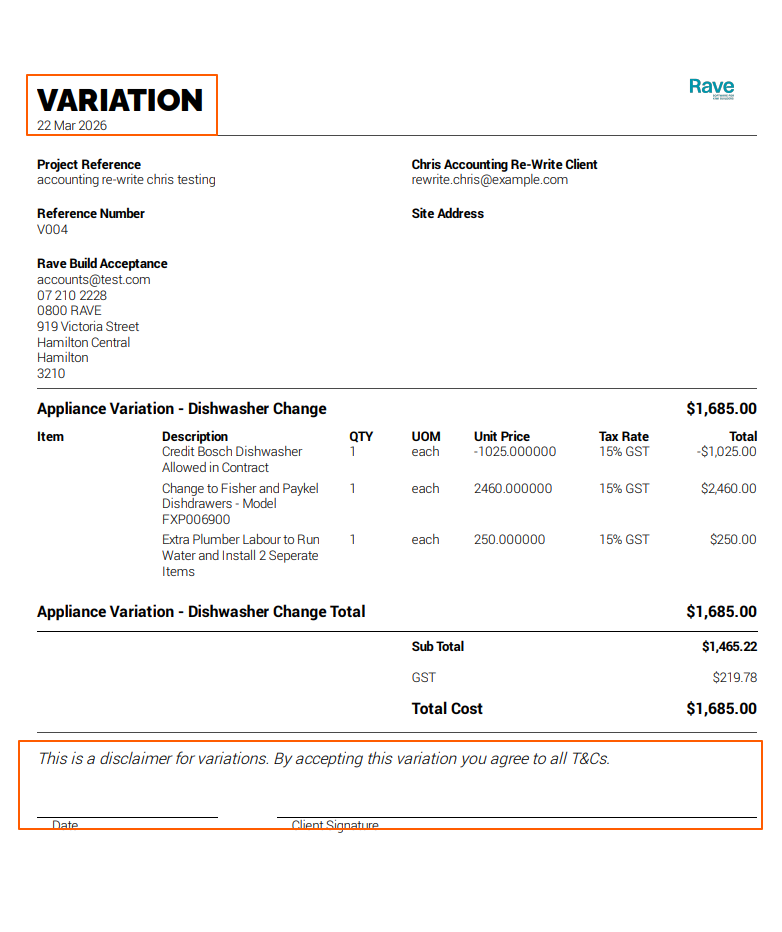
- Print the variation PDF
- Physically sign it
- Scan and return it
Once received:
- Follow the “Mark as Approved” steps above
- Attach the signed document to the variation
3. Request Approval Electronically (Recommended)
RAVE allows you to request and track approvals digitally through its built-in workflow.
Steps:
- Click the ellipsis next to the Pending Variation
- Select Request Approval
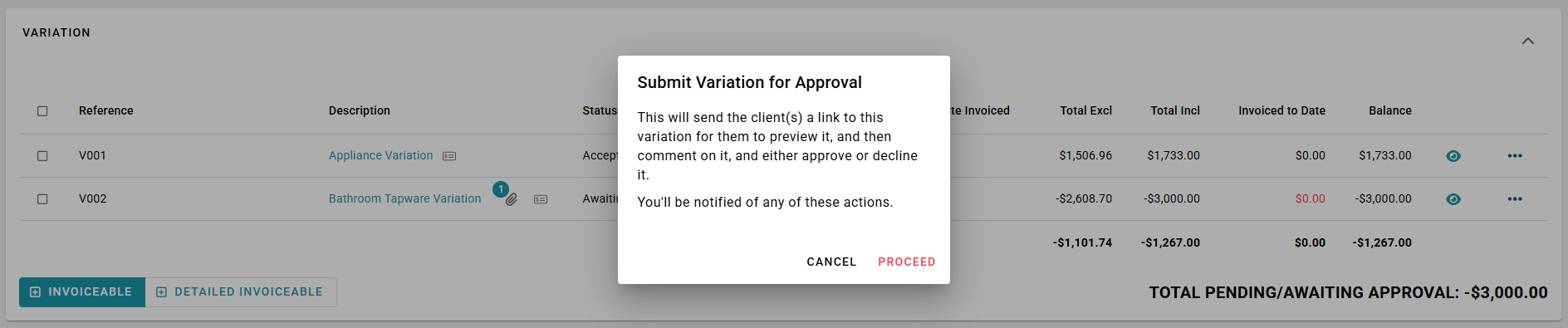
- The Submit Variation for Approval pop-up will appear
This will:
- Send the client a secure link to:
- View the variation
- Add comments
- Accept or Decline
- Click Send Variation to proceed
What Happens Next:
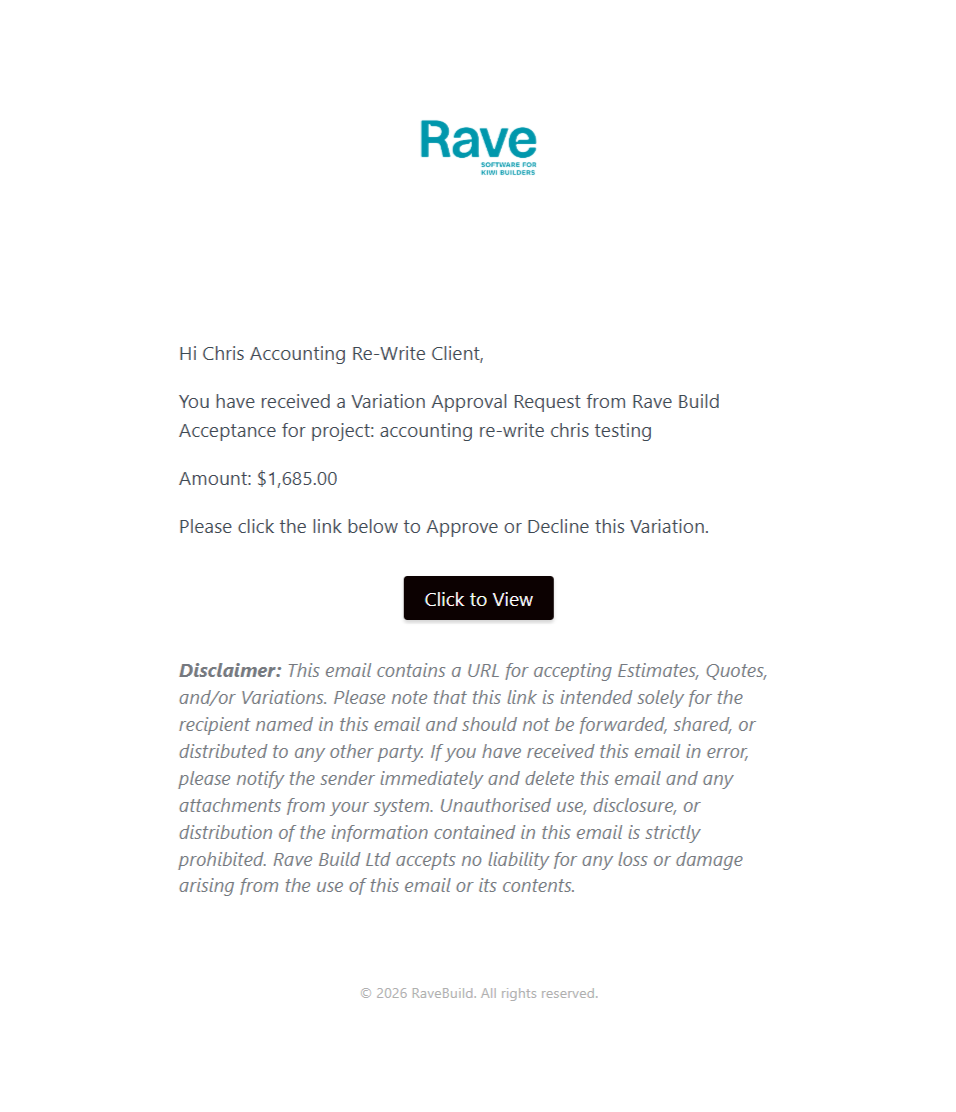
- An email notification is sent to the client
- The client can:
- Review the variation
- Accept, decline, or comment
- You will be notified of all actions
Client Experience
The client receives access to:
- A Variation document with:
- Accept
- Decline
- Comment functionality
NOTE: We have included some screenshots of the client's acceptance/approval process below
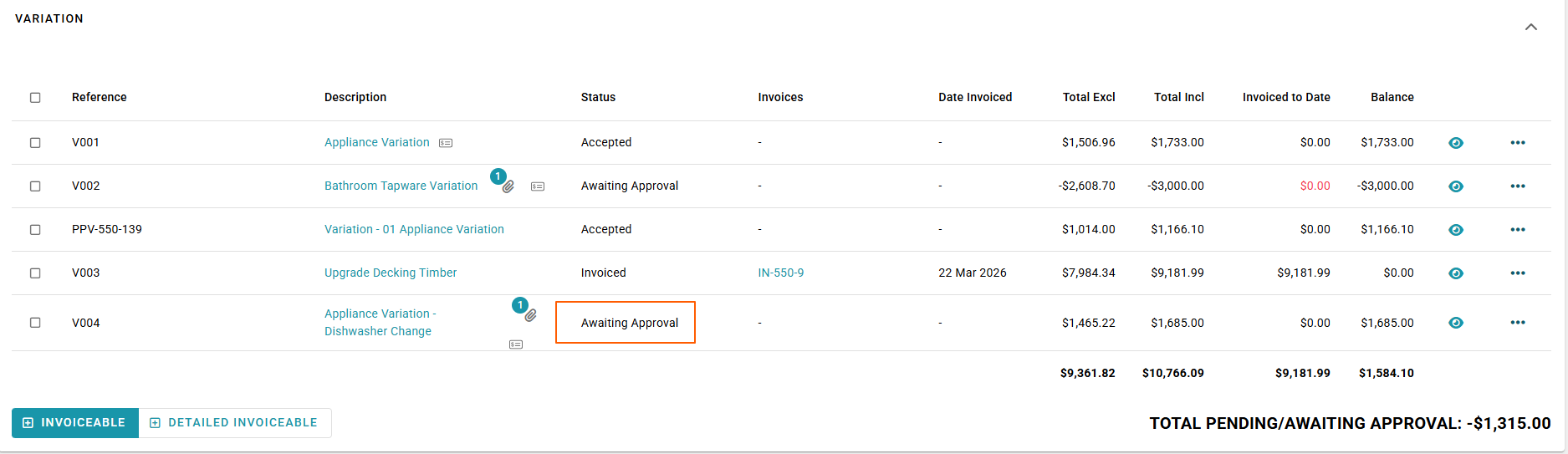
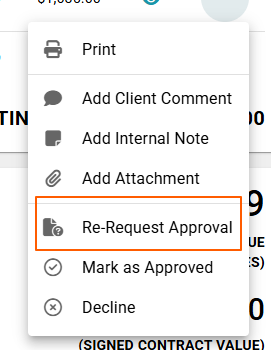
You can re-request Approval if need be by clicking on the ellipsis and clicking Re-Request approval
Some screenshots of the client's acceptance/approval process below
Variation Signing document - with Electronic Accept, Decline, and Comment Functionality

Accept Screenshots
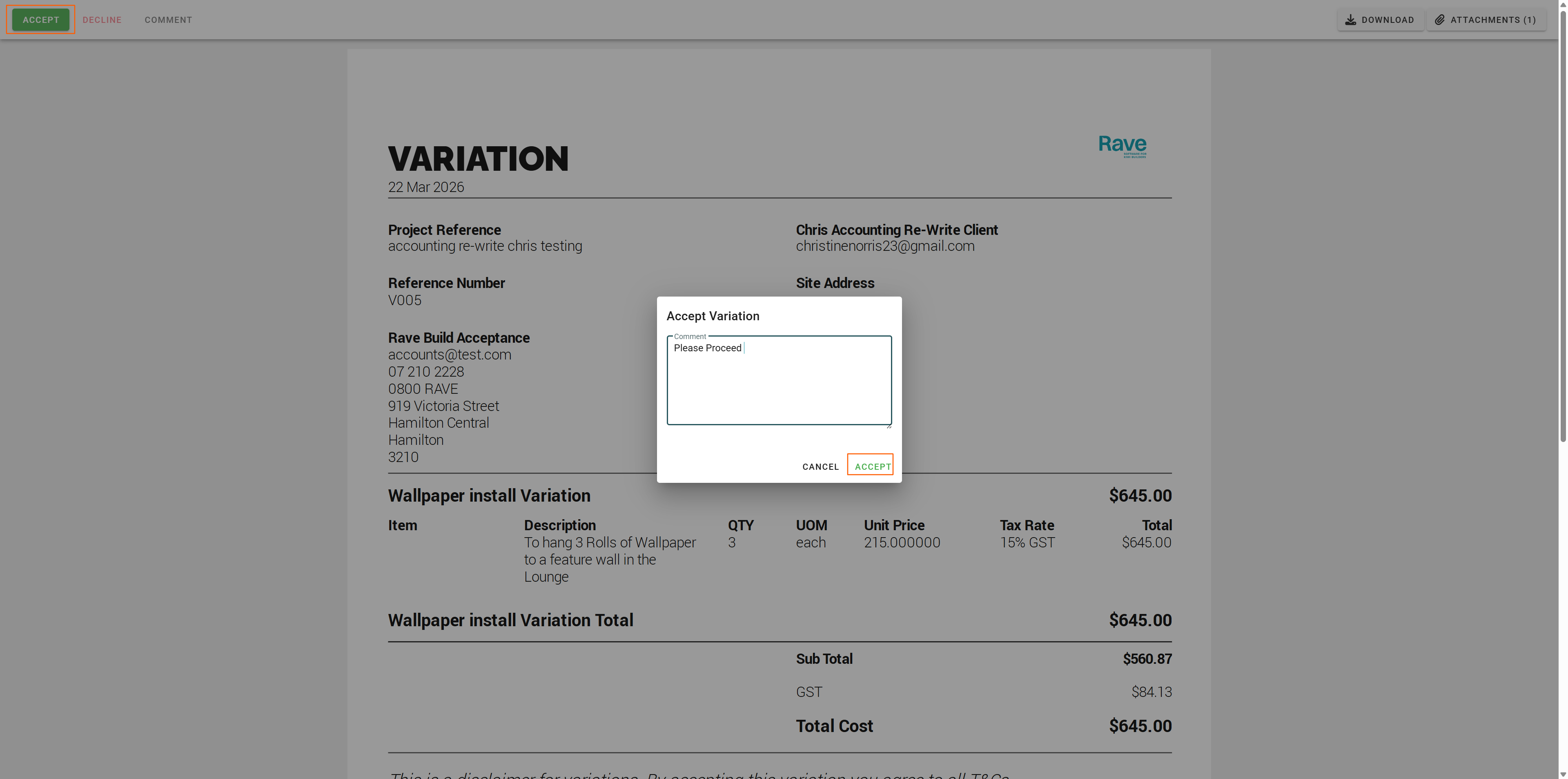

Acceptance Notification Email

Comment Screenshots
Decline Screenshots
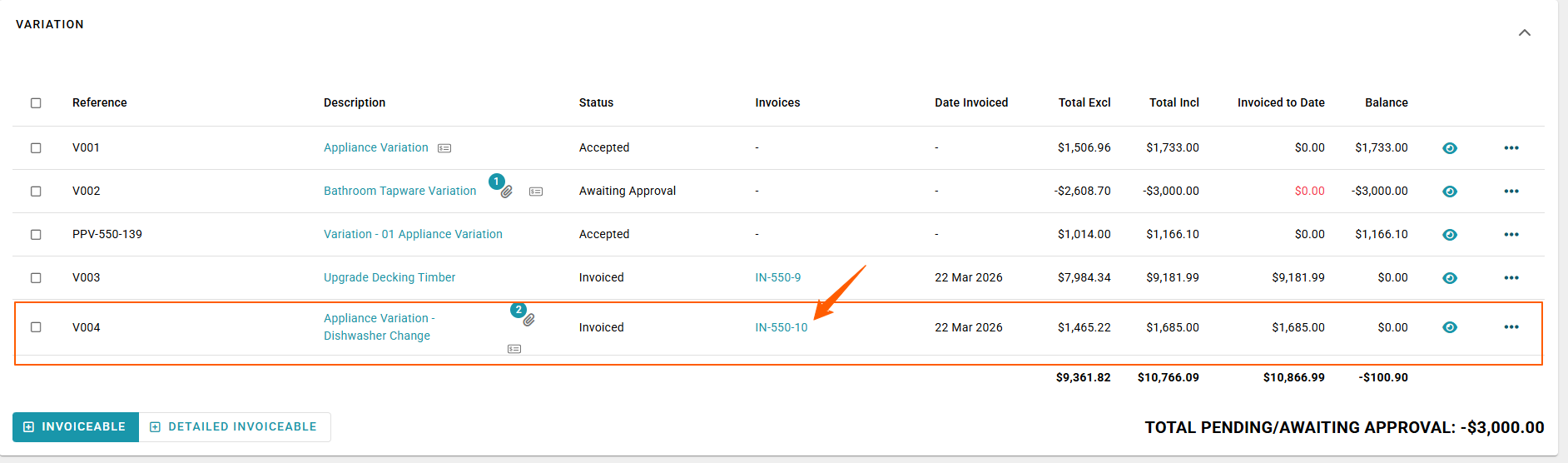
The Variation Status and Comments are Updated in RAVE - when it is Approved by the Customer
System Updates
When the client responds:
- Variation status updates automatically in RAVE
- Any comments are recorded
- The project financials reflect the updated status
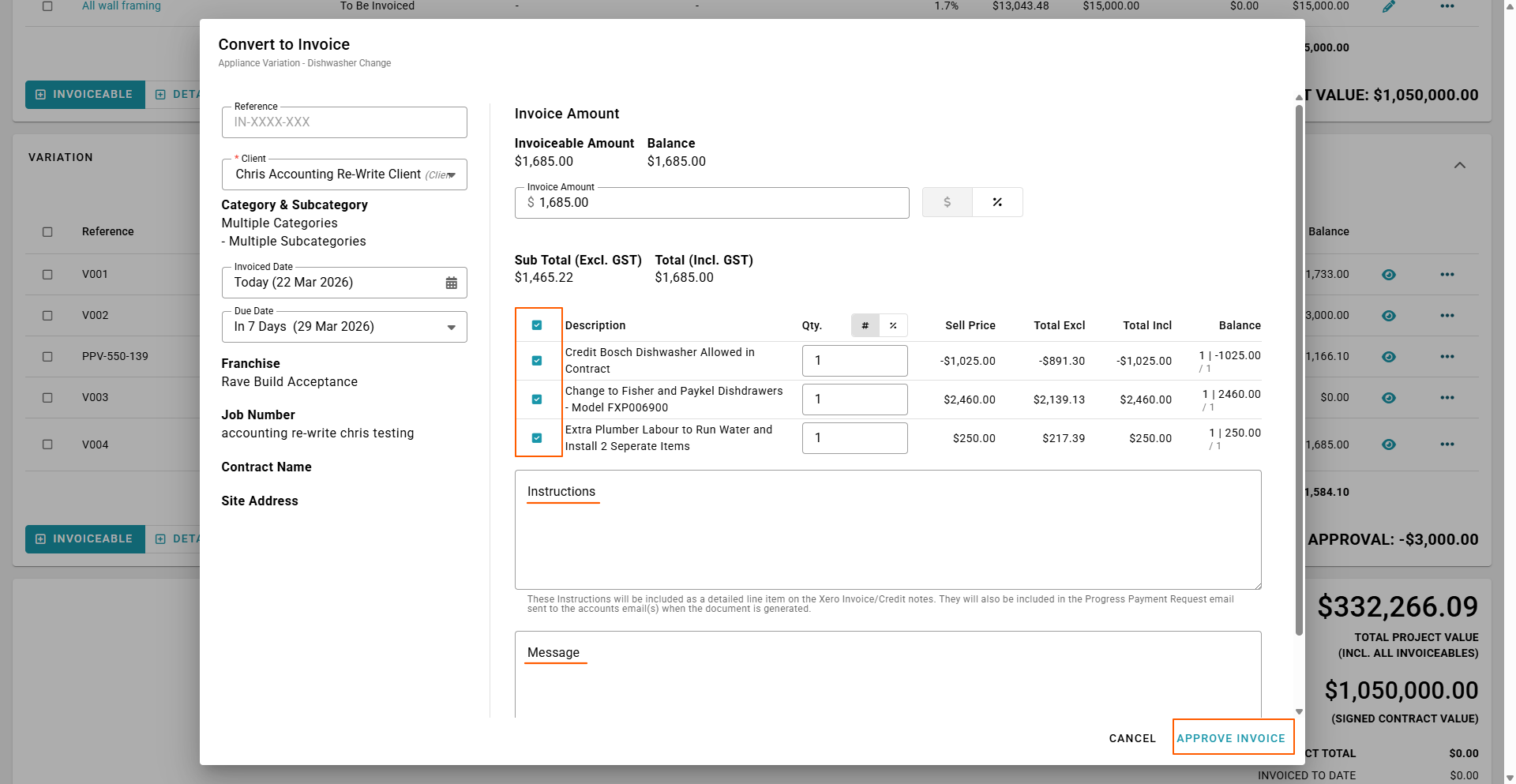
Once approve create an Invoice - Instructions on how to create an invoice click on the link below
Converting an Invoiceable to an Invoice
Was this article helpful?
That’s Great!
Thank you for your feedback
Sorry! We couldn't be helpful
Thank you for your feedback
Feedback sent
We appreciate your effort and will try to fix the article