Every user can access to their own mail Templates from their Profile Dropdown.
Depending on access/permission you will see both Enquiry and Project Templates.
Note: Timesheet, Site Staff, Site Manager and Contractors will not have CRM Templates as they do not have access to this feature.
These templates are Only User level templates.
To locate Branch templates for CRM the help article is here.
To locate Branch templates for Projects the help article is here.
With permission users will also have access to other users templates to.
Click on your Profile Drop Down
Under Profile Settings select Templates
Here you will see All, Enquiry Mail and Project Mail Templates (provided you have access to CRM and Projects).
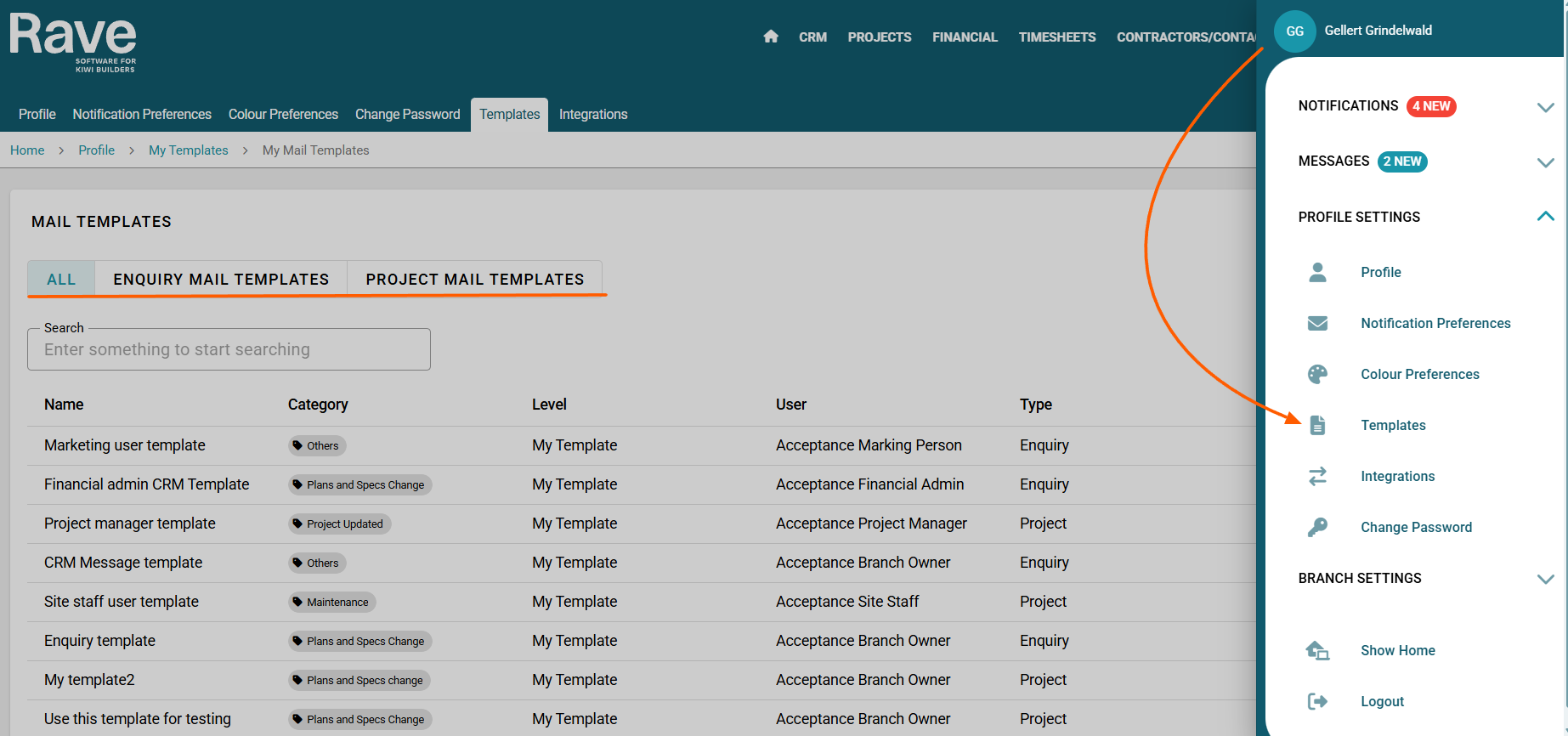
All will display templates from both Enquiry Mail and Project mail in a list form.
The order shows the name of the template, the Category tag if applicable, the user who owns the template, and then the type of template either Enquiry or Project.
You can search for a template using the search box to the top left
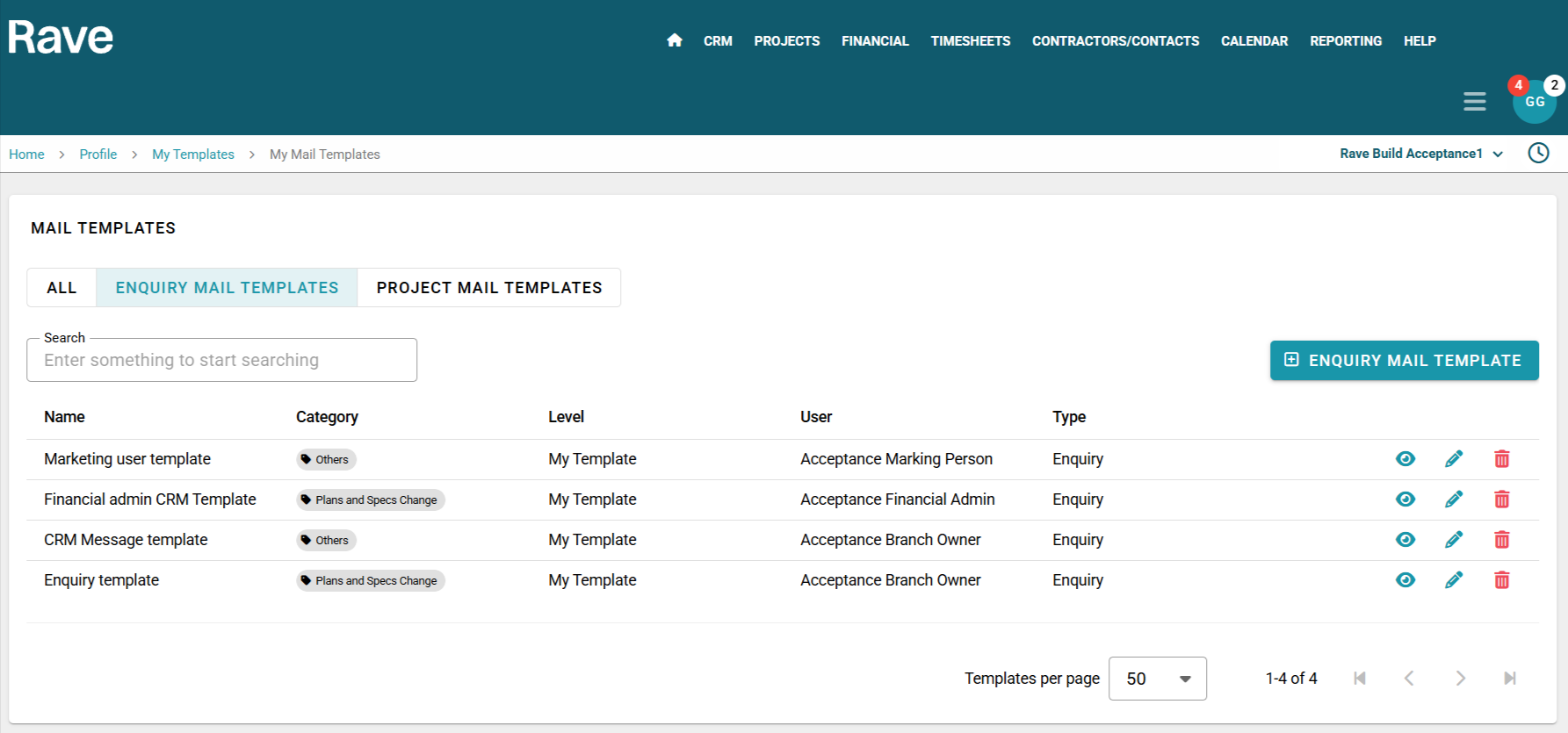
You can view a template by clicking the eyeball icon
You can edit a template using the Pencil Icon (with permission)
You can delete a template with the Trash Can icon (with permission)
Enquiry Mail Templates shows all templates that can be used when sending an enquiry mail.
With permission you can view/edit other users templates or just your own by default.
To learn how to create/send project mail click here for the help article.
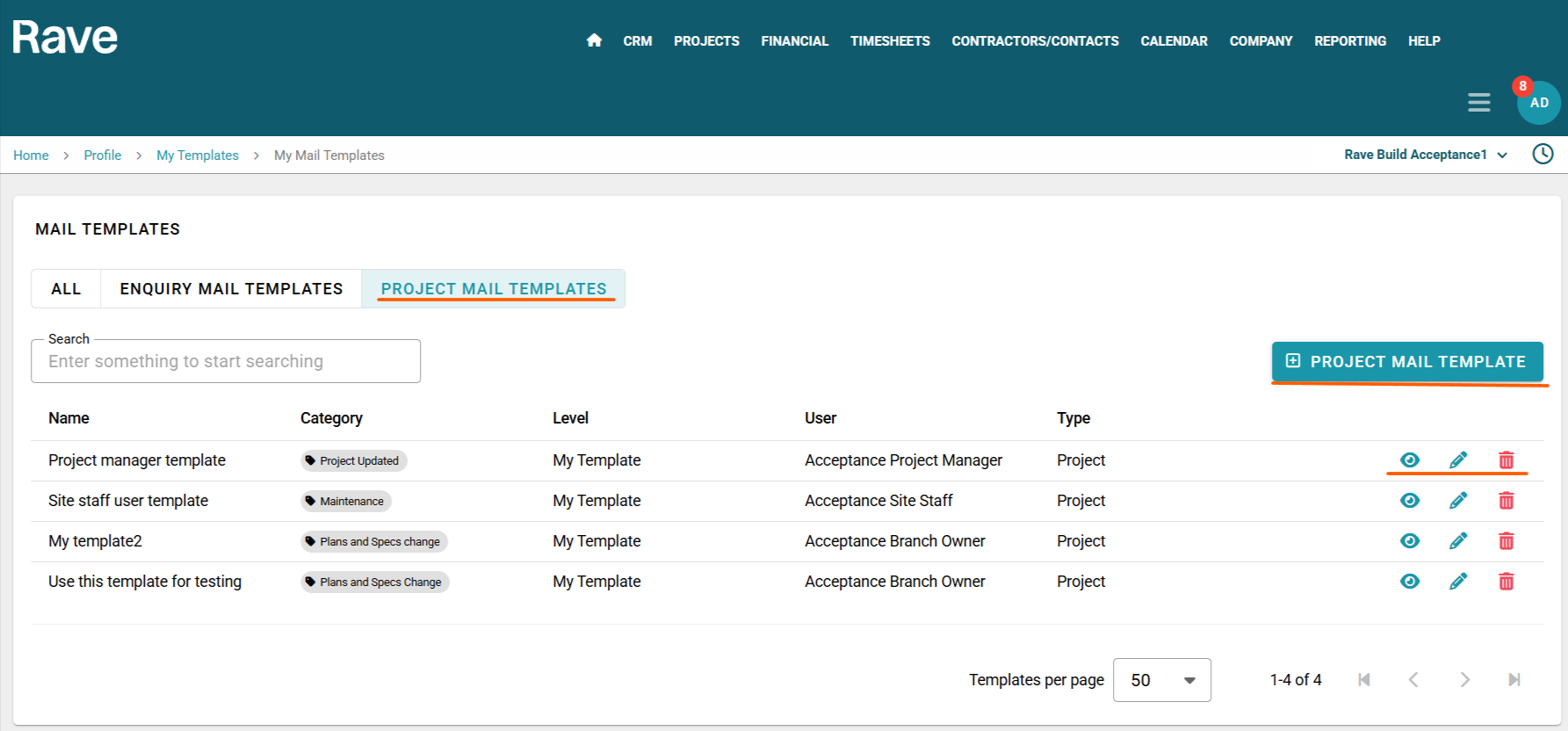
Project Mail Templates shows all templates that can be used when sending a project mail.
With permission you can view/edit other users templates or just your own by default.
To learn how to create/send project mail click here for the help article.
Was this article helpful?
That’s Great!
Thank you for your feedback
Sorry! We couldn't be helpful
Thank you for your feedback
Feedback sent
We appreciate your effort and will try to fix the article