If the Advanced Timesheets Enable Timesheet Approval option is turned on under:
Branch Settings → Timesheets
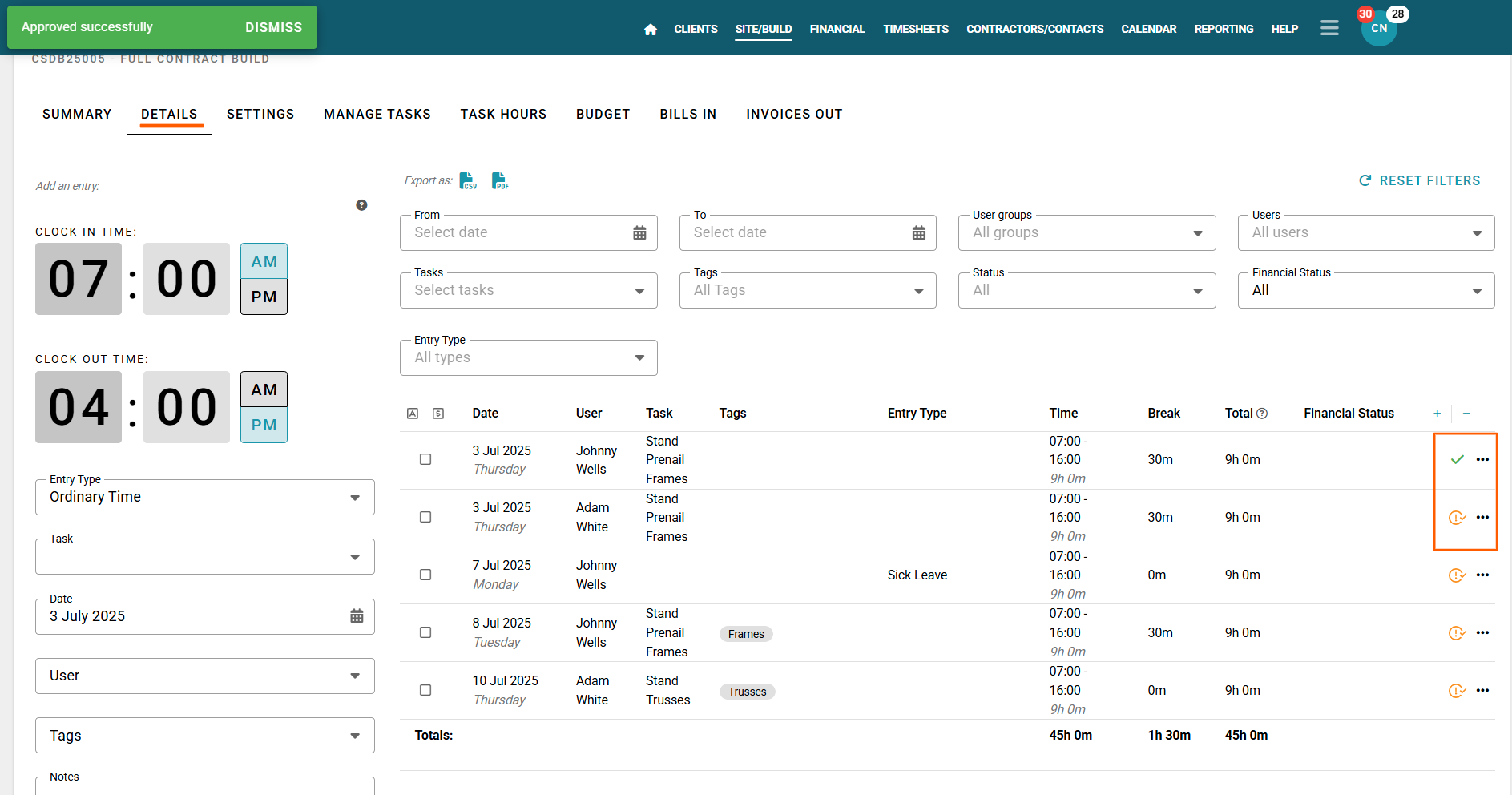
and you have the appropriate Timesheet Approval and Add/Edit Timesheet Entry permissions enabled, an approval status icon will display on the far right of each timesheet entry.
You will see either:
An orange Pending – Click to Approve icon
A green tick Approved – Click to Unapprove icon
Click the relevant icon to approve and lock a pending timesheet entry, or move an approved entry back to pending.
Note: Once a timesheet entry has been approved, it is locked and cannot be edited. If changes are required, the entry must first be changed back to Pending/Unapproved.
Approval Notifications
When a timesheet entry is approved or moved back to pending, the user whose timesheet entry has been updated may receive an email notification advising them of the status change, if this notification option has been enabled.
Users with Timesheet Approval permissions may also receive a daily email at 6:00pm containing new timesheet entries awaiting approval, if this notification has been enabled for the branch.
Bulk Approving Timesheets
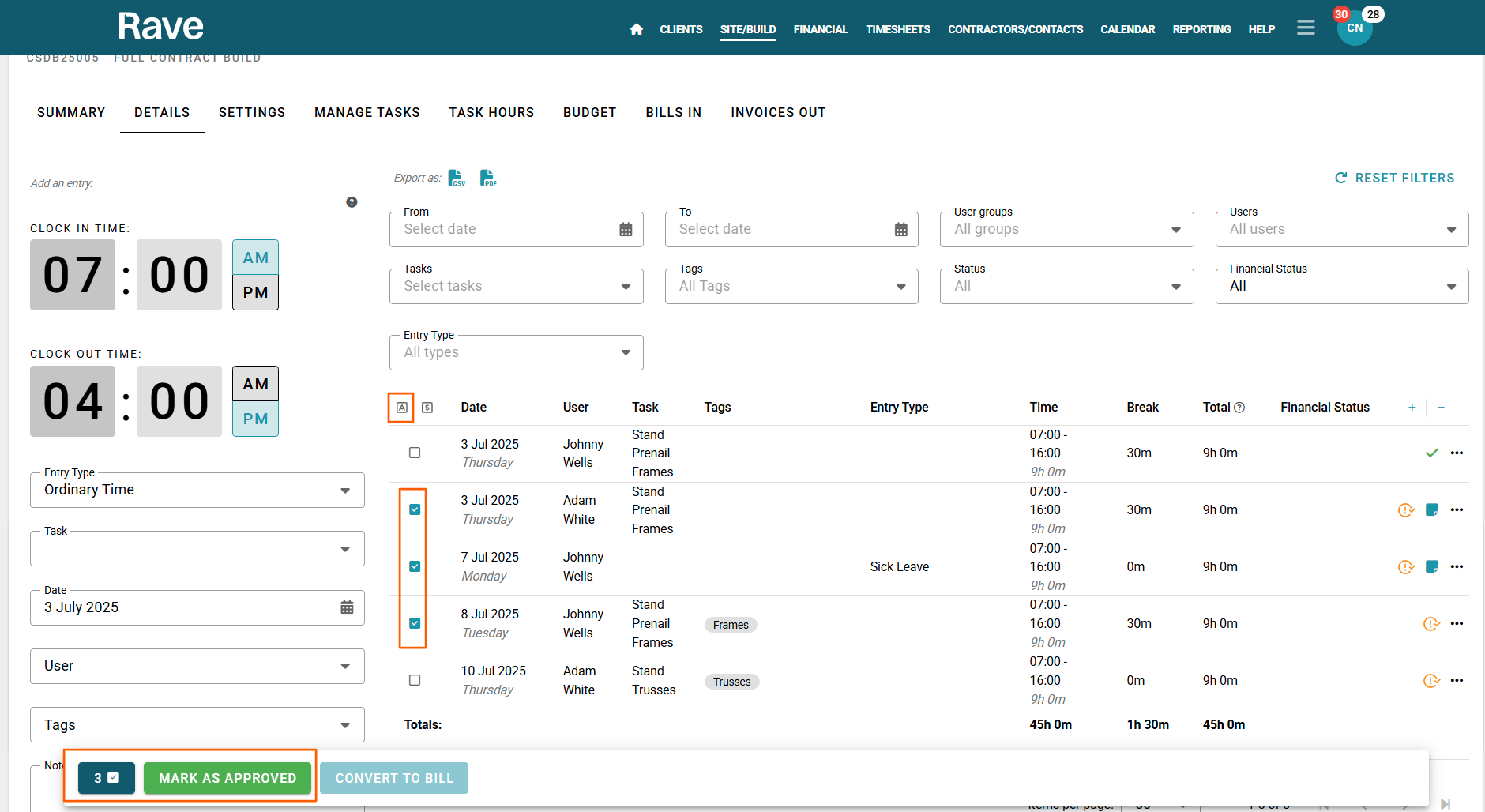
A checkbox is displayed to the left of each timesheet entry, allowing you to select multiple entries at once.
You can select the required entries and approve them in bulk.
Alternatively, click the A icon to automatically select all entries that have not yet been approved, making it faster to approve multiple timesheet entries at once.
Editing or Deleting Pending Entries
Anyone with permission to Add/Edit Timesheet Entries can edit or delete an unapproved timesheet entry.
Click the three-dot action menu to the right of the entry to access the available options.
Users with the appropriate permissions can also manually create a new timesheet entry using the Add an Entry section on the left-hand side of the page.
Advanced Timesheets Overview
To return to the overview of all Advanced Timesheets features, click here.
Ready to Use Advanced Timesheets?
If you would like to add the Advanced Timesheets module to your Rave setup, contact the Rave team at help@ravebuild.co.nz.
Was this article helpful?
That’s Great!
Thank you for your feedback
Sorry! We couldn't be helpful
Thank you for your feedback
Feedback sent
We appreciate your effort and will try to fix the article