The following is the recorded version of the help article outlined below.
Your Building Partner may provide you with access to the Purchase Orders feature in Rave.
You can access this feature from a Purchase Order email via clicking view in Rave
or from the Financial tab at the top of your home screen and then selecting Purchase Orders.
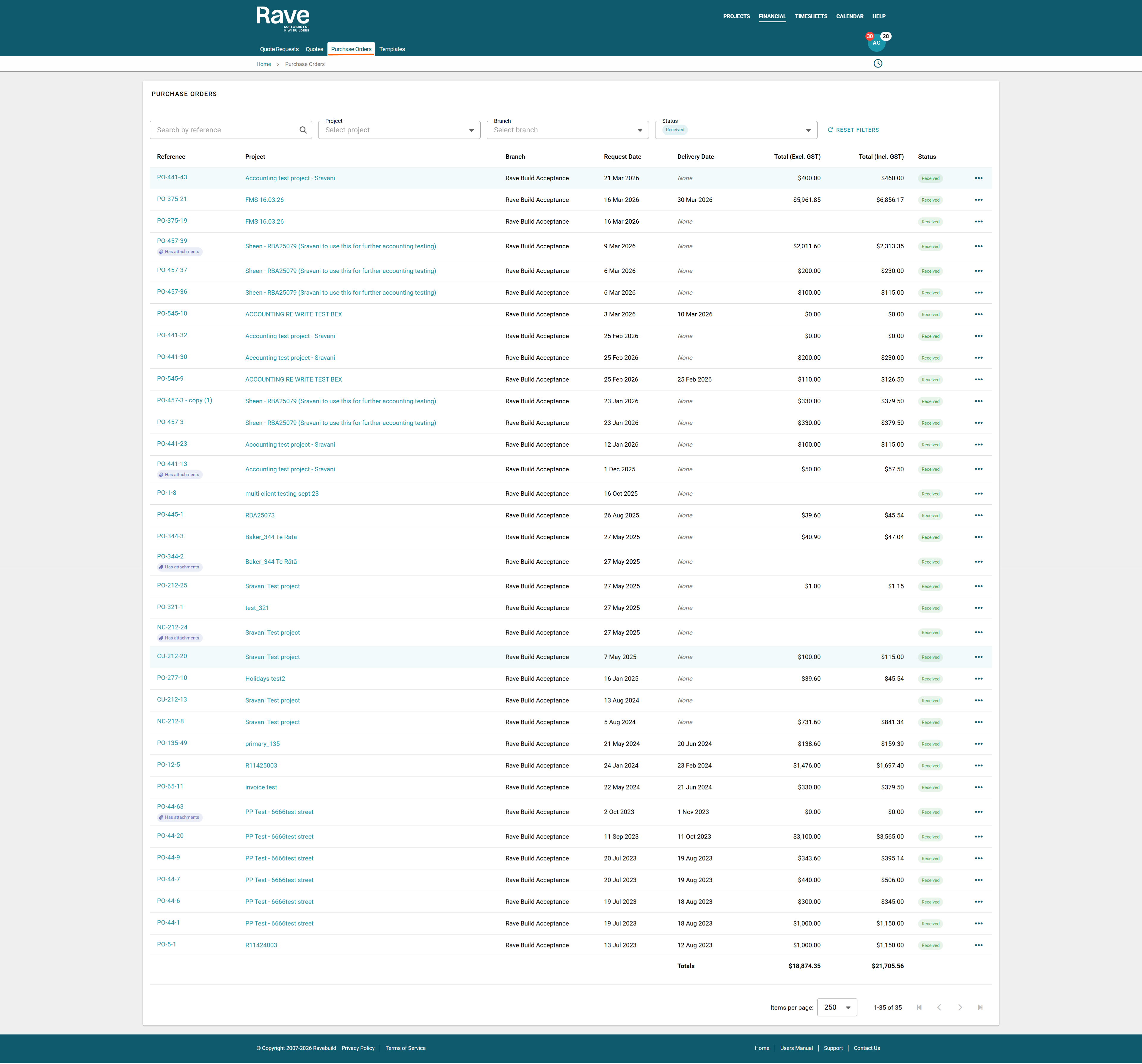
You can view your list of purchase orders here.
The search box allows you to find the Purchase Order by reference
You can also filter by Project, Branch, Status of Purcahse Order
The list page shows Purchase order Reference, Project, Branch, Purchase Order Request Date, Delivery Date, Total Excl Tax, Total Incl Tax, Status of the Purcahse Order.
Clicking on the Rerefence column you can view the Purcahse Order in Detail
Clicking on the Project column it will take you to the Project Overview.
The 3 dot Ellipsis allows you to print or view the Purchase Order. 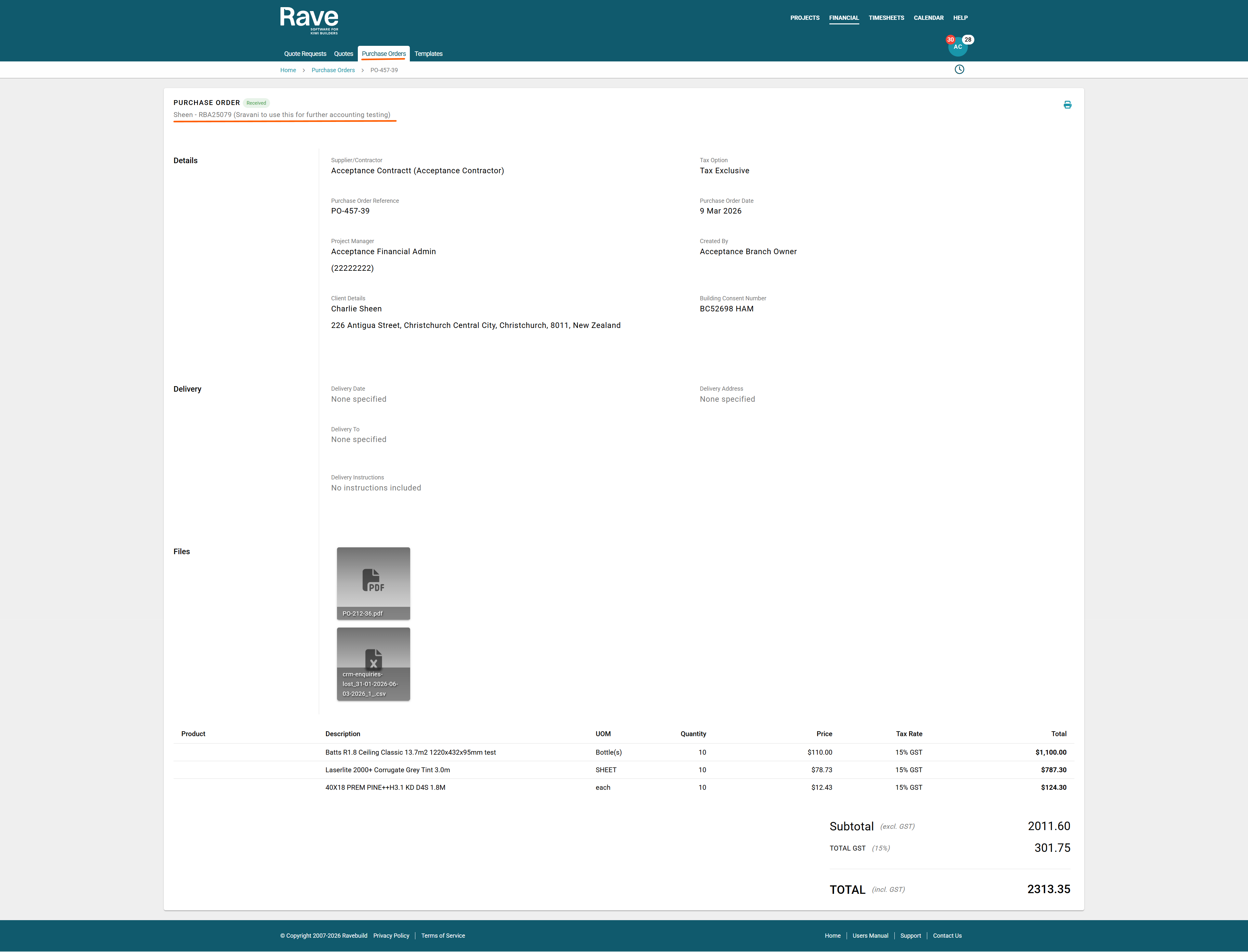
Note: If dashes appear in the pricing fields, it means the sender has chosen to hide that information.
I can also turn this into a more formal user guide style or a shorter in-app help version.
Was this article helpful?
That’s Great!
Thank you for your feedback
Sorry! We couldn't be helpful
Thank you for your feedback
Feedback sent
We appreciate your effort and will try to fix the article