The following is the recorded version of the help article outlined below.
Your Building Partner may provide you with access to the Quote Request feature in Rave.
You can access this feature from a Quote Request email via clicking view in Rave
From your rave log in via the Dashboard clicking Show on the Quote Request you wish to view
or from the Financial tab at the top of your home screen and then selecting Quote Requests.
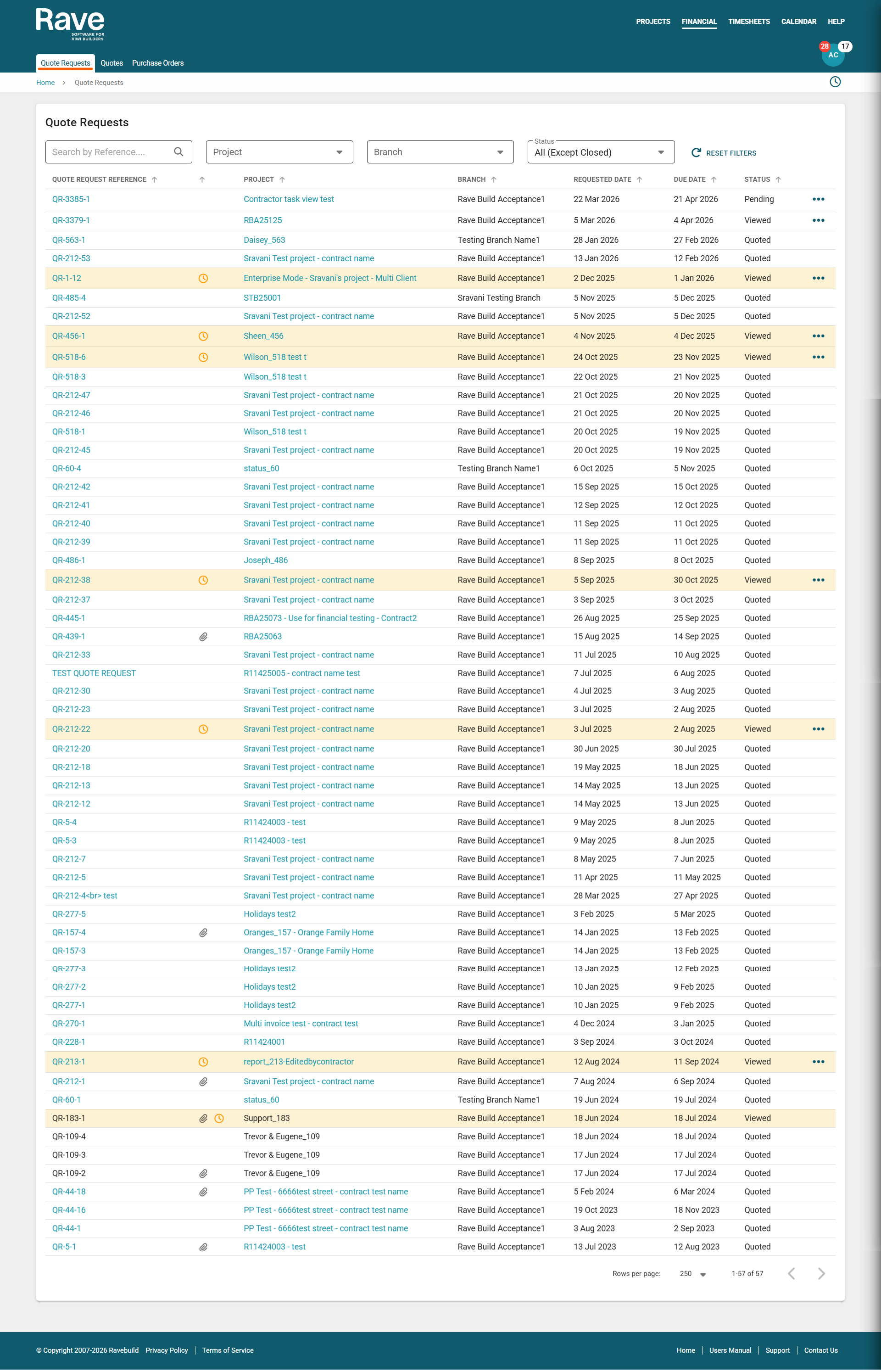
The Project Quote Requests section lists all of your current requests to tender. Each quote request includes:
- Quote request number
- Project name
- Date the quote request was requested
- Quote submission due date
- Quote request status
The status indicates where each request is:
- Pending – You have not yet opened this quote request
- Viewed – You have opened the quote request
- Quoted – You have submitted your quote/tender via RAVE
- Accepted – Your quote has been confirmed and the pricing is locked in
- Closed - The quote request has been closed by the branch
Text shown in RAVE’s teal colour indicates clickable links:
- Clicking the Quote Request number will open the quote request
- Clicking the Project Name will take you to the project overview
A yellow line highlights quote requests that are approaching or past their submission due date, helping you quickly identify items that may require urgent attention.
Viewing, creating, and declining a Quote Request
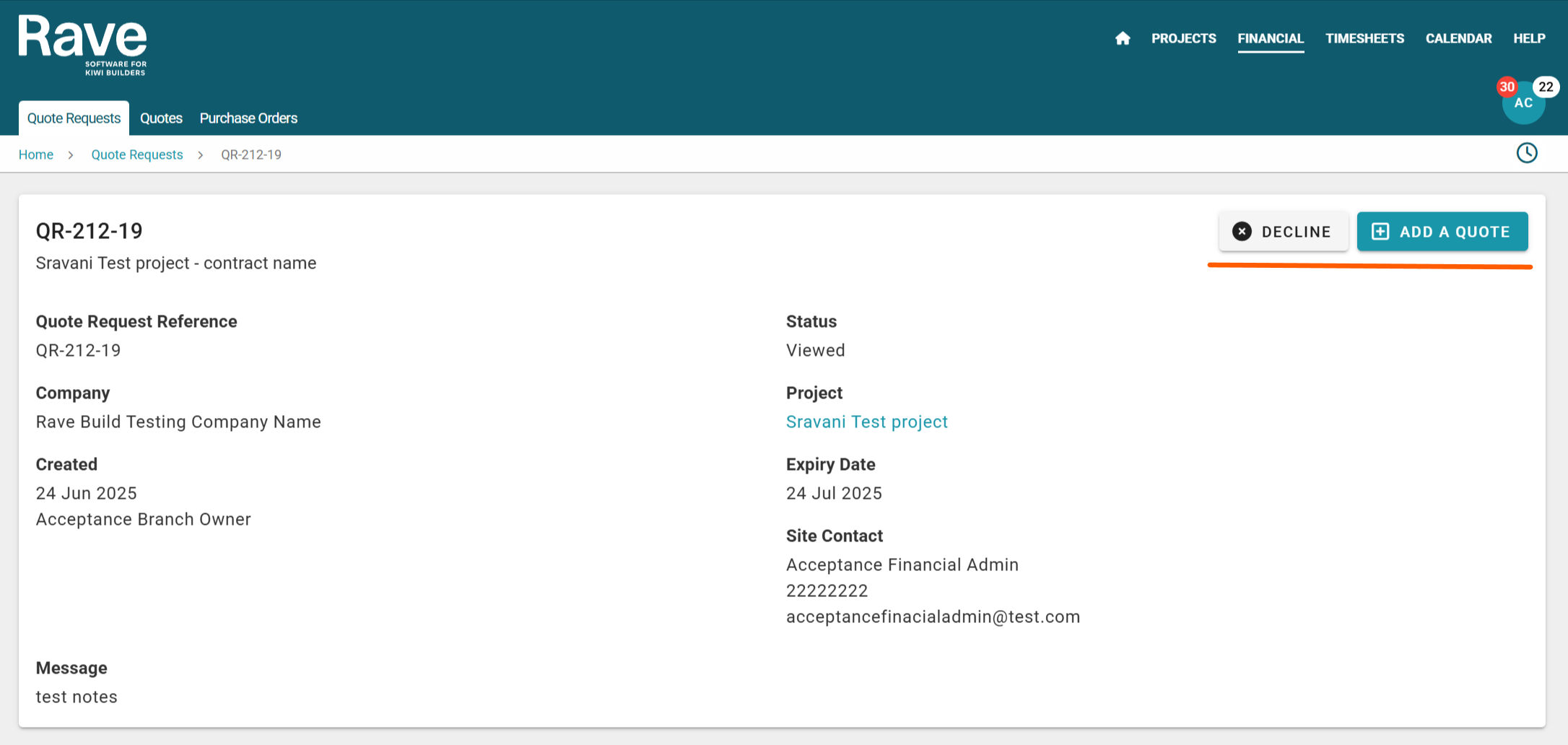
You can access a quote request by clicking on the Quote Request number.
This will open the Quote Request, display the quote request details, and any attached documentation.
From here, you can easily add a quote or decline the quote request via the two buttons to the top right of the screen.
The two ways to submit a Quote Request through RAVE
Submitting a Quote via a Quote Request
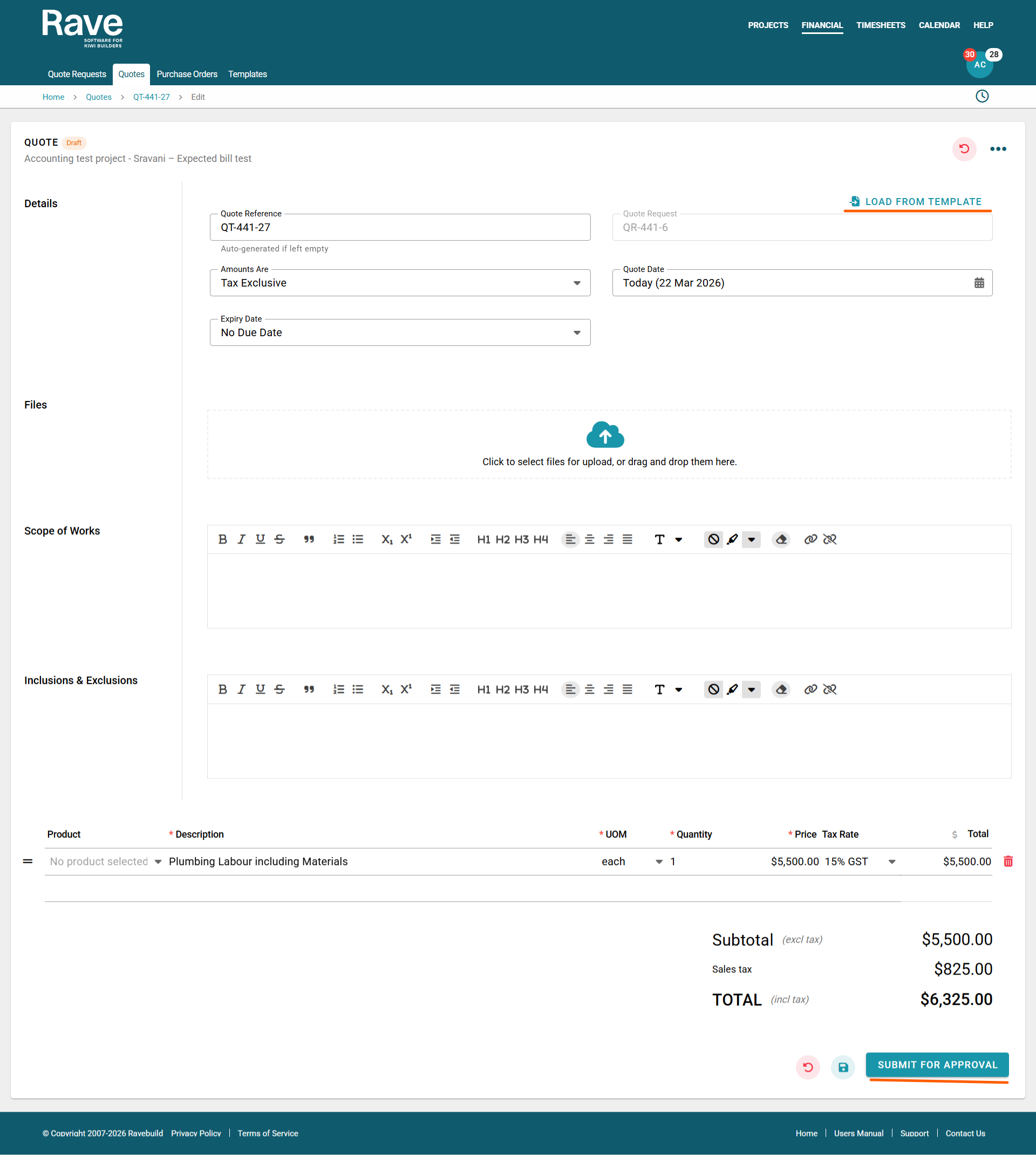
Firstly, you can create a quote from the open quote request by clicking the ‘Add a Quote’ button. You can fill in all the fields that are not greyed out, add inline items with costings if you want to, and attach documentation as required.

Steps to create a Quote via a Quote Request
- To create a quote, you must have a reference number or name/description for the quote - this is auto-populated by RAVE, but can be anything you like. If you are using your own external pricing system that generates a quote number, you can enter it in the quote reference field.
- The building company's name will already be loaded, and this field is greyed out.
- The project number is also greyed out because it is auto-selected when the quote request is sent to you.
- Please choose how long your quote is valid. If there is no expiry, you can select ‘No Expiry.
- Decide whether your pricing includes or excludes Tax.
- Add any required attachments i.e. a pdf version of your quote, or plans you’re submitting back to the building company.
- The scope of works box is for you to type in a brief description of the works being quoted.
- Add any inclusions or exclusions.
- To add the pricing
- Either use your pre saved Product Inventory by typing something in the product box or
- Type a brief description of the line item into the description box
- Select an appropriate unit of measure
- Add your quantity
- Your price and Tax type
- Once you are happy with your quote, click the Submit for Approval button.
Submit a Quote via a template
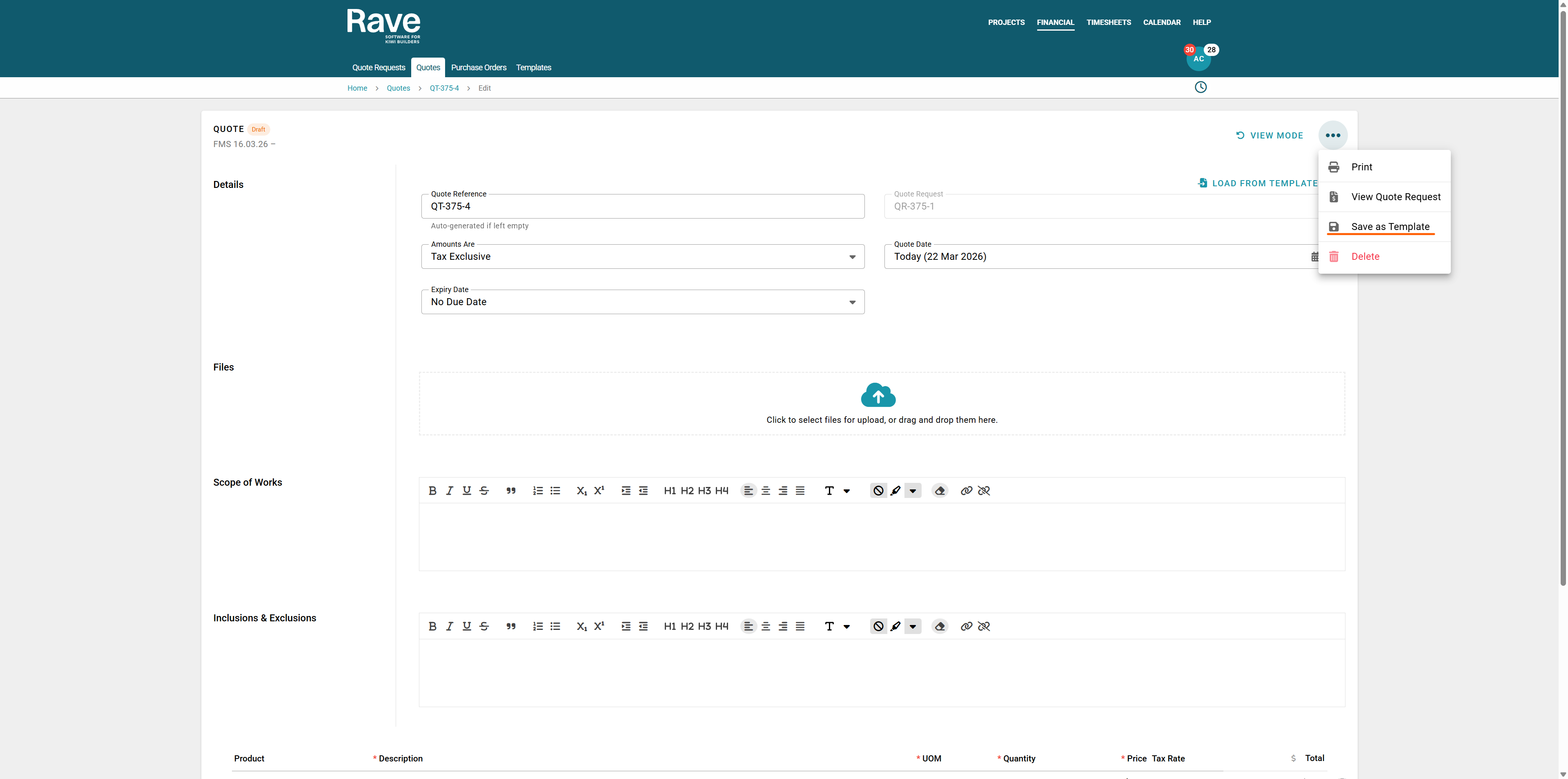
You can also save your quotes as templates. Once you have completed all of the information before submitting for approval you can click the 3 dot ellipsis and Save as Template.
Name your Template and then press Create
This will store all of the information for you to use next time.
Once you submit your quote, an email notification will be sent to your Building Partner to let them know your pricing has been received. They can then either accept your quote or get in touch with you for further clarification or details.
After submission, the quote request status will update to Quoted, indicating that your response has been sent and is awaiting review.
If the Building Partner accepts your quote, the status will change to Accepted, and they will contact you with the next steps.
While you are awaitng for them to approve the Quote you can click revert to draft and make changes and re submit.
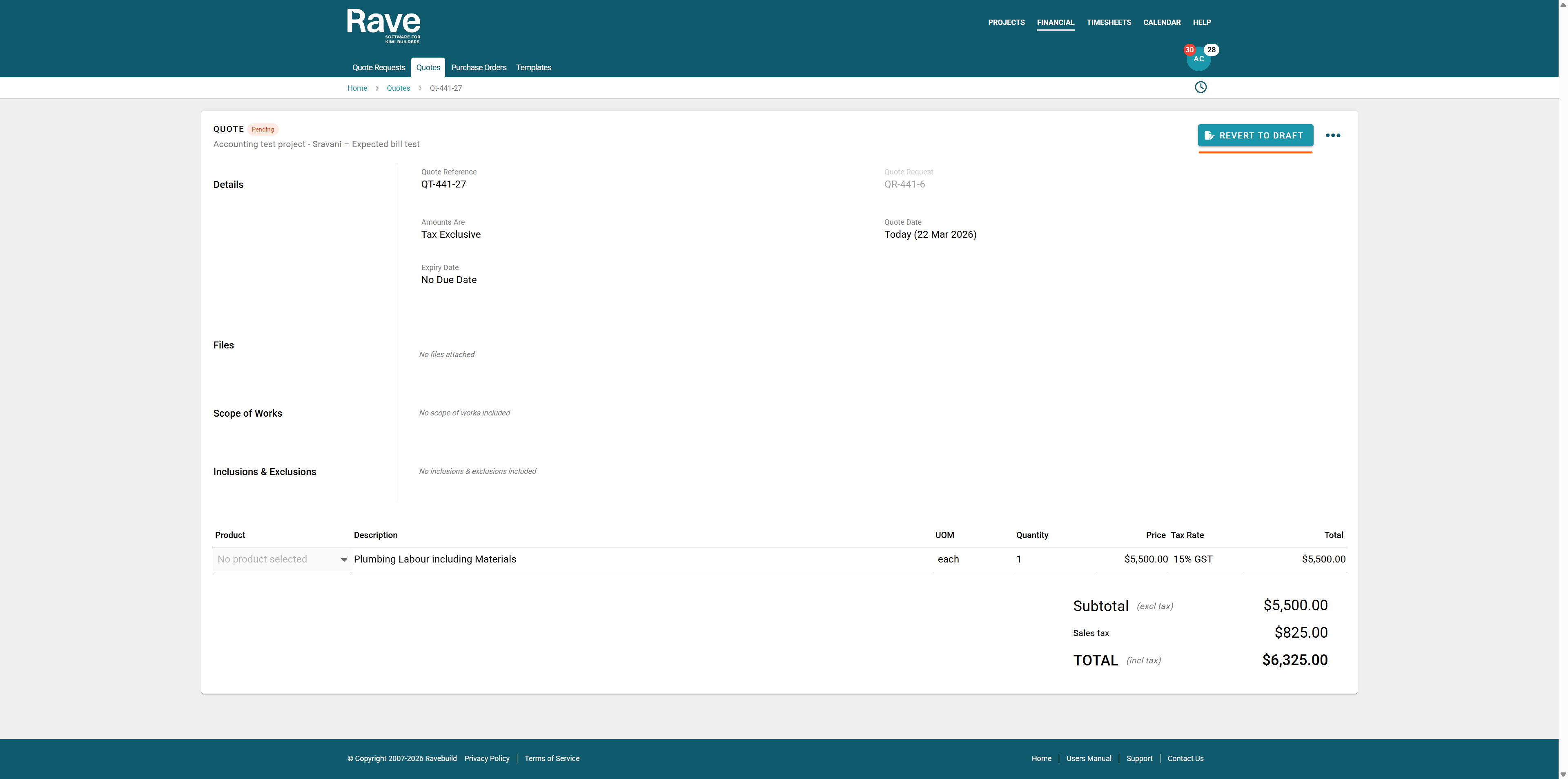
Submitting a Quote via the Project’s Tender Folder
If you choose not to submit a price via the Rave Quote Request system, you can just upload your own tender/quote submission directly into the Tender folder of the project’s Files sub-tab.
Steps to add a Quote via the Project’s Tender Folder
- Click on the Project ID/Job Number to open the job
- Click on the Files sub tab (to the top left of the page)
- Click the Tender folder – this will scroll you down to the Tender folder section
- Click on the cloud icon within the Tender folder – this will open up your device's file browser, allowing you to select the relevant file(s) to load.
Note: Any documents that you load into the Tender folder are only viewable by your business, the building company staff, and the site manager.

You can load as many documents here as you need to. An email notification will be sent to the building company/builder to let them know you have submitted a tender document(s). They can then choose to accept this or correspond back with you for further details.

Declining a Quote Request
You can decline a Quote Request, by clicking on the ‘Decline’ button, typing a message into the Decline Quote Request pop-up, then clicking the ‘Decline Quote Request’ button. This will notify the building company/builder via email that you do not wish to submit a price and the quote request will move to the ‘Closed’ status.

Was this article helpful?
That’s Great!
Thank you for your feedback
Sorry! We couldn't be helpful
Thank you for your feedback
Feedback sent
We appreciate your effort and will try to fix the article